

Apple Notes for Productivity: 11 Ways I Actually Use It
Most productivity advice starts with downloading something.
A new app, a new system, a free trial that expires in seven days, and an hour of setup before you write down a single task.
I stopped doing that a while ago. Everything I plan, capture, track, and then forget about lives in Apple Notes.
It came free on my iPhone. It syncs without me thinking about it, and it opens fast enough that I actually use it when I’m standing in a parking lot trying to remember something.
This is not a feature tour.
I’m not going to tell you Notes can scan documents and then move on to the next bullet.
Every item below is something I do, most of them daily, with the setup that makes it work and the point where it starts to break. A few of them have full guides behind them if you want to go deeper.
Most you can set up in the next five minutes.
Here’s what you’re getting:
- The capture setup that gets a thought into Notes before it disappears
- A daily planning note and a checklist system that survives past 10 am
- Folders, tags, and Smart Folders that file things without you doing the filing
- The stuff I keep in Notes that most people assume needs a dedicated app
- The ten minutes a week that stops the whole thing from collapsing
- Where Apple Notes stops being the right tool, and what I move to instead
Table of Contents
- 1. Empty your head into one note
- 2. Plan tomorrow the night before
- 3. Turn the plan into a checklist that survives the day
- 4. Stop rewriting the same shopping list
- 5. One note per project, not a folder full
- 6. Tag by state, not by location
- 7. Let Smart Folders do the filing
- 8. Scan paper the day it arrives
- 9. Lock the notes that hold personal information
- 10. Track spending in a note instead of a budgeting app
- 11. Run a ten-minute weekly cleanup
- The part that actually matters
1. Empty your head into one note
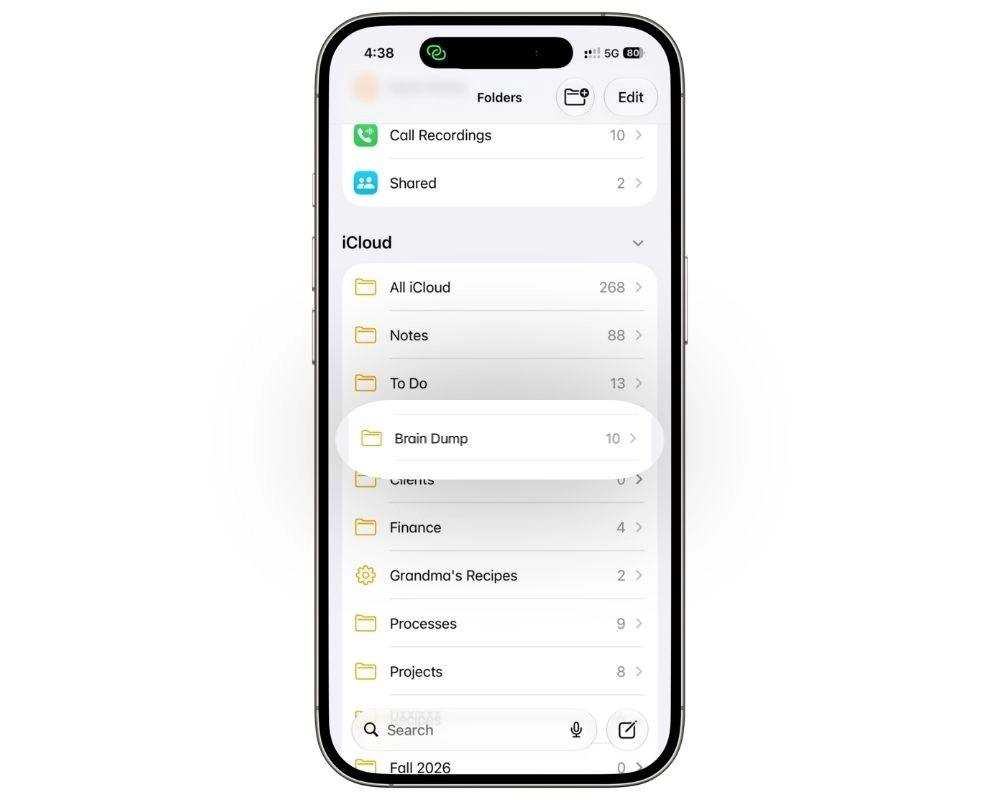
The most useful thing I do in Apple Notes takes no setup at all.
One note, called Brain Dump, and everything goes in it. Tasks, half thoughts, the name of a book someone mentioned, the reason I walked into the kitchen.
No categories. No priority. No formatting.
How to reach it fast, because that’s the part that decides whether you use it:
- Control Center. Add Notes so it’s two swipes from anywhere.
- Lock Screen control. A long press opens a new note without unlocking the phone.
- Action Button. The fastest option if your iPhone has one.
- Siri. The only one that works while you’re driving.
Pick one. Not all four. The point is having a single route your thumb already knows.
The rule that makes it work: don’t organize while you’re capturing. The moment you stop to decide which folder something belongs in, a five second action becomes a decision, and you’ll skip it next time.
One thing worth knowing before you expect too much from it.
Apple Intelligence will not sort a brain dump into categories. Rewrite only rephrases what’s already there, so the cleanup pass is still yours.
I’ve written the full version separately, including the folder setup, three ways to structure the note itself, and a Shortcut that opens the right note automatically. Read the Apple Notes brain dump guide →
2. Plan tomorrow the night before
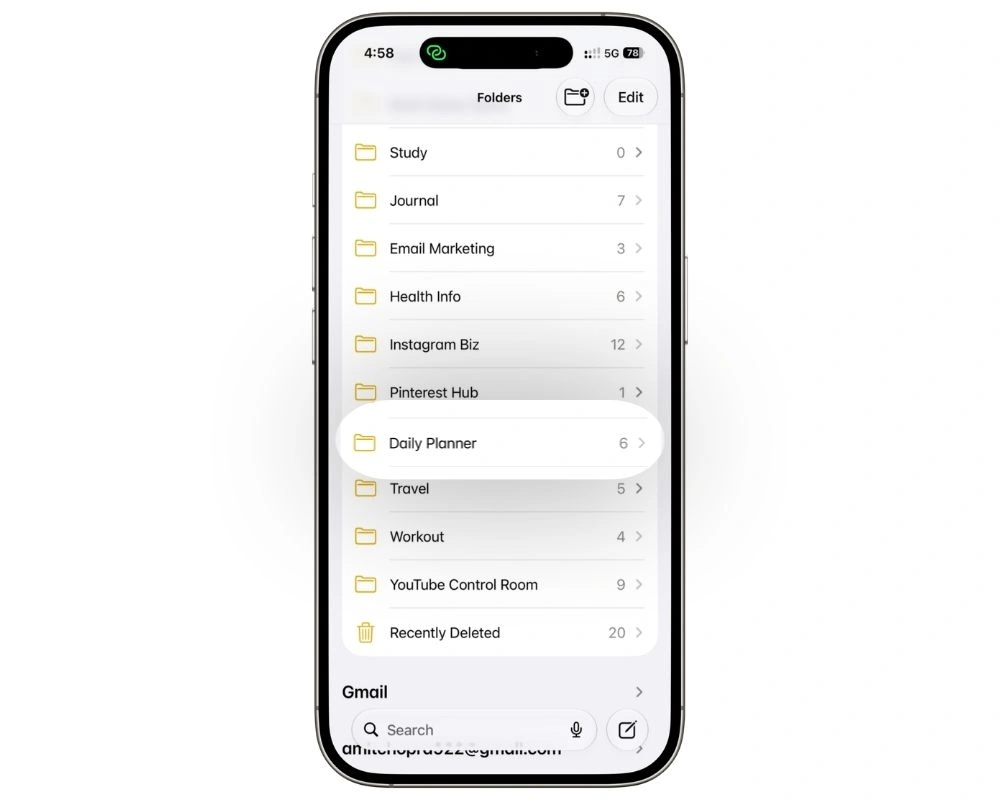
Planning in the morning sounds productive.
In practice, you’re deciding what matters while you’re half awake and already behind, so you pick whatever is loudest instead of whatever is important.
I write tomorrow’s note the night before, and it takes about four minutes. New note, tomorrow’s date as the title, three lines of thinking.
What goes in it:
- Top three. The things that have to happen. Not five. Three.
- Everything else. Unordered, no pressure, nice if it happens.
- Fixed times. Anything with a clock attached, written as a time so you can see how much of the day is already spoken for.
That third line is the one people skip, and it’s the one that keeps the list honest. Two meetings and a school pickup means you have room for two real tasks, not seven.
The rule that makes it stick: plan for the day you actually have, not the day you wish you had. Three tasks you finish beat eleven you carry forward.
In the morning, you open a plan that already exists. No deciding, no staring at a blank note.
One honest limit. Notes will not nudge you about any of this. It’s a plan, not an alarm.
If something genuinely needs to interrupt you at 2 pm, that belongs in Reminders and I’d move it there.
The full version, including the template I reuse and how the weekly and monthly notes sit above the daily one, is here. Read the Apple Notes daily planner guide →
3. Turn the plan into a checklist that survives the day
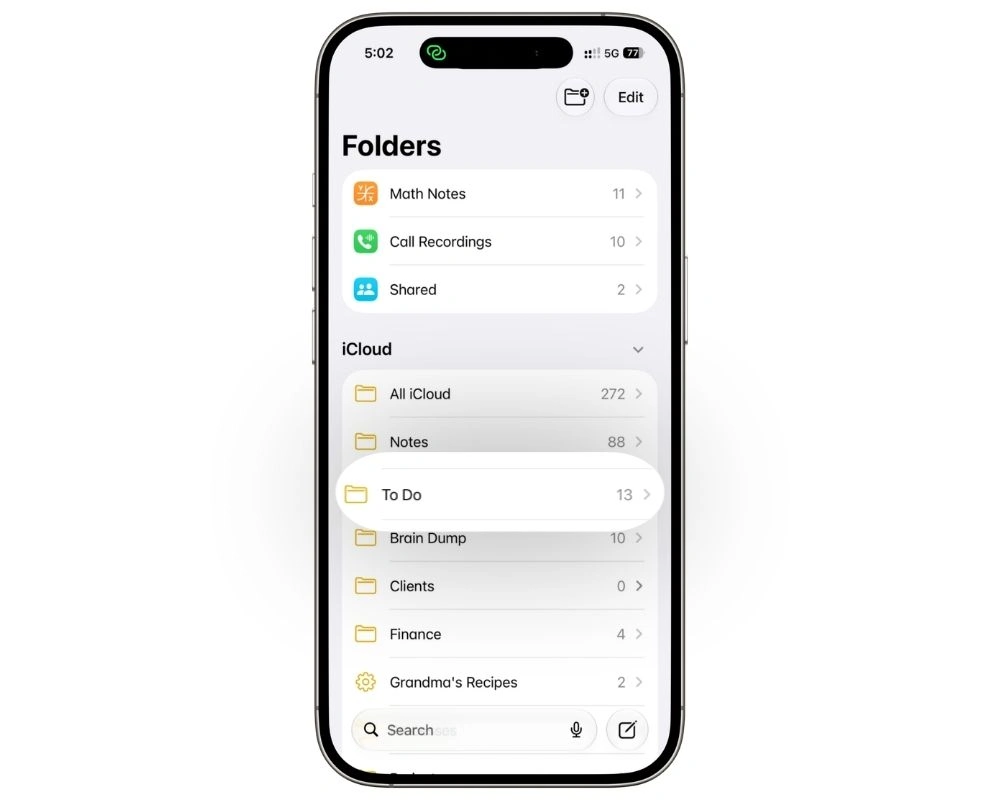
A master list tells you everything you could do. It’s useless at telling you what to do today, which is why most lists get abandoned around week three.
Three notes, all pinned. Work, Personal, and one called Today.
How they fit together:
- Work and Personal hold everything. Headings inside each for This Week, Waiting On, Someday. Tap the arrow beside a heading to collapse it.
- Today holds five or six items. Copied across each morning from the other two. The copying feels redundant and isn’t, because the choosing is the whole point.
- Turn on Sort Checked Items. Settings, then Apps, then Notes, set to Automatically. Ticked items drop to the bottom on their own.
- Reset instead of retyping. Double-tap the text of an item, not the checkbox; tap the arrow, then Checklist, then Uncheck All.
The carry-over rule: first morning you skip something, fine. Third morning you scroll past the same line, it gets a decision instead of another day. Do it now, move it to Reminders with a real date, or delete it.
What makes this stick is capture.
Every built-in route (Lock Screen, Control Center, Siri, the Action Button) drops you into a brand new note, so each quick capture leaves a stray to clean up later.
I built a two-action shortcut that sends a dictated task straight into the Today note instead.
The full build is in the guide, along with the two-note structure and when to move to a folder. Read the Apple Notes to do list guide →
4. Stop rewriting the same shopping list
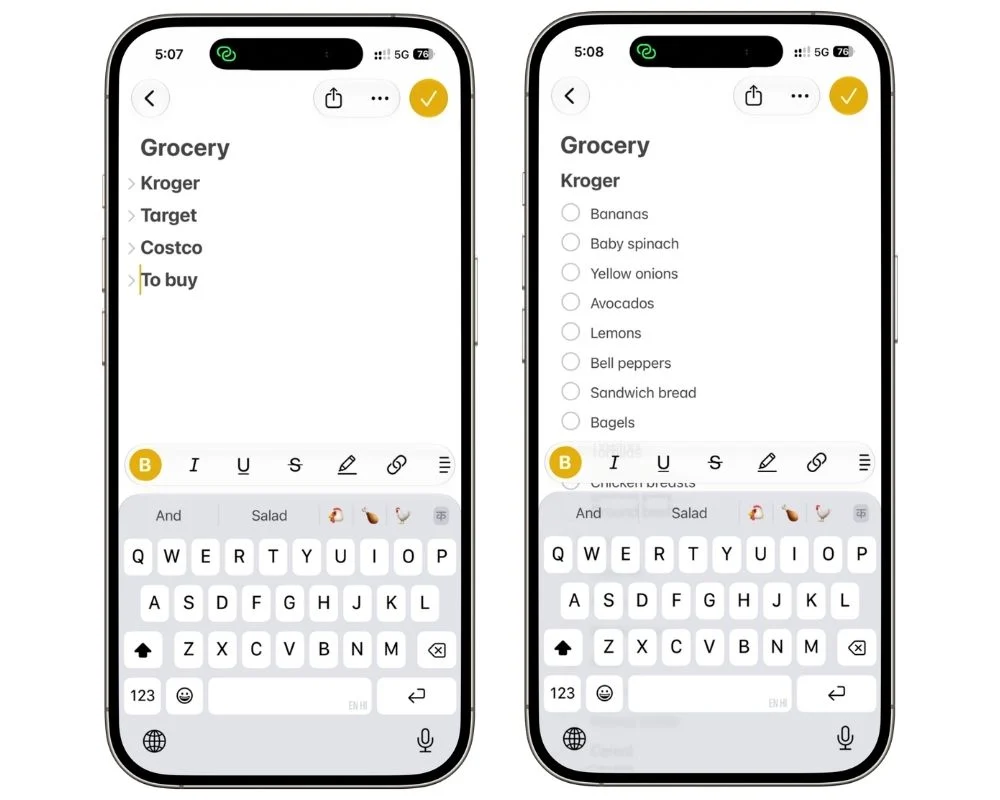
You buy roughly the same forty things.
Writing them out fresh every week is wasted effort, and it’s why most people give up on list apps and go back to typing into whatever’s open.
Build the list once, then reuse it forever.
The master list method:
- One note, everything you ever buy. Not this week’s list. The full set, built up over a few trips.
- Group by aisle, not alphabetically. Produce, dairy, frozen, pantry. You shop by aisle, so the list should match the walk.
- Check off what you need before you go. The checked items are your trip.
- Uncheck All when you’re home. Double-tap an item’s text, tap the arrow, then Checklist, then Uncheck All. The master list is ready for next week in two seconds.
Why Notes and not Reminders: share the note with whoever else shops, and they can add to it without installing anything or accepting a list invite. Reminders wins on location alerts. Notes wins on the person who just wants to type “oat milk” and be done.
This works for anything you buy on repeat, not just groceries.
Same note structure for a hardware run, a packing list, or the stuff you always forget on a road trip.
The full setup, including the aisle template you can copy and the one note per store approach, is here. Read the Apple Notes grocery list guide →
5. One note per project, not a folder full
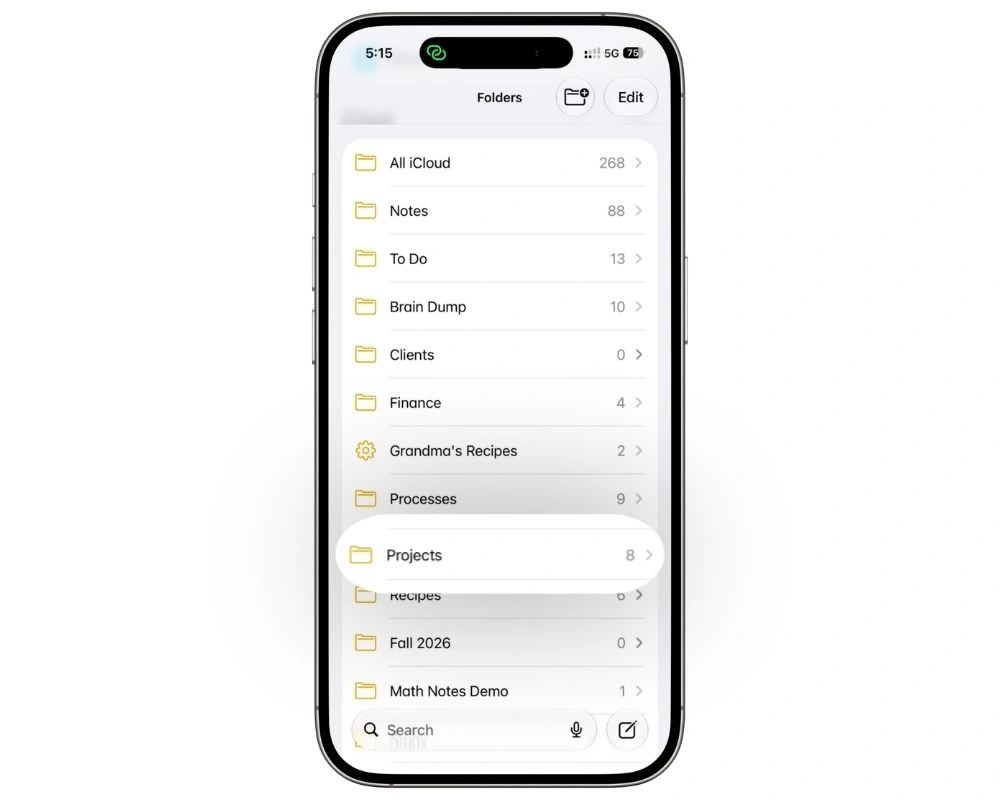
The instinct with a new project is to make a folder and start filling it with notes.
Six weeks later you have fourteen notes, no idea which one has the decision you’re looking for, and you’re searching your own project.
Flip it. One note per project, and everything about that project lives inside it.
How the note is laid out, top to bottom:
- Status. Two lines at the top. Where things stand right now and what’s blocking.
- Next actions. A checklist, not a paragraph.
- Notes and decisions. Dated entries, newest at the top, so the recent context is the first thing you see.
- Reference. Links, screenshots, scanned documents, phone numbers. The stuff you need occasionally and can never find.
Use headings for those four sections, and Notes will let you collapse them.
Tap a heading and the whole block folds away, so a long project note reads like a short one until you need the rest.
Why this beats a folder: context and tasks in the same place. A task that lives in a separate app from the reason it exists is a task you’ll misread three weeks later.
The honest limit is scale.
This works beautifully for a handful of projects you run yourself. Once you’re coordinating other people, assigning work, or tracking anything with a real deadline, Notes has no mechanism for any of it, and you’ll feel that fast.
I’ve covered the full setup, including folders for when you genuinely need them and how sharing behaves, here. Read the Apple Notes project management guide →
6. Tag by state, not by location
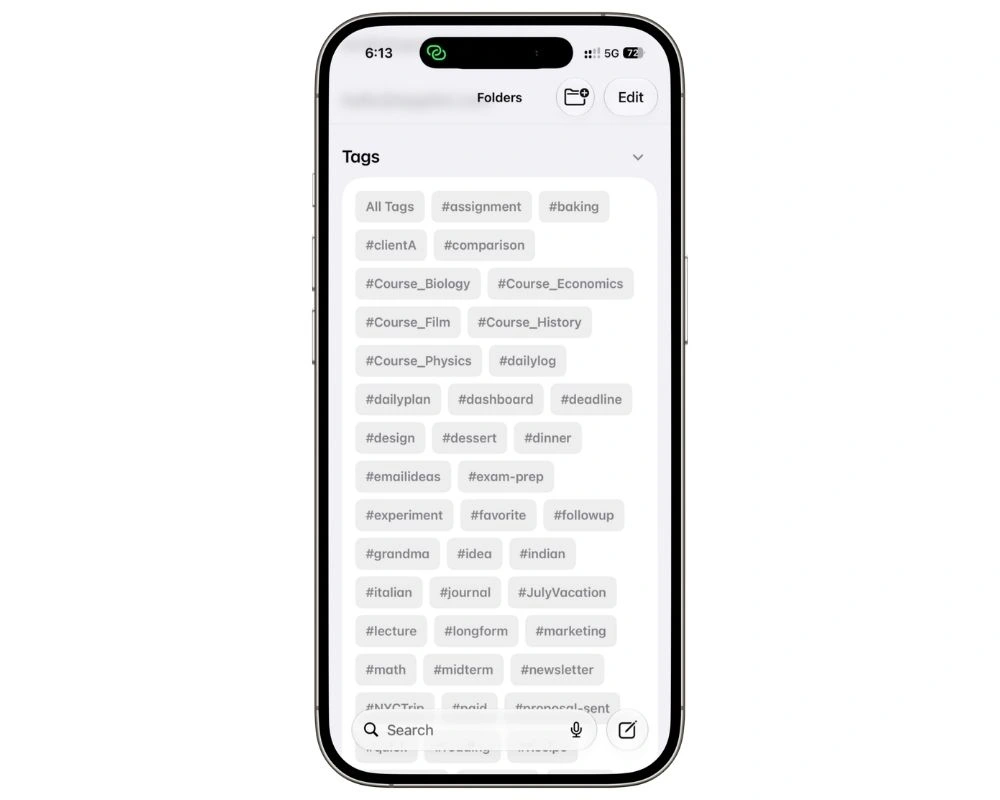
Most people tag the same way they name folders.
A note about a client goes in the Clients folder and gets tagged #clients, which tells you nothing you didn’t already know from where it’s sitting.
Folders already answer “what is this about”. Let tags answer something else: what’s happening with it right now.
The four tags I actually use:
- #now — active this week. Nothing else gets this tag.
- #waiting — blocked on someone else. The tag exists so these stop disappearing.
- #someday — real ideas, no timeline, out of the way.
- #reference — finished thinking, kept for looking up later.
A note keeps its folder for its whole life. Its tag changes as the work moves.
Something goes #now, becomes #waiting when you send the email, then #reference when it’s done.
The test for a good tag: if it duplicates a folder name, delete it. Tags earn their place by cutting across folders, not by repeating them.
Four is not a starting point I expect you to outgrow. It’s the number that survives.
Every tag system I’ve seen collapse died the same way: someone added a fifteenth tag and stopped being able to remember which one they used.
Type the hashtag anywhere in a note, and it becomes a tag. There’s no separate tag manager to learn.
The full version, including nested tags and how tags feed Smart Folders, is here. Read the Apple Notes Smart Folders and tags guide →
7. Let Smart Folders do the filing
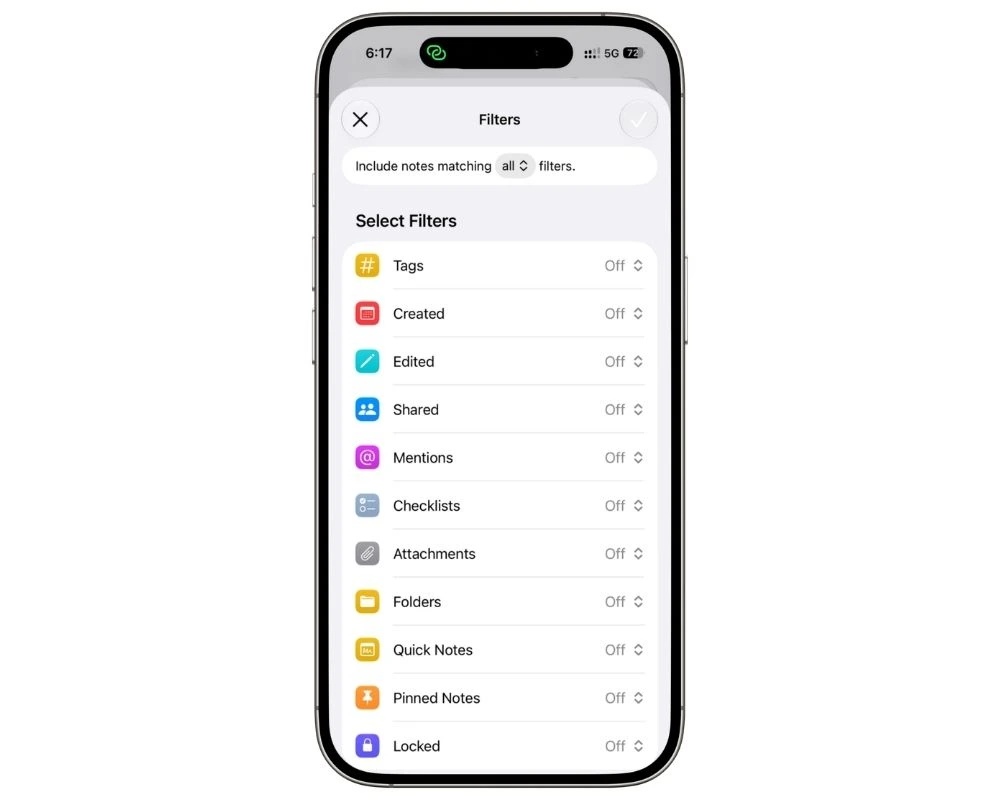
Tags are only worth typing if something collects them for you. That’s what a Smart Folder is.
You set a rule once, and every note matching it shows up there automatically, no matter which folder it actually lives in.
New folder, then Make Into Smart Folder, then pick your filter.
The three I’d build first:
- This Week. Filter on the #now tag. This becomes the folder you open by default.
- Waiting On. Filter on #waiting. Everything sitting with other people, in one place, without you maintaining a list of it.
- Recently Edited. Filter on date edited. Useful for the “I was just working on that, where did it go” problem.
Smart Folders can also filter on things you never tagged, like whether a note has a checklist, an attachment, or a scanned document in it.
That’s how you find the receipt you photographed without remembering where you put it.
One behaviour to know before you build anything complicated: excluding a tag in a filter silently drops every note that has no tags at all. If a Smart Folder looks emptier than it should, that’s usually why.
The limit is that Smart Folders read your notes; they don’t organize them. Garbage in, garbage collected.
If you never tag anything, an empty Smart Folder is telling you the truth.
For proof this holds at real volume, I tested this exact setup across a semester’s worth of notes, more than two hundred of them, in the students guide. Read the Apple Notes for students guide →
8. Scan paper the day it arrives
Paper doesn’t pile up because you’re disorganized. It piles up because filing it is a separate task you’ll do later, and later never has a date on it.
Scanning inside Notes removes the separate task.
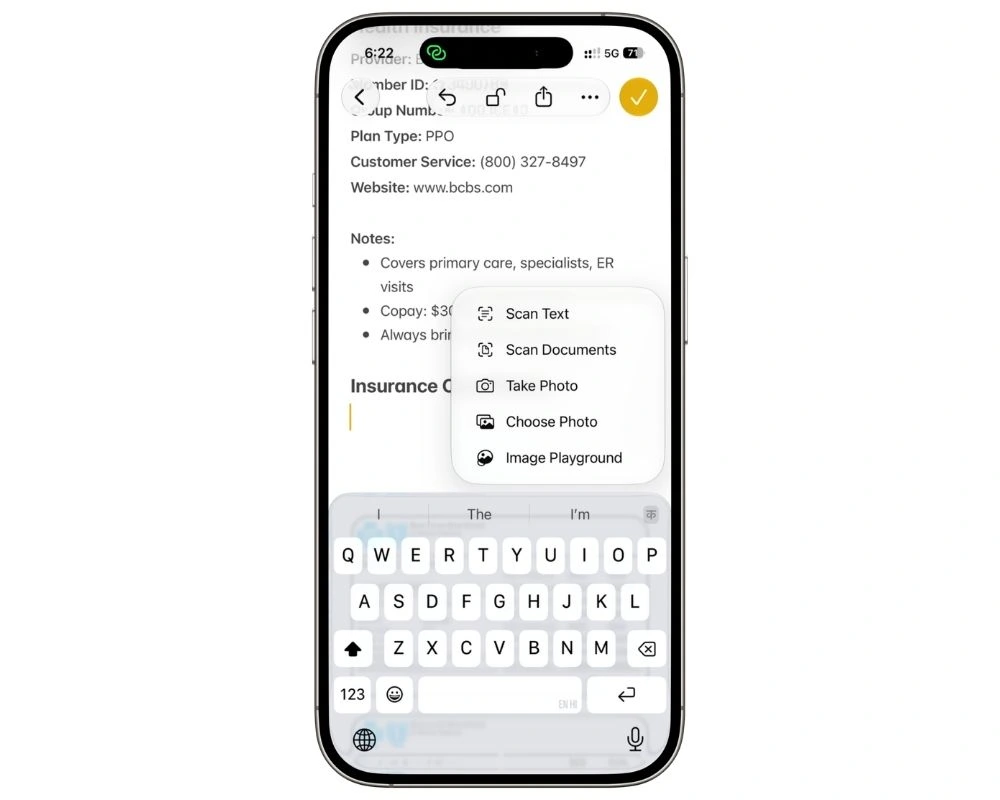
Open a note, tap the paperclip icon, choose Scan Documents, and it detects the edges and captures on its own.
Ten seconds, no app to open, no folder to choose.
What’s worth scanning and what isn’t:
- Scan it if you’ll need to read it again but not hand it over. Receipts, insurance cards, warranty paperwork, appointment summaries, the sheet with the wifi password on it.
- Don’t bother with anything you’d need the original of anyway. A scan of your passport is convenient. It isn’t a passport.
The part people miss is that scanned text is searchable.
Search “policy number” and Notes finds it inside the image, not just in what you typed.
That’s what turns a pile of photographed paper into something you can actually retrieve.
The habit, not the feature: scan it while you’re holding it. Standing at the counter, in the parking lot, before you put it in a bag. Paper that reaches a surface in your house is paper you’ll file in three weeks.
The honest limit is that these are images in a note, not a document management system.
There’s no version history, no OCR you can edit, and no way to export cleanly in bulk if you ever leave.
Where this earns its keep most is medical paperwork, which is exactly when you’re least in the mood to organize anything. Read the Apple Notes health info guide →
9. Lock the notes that hold personal information
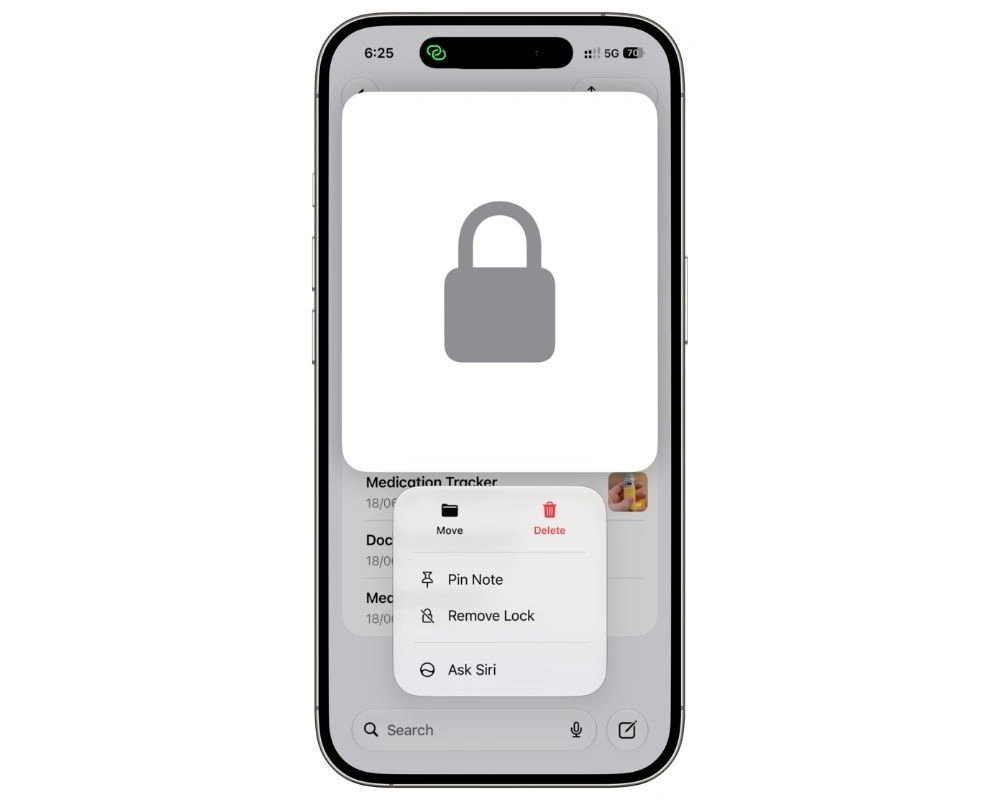
Once you start scanning insurance cards and account details, you’ve got a folder full of things you’d rather nobody read over your shoulder.
Locking a note takes one tap, and most people never use it.
Long press the note in your notes list, tap Lock Note, and it asks you to set a password the first time.
After that the note stays closed until you open it, and locks again when you leave.
What I lock:
- Anything scanned that has a number on it. Insurance cards, policy documents, account details.
- The note with the household information in it. The stuff a family member would need and nobody else should have.
- Journal entries. Not because they’re secret, but because handing someone your phone shouldn’t hand them your thinking.
Everything else stays unlocked.
The one thing to understand before you lock anything: if you use a custom password rather than your iPhone passcode and you forget it, Apple cannot recover those notes. Not a support call, not a workaround. Use the iPhone passcode option unless you have a specific reason not to.
The limit worth naming is that locking protects a note from someone holding your unlocked phone.
It’s not a vault, and the title of a locked note still shows in the list, so name them plainly and keep the detail inside.
The full breakdown, including what stays visible and how locking behaves across devices, is here. Read the Apple Notes lock notes guide →
10. Track spending in a note instead of a budgeting app
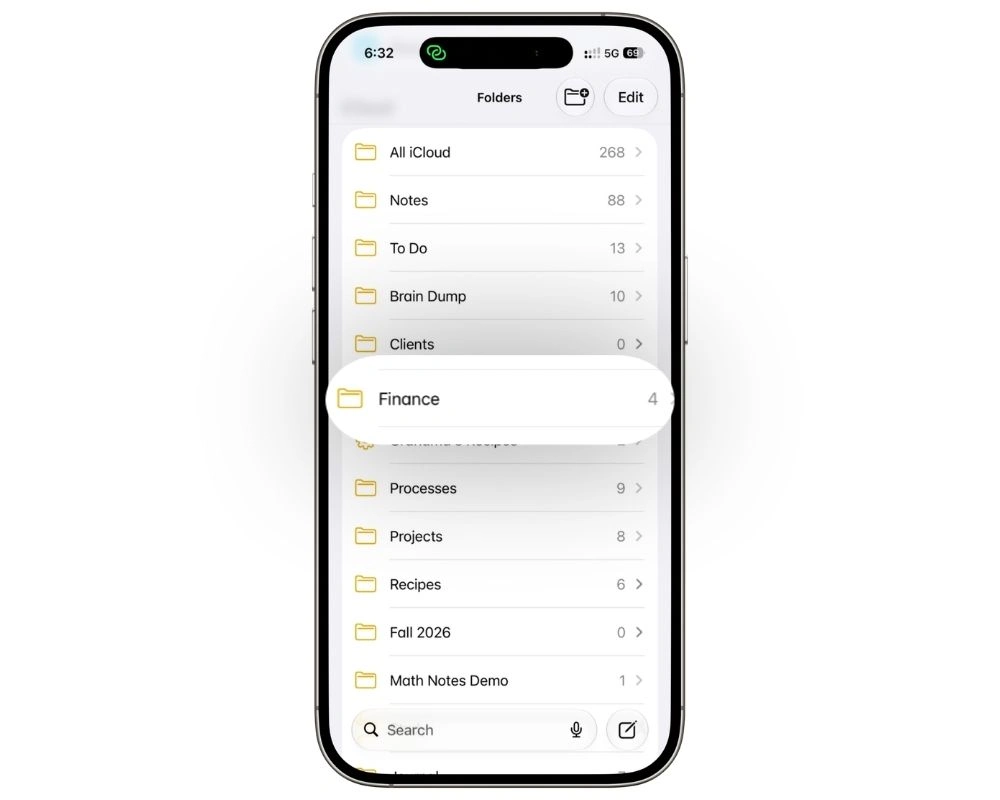
Budgeting apps fail for a boring reason. They ask you to connect accounts, categorize transactions, and open a separate app to log a coffee.
Most people last about three weeks.
A note asks for one line. Date, what it was, how much. That’s it.
The setup I use:
- One note per month. Titled with the month, so last month stays intact instead of getting overwritten.
- A table, not a list. Tap the table icon. Three columns is enough: date, item, amount.
- Log it at the register. Not tonight, not Sunday. The gap between spending and logging is where the habit dies.
- A running total at the bottom. You type it yourself, which sounds like a downside and isn’t. Updating the number makes you look at it.
What this is actually for: noticing, not accounting. You’re not building a budget; you’re finding out where the money went. Two months of honest logging tells you more than any app’s pie chart.
The limits are real, and I’d rather say them than pretend. No automatic categorization, no bank connection, no charts, and the math is on you since Notes tables don’t calculate.
If you want forecasting or shared household budgeting with categories, use a proper app.
This is for the person who’s tried three of those and abandoned all of them.
Math Notes will handle the arithmetic if you’d rather not, and the full monthly system with categories and reviews is here. Read the Apple Notes money tracking guide →
11. Run a ten-minute weekly cleanup
Everything above works.
What kills it is week six, when the brain dump has ninety lines in it, four notes are pinned that shouldn’t be, and you’ve started avoiding the app because opening it feels like work.
Ten minutes, once a week, same slot every week. Mine is Sunday evening.
The specific day matters less than it being fixed, because a cleanup you do when you feel like it is a cleanup you stop doing.
What the ten minutes covers:
- Empty the brain dump. Every line becomes a task, a note somewhere else, or deleted. Most get deleted, and that’s the point.
- Re-tag. Anything still marked #now that hasn’t moved in a week either isn’t now or isn’t happening. Change it or drop it.
- Check the waiting list. Open the Waiting On Smart Folder. Anything sitting there more than a week needs a follow-up or needs letting go.
- Unpin. Pinned notes accumulate. If it’s not this week’s, unpin it.
- Delete freely. Old daily notes, finished project notes, last month’s shopping list. Deleted notes sit in Recently Deleted for thirty days if you get nervous.
The honest bit: this is the item most people skip, and skipping it is why their system fell apart last time, not the app. No tool fixes maintenance. Ten minutes a week is the whole cost of everything above continuing to work.
The part that actually matters
None of this is clever.
There’s no system here you couldn’t have worked out yourself, and that’s sort of the point.
Apple Notes doesn’t reward setup, it rewards showing up.
One thing to be straight about before you start. Notes is passive.
It holds things beautifully and it will never chase you about any of them, so anything that has to happen at a specific time belongs in Reminders instead.
For me that’s about five things a week, which is why I run both, and I’ve written up Apple Reminders as a task management system separately if that side of it needs building out.
If you try all eleven of these this week you’ll do none of them by September. So don’t.
Pick one. I’d pick the brain dump, because it takes no setup and it’s the one that makes the others feel worth doing once you’ve felt what it’s like to stop holding everything in your head.
Give it two weeks. If it sticks, add the daily planning note. Then the weekly cleanup, which is the only one that isn’t optional.
The app was already on your phone. That was never the obstacle.