
Apple Reminders as a Task Manager: My Full System
I kept hearing that Apple Reminders can’t be a real task manager. That it’s fine for groceries, but you need Todoist or Things 3 the moment life gets complicated.
So I decided to find out properly.
I moved everything into Reminders. Work tasks, personal errands, stuff I’m waiting on from other people, ideas I’m not ready to act on.
Short answer: it works. But only if you set it up right, and only if you know exactly where Reminders breaks and how to patch around it.
Nobody tells you that second part, which is why most people try Reminders for a week, hit a wall, and go back to paying $80 for Things.
This guide is the full system.
My five lists, how I capture tasks without opening the app, the Smart Lists that run my day, and the four places where Reminders genuinely fails with the best fix for each one.
I tested every claim here on my iPhone 17 Pro, including the bugs.
If you want Reminders to be your only task manager, this is everything I’d tell you.
New to Reminders and just want the basics first? Start with my Apple Reminders for beginners guide, then come back here when you’re ready to build a real system.
Table of Contents
- 1. My five lists (and why I don’t use more)
- 2. How I capture tasks without opening the app
- 3. Smart Lists: the engine that runs my day
- 4. My daily routine with Reminders (the actual system)
- 5. Where Reminders breaks (and the fix for each one)
- 6. So should Reminders be your only task manager?
- My Verdict After Testing All Of It
- FAQs
1. My five lists (and why I don’t use more)
Every failed Reminders setup I’ve seen starts the same way.
Someone creates 15 lists on day one, feels organized for a week, then stops opening the app because nothing is where they expect it to be.
I use five lists. Not because five is a magic number, but because every task I capture has exactly one obvious home.
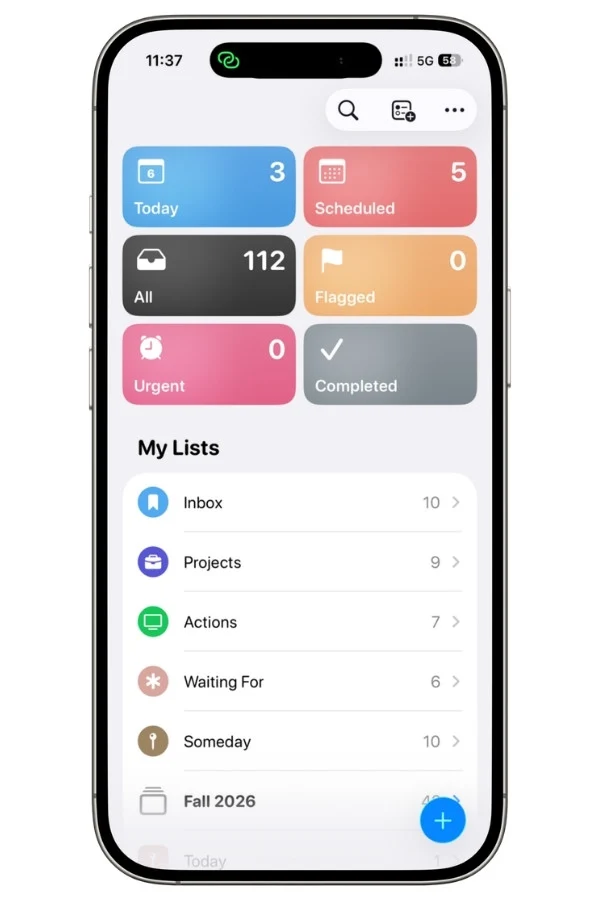
That’s the whole test. If you ever pause to think about where a task should go, your setup has too many lists.
1.1 Inbox
This is the default list, the one Siri dumps everything into.
I don’t organize anything here. A task lands in Inbox, and once a day I move it where it belongs or delete it. That’s it.
The moment you start treating Inbox as a real list, with due dates and priorities, the system falls apart because capture stops being instant.
1.2 Projects
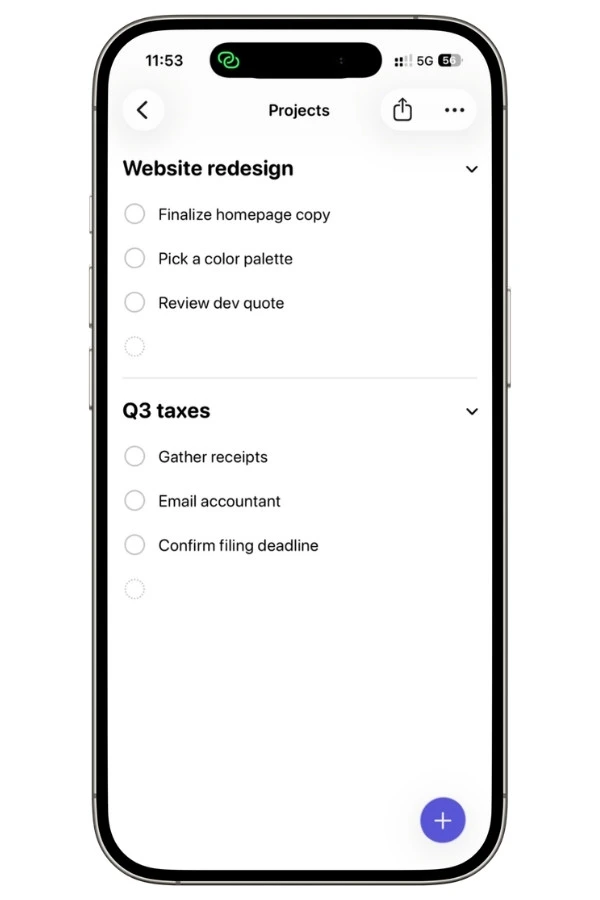
One list for everything that takes more than one step, with a section for each active project.
Right now that’s two sections, Website redesign and Q3 taxes. Each section matches a note in Apple Notes with the exact same name, because Reminders is terrible at storing reference material and Notes is built for it.
The task lives here, the thinking lives in Notes.
1.3 Actions
Standalone tasks that don’t belong to any project.
Reply to an email, book a service appointment, renew a domain. This ends up being my most-used list day to day, because most of life is single-step tasks.
1.4 Waiting for
Anything blocked on another person. Payment I’m expecting, a reply I need, something I’ve handed off. Every task here gets a date for when I’ll follow up, not when it’s due.
Without that date, this list becomes a graveyard.
1.5 Someday
Ideas I’m not ready to act on. No dates, no priorities, sorted by creation date so old ideas surface when I scroll.
I check it during weekly review, and most items eventually get deleted, which is the point.
Here’s the thing nobody says about Reminders’ simplicity.
You can’t nest folders five levels deep like OmniFocus, and that limitation is doing you a favor.
A flat structure means you can’t hide from your own tasks. Everything is visible, everything is reachable in two taps, and the system stays small enough that you’ll actually maintain it.
2. How I capture tasks without opening the app
A task manager only works if capturing a thought is faster than trying to remember it.
This is where Reminders beats every paid app, because it’s wired into the iPhone at a level Todoist can’t touch.
I capture almost everything through three routes, and I open the actual app maybe three or four times a day.
2.1 Siri capture
The fastest route. I say “Remind me to email the accountant about the invoice,” and it lands in Inbox before I’ve finished the sentence in my head.
Times and dates work in the same breath: “Remind me to send the invoice tomorrow at 10 AM” creates the task with the date and alert already set.
I timed this on my iPhone 17 Pro: about 6 seconds from raising the phone to the task existing, versus around 20 seconds to unlock, open Reminders, tap the list, and type the same task.
Where it breaks: Siri sometimes mangles names and specific words, so I keep dictated tasks short and fix the details during my daily Inbox triage.
2.2 The Mail trick almost nobody uses
If an email needs action, I don’t leave it sitting in my inbox as a fake to-do.
With the email open, I tell Siri “remind me about this.” Reminders creates a task with the email’s subject line and a small Mail icon that deep-links straight back to the message. I archive the email immediately and move on.
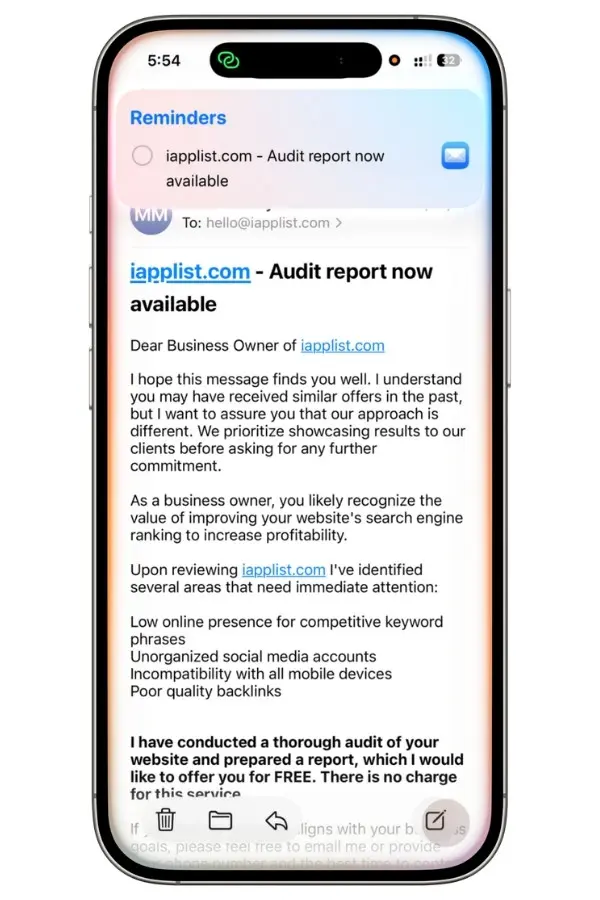
This one change killed the “inbox as task list” habit for me. The task lives where tasks live, and the email is one tap away when I actually need it.
2.3 Share sheet capture (and the Apple Intelligence suggestions)
For links, articles, and app pages, I use the share sheet. Tap share, pick Reminders, and the task saves with a preview and the link attached.
I use this constantly for articles I want to reference later and product pages I’m researching.
There’s a newer piece here worth calling out.
When you share a page, Reminders runs Apple Intelligence over the content and sometimes offers a Suggestions block underneath the saved reminder.
It pulls out actionable items as subtask suggestions, with a + to add them one at a time or an Include All button to grab the whole set at once.
I tested this by sharing an Apple Support page on setting up Reminders.
It read the numbered instructions and suggested subtasks for each one: open Settings, tap your name, turn on iCloud, and so on.
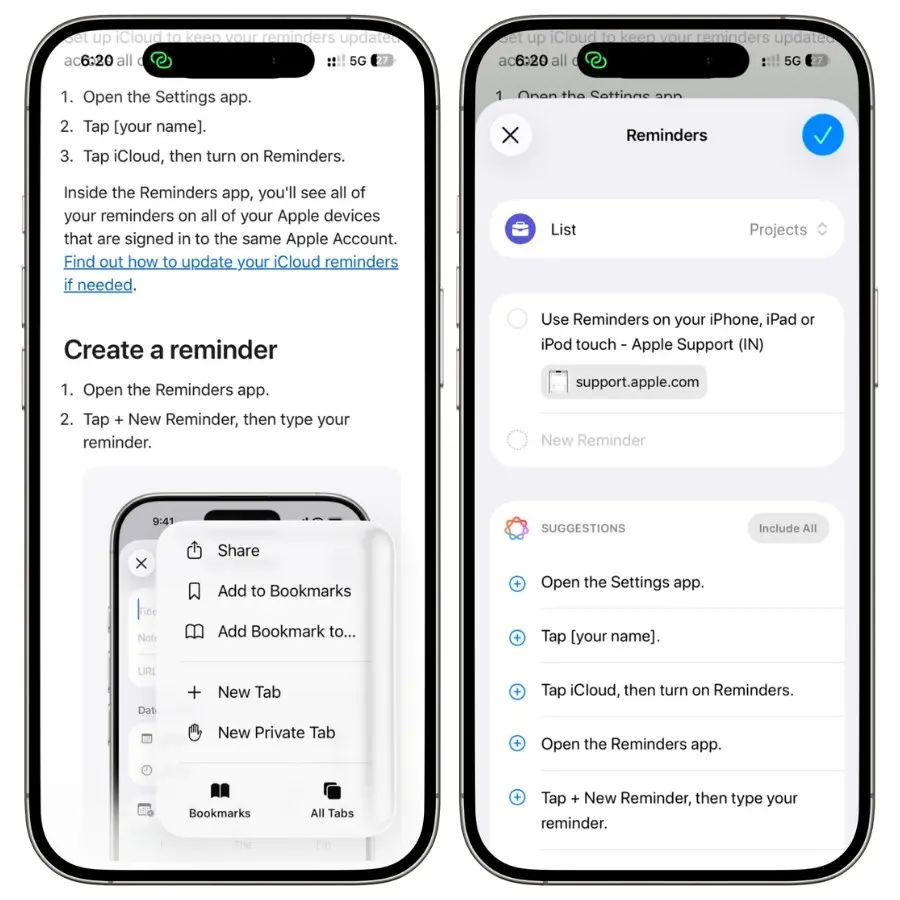
When it works, it turns a shared how-to page into an actual checklist in one tap.
The catch is it’s inconsistent. It fires reliably on structured step-by-step pages, but it also surfaces on some plain articles and skips others, and I haven’t found a clear pattern for when.
So treat it as a nice bonus when it shows up, not something to rely on.
3. Smart Lists: the engine that runs my day
The five lists from section 1 are where tasks live. Smart Lists are how I actually see them.
If you skip this section, you’ll end up scrolling through full lists all day looking for what matters right now, and that’s the exact behavior that makes people quit Reminders.
3.1 Smart Lists are saved searches, not folders
This is the mental model that fixes everything, so get it right before building anything.
A Smart List doesn’t contain tasks. It’s a saved search that runs every time you open it, pulling in whatever matches its filters at that moment.
That one idea explains every Smart List behavior that confuses people.
You can’t drag a task into a Smart List, because there’s nothing to drag it into. You can’t share a Smart List with your partner, because you’d be sharing a search query, not the tasks.
And a task can show up in three Smart Lists at once while still living in exactly one real list.
Once that clicks, Smart Lists stop being confusing and start being the most powerful thing in the app.
I covered the full setup in my Smart Lists guide, so here I’ll just show you the two I actually run my day from.
3.2 My Focus List
The built-in Today list shows everything due today, and that’s its problem. Groceries, follow-ups, and real work all mixed together.
So I built my own: Focus, filtered to due today, tagged work, high priority.
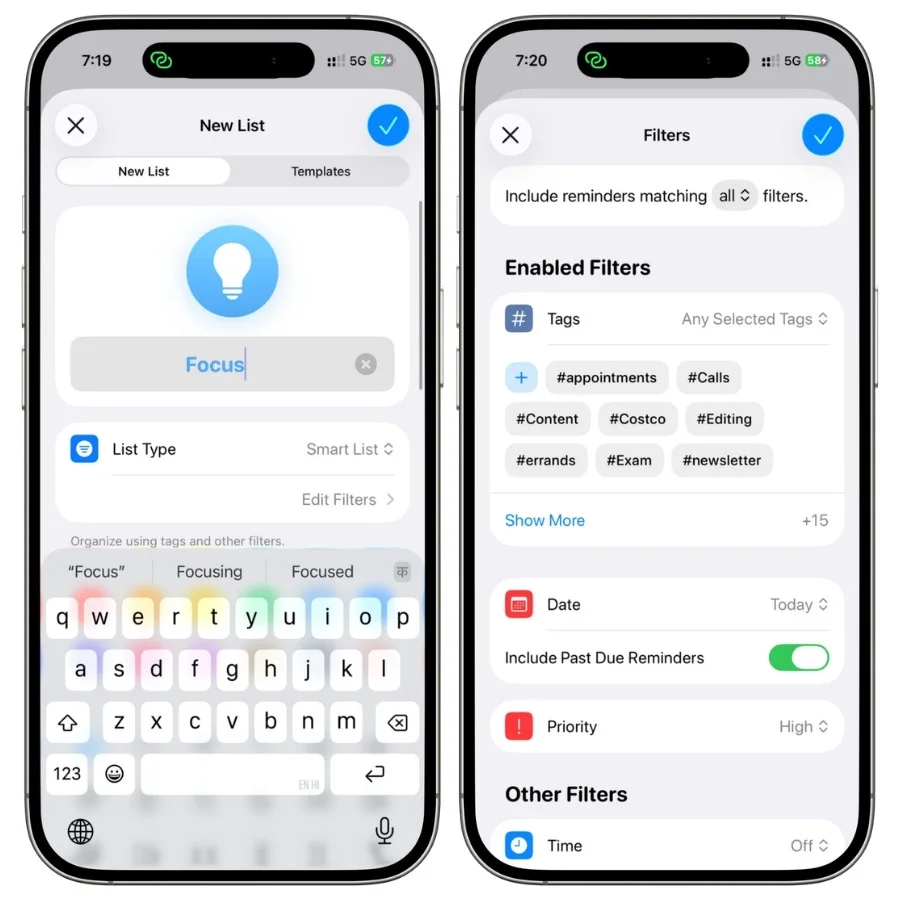
The reasoning: the point is to see only the things that actually matter before noon, so groceries and low-priority errands never make it in. They’re due today too, but they’re not what I need staring at me first thing.
This is the list I open first every morning, and most days it’s the only list I look at before noon.
3.3 My Next Actions list
The second one I live in: Next Actions, filtered to tag #next, no date.
This answers a different question than Today. Today is “what’s due,” Next is “I have 30 free minutes, what should I pick up.”
Every task in Projects that’s actually ready to work on gets the #next tag, and this list surfaces them across every project at once without me opening a single one.
3.4 The wall: you can’t combine specific lists
Here’s the limitation I hit while building these.
When you set the list filter on a Smart List, you can include one specific list or exclude one specific list, but you can’t hand it a group of lists to watch.
Say you keep your tasks split across a few lists and want one Smart List that follows two of them while ignoring a third. There’s no way to do it. You get one list in, or one list out, and that’s the ceiling.
The workaround is tagging.
I put a tag like #ready on the tasks I want surfaced, across whichever lists they live in, and filter the Smart List by that tag instead of by list.
It’s redundant, tagging things that are already sorted into lists, but it’s the only way to make one Smart List see across them.
This is the whole reason my system leans on tags more than lists for anything a Smart List needs to surface.
4. My daily routine with Reminders (the actual system)
Everything before this was setup. This is what running the system looks like on a normal day.
The whole thing costs me about 5 minutes of maintenance daily, and that number matters because any system that demands more than a few minutes stops getting used.
4.1 Morning: the 2-minute triage
First thing after sitting at the desk, I do two passes.
Pass one is Inbox.
Everything I captured yesterday through Siri, Mail, and the share sheet is sitting there raw. Each item gets one of four moves: into Projects, into Actions, into Waiting for, or deleted. No item gets to stay in Inbox twice.
Most days this is 6 to 7 items and takes under a minute.
Pass two is my Focus list from section 3. I’m not planning here; I’m sanity-checking.
If this shows more than 5-6 tasks, something’s wrong, and I push the least important ones forward before the day starts instead of carrying a list I already know I won’t finish.
An honest short list beats an aspirational long one, because the long one trains you to ignore the app.
4.2 During the day: Next Actions only
Here’s the discipline that makes it work: between morning and evening, I don’t browse my lists.
Projects, Someday, Waiting for, they stay closed. I work from exactly two places: the Focus list for anything with a deadline, and Next Actions when I finish something and have room for more.
That second one is the real habit change.
Free 30 minutes used to mean scrolling a giant list deciding what to do, which mostly meant doing nothing.
Now it means opening Next Actions and taking the top thing that fits the time I have. The deciding happened during triage. Daytime is just execution.
New tasks still get captured all day, but they go to Inbox and wait for tomorrow’s triage.
4.3 The weekly review: 15 minutes that keep the system honest
Every Sunday, I do the one longer maintenance pass. Four checks, in order:
- Projects: open each section, make sure every active project has at least one task tagged #next. A project with no next action is stalled, and this is where I catch it.
- Waiting for: anything past its follow-up date gets chased that day or re-dated. This list only works if the dates mean something.
- Someday: a fast scroll. Anything that’s become relevant moves to Projects or Actions. Most things just get deleted, and after a few weeks of this the deleting stops feeling like failure.
- Completed: a quick look at what actually got done, mostly because it’s the one moment the system gives anything back.
That’s the whole system. Five lists, two Smart Lists, one triage a day, one review a week.
5. Where Reminders breaks (and the fix for each one)
Reminders has four real structural problems, and if you don’t know them going in, you’ll hit one within a week and assume the app can’t do the job.
It can. You just need the workaround for each. I tested all four of these on my iPhone 17 Pro.
5.1 There are no start dates
Reminders only has due dates. There’s no way to say “this is due Friday, but show it to me Monday so I can start.”
You either set the due date to Monday and lie to yourself about the deadline, or set it to Friday, and the task stays invisible all week.
The nearest native patch is the Early Reminder option in the task’s details, which fires a notification ahead of the due date.
My actual fix is simpler and doesn’t rely on notifications at all.
Anything I need to start early gets the #next tag the moment I decide to start it, which puts it in my Next Actions list regardless of its due date.
The due date stays honest, and the task is visible where I actually work.
Also Read: Apple Reminders Early Reminder: What I Found Testing It on My iPhone 17 Pro
5.2 Recurring tasks don’t reset when you complete them late
Here’s the test I ran.
I created a task set to repeat every 5 days, then completed it 3 days late. The next instance appeared 2 days out, not 5.
Reminders anchors every repeat to the original schedule, so if you fall behind, the app buries you: complete a task late and it’s due again almost immediately.
For anything on a strict calendar, like paying a bill on the 1st, this is correct behavior.
For flexible routines, like watering plants or cleaning the coffee machine, it’s demoralizing, because one late completion puts you permanently behind a schedule that no longer matches reality.
The half-fix is hidden in a swipe.
Swipe right on an overdue recurring task, and you get quick reschedule chips: Tomorrow, This Weekend, or a custom date and time.
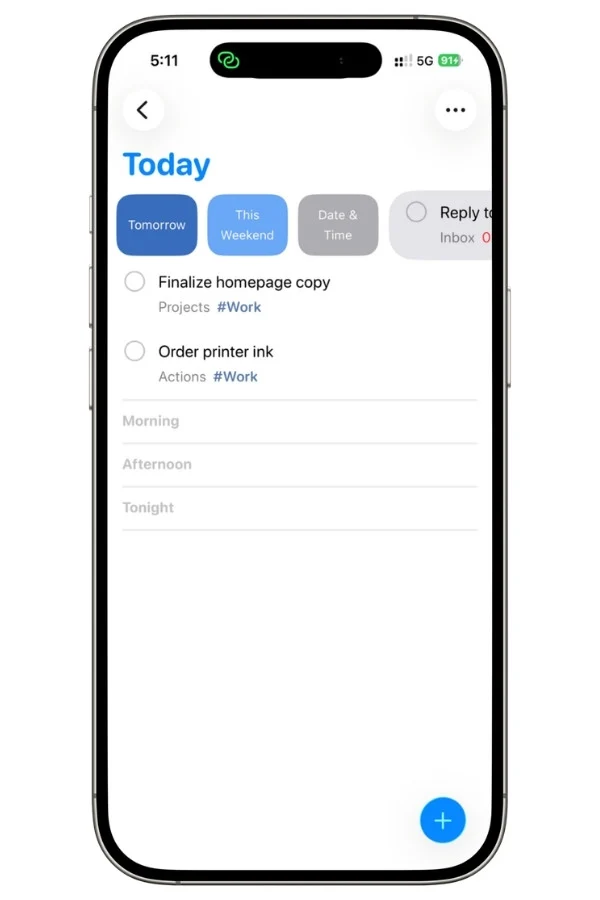
That re-anchors the schedule without editing the task.
One catch worth knowing: these chips only show up in the prebuilt lists like Today and Scheduled, not in custom Smart Lists. So even though Focus is where I live most of the day, I have to jump over to Today to get the gesture. It’s manual and you have to know it exists, but it resets the baseline in two taps.
For routines where the interval matters more than the date, I skip dates entirely and keep them in a dedicated section I check during my morning triage instead.
5.3 The subtask bug: recurring routines don’t reset
This is the one that will make you think you broke something.
Set up a daily recurring task with subtasks under it, a morning routine with three steps, say. Complete everything today. Tomorrow’s instance regenerates, but the subtasks don’t come with it.
The parent shows up clean, and the three subtasks sit in yesterday’s completed pile, permanently checked.
I reproduced this exactly. New parent task the next day, zero subtasks attached, originals visible only under Show Completed and still marked done.
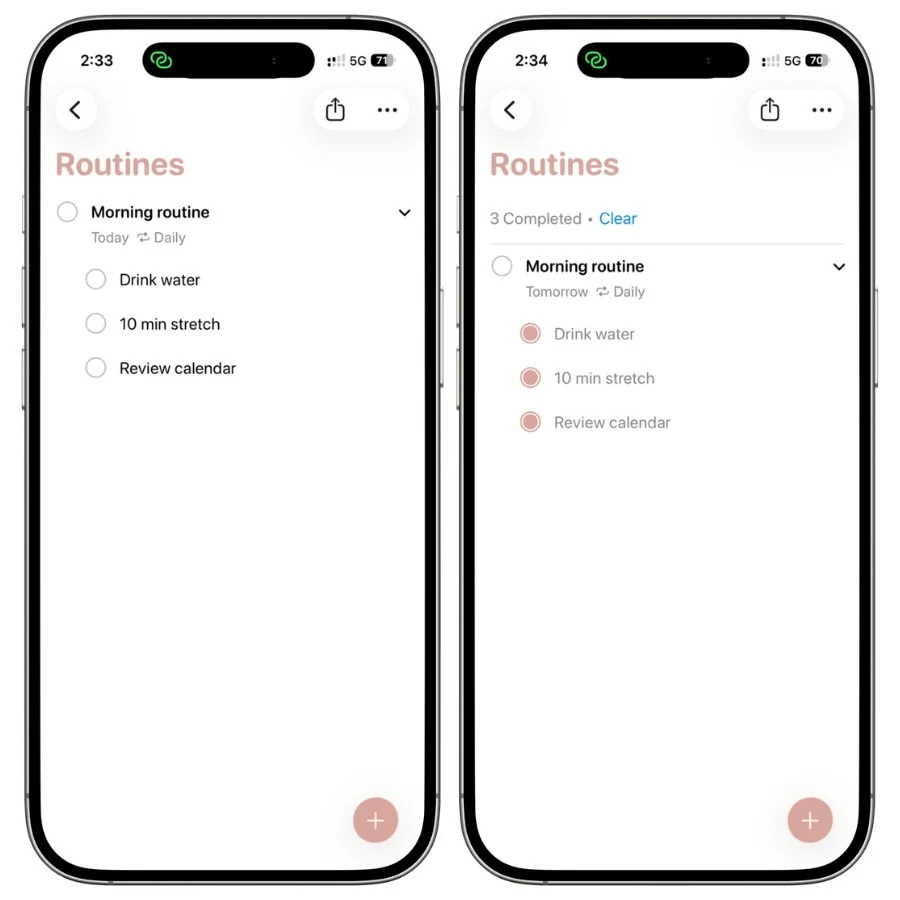
The app treats subtasks as separate items that happen to be visually nested, not as parts of the routine, so the repeat rule never touches them.
The fix is to stop using subtasks for anything recurring. Use a dedicated list with Sections instead: one section per routine, each step as a normal task with its own daily repeat.
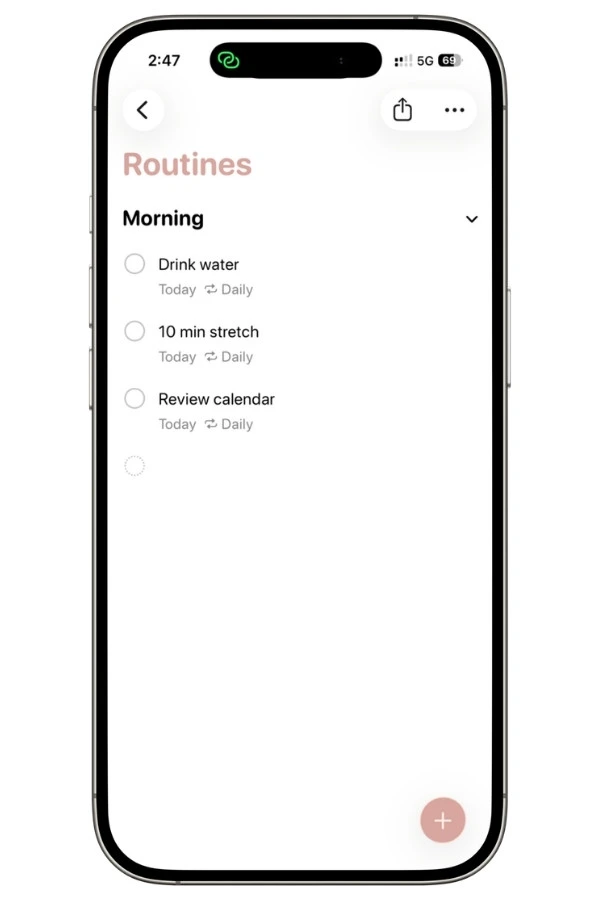
Every step resets properly because every step is a real task.
Subtasks are fine for one-off checklists that you’ll complete once and never regenerate. The moment repetition is involved, they silently fail.
5.4 Calendar integration is all or nothing
iOS can show your reminders inside the Calendar app, which sounds like the day-planner dream.
In practice, two things hold it back.
First, you get one switch for everything. In Calendar, all your dated reminders sit behind a single “Scheduled Reminders” toggle.
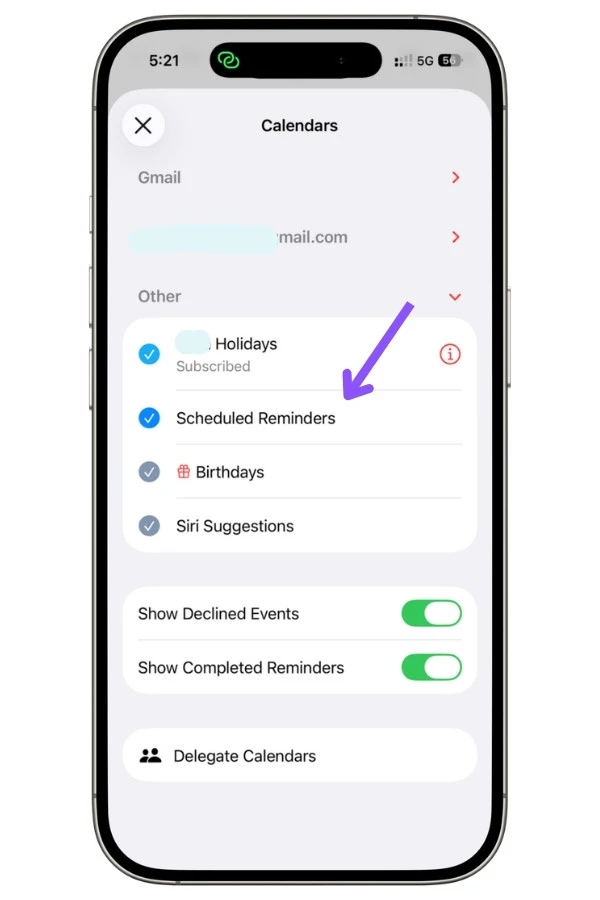
There’s no way to show your work deadlines but hide your grocery list. It’s on or off, all or nothing.
So the only way to keep clutter off your calendar is to keep it off your dated reminders in the first place.
Second, reminders can’t hold time.
A task due at 6:00 PM shows up as a small box sitting at 6:00, but it doesn’t span any length of time.
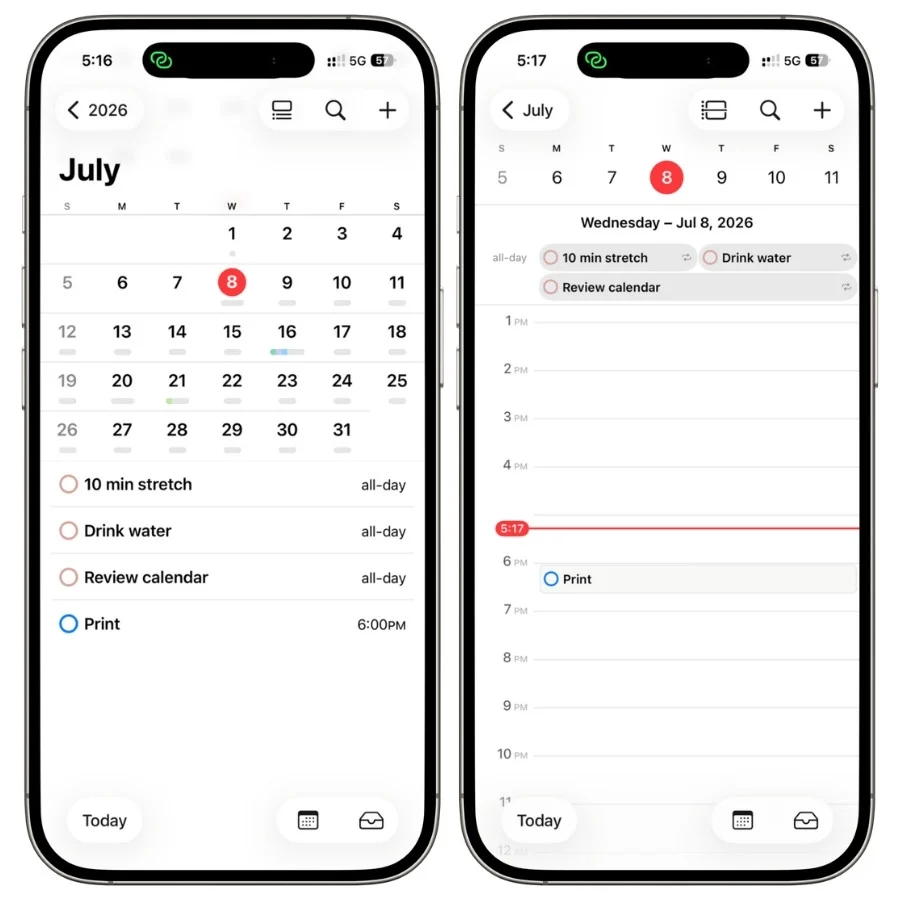
You can tell when something is due, but not how long it’ll take. If you time-block your day, you still need real Calendar events for that. This integration won’t do it.
Two things make it easier to live with.
There’s a “Show Completed Reminders” toggle on the Calendars screen, and turning it off keeps finished tasks from cluttering your timeline.
And in my testing, checking a reminder off straight from Calendar works cleanly and removes it right away.
I keep the integration on, but I only give times to tasks that actually need them. That way the calendar only shows the reminders that earn a spot there.
6. So should Reminders be your only task manager?
After running everything through Reminders and testing every corner of it, here’s my honest answer:
For most people, YES. For some people, absolutely not. The difference comes down to what kind of work you’re managing, not how “serious” you are about productivity.
6.1 It works if this sounds like you
You live on Apple devices.
The whole reason Reminders beats Todoist or Things for most people has nothing to do with features and everything to do with friction.
It’s already on your phone, Siri dumps into it hands-free, it’s on your watch and your Mac and your car without you installing or paying for anything.
If most of your tasks are single actions, errands, follow-ups, calls to make, things to buy, then the five-list system in this guide is genuinely all you need, and anything more powerful is just more app to maintain.
You want capture to be instant and planning to be light.
Reminders is a superb capture-and-execute tool. Think a thought, say it to Siri, deal with it during your morning triage.
If that loop describes how you actually work, you’ll be happier here than in a heavier app, because the heavier app’s power mostly goes unused while its complexity doesn’t.
You don’t want a subscription.
This matters more than people give it credit for. Reminders is free forever and does 90% of what the paid task managers do. For a lot of people, that last 10% never comes up.
6.2 You should pay for a dedicated app if this sounds like you
You need start dates, badly.
This is the real dividing line. If your work involves projects where you must start prep days before a deadline, Reminders’ lack of true start dates will fight you every single day, and the tag workaround only goes so far.
This alone is why writers, students with long assignments, and anyone managing multi-week projects often move on.
Also Read: Apple Reminders for College Students: The Semester Hack
You want to time-block your day.
Reminders can’t do it. Tasks are points in time, not blocks. If your productivity depends on dragging tasks onto a calendar and defending hours of focus, you need a tool built for that.
You run flexible recurring routines.
If “every 5 days after I actually do it” describes half your tasks, Reminders’ rigid due-date recurrence will bury you in false overdue debt.
Apps like Things 3 handle repeat-after-completion natively, and for habit-heavy systems that difference is the whole game.
My Verdict After Testing All Of It
I’ve run this for about a month now, some days light at 5 or 6 tasks, some heavy at 12 to 15, so I’ve seen how it holds up under both.
Capture speed is the part that genuinely works. It’s fast enough that a thought becomes a task before I lose it, and running the daily triage turned into a real habit.
Reminders is the first thing I open after sitting down at my desk.
The subtask recurrence bug is the one real failure, and it’s a big one, but once I moved recurring routines to Sections instead of subtasks it stopped bothering me.
Workaround found, problem parked. I’m keeping this as my actual system.
For me, Reminders lands as the task manager I’ll actually keep using, which is the only kind that counts. Not the most powerful one on your iPhone, but the one with the least friction between having a thought and doing something about it.
For most people, most of the time, that’s the trade worth making.
FAQs
Can Apple Reminders really replace Todoist or Things 3?
For most people, yes. If your tasks are mostly single actions and light projects, Reminders does what those apps do with less friction, and it’s free. Where it can’t compete is start dates, time-blocking, and flexible recurring tasks (all covered in section 5). If you rely on any of those daily, a paid app earns its cost. If you don’t, you’ll likely never miss them.
Is Apple Reminders good for GTD?
It handles a GTD-style setup well. The five-list structure in this guide (Inbox, Projects, Actions, Waiting For, Someday) maps cleanly onto GTD, and Smart Lists give you the Next Actions view GTD depends on. The one real gap is the lack of start dates, which GTD’s “defer until” concept leans on. The tag workaround in section 5.1 covers it, but if strict GTD is your whole system, know that going in.
Does Reminders have subtasks, and do they work with recurring tasks?
It has subtasks, but they break on recurring tasks. I tested this: set a daily task with subtasks, complete it, and tomorrow’s copy comes back with the subtasks gone, still marked done in the old instance. For recurring routines, use a list with Sections instead of subtasks so every step resets properly. Subtasks are fine for one-time checklists.
Why do my recurring reminders keep showing up overdue?
Because Reminders repeats from the original due date, not from when you finish. Complete a task late and the next one is scheduled off the old date, so it can be overdue almost immediately. To reset the schedule, swipe right on the task in the Today view and reschedule it, which re-anchors future repeats. Full detail in section 5.2.
Can I see my reminders in the Calendar app?
Yes, since the Calendar integration you can view and check off dated reminders right on your timeline. Two caveats: it’s an all-or-nothing toggle, so you can’t show only some lists, and reminders appear as single points in time, not blocks, so you can’t time-block with them. Turn off “Show Completed Reminders” in Calendar settings to keep finished tasks from cluttering the view.
Do I need Shortcuts or third-party apps to make Reminders work?
No. Everything in this guide runs on the stock app with no automation and no add-ons. Shortcuts can smooth over a few rough edges, like auto-rolling overdue tasks, but they’re optional extras, not requirements. The core system is just five lists, a couple of Smart Lists, and a daily habit.