
Apple Notes Daily Planner: Template + Daily System
One note, pinned to the top of Apple Notes, is enough to run your whole day.
No app to buy, no system to maintain, and about ninety seconds a day to keep it current.
This is the rebuilt version of the setup I have been running since 2025, tested on an iPhone 17 Pro on iOS 27 and an iPhone 13 on iOS 26.
Everything that did not survive daily use got cut.
What you’ll get:
- My actual daily template, free to import straight into Notes
- The five-minute setup, including the one setting that makes checklists behave
- The thirty-second evening reset that carries the note into tomorrow
- A one-tap way to add to your plan without opening Notes
- A hub note that links your day, week, and projects together using iOS 27 section links
- An honest breakdown of when to stop using Notes and switch to Reminders or Calendar
Table of Contents
- 1. Why Apple Notes beats a planner app
- 2. Set up the note in five minutes
- 3. The template that runs the day
- Get My Daily Planner Template (Import Ready)
- 4. Running the day: three passes
- 5. Add to your plan without opening Notes
- 6. The hub note that ties the week together
- 7. Where this stops working
- 8. What makes this one stick
- Get My Daily Planner Template (Import Ready)
- FAQs
1. Why Apple Notes beats a planner app
Planner apps fail on maintenance, not features.
Every list you have to file, every project you have to assign, every view you have to configure is a small tax, and you pay it on the mornings you least feel like paying it.
A note charges you nothing. You open it, you type, you close it.
Apple Notes wins here for four specific reasons:
- It’s already open. No download, no account, no subscription, and no syncing setup beyond the iCloud account you already use.
- It bends to your day. A note has no schema. A day with four meetings and a day with one deep work block can live in the same template without you restructuring anything.
- Checklists are good enough. Tap to tick, drag to reorder, swipe to indent. That covers most of what a planner app’s task engine does for a single day.
- It survives neglect. Skip three days, and the note is exactly where you left it. Skip three days in a task app, and you come back to a wall of overdue red.
The rule this whole system runs on: if something needs to alert you or repeat on its own, it does not belong in this note. That job goes to Reminders or Calendar, every time.
Apple Notes has no due dates, no notifications, and no recurring items.
That’s not a gap this guide works around; it’s the trade you’re making for a planner you’ll actually still be using in March.
2. Set up the note in five minutes
The whole setup is one note and one setting. You will not need a folder, a tag, or a template app.
2.1 Create it and pin it
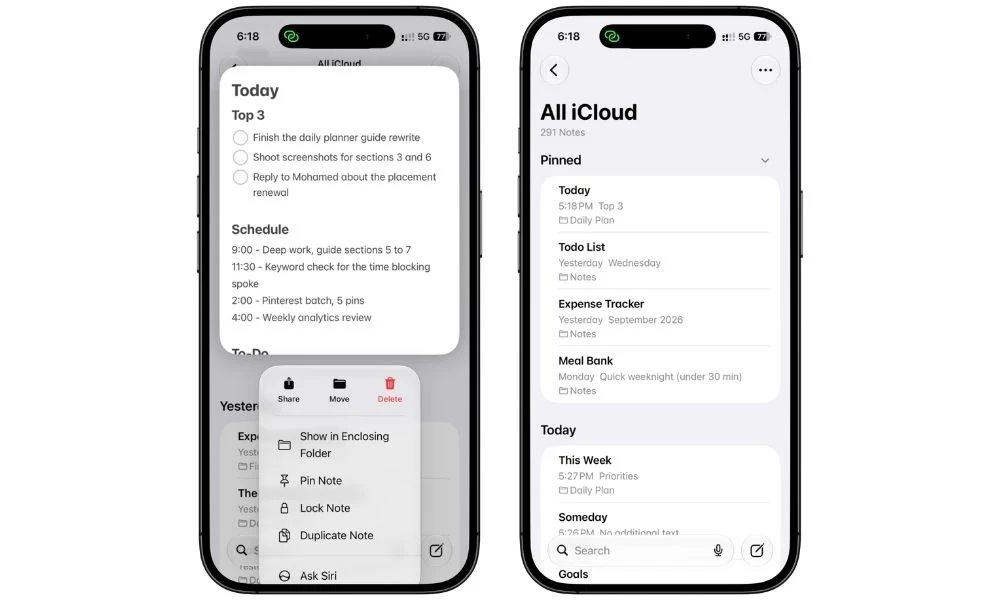
Open Notes, tap the compose button, and give it a name like Today. Back out to your notes list, press and hold the note, and tap Pin Note.
It jumps into the Pinned section at the top and stays there no matter how many notes you add underneath it.
2.2 Turn on Sort Checked Items
This setting is the difference between a plan and a mess.
Without it, everything you finish stays put and your ticked items sit mixed in with the things you still have to do.
Go to Settings > Apps > Notes > Sort Checked Items and choose Automatically.
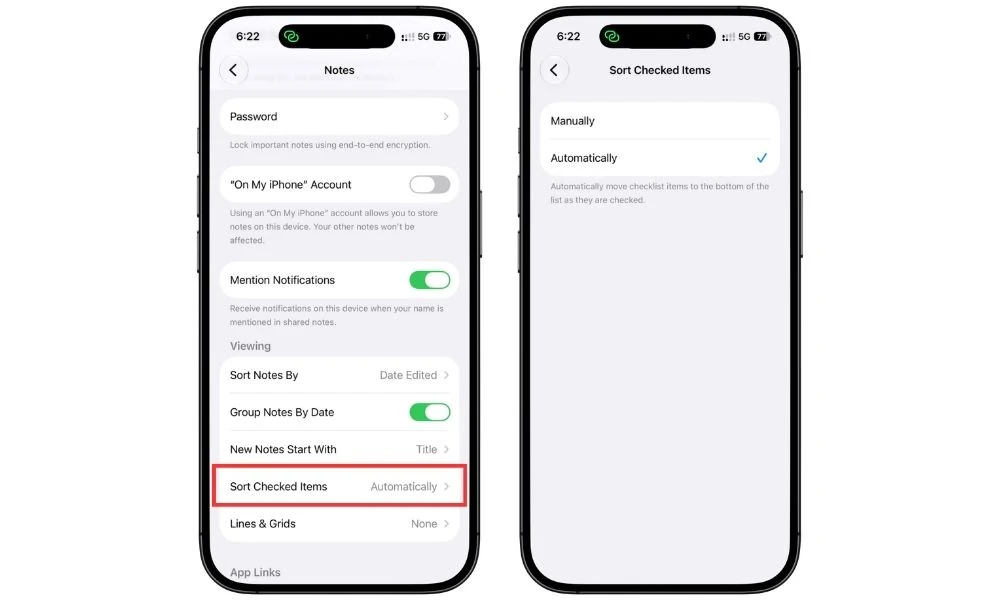
Completed items now drop to the bottom of their section as you tick them, leaving whatever’s left at the top where you can see it.
That’s the setup. Everything from here is what goes inside the note.
3. The template that runs the day
A daily note fails when it asks for too much.
Four sections is the ceiling. Anything beyond that and you start skipping the note on busy mornings, which is the exact moment you needed it.
Here’s the whole thing:
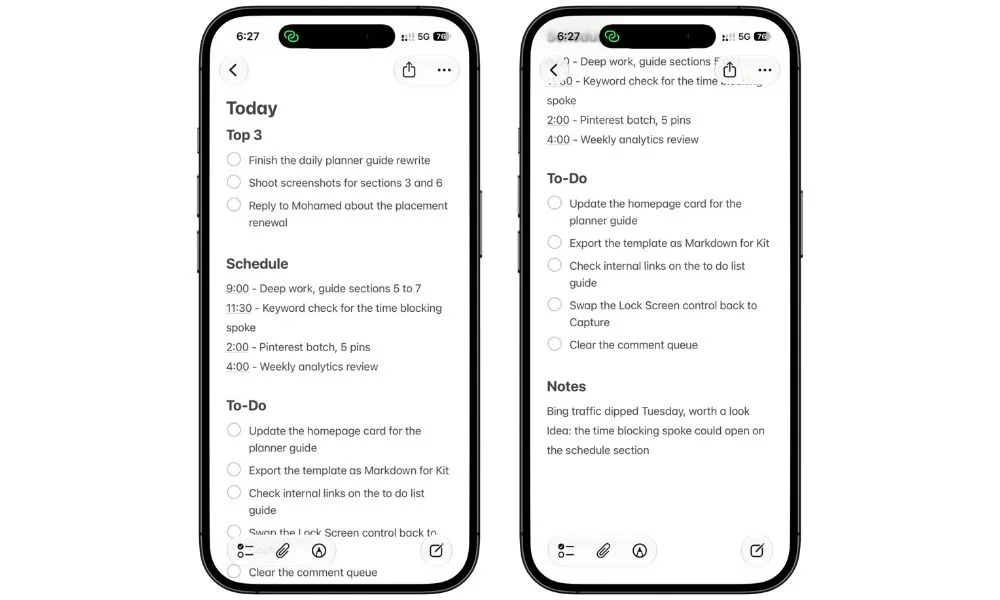
Four sections. That’s it.
Top 3 is the only part that’s non-negotiable. Three items, chosen before you look at anything else, and they’re the three that make the day count even if nothing else gets touched.
Schedule holds anything with a clock attached. Type the times you actually have commitments rather than blocking out the full day, because an eight-hour grid is a chore to maintain and you’ll abandon it by Thursday.
To-Do is the flexible middle. No order, no priority, just what’s available if the Top 3 lands early.
Notes catches whatever arrives during the day so it doesn’t derail you. It sits last on purpose, for a reason that becomes clear once you set up one-tap capture. It gets emptied in the evening.
3.1 Make the sections visible
Format each section name as a Heading.
That’s the part that matters, because headings are what make the sections collapsible and what the section links later hook into.
Tap the chevron next to any heading and everything under it folds away, which is how you keep the whole note on one screen no matter how long the To-Do list gets.
Divider lines are optional. If you want the visual break, put the cursor under a heading, tap the right arrow in the pop-up menu, and tap Insert Divider Line.
They arrived in iOS 27, and they make the sections findable at a glance, but the note works fine without them.
Build it once, then stop rebuilding it. The evening reset coming up carries this template into tomorrow without you retyping a single line.
3.2 Grab my copy instead
I rebuilt this template four times before it stopped annoying me.
The version above is what survived, and I’ve packaged the exact file I use so you can skip the four rebuilds.
It arrives as a Markdown file. Save it, open it, tap Share, then Notes, then Import, and it lands in your Notes app with every heading, divider, and checkbox already in place.
4. Running the day: three passes
Ninety seconds a day, split across three moments. None of them require you to think about the system itself.
4.1 Morning pass, 60 seconds
Open the note. Fill in the Top 3 first, before you read email or Slack, because those decide your day for you if you let them. Add clock times to Schedule. Leave the To-Do section half empty on purpose.
That’s the whole morning. If you’re spending longer than a minute here, you’re planning instead of deciding.
4.2 During the day, no seconds
Tick things as you finish them. Ticked items drop to the bottom of their section automatically, so the top of each section is always what’s left.
New things go in the Notes section at the bottom, not in Top 3. Protecting the Top 3 from the middle of the day is most of what this note does for you.
4.3 Evening reset, 30 seconds
This is the part that keeps the note alive, and it takes three steps.
- Delete the ticked items.
- Move anything left in Notes into tomorrow’s To-Do.
- Clear the Schedule times.
That’s it. 30 seconds and the note is ready for tomorrow.
5. Add to your plan without opening Notes
A plan you have to unlock, find, and scroll to is a plan you stop updating by Wednesday.
Capture has to take one tap from wherever you already are.
5.1 Build a shortcut that opens the note directly
Open Shortcuts, tap the plus, and search for the Open Note action. Tap it, select your planner note, and save the shortcut. Name it something like Today.
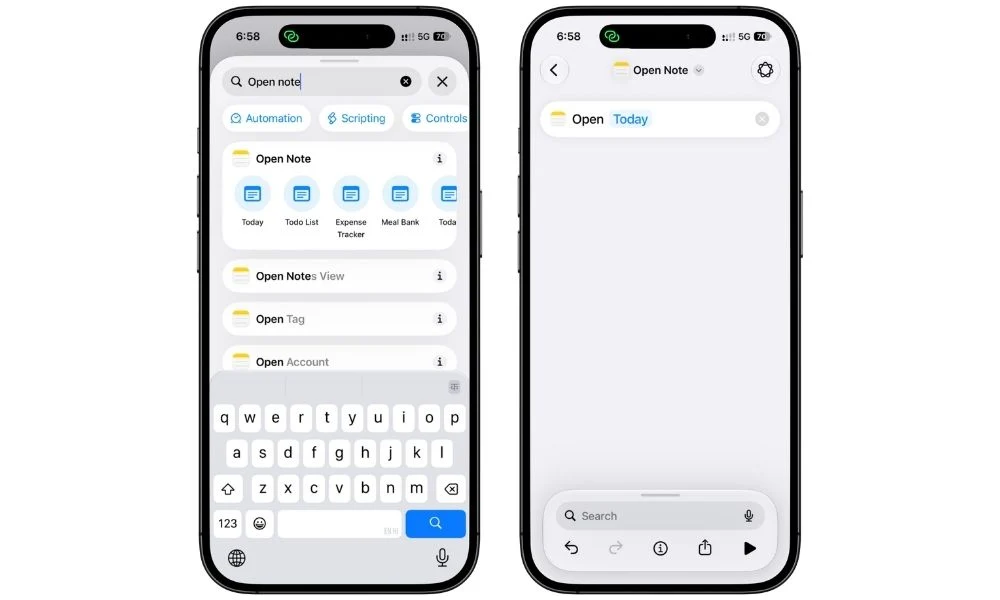
That’s the whole shortcut. No dictation, no voice trigger. It does exactly one thing: open straight into your plan.
5.2 Put it somewhere you’ll actually tap it
Lock Screen control is the best default. Press and hold the Lock Screen, tap Customize, and swap the camera or flashlight button for your Today shortcut. One press from a locked phone, straight into your plan.
Control Center works the same way if you’d rather not give up a Lock Screen slot. Add a Shortcut control from the Control Center editor and assign it there instead.
Action Button, if you’re in and out of the note constantly. Settings > Action Button, swipe to Shortcut, pick Today.
Notes widget can point at one specific note on its own; no shortcut required. Add the widget, press and hold it, tap Edit Widget, and choose your Today note.
6. The hub note that ties the week together
One note works until you have four of them.
A day note, a week note, a goals note, a project note, and suddenly you’re scrolling the notes list again, which is exactly the friction this system was supposed to remove.
The fix is a single hub note that links to all of them.
6.1 Build the hub
Make a new note called This Week and pin it alongside Today. Give it three headings: Priorities, Projects, and Elsewhere.
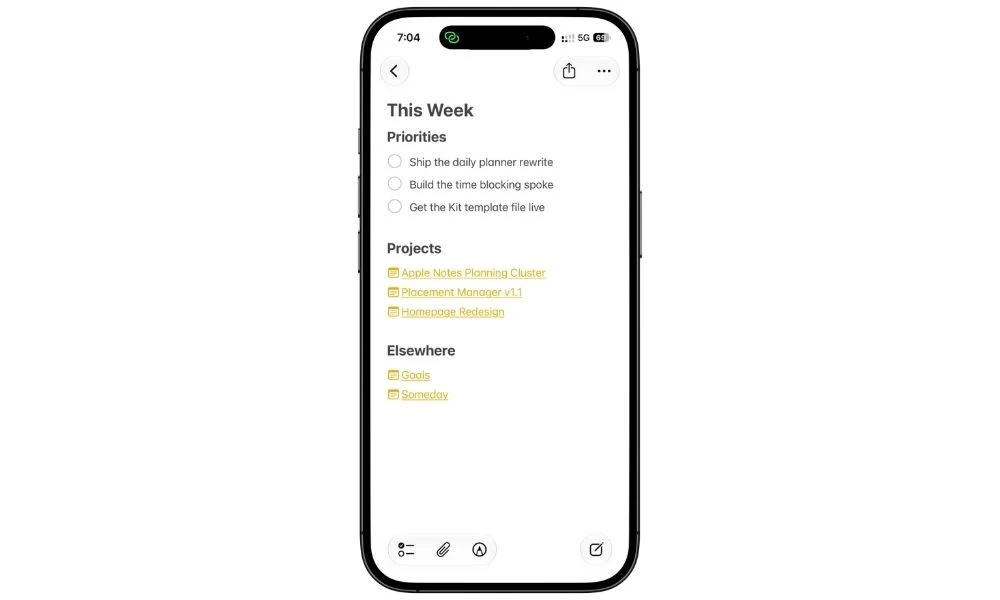
Priorities and Projects hold what the week is actually about.
Elsewhere is just links, pointing at the notes that outlive the week: goals, someday, anything on a longer horizon.
Those notes keep their own content. This one only gets you there.
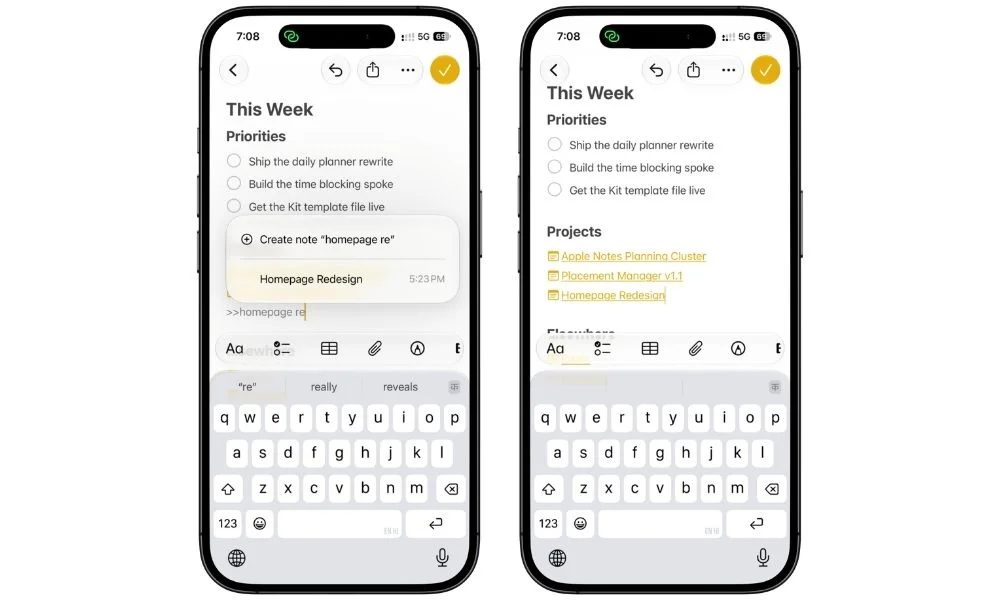
Under Projects, link out to the note that holds the detail. Type >>, start typing the note’s name, and tap it. The link drops in as tappable text.
6.2 What goes where
Today holds the day. This Week holds the shape of the week and the links. Nothing gets duplicated between them, because duplication is what kills these systems.
Once you’re running more than a handful of notes, tags and Smart Folders do the retrieval side of this well, and I’ve covered how I use them separately.
7. Where this stops working
Apple Notes is a passive tool. It shows you what you wrote when you go looking for it, and that’s all it does.
Three jobs sit outside that, and forcing them into a note is how people end up abandoning the system and blaming themselves.
| What you need | Where it belongs | Why not Notes |
|---|---|---|
| Something that alerts you | Reminders | Checklist items have no due dates and send no notifications |
| Something that repeats | Reminders | No recurrence of any kind, so you retype it every time |
| Something tied to a time slot others can see | Calendar | No calendar view, no invites, no drag to reschedule |
| Everything else about your day | Notes | Flexible, instant, and free of maintenance |
Moving a line out is quick. Select the text, tap Share, then Reminders, and it leaves as a proper reminder with a date and an alert attached. Nothing gets retyped.
Anyone running a fuller task setup inside Notes should read my Apple Notes to-do list guide, and Reminders gets its own treatment in the task management guide.
8. What makes this one stick
Strip everything above down, and there are three moving parts:
- One pinned note
- One setting turned on
- A thirty-second reset at the end of the day
That’s deliberate.
Every planner system I’ve built that had more parts than that died within a month, not because the parts were bad but because each one was something to maintain.
A system you maintain is a second job. A system you use is a tool.
Start with just the Top 3 and the evening reset. Skip the shortcut, skip the hub note, skip the widget.
Run those two things for a week, and if you find yourself opening the note without being reminded to, then add the rest.
The template file has all of it ready to import. It’s the exact version sitting on my phone right now.
FAQs
Can I use Apple Notes as a daily planner?
Yes, and for most people one note is enough. You need a pinned note, checklists with Sort Checked Items turned on, and a short reset at the end of each day. What you don’t get is any kind of alert or repeat, so anything time-sensitive still has to live in Reminders or Calendar.
How do I make a daily planner template in Apple Notes?
Build the note once with your sections as Headings, then reuse it instead of recreating it. My template runs Top 3, Schedule, To-Do, and Notes. The evening reset carries the same note into tomorrow, so you build it a single time and never start from a blank note again.
Is Apple Notes better than Reminders for daily planning?
They do different jobs. Notes is better for the shape of your day, because it’s flexible and holds schedule, priorities, and thinking in one place. Reminders is better for anything that needs to alert you or repeat. Running both, with Notes as the daily plan and Reminders as the alert layer, beats forcing either one to do everything.
How do I put my planner note on my iPhone Home Screen?
Add the Notes widget, press and hold it, tap Edit Widget, and pick your planner note. The widget points at one specific note, so your plan shows as a readable preview on the Home Screen. Tapping it opens that note directly.
How do I stop finished tasks from cluttering my daily note?
Turn on Settings > Apps > Notes > Sort Checked Items and set it to Automatically. Completed items then drop to the bottom of their section as you tick them. Clear them out entirely in the evening reset by deleting them rather than using Uncheck All, which leaves every item in place with an empty circle and scrambled out of its original order.