
Apple Notes To-Do List: Setup + Custom Shortcut
Your iPhone already came with a to-do app. You’re reading this anyway, so I’ll skip the part where I talk you back into Reminders.
The reason my list lives in Notes is simple.
The task sits next to the thing it’s about. The meeting note and the three follow-ups from that meeting are one note, not two apps.
Nothing pings me at nine in the morning. I look at my list when I decide to look at it.
I’ve run my whole system this way for four months. It works better than I expected, and it has a ceiling.
I’ll show you exactly where that ceiling is instead of pretending it isn’t there.
Here’s what you’re getting:
- A checklist that sorts and resets the way you want it to
- A structure that keeps work and personal apart without you managing it
- A pinned daily list you’ll actually open
- Tags and Smart Folders that pull loose tasks out of every other note
- Four ways to capture a task in seconds
- The four things Notes will never do, and when to stop fighting it
Table of Contents
1. Apple Notes vs Reminders for a to-do list
Both apps are free, both are already on your iPhone, and the internet mostly tells you to use Reminders.
So here’s the actual difference in one line:
Reminders is built to interrupt you, Notes is built to hold context.
Reminders wants a date on every task so it has something to alert you about. That’s the whole design.
Notes doesn’t care when something is due, which sounds like a weakness until you realize most of your list isn’t time-bound.
It’s just stuff that needs doing, and it usually needs doing near something else you wrote down.
| Apple Notes | Reminders | |
|---|---|---|
| Due dates and alerts | No | Yes |
| Recurring tasks | No | Yes |
| Natural language input | No | Yes |
| Location-based alerts | No | Yes |
| Task sits with its context | Yes | Yes |
| Photos, links, scans in the list | Yes | Yes |
| Nested subtasks | Yes, by indenting | Yes |
| Shared, live-editing list | Yes | Yes |
1.1 When Notes is the better pick
You want Notes if your tasks come attached to something.
A client call generates four follow-ups, and those follow-ups make no sense stripped away from the call notes.
A trip generates a packing list, a booking confirmation, and three things to buy first.
In Notes, that’s one note you open once. In Reminders, it’s a list in one app and the details in another, and you end up copying between them.
You also want Notes if alerts are what made you quit the last app you tried. Nothing in Notes notifies you.
Your list waits until you open it, which is either the best thing about this system or a dealbreaker, depending on the person.
1.2 When to just use Reminders
If your tasks are mostly time-bound, stop here and use Reminders.
Anything with a hard deadline, anything recurring, anything you’d forget without a buzz in your pocket, Notes will handle badly.
There’s no workaround for this, and I’m not going to invent one.
Most people land somewhere in between, and the honest answer is to run both.
Notes holds the thinking and the project work. Reminders holds the six things that genuinely have to happen at a specific time.
I cover the exact handoff point later on, once you’ve seen how far Notes actually goes.
2. Set up your first checklist
This takes about a minute, but two settings buried in the wrong places decide whether the list is pleasant to live with or annoying.
Those are the parts worth reading.
2.1 Make the checklist
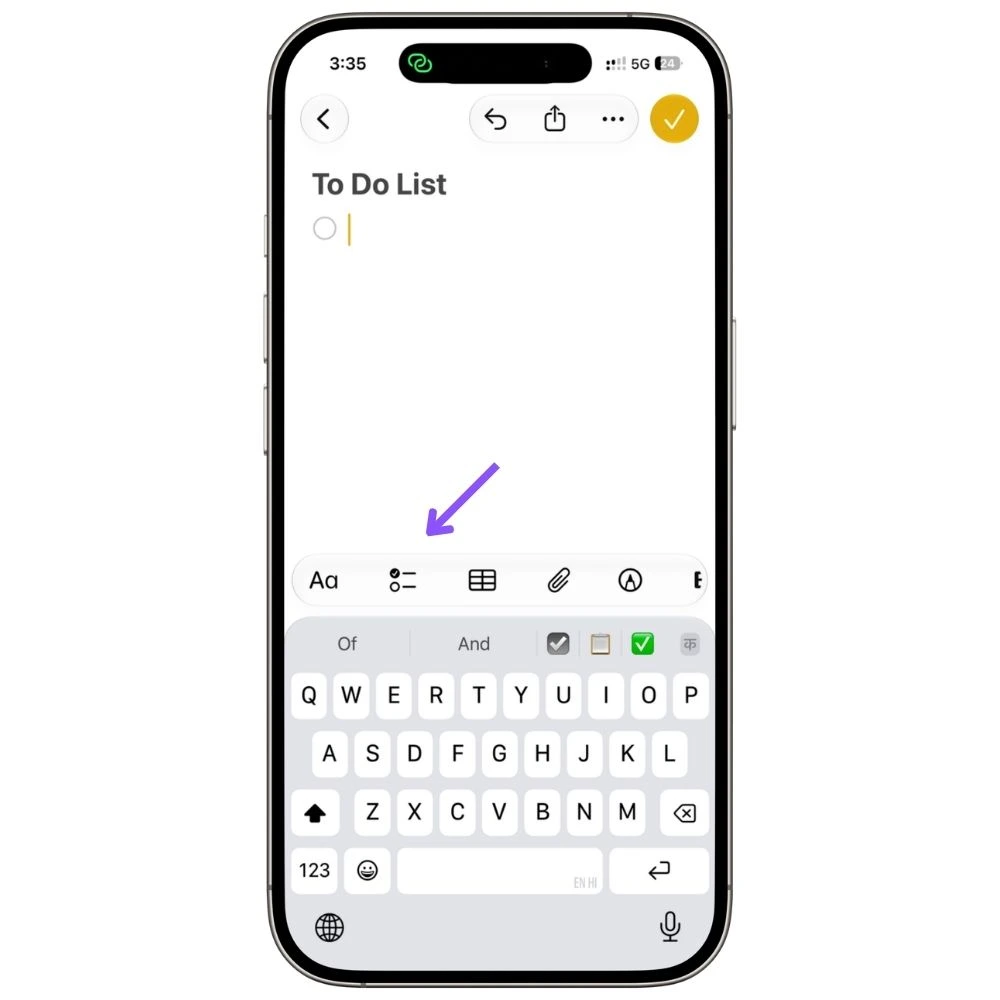
Open a new note and hit the checklist button in the formatting bar above the keyboard.
Type your first task, press return, and Notes keeps giving you a fresh checkbox until you press return twice.
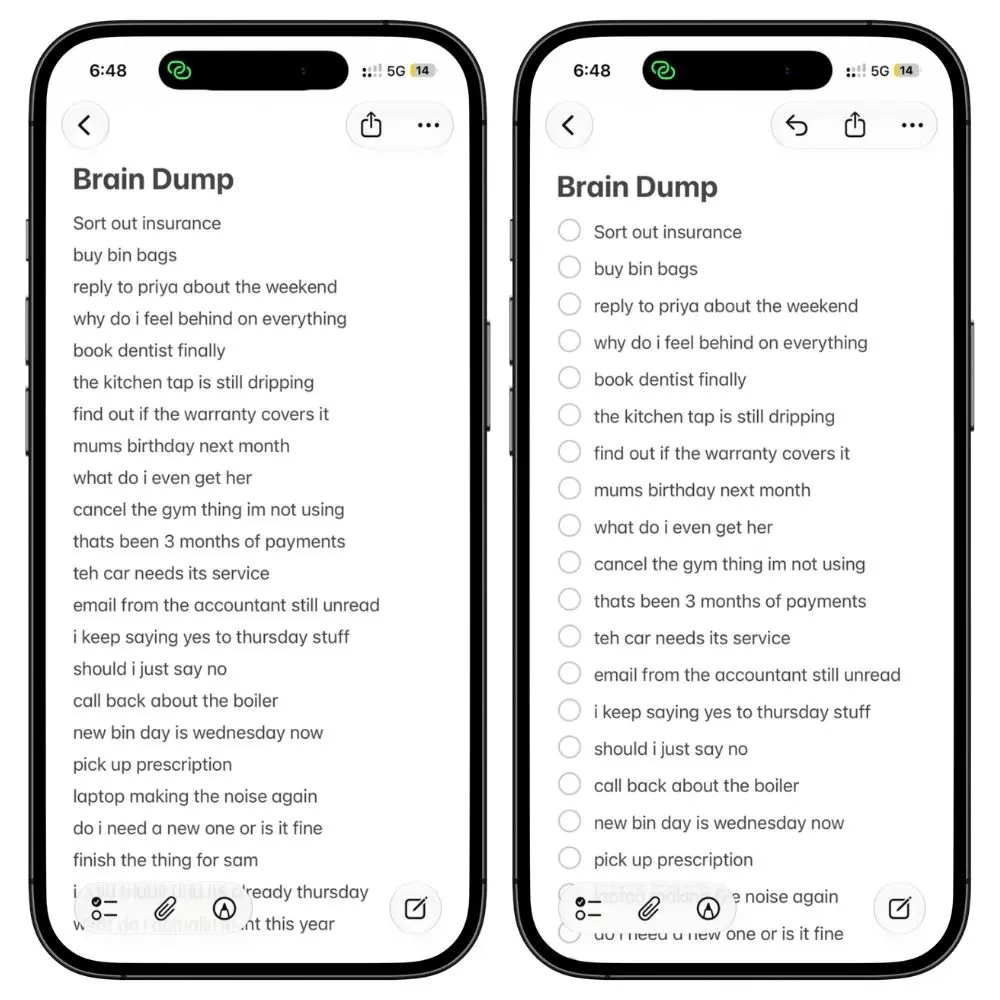
The more useful move is converting text you already have.
Say you brain-dumped a paragraph of tasks last week. Select all of it, tap the checklist button, and every line becomes its own item. One line, one checkbox.
This is the fastest way to turn any existing note into a working list, and it’s how most of my lists actually start.
2.2 Indent for subtasks
Tap into a line and swipe right on it to indent, or use the tab key if you’re on a keyboard. Swipe left to pull it back out.
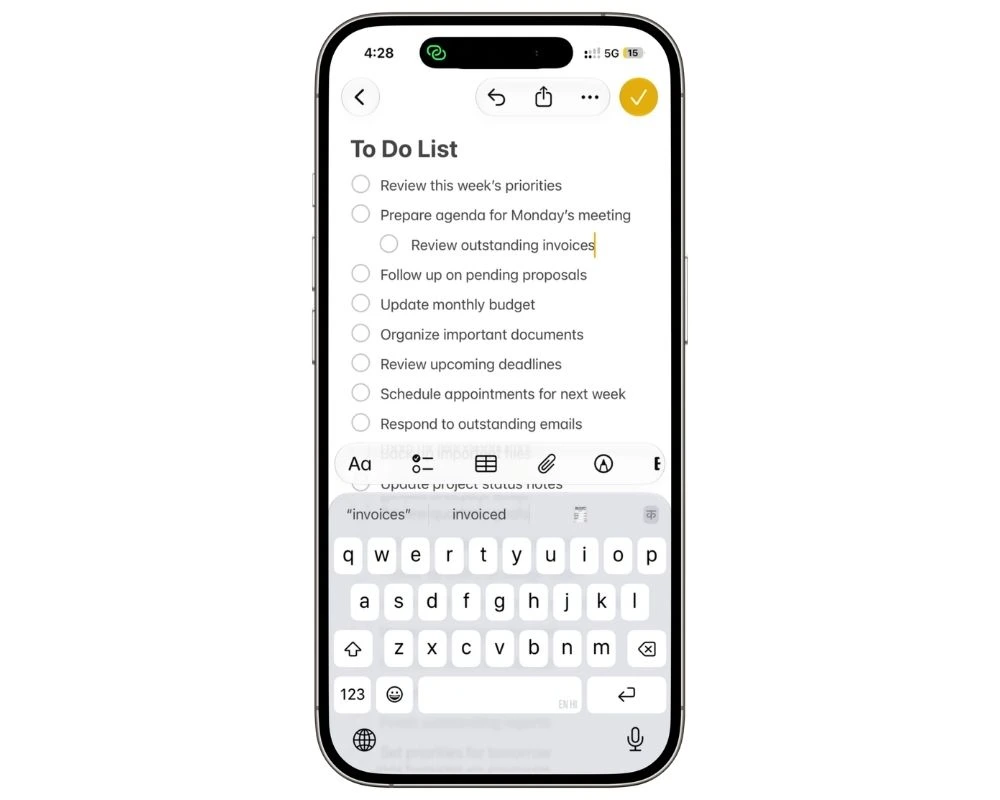
Indented items look like subtasks and travel like subtasks, but Notes never ticks them for you.
Tick the parent and, with Sort Checked Items set to Automatically, the whole block slides to the bottom together.
The parent is ticked. Every circle underneath it is still empty, sitting there waiting for you.
That sounds like a flaw and mostly isn’t.
“Renew passport” with four steps indented under it reads as one line on your list instead of four, and it moves out of your way the moment you decide the thing is handled.
If you want the steps individually ticked off as you go, you tick them yourself, which is what you were doing anyway.
Two levels is where I stop. Three levels deep and you’re building a project plan inside a note, which Notes will let you do and will not enjoy.
Read also: Apple Notes for Productivity: 11 Ways I Actually Use It
2.3 Turn on Sort Checked Items
This one isn’t in the note. It’s in Settings > Apps > Notes > Sort Checked Items.
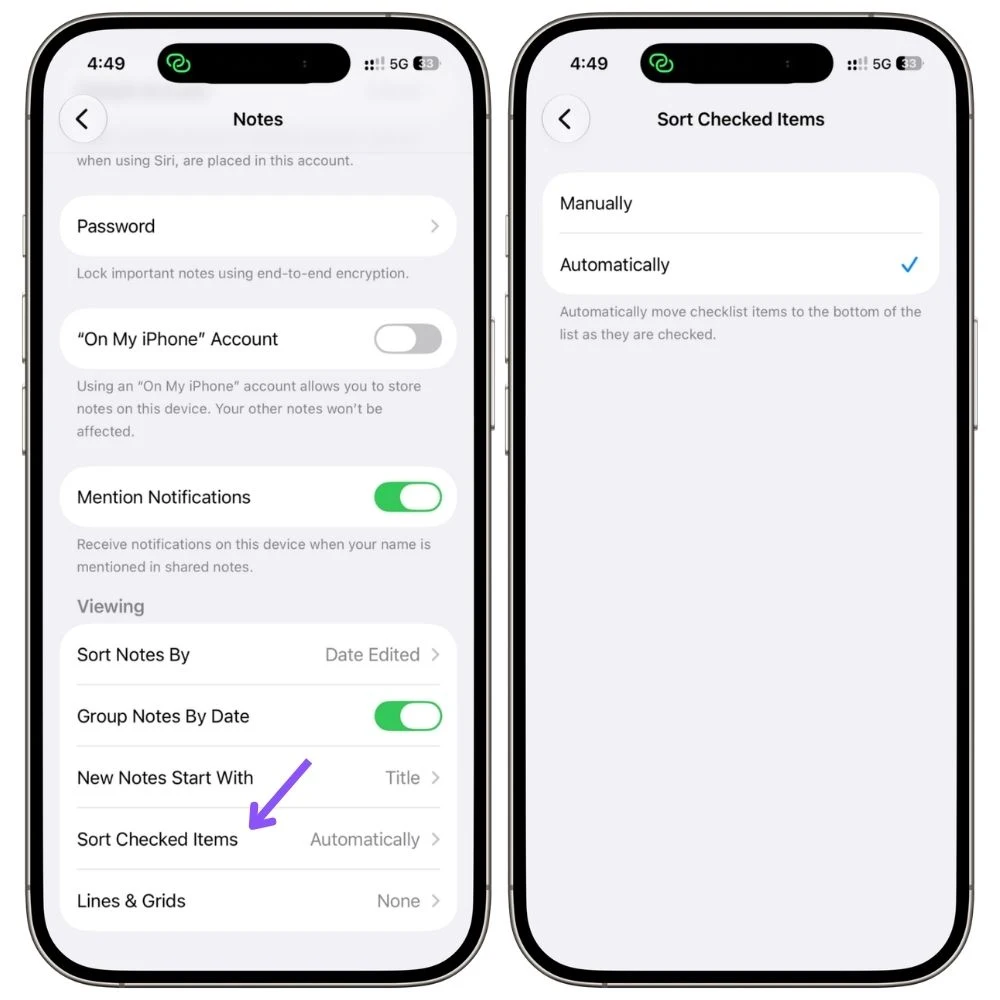
Set it to Automatically, and ticked items drop to the bottom of the list on their own.
Your remaining work stays at the top where you can see it, without you dragging anything.
Set it to Manually if you want ticked items to stay where they are.
It’s less satisfying day-to-day, but it’s the one to pick if you reuse a list, since nothing moves as you tick and the order you typed survives.
Try automatic first. It’s the right default for most lists.
2.4 Reset a list without retyping it
Here’s the one that surprises people. When you’ve ticked everything and want a usable list again, you don’t delete and rebuild.
Double-tap the text of any checklist item, not the checkbox. A pop-up menu appears. Tap the arrow to see more options, then Checklist > Uncheck All.
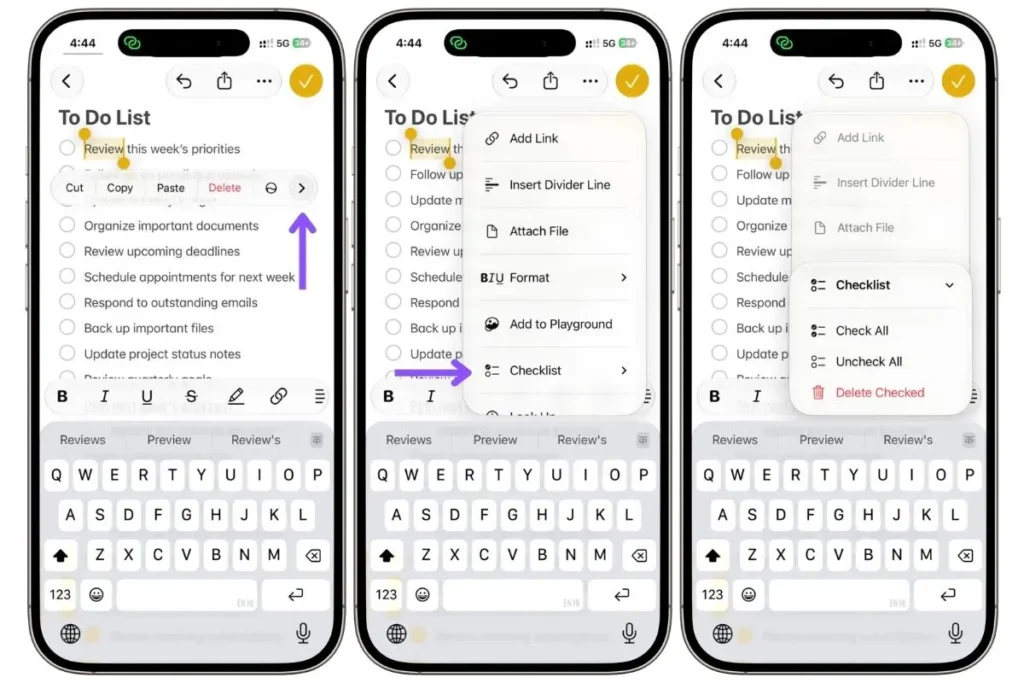
It clears the checkmarks and nothing else.
Items don’t return to their original positions, so on Automatically you get your list back empty but reshuffled.
3. One note or one folder?
Everything so far gets you a working list. This section is what stops you having eleven of them scattered across Notes by next month.
There are three ways people structure this, and the right one depends on how much stuff you’re tracking rather than on any best practice.
| Structure | How it works | Best for |
|---|---|---|
| One master note | Every task in a single note, split by headings | Under 20 open tasks, mostly personal |
| Two notes | One work, one personal, both pinned | Most people |
| A To Do folder | Separate note per area, folder holds them all | Heavy task load, several projects running |
3.1 The two-note setup, and why I use it
Two notes. One called Work, one called Personal. Both pinned to the top of your notes list.
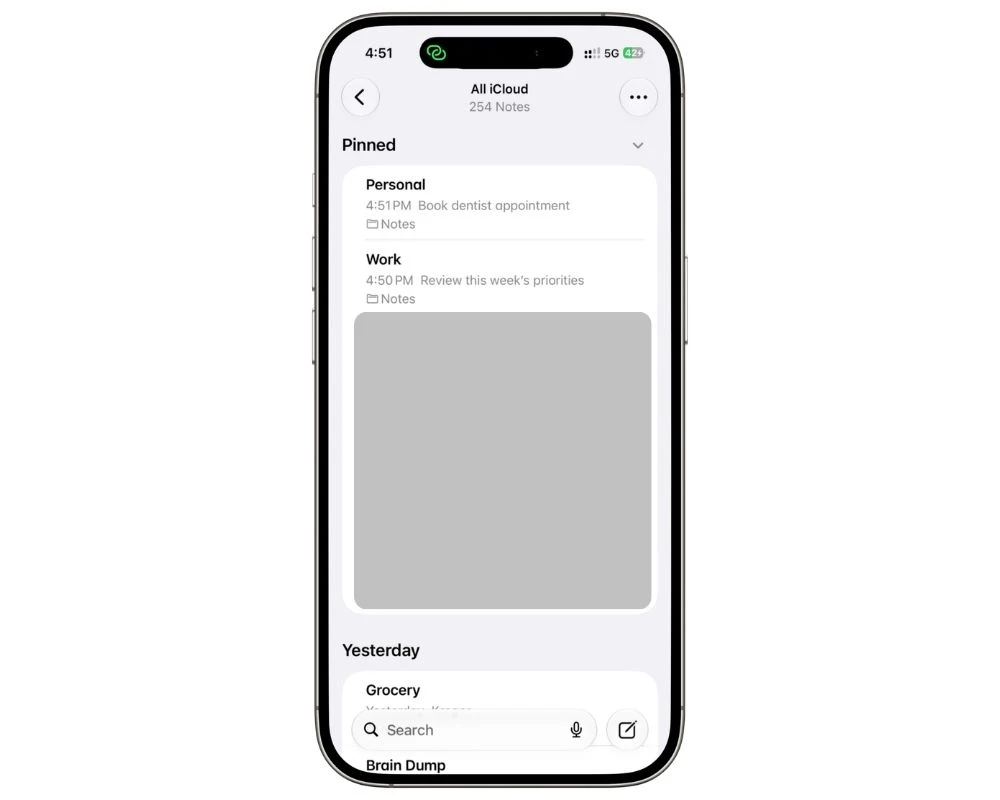
It works because the split is the only one your brain actually makes without effort.
You already know which mode you’re in when you pick up your phone at 3 pm on a Tuesday versus 9 pm on a Saturday.
Any finer division than that becomes a filing decision, and filing decisions are what kill systems.
Inside each note, use headings to break things up. Type a line, tap Aa in the formatting bar, pick Heading.
Something like This Week, Waiting On, and Someday covers most of it.
Tap the small arrow beside a heading to collapse the section, so Someday stays out of sight until you want it.
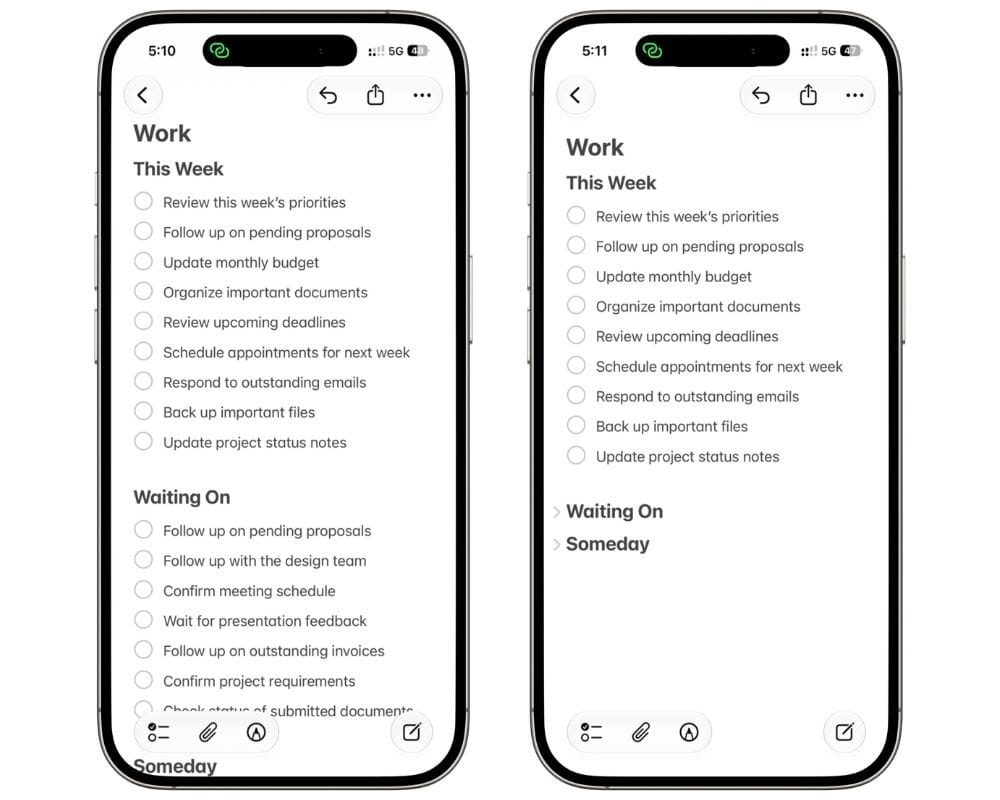
The whole thing lives at two taps. Open Notes, tap the pinned note, and your list is there.
3.2 When you need a folder instead
Move to a folder once a single note starts requiring scrolling to find anything, or once you’re running distinct projects that each generate their own tasks.
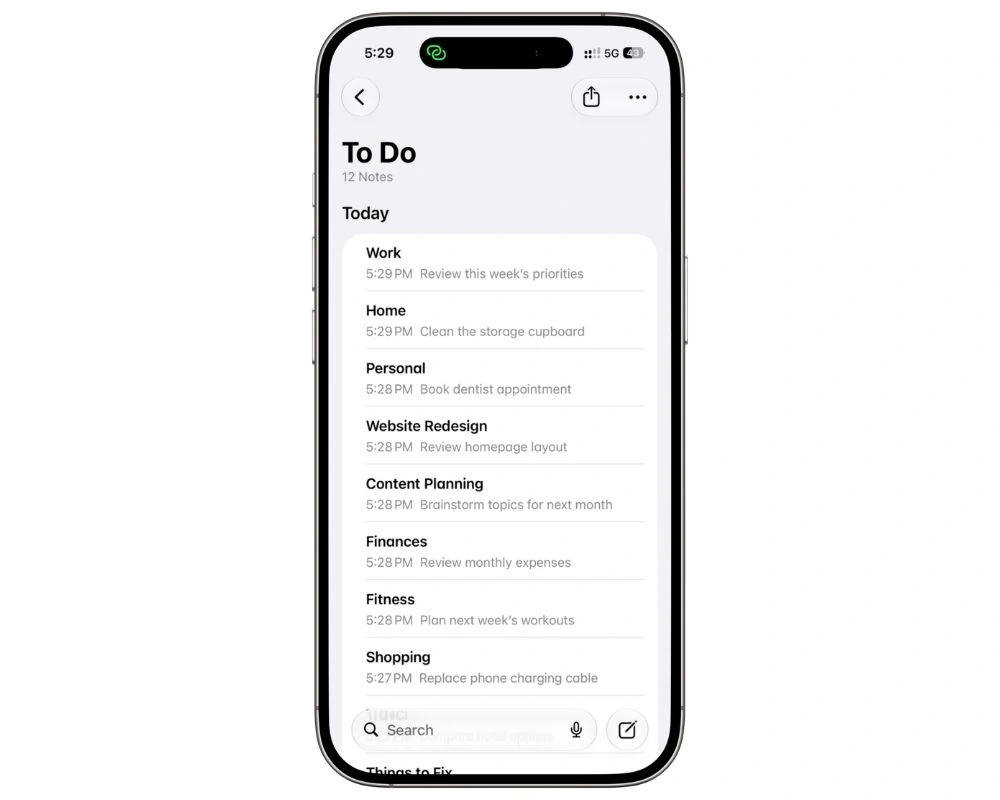
Make a folder called To Do and put a note per area inside it: Work, Home, a note for each live project.
Every note is still a checklist, so nothing you set up in section 2 changes. You’re just spreading it over more notes.
The cost is real.
More notes means more places to look, which means tasks go missing in the note you forgot to open.
If you go this route, section 5 matters more, since tags are what pull everything back into one view.
3.3 What not to do
Don’t build a note per day.
It feels organized on day one, and by week three you have twenty-one notes, most of them holding two unfinished items each, and no idea which one has the thing you’re looking for.
Daily lists are worth having. They just work better as one note you reset each morning.
4. The pinned daily list
A master list tells you everything you could do. It’s terrible at telling you what to do today.
That’s the job of a second, much shorter note, and it’s the piece that turns this from storage into a system.
4.1 Make Today
Create one note called Today. Long-press the note in your notes list, then tap Pin, and it moves up into the pinned section at the top.
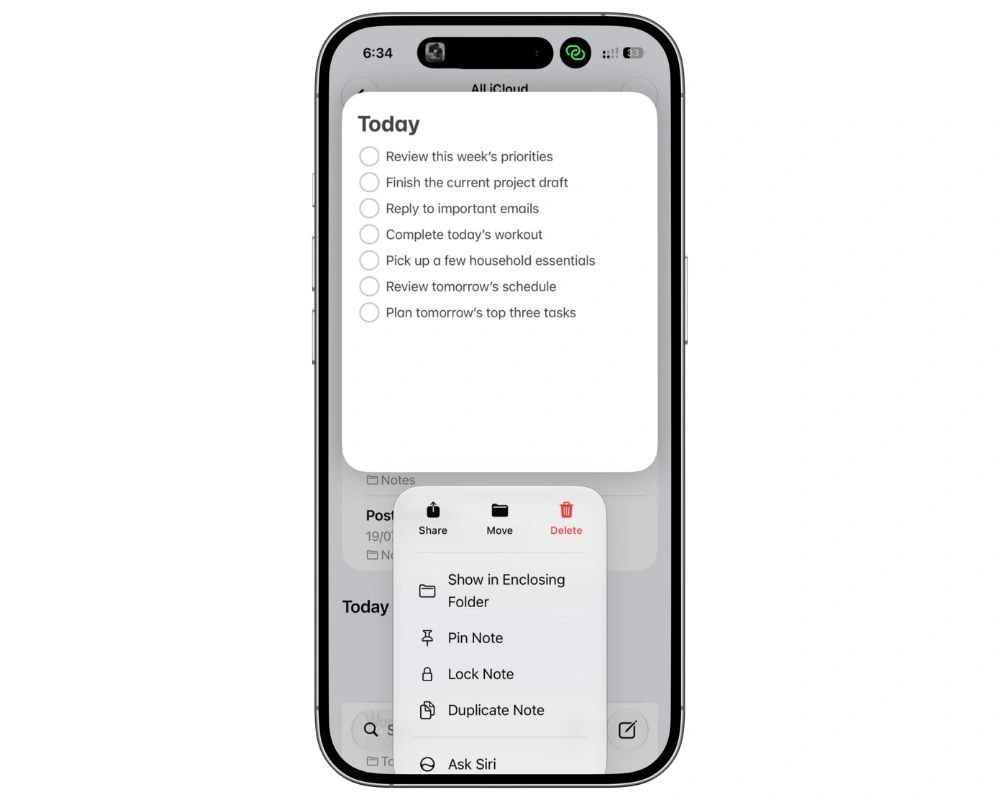
Keep it to five or six items.
That’s not a productivity rule I invented, it’s just what fits on screen without scrolling, and a list you can see all of is a list you’ll open again.
The daily pass takes under a minute.
Open your Work and Personal notes, pick the handful of things that matter today, and copy them across.
Copying feels redundant the first time. It isn’t.
The act of choosing is the point, and a Today note you assembled deliberately gets treated very differently from a master list you’re avoiding.
4.2 Reset it every morning
At the end of the day the ticked items are your done pile. Delete those first, while you can still tell which is which.
Whatever’s left is unfinished and already unticked, sitting there waiting.
Then pull in today’s picks. Same note, every day, forever. No new note, no dated titles, nothing to file.
If you keep a fixed set that repeats without changing, a morning routine or a weekly chores note, don’t delete anything. Clear the checkmarks and the whole list is ready again.
4.3 The carry-over rule
Whatever’s still in the note when you sit down to pick today’s tasks is yesterday’s leftovers. You don’t need to mark them. They’re the ones you didn’t delete.
The rule is what you do with them.
First time, fine, carry it. Third morning you scroll past the same line, it gets a decision instead of another day.
Do it now, move it to Reminders with a real date, or delete it.
A task that’s been staring at you since Monday isn’t waiting for a better version of you on Thursday. It’s telling you it was never real, or that it belongs somewhere else.
4.4 Add context under a task
Under any item, hit return and indent, then paste whatever the task needs.
- A link
- A phone number
- A screenshot of the thing you’re supposed to reply to
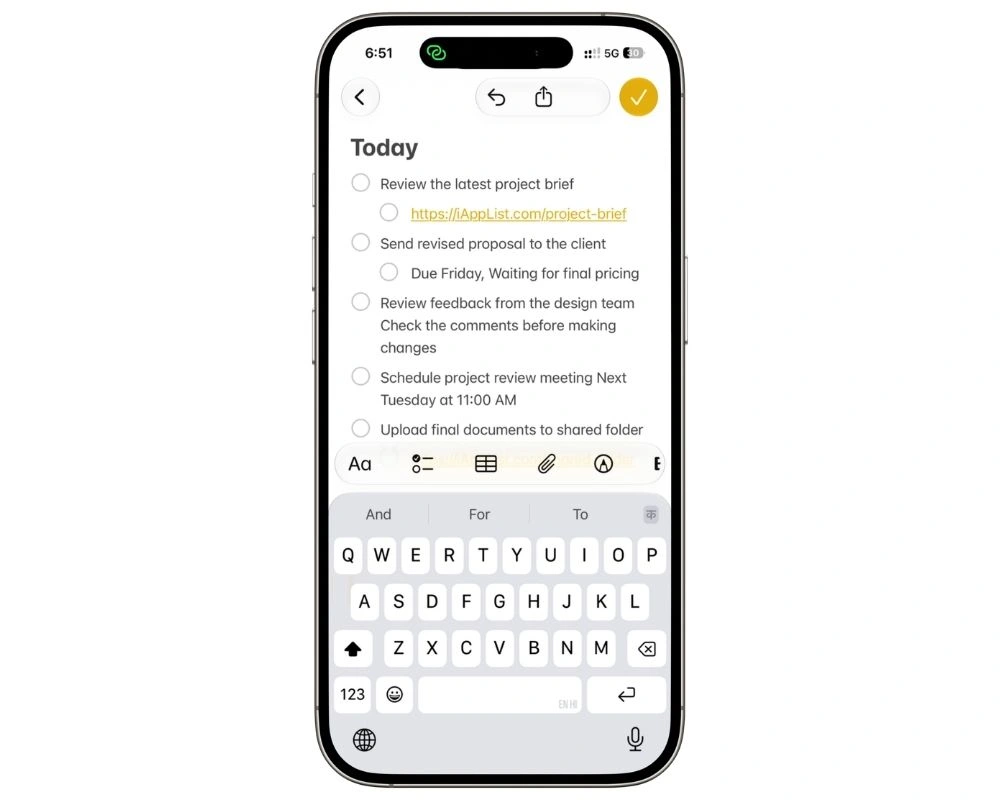
There’s no limit on how much goes under there.
A paragraph, three images, a scanned document, all of it stays inside the note and none of it breaks the list, because the indent keeps it visually subordinate.
When the task’s done you delete the whole block in one go.
5. Tags and Smart Folders for tasks buried in other notes
Some tasks never make it onto a list.
- A follow-up sitting inside a meeting note
- A thing to buy at the bottom of a trip plan
- A call you typed into a note about something else entirely
You don’t discover them until you happen to reopen the note, which is usually too late to matter. Tags fix that.
5.1 One tag is enough
Type #todo anywhere in any note. It turns into a tag as soon as you type the space after it. That’s the whole setup.
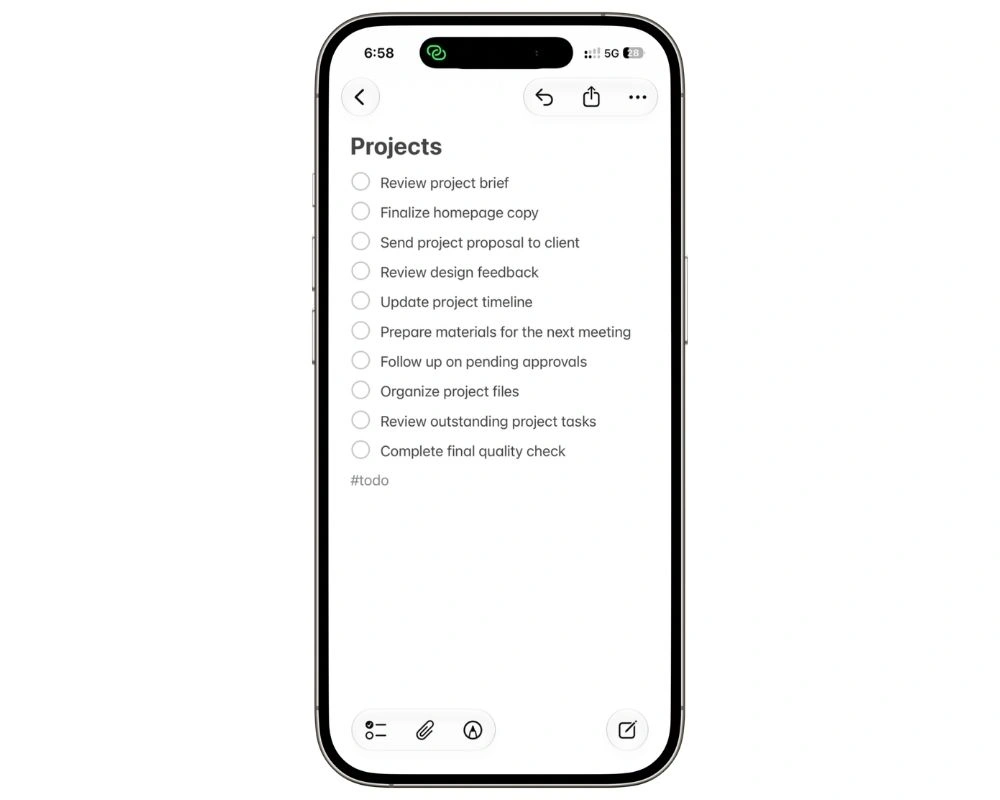
Now every note holding actionable work is findable in one tap from the Tags section at the bottom of your folders list.
Resist building a tag system here. #work, #urgent, #p1, #waiting, all of that sounds sensible, and none of it survives contact with a Tuesday.
You already have structure from your folders and your Today note. Tags are only doing one job: catching tasks that live somewhere other than a list.
5.2 Turn it into a Smart Folder
A Smart Folder is a saved search that keeps itself current. Nothing lives inside it. Tag a note anywhere in Notes and it appears here on its own.
Setting one up takes about twenty seconds:
- From your folders list, tap the new folder icon in the top right
- Name it Tasks
- Switch on Make into Smart Folder
- Tap Tags, then Any Selected Tag
- Select #todo from the list of tags you’ve used
- Tap Done
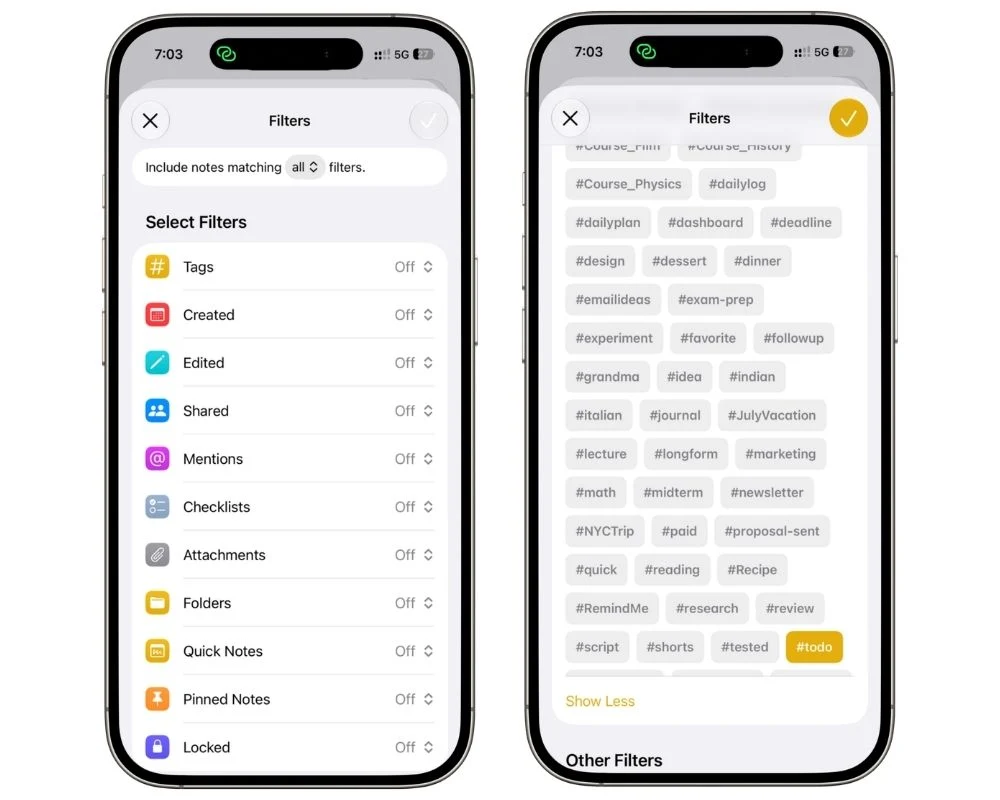
Open it and every note carrying that tag is sitting there, pulled out of whatever folder it was hiding in. Buried follow-ups included.
5.3 The weekly sweep
The Smart Folder is a collection point, not a to-do list. It shows you notes, not individual tasks, and it fills up quietly whether or not you look at it.
So look at it once a week.
Open the folder, go through each note, and pull anything still live into your Work or Personal note.
Then delete the tag from notes you’ve cleared, which is what keeps the folder from turning into an archive of everything you ever tagged.
Ten minutes on a Sunday, and the payoff is that nothing actionable is left sitting in a note you wrote three weeks ago and haven’t opened since.
If you want the full range of what Smart Folders can filter on, dates, attachments, checklists, shared status and the rest, I broke down every option in my guide to Apple Notes Smart Folders and tags.
6. Add a task in seconds without opening Notes
A list only works if adding to it costs nothing.
If capturing a task means unlock, find Notes, open the right note, scroll, tap, type, you won’t bother, and the thing you were supposed to remember goes back to living in your head.
Here are the four ways to capture without opening the app. Find the one your hands already reach for:
| Route | Where it lives | Suits you if |
|---|---|---|
| Lock Screen control | Bottom corner of your Lock Screen | You capture with the phone in one hand |
| Control Center | Swipe down from the top right | You already live in Control Center |
| Siri | Voice, hands free | You’re driving, cooking, or walking |
| Action Button | Side button above the volume keys | You want one press, no screen |
There’s a catch: all four dump you into a brand new note, not your Today list, so every capture leaves a stray to clean up later. That’s the exact mess we’re avoiding, so I built a shortcut that skips it.
6.1 Build it
Two actions, about thirty seconds.
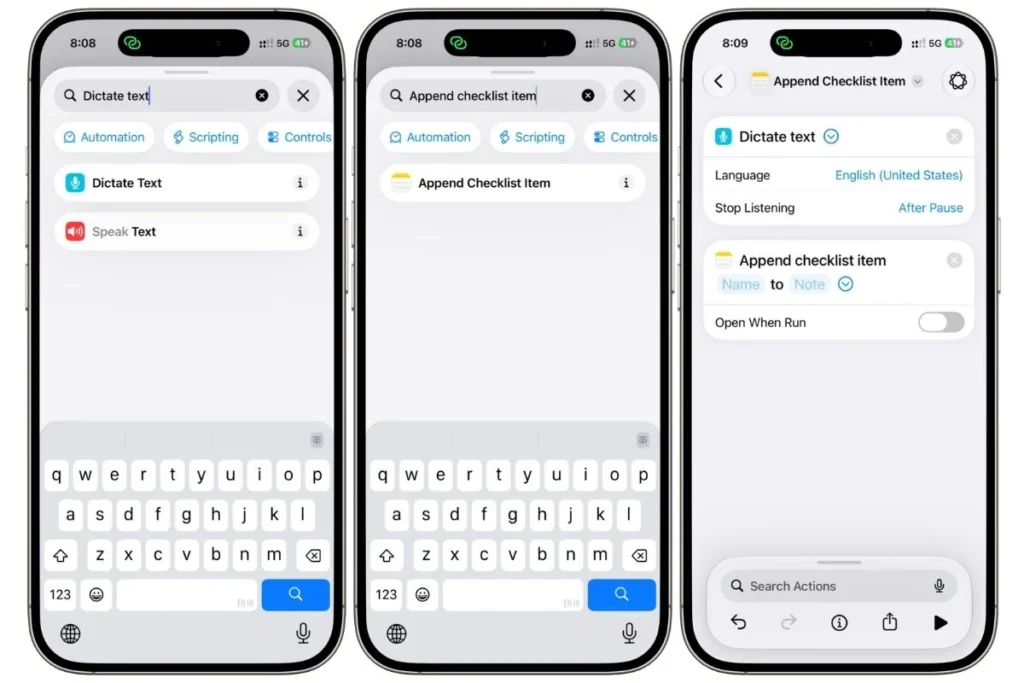
- Open Shortcuts, tap the plus, and search for Dictate Text. Add it.
- Search for Append Checklist Item and add it. You’ll see two empty fields, one for the item and one for the note.
- Tap the item field. The Dictated Text variable appears on the bar just above the keyboard, so tap that.
- Tap the note field and pick your Today note.
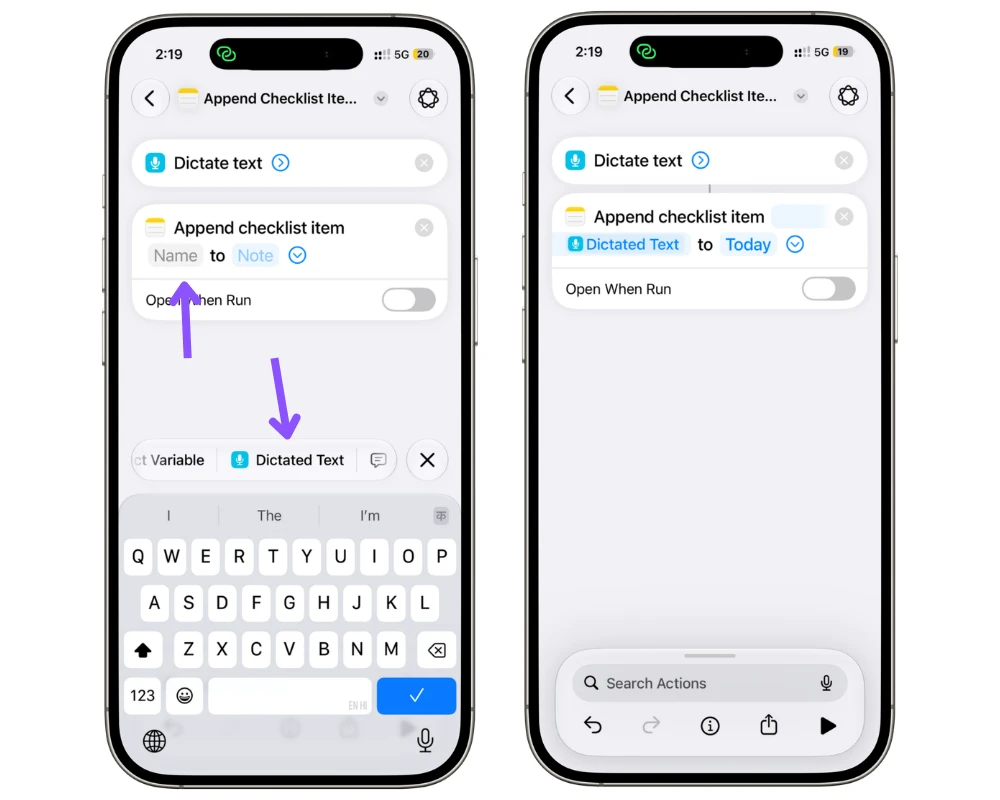
- Leave Open When Run off, then name the shortcut Add Task.
Run it, and it listens.
Say “email the accountant about the invoice” and that line is sitting at the bottom of your Today note with an empty circle beside it, while you’re still looking at whatever app you were in.
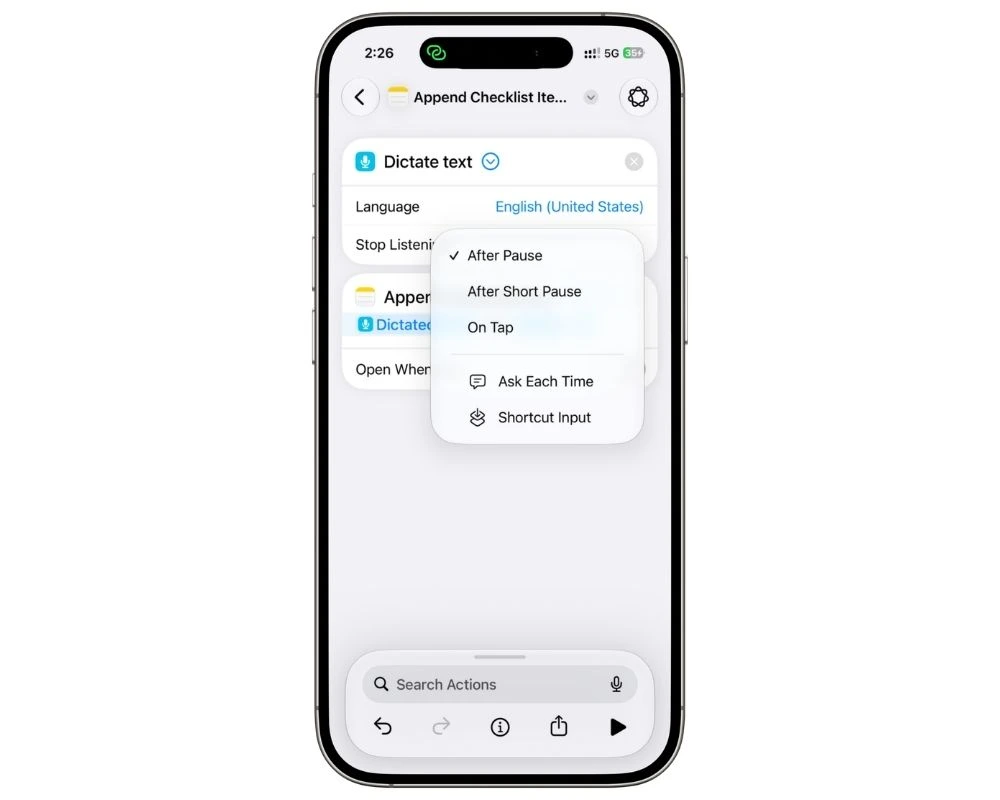
If you tend to pause mid-sentence while thinking, switch Stop Listening to On Tap instead. Otherwise, it cuts you off the moment you take a breath.
6.2 Put it where your hand already goes
The shortcut is only as good as how fast you can reach it.
Four options, and there’s no wrong answer, just whichever one you’ll actually use:
- Say “Hey Siri, Add Task”, which needs no setup at all since the shortcut name is the phrase
- Lock Screen control, so it’s one tap from a locked phone
- Control Center, so it works from inside any app
- Action Button, one long press, no screen
One thing about the Siri route. “Add task” is close to the phrasing Siri already uses for Reminders, so it will sometimes hear you and open Reminders instead of running your shortcut. Give yours a name Siri can’t confuse with anything, like Note This or Catch That.
Want the same thing for your Work note? Duplicate the shortcut, change the note in the second action, rename it. Two seconds, and now Siri routes tasks to the right list without you choosing.
7. Where Apple Notes hits its ceiling
I’ve given you the best version of this system I know how to build.
Now the limits: four things Notes will never do, and none of them have a workaround worth the effort.
7.1 No due dates
A task in Notes has no date attached to it, so nothing can sort by urgency and nothing knows what’s overdue.
You can type “Fri” beside an item, and that helps you exactly as much as writing it on paper does.
7.2 No notifications
Nothing in Notes will ever tell you about anything. The list waits until you open it.
That’s a feature right up until the day you don’t open it.
7.3 No recurring tasks
Anything weekly or monthly has to be retyped or unchecked manually every cycle.
The Uncheck All trick from section 2 makes this bearable for a fixed list, and useless for a task that repeats on its own schedule.
7.4 No natural language input
Type “Update timeline by next Tuesday at 11” and Notes underlines the date, but that’s detection, not action.
Long-press it, and you get a menu offering to send it to Calendar or Reminders, which is a handoff, not a task.
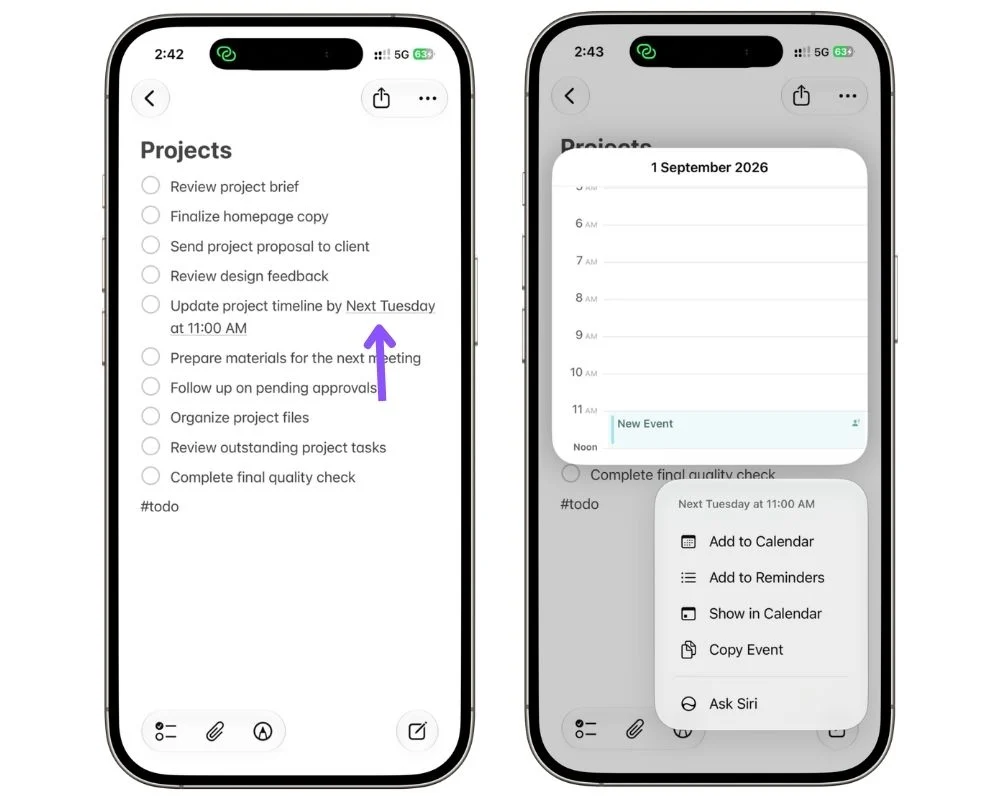
Nothing in Notes ever becomes dated or alerting on its own.
7.5 Move one task, not the system
Move it to Reminders when missing it has a consequence.
- A bill with a late fee
- A call someone’s waiting on
- A renewal that lapses if you forget
Those need to interrupt you, and Notes can’t interrupt anyone.
If the line already has a date in it, long-press the underlined date and tap Add to Reminders. If it doesn’t, highlight the line, tap Share, and pick Reminders.
Everything else stays put.
If most of your list starts carrying consequences, you’ve outgrown this setup, and I covered running Reminders properly in my guide to Apple Reminders as a task management system.
Start with one note
If you skim back through this, it’s really four moving parts.
- Two lists
- One Today note
- One tag
- Everything else is detail
You don’t need to build it all this afternoon. Make one note, turn it into a checklist, pin it, and use it for a week.
That alone beats whatever you’re doing now, and it’ll tell you fast whether a list that never nags you is a relief or a problem for how your brain works.
If it’s a relief, add the Today note next.
That’s the piece that does the most work, and the carry-over rule is what keeps it honest.
The whole point of running tasks in Notes is that your list sits next to your thinking instead of in a separate app that pings you about it.
Four months in, that’s still why I haven’t moved back.
FAQs
Does Apple Notes work as a to-do list?
Yes, for tasks that don’t need reminding about. It handles checklists, subtasks, sorting, sharing, and unlimited context per item. It has no due dates, notifications, or recurrence, so it works best alongside Reminders rather than instead of it.
Can you set reminders in Apple Notes?
No. Notes has no alert mechanism, so nothing you write in a note can notify you. If you type a date, Notes underlines it and a long press offers to send that task to Reminders or Calendar, but the item in Notes stays silent.
Apple Notes or Reminders for a to-do list?
Neither wins outright, they’re built for different things. Reminders handles anything with a deadline, a repeat, or a consequence for missing it. Notes handles tasks that need context around them, like the links, screenshots, and details the task came from. Most people end up running both.
How do I uncheck all items in Apple Notes?
Double-tap the text of any checklist item, not the checkbox. Tap the arrow in the pop-up menu for more options, then choose Checklist > Uncheck All.
How do I add a task without opening Notes?
Build a two-action shortcut in the Shortcuts app: Dictate Text, then Append Checklist Item pointed at your chosen note. Run it from Siri, your Lock Screen, Control Center, or the Action Button, and what you say lands in that note as a checklist item.