
Apple Notes Grocery List: Template + Custom Shortcut
Two years of Sundays. Same twenty items, typed from scratch, every single week.
Then I stopped rebuilding the list and started reusing it. Sunday now takes about 60 seconds.
Quick honesty check before you invest anything in this.
Apple Reminders does two things Notes flatly cannot. It sorts your items into aisles on its own, and it can ping you the moment you pull into the store parking lot.
If those two things are what you came for, go use Reminders, I have a full guide on it.
So why use Notes at all? Because a grocery list isn’t only a list of words.
- It’s the photo of the shelf you’re trying to match
- It’s the recipe link the ingredients came from
- It’s the price you jotted down last time so you’d know whether the new one is a rip-off
Reminders holds none of that. Notes holds all of it, and it lets you reuse the same list forever instead of typing it out again.
Same note handles the Target run too, not just the food run. Groceries are just the version most people need first.
Here’s the whole system in five lines:
- One note holds every item you ever buy, already typed out
- Each week you reset it, then check off everything you’re not buying
- Whatever’s left standing at the top is your shopping list
- One note covers every store you shop at, not one list per store
- Copy-paste template is below, about 5 minutes to build
Table of Contents
- 1. Apple Notes vs Reminders for groceries
- 2. Setting up the list in five minutes
- 3. The master template method
- Get the Template and the shortcut
- 4. One note, every store
- 5. Getting items in fast
- Get the Template and the shortcut
- 6. Shopping lists that aren’t groceries
- 7. Where Apple Notes falls short
- The honest verdict
- FAQ
1. Apple Notes vs Reminders for groceries
Before you set anything up, you should know the other app on your phone might suit you better.
Here’s the honest split.
| Apple Notes | Apple Reminders | |
|---|---|---|
| Categorizes items for you | No, you arrange them | Yes, automatically |
| Can match your store’s route | Yes, you set the order | Yes, by reordering sections |
| Resetting the list each week | Uncheck All, built-in | No one-tap reset on iPhone |
| Alert when you reach the store | No | Yes |
| Adding items by voice | Clumsy | Reliable |
| Photos, links and prices in the list | Yes | Yes, but one link per item |
| Every store in a single view | Yes, one note | No, one list per store |
| Sharing with your household | Yes | Yes |
Now, Reminders sorts your groceries into aisles by itself, and you can drag those sections around until they match the way you actually walk your store.
That’s good. I’m not going to pretend it isn’t.
Here’s where it fell apart for me.
Sunday comes around, I open the list, and it’s empty. Everything I bought last week is checked off and hidden.
So I unhide it all and start unchecking, one item at a time, twenty-something taps before I’ve even thought about what we need.
There’s no uncheck-all on your iPhone.
Notes has one sitting right there in the checklist menu, and that single button is the reason this whole thing works.
That’s really the whole thing.
When you’re going to delete a list on Friday, you keep it plain. When you know you’ll still have it in a year, you start adding to it: a photo of the pasta shape you always get wrong, the recipe link, what you paid last time so you know when $6 is a stretch.
So: if your list is different every week and you’d rather just talk to your phone, Reminders is your app. Go use it. If you buy mostly the same things, shop more than one place, or want your list to hold more than words, keep reading.
2. Setting up the list in five minutes
This is the boring part, and it’s over quickly. You’re building one note. That’s the whole setup.
2.1 Build the note
Open Notes, start a new one, and type Grocery on the first line. Hit return.
Now tap the checklist button above the keyboard. Every time you hit return from here, you get a fresh empty circle.
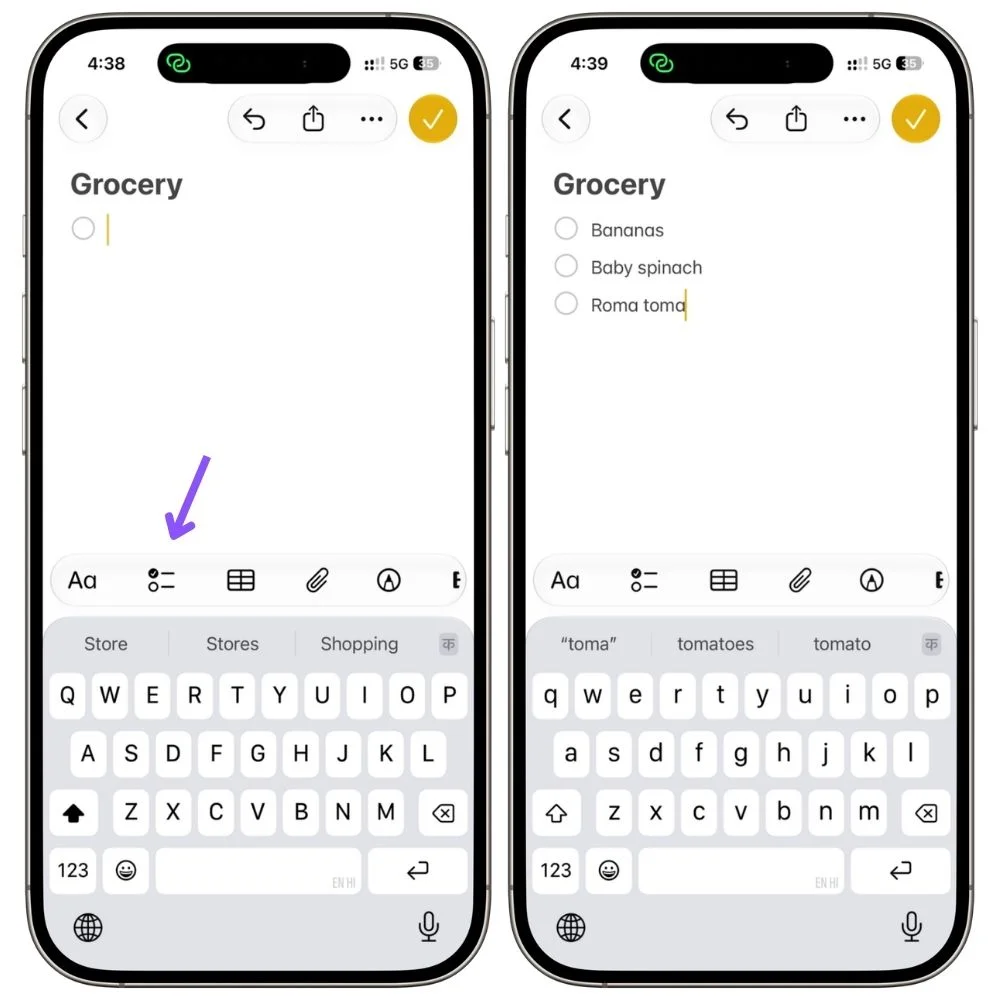
Then start typing what you buy. Not what you need this week. What you buy, ever.
Milk, eggs, bread, the coffee you get every single time, the specific hot sauce nobody else in the house will touch.
Mine sits at 40 items, and I still add to it whenever I catch myself typing something new at the top.
Don’t think about order yet. Just get them down.
2.2 Two things to turn on
Pin it. Press and hold the note in your notes list, then tap Pin Note.
Now it lives at the top of the app instead of drifting under whatever you jotted down on Tuesday.
Turn on Sort Checked Items. Go to Settings → Apps → Notes → tap Sort Checked Items and choose Automatically.
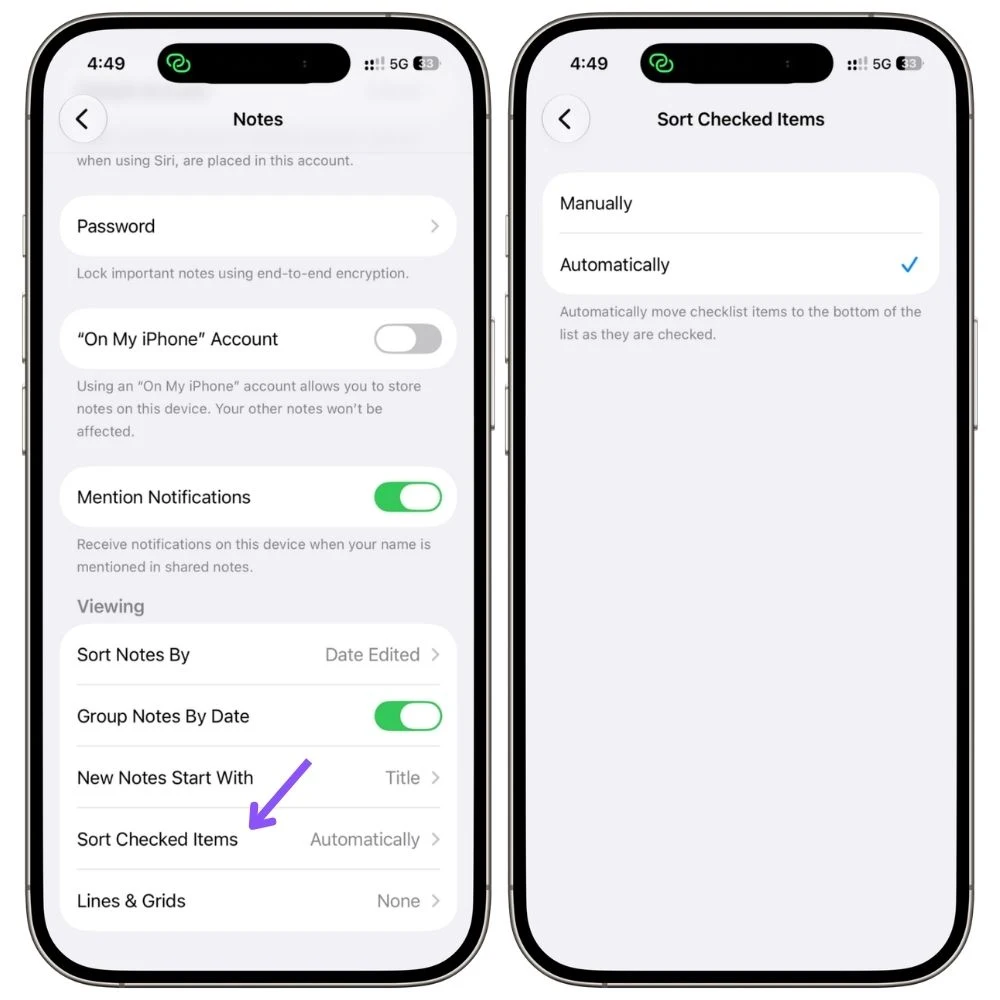
What it does: when you tick something off, it drops to the bottom instead of sitting there in the middle of your list. Everything you still need stays bunched at the top.
Sounds minor. It isn’t, and in a minute you’ll see it’s the thing the entire system runs on.
2.3 Find the button this all runs on
Before you go anywhere, let’s locate Uncheck All, because Apple has hidden it well and you’ll want it every week.
Double-tap the text of any item on your list. Not the circle, the words. A little menu pops up. Tap the arrow on the right to scroll it along, tap Checklist, and there it is: Uncheck All.
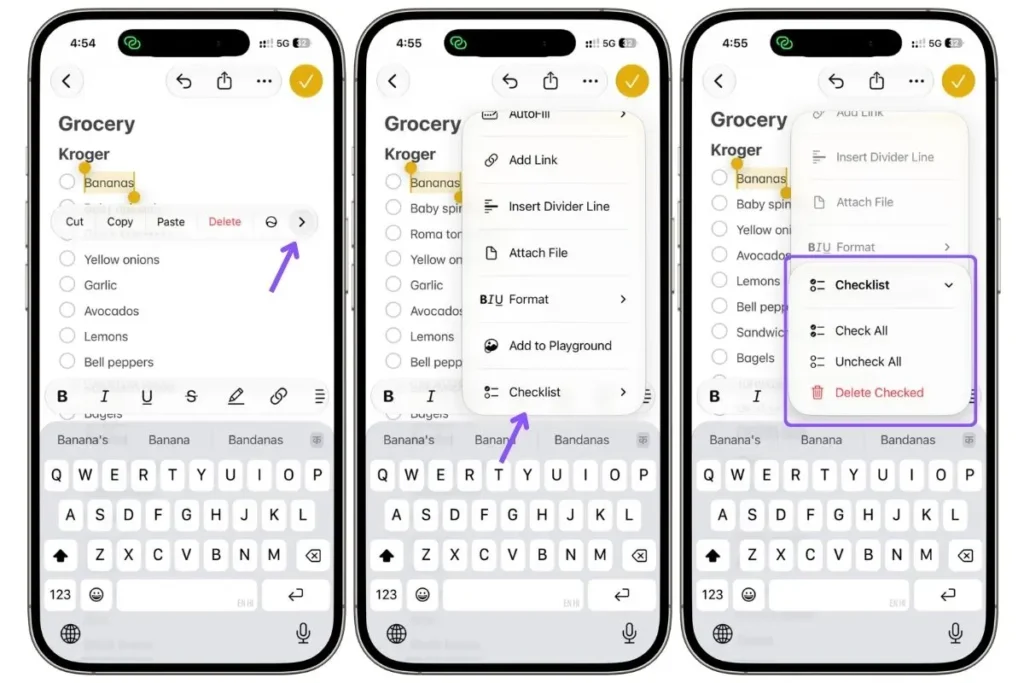
One thing that confuses people: if you don’t see Uncheck All in that menu, it’s because nothing on your list is checked yet. Tick a single item and it shows up.
3. The master template method
Everything so far was setup. This is what makes it a system.
Most people write a list. You’re going to cross one out.
Here’s why that’s better, and it isn’t about saving typing.
Writing a list from memory means recalling, and you’ll get the obvious twenty and forget cumin, foil, and the dog food every time.
Reading down a list of everything you buy means recognizing. Cumin goes past your eyes, and you think, right, we’re nearly out.
Recognition is a much easier job for your brain than recall. That’s why you stop coming home missing things.
3.1 The Sunday loop
Reset the list. Double-tap any item’s text, tap the arrow, tap Checklist, tap Uncheck All. Everything comes back.
Now check off what you’re not buying. Read down the list and tap the circle next to anything you already have.
Bread, got it. Rice, half a bag left. Each one greys out and sinks to the bottom, out of your way.
I’ll be straight with you, this is more tapping than it sounds. I’m usually checking off 31 things to leave 9 standing. Takes about a minute, and it’s completely mindless, because you’re reacting to words instead of interrogating your own kitchen.
What’s left at the top is your shopping list. Nothing else on screen.
Then go shop. Tick each item as it lands in the cart, and it sinks down with the rest. When the top of your note is empty, you’re done.
Worth knowing: unchecking an item one at a time doesn’t bring it back up to the top, it just sits where it is.
3.2 Building your list without sitting down for an hour
Don’t try to write all 40 items in one go. You’ll get 25 and stall.
Instead, add as you notice.
For the next two or three weeks, every time you buy something that isn’t on the list, put it on.
The list finishes itself, and it ends up matching what you actually buy rather than what you imagined you buy.
3.3 Prune it twice a year
Lists rot. That marinade you bought once in 2024 is still sitting there, and every extra item is one more thing to tap past on a Sunday.
Rough rule: if you haven’t bought something in three months, delete it. Takes two minutes and keeps the weekly pass quick.
4. One note, every store
Right now your list is in the order you thought of things, which is nobody’s order. Time to fix that.
4.1 Put it in the order you walk
Think about your actual route through the store. Not aisle numbers, the path.
For me it’s produce, then bread, then the long walk to dairy at the back, then frozen on the way to the register.
Now drag your items to match. Press and hold the circle next to an item, not the words, and the whole line lifts up so you can move it where it belongs.
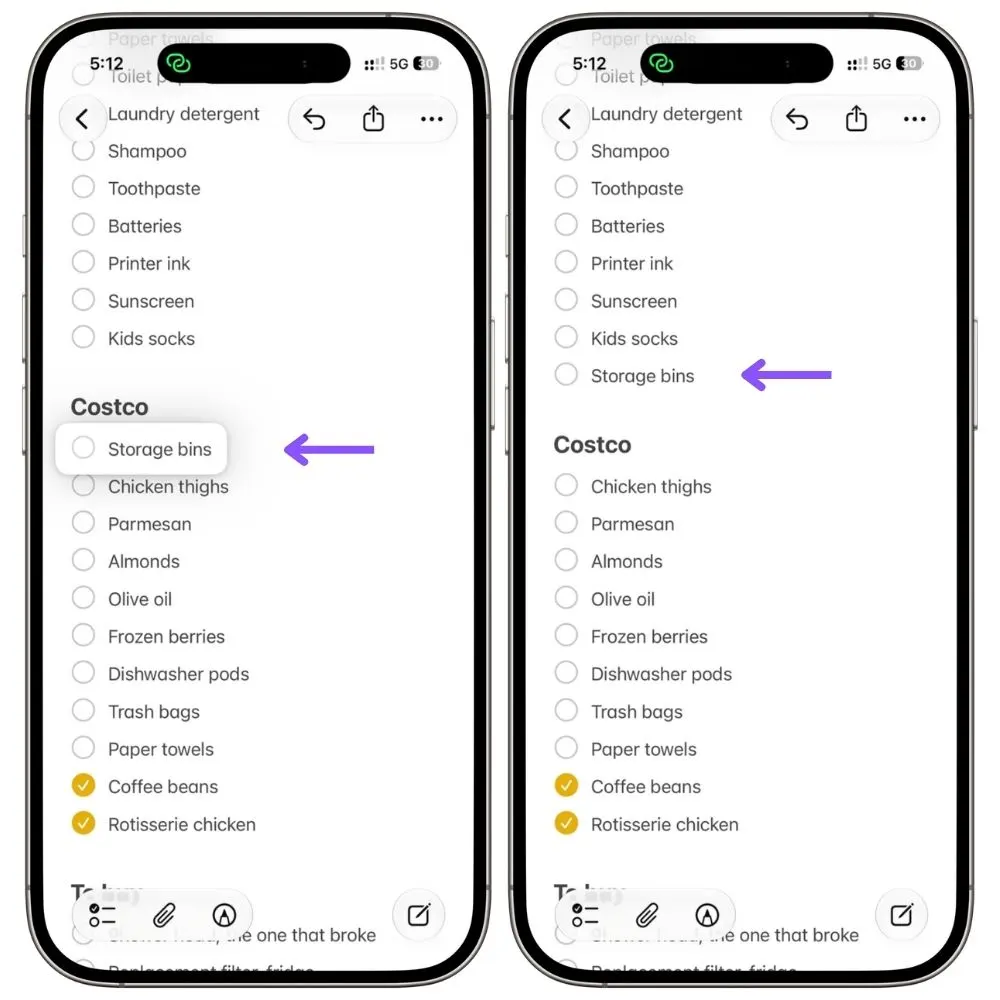
Do it once, properly, and you never do it again.
It takes about 4 minutes and feels tedious, I won’t lie to you. But here’s what you get: you shop top to bottom, one pass, no doubling back because peanut butter was sitting next to the yogurt on your list.
4.2 Add a heading for each store
Here’s where one note starts doing the work of five.
Type your store’s name on its own line. Now select that line, tap the Aa formatting button, and choose Heading.
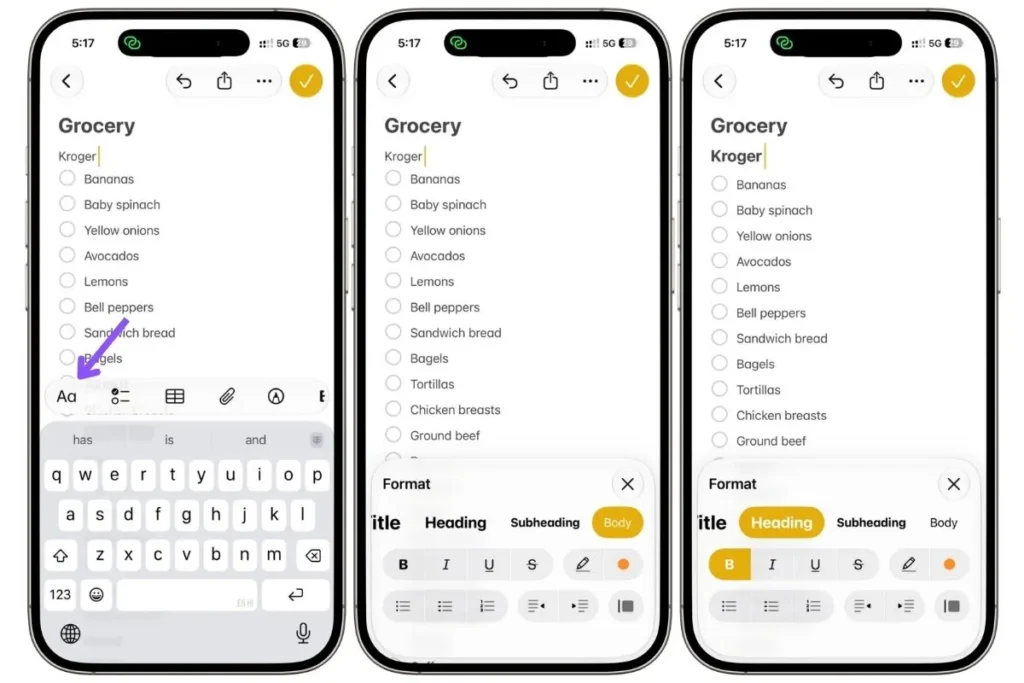
Then start a fresh checklist underneath it and build that store’s list the same way.
Repeat for wherever else you shop. Mine has Kroger, Target, and Costco, each with its own run of items in its own order.
Three things make this work better than separate lists.
Headings collapse, so tap the little arrow next to a store name and everything under it folds away.
Standing in Target? Collapse the other two and Target is your whole screen.
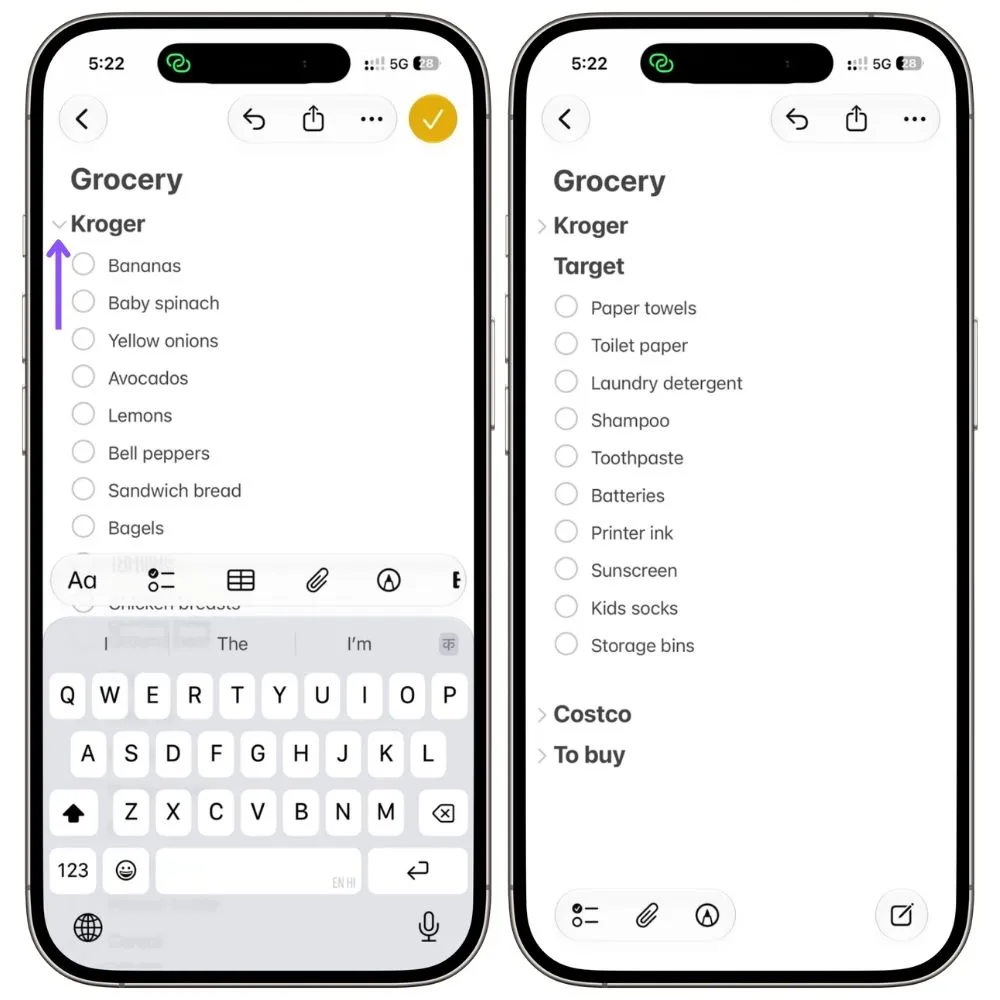
Your items only ever live in one place, so you’re never staring at three lists wondering which one you added batteries to.
And the useful one: Check All and Uncheck All only affect the section you’re in.
Double-tap an item under Kroger, and Uncheck All resets Kroger, leaving Target and Costco exactly as they were. So each store runs its own weekly cycle.
If you’re not going to Costco this week, Check All under Costco and the whole section drops out of sight.
4.3 The bit worth knowing
Costco and Target aren’t grocery runs, and your list should say so.
Under Target, I keep the stuff that’s always cheaper there, plus the seasonal things I forget every year. Paper towels, dog food, the kids’ socks in September.
Once the note stops being about food, it stops being a grocery list and starts being the thing you check before you leave the house, which is the point.
5. Getting items in fast
The list only works if getting that thought into it takes two seconds.
5.1 Don’t use Siri for this
Reminders is built for voice, and if that’s how you shop, I’ve already told you to go use it.
I tried hard to make Siri work here.
I built the shortcut, gave it a name Siri should handle, and said it out loud dozens of times.
It misfires constantly. Wrong shortcut, no shortcut, or it decides I want to search the web.
The failure isn’t in the shortcut, it’s in Siri picking it up, and no amount of renaming fixed it.
So skip voice entirely. Tapping is more reliable and honestly faster once the button is somewhere you can reach.
5.2 So I built something to fix this
Adding one item used to mean unlocking my phone, opening Notes, scrolling to the bottom, typing, then tapping the thing into a checkbox. Six steps for coffee. I’d skip it and forget.
So I built a shortcut. One tap and it reads your note, asks which store this is for, shows you your actual store names, then beeps. You say “coffee.”
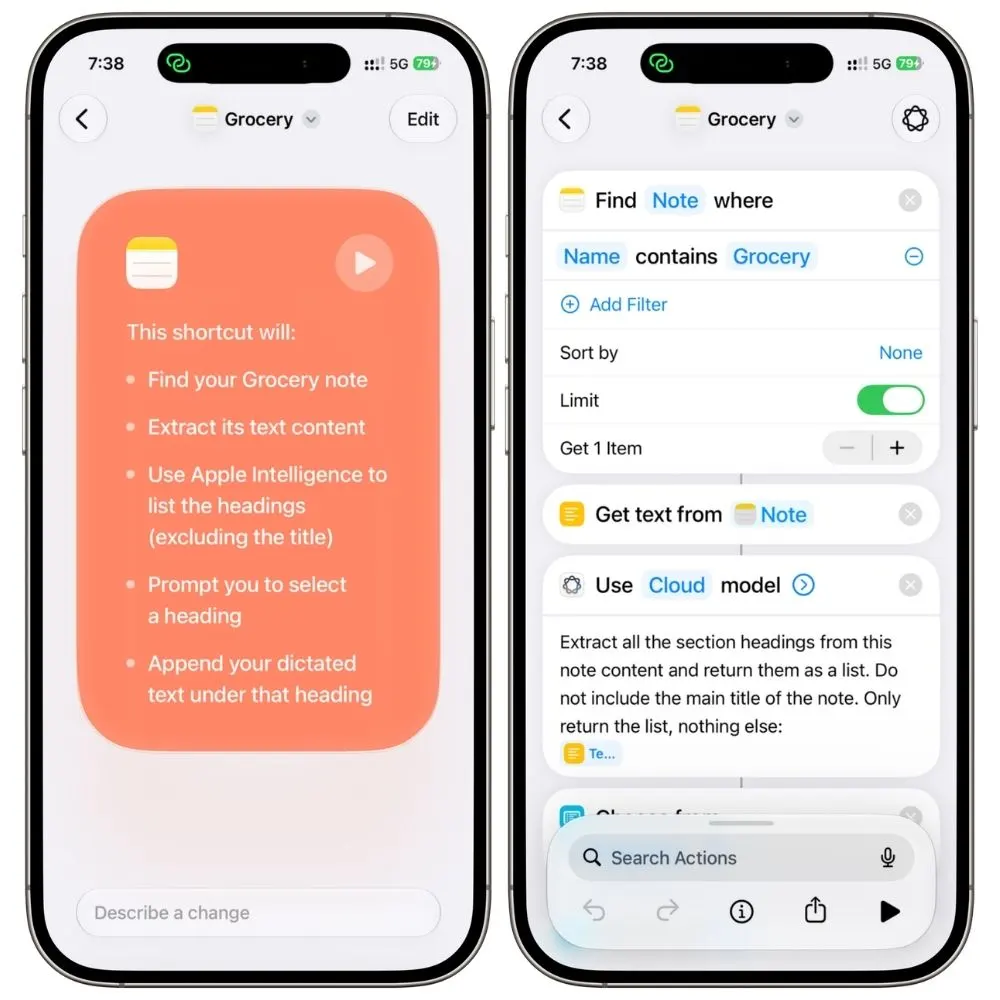
It’s in your list as a proper checklist item, circle and all.
And the best part is, it pulls those store names live from your own note. Rename a store, add a fourth, drop one, and the picker just follows. Nothing to update.
Honest catch: the item lands at the bottom of the note rather than under the store you picked, because Notes won’t let a shortcut write to a specific spot. So the store you tap tells you where to drag it later.
One requirement: the store-reading part uses Apple Intelligence, so you’ll need an iPhone 15 Pro or newer.
5.3 Where to put the button
This matters more than the shortcut itself.
A one-tap capture that takes six taps to reach isn’t a one-tap capture.
Lock Screen, and this is the one I’d pick. You can swap the camera button at the bottom of your Lock Screen for a shortcut.
Long-press the Lock Screen, tap Customize, tap the camera icon, search Shortcut, and choose your shortcut instead.
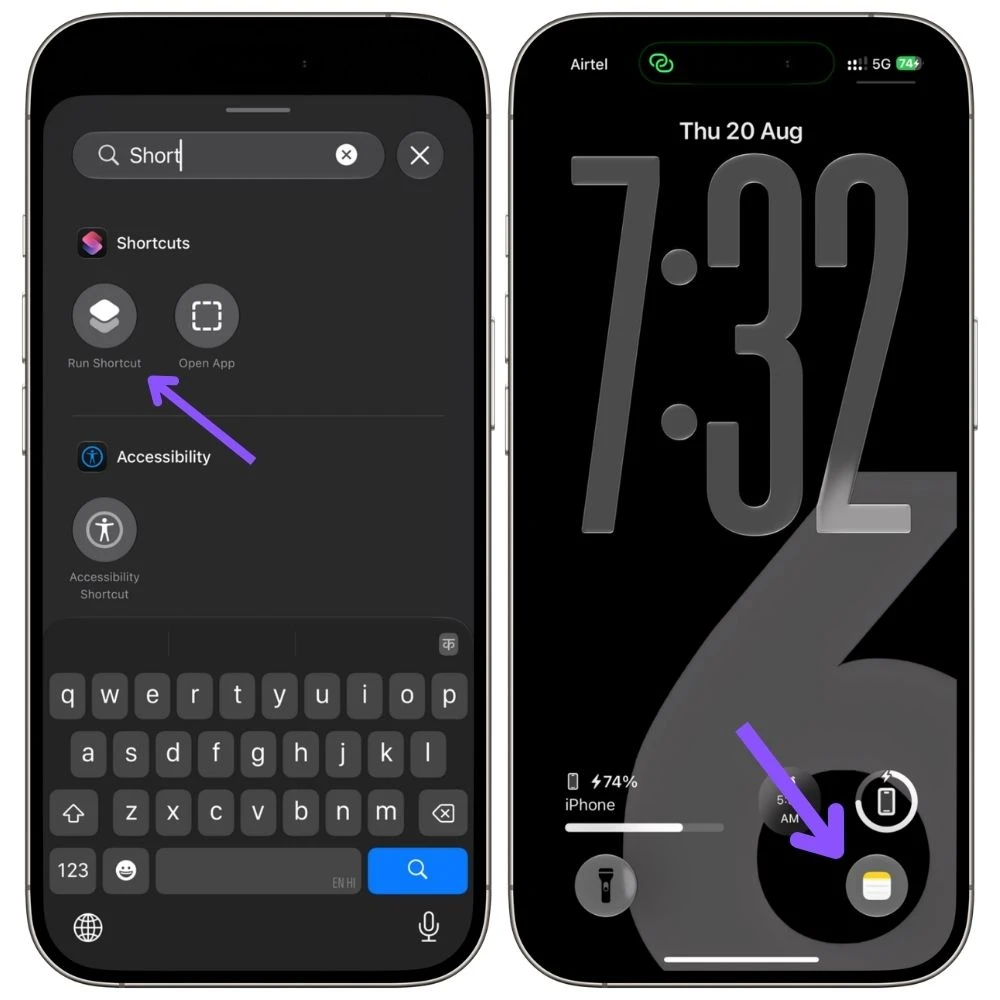
Now it’s the first thing your thumb finds when you pick up your phone, no unlocking, no hunting. I’ve barely opened Notes since.
Action Button, if you’re capturing constantly. Faster still, but you only get one, and most people have something better to spend it on.
Control Center works too if you’d rather keep your camera where it is.
6. Shopping lists that aren’t groceries
Half the reason this note stops being a chore is that it stops being about food.
You already have store headings. Add one more for the stuff that isn’t a weekly shop.
Mine says To buy, and it holds the things I’d otherwise forget until I need them: printer ink, the shower thing that broke, socks in September.
Here’s where the format earns its keep.
Links go straight in. Found the exact thing on a website? Tap the share button, choose Notes, then tap Choose Note and pick your grocery note instead of making a new one.
The link drops in, and you can add a word next to it so future-you knows why it’s there.
Do this with a wishlist, and you’ve saved yourself the annual scroll through your own browser history.
Photos too. Take a picture of the shelf tag, the model number on the back of the thing, your kid’s shoe size written on the box. Paste it under the item.
And prices. Write what you paid next to anything you buy irregularly, then when you’re standing there wondering if $34 is normal, you know.
7. Where Apple Notes falls short
I’ve spent this whole guide telling you why I use Notes for this.
Here’s the other side, because you’ll hit all of it eventually and I’d rather you heard it from me.
7.1 New items land in the wrong place
Add coffee by shortcut at 11 pm, and it arrives at the very bottom of the note.
So every so often you’re dragging them back where they belong. Reminders would have filed it correctly on its own.
7.2 Unchecking doesn’t undo
Tap something off by mistake, and it sinks to the bottom.
Tap it back on, and it stays down there, it doesn’t return to its place in the list. You either drag it back or reset the section.
7.3 No nudge when you’re at the store
Notes has no idea where you are.
If you’re the person who drives past the supermarket and remembers two blocks later, that’s a real loss, and Reminders solves it properly.
7.4 The reset button is hidden
Double-tap the text, tap the arrow, tap Checklist. Nothing about the interface tells you that Uncheck All is in there.
I used Notes for years without knowing.
7.5 Voice isn’t an option here
I tried for days to make Siri run the shortcut and gave up.
Sometimes it opened Reminders instead, sometimes it just didn’t understand me, and renaming the shortcut didn’t help.
This is a tap-driven system, not a voice one.
If you shop by talking to your phone, that’s a real reason to pick Reminders instead.
None of this has been enough to move me back. But if you read that list and three of them landed, that’s your answer, and Reminders is right there.
The honest verdict
Two years of rebuilding the same list taught me something dull but useful: the problem was never the shopping; it was the retyping.
Notes fixes that and not much else.
- It won’t sort your aisles
- It won’t ping you in the parking lot
- It’ll never be as quick to talk to as Reminders
What it does is hand you the same list back, every week, with your photos and your prices and your store order still in it.
That’s it. That’s the whole pitch.
So build it once. Give it fifteen minutes on a Sunday afternoon, get your items down, drag them into the order you actually walk, and find that checklist menu before you need it.
Then next week: Uncheck All, cross off what you already have, and whatever’s still standing is your list.
If you shop the same way I do, you won’t go back either.
And if you try it for a month and it isn’t sticking, Reminders is still sitting right there on your phone. No harm done.
FAQ
How do you make a checklist in Apple Notes?
Open a note, tap the checklist button above the keyboard, and start typing. Every time you hit return you get a new empty circle.
How do you uncheck all items in Apple Notes?
Double-tap the text of any item, not the checkbox. Tap the arrow on the right of the pop-up menu, tap Checklist, then tap Uncheck All.
How do you check all items at once in Apple Notes?
Double-tap the text of any item, tap the arrow, tap Checklist, then tap Check All.
Does Uncheck All clear the whole note?
Only if your note has no headings. If you’ve split it into sections with headings, Uncheck All affects just the section you double-tapped in, which is handy when you shop several stores.
Apple Notes or Reminders for a grocery list?
Reminders if your list changes every week and you add items by voice. Notes if you buy the same things repeatedly and want the same list back each week.
Can you share an Apple Note with your family?
Yes. Open the note, tap the share button, choose Collaborate, and send the invite. Both of you can add and check off items, and it syncs.
Why are checked items not moving to the bottom in Apple Notes?
The setting is off. Go to Settings, then Apps, then Notes, tap Sort Checked Items, and choose Automatically.