
Apple Reminders for College Students: The Semester Hack
Here is the thing nobody tells you about Apple Reminders. It is excellent at one half of college and useless at the other half.
I do not go to college anymore, so I did the next best thing.
My younger brother was drowning in deadlines, tracking everything on a half-dead Notes page.
So I built him a full Reminders system, set it up the way I set up everything, and made him run it through a real semester on iOS 26.
I managed the architecture. He lived in it and reported back.
Here is what that semester taught me. Reminders will keep you from missing a single deadline. Class times, paper due dates, the minute course registration opens, the library book about to rack up a fine.
It nails all of it. But it does nothing to help you actually study. No timer, no Pomodoro, no flashcards, no spaced repetition.
It told my brother a paper was due Thursday and then washed its hands of helping him write it.
So this guide is not “how to make a to-do list.” It is the exact setup I handed a real student, plus an honest map of where the app quits on you.
One hardware note, because it matters more than usual here.
My brother’s phone is an iPhone 13, which is exactly what a lot of students actually carry, not the newest model.
That turned out to be useful because it means the core system in this guide ran on a normal, older iPhone with zero problems.
A handful of the newest iOS 26 features run on Apple Intelligence, which needs an iPhone 15 Pro or newer, so his 13 cannot use them at all.
I tested those separately on my own iPhone 17 Pro, and I am clear throughout about which is which.
If you are on an older iPhone like he is, almost everything here still works. If you are on a newer one, you get a few extra shortcuts on top.
Table of Contents
- 1. Why Students Keep Ditching The Fancy Apps And Coming Back To Reminders
- 2. The Semester Setup: One List Per Class, Nothing Fancier
- 3. The Five Smart Lists That Run Your Day
- 4. The Do-Date Trick That Actually Beats Procrastination
- 5. Urgent Alarms For The Deadlines You Literally Cannot Miss
- 6. Turning A Syllabus Into Tasks Without Typing It All Out
- 7. Group Projects: The One Place Reminders Genuinely Shines For Teams
- 8. Location And Message Triggers For Campus Life
- 9. Where Reminders Quits On You, And What To Pair With It
- 10. The Five-Minute Nightly Reset That Keeps It Alive
- The Verdict
- FAQs
1. Why Students Keep Ditching The Fancy Apps And Coming Back To Reminders
If you have spent any time in college productivity circles, you have seen the cycle.
Someone discovers Notion. They build a gorgeous dashboard with linked databases and color-coded everything.
Three weeks later, the dashboard is a graveyard because maintaining it became a second-class they did not sign up for.
That is the real problem with the heavy apps.
They make organizing your work feel like doing your work. You get a hit of fake productivity from arranging tasks while the actual reading sits untouched.
And most of the genuinely useful features sit behind a subscription, which is a hard sell when you are already paying for textbooks.
My brother had tried two of these before I stepped in. He bounced off both for the same reason: too much upkeep, too little payoff.
Also Read: Apple Reminders as a Task Manager: My Full System
Reminders has two unfair advantages that fixed that:
- It is free and already on the phone. Nothing to buy, nothing to install, no account to set up.
- It is wired into the rest of the iPhone at a level no third-party app can touch. Siri drops tasks into it. Mail and Safari feed it. It shows up on the lock screen and the watch with zero effort.
I am not going to pretend it matches a dedicated project tool feature for feature. It does not. But for the specific job of “do not let me miss anything this semester,” the lack of friction wins.
That is exactly what my brother needed and exactly what the expensive apps failed to give him.
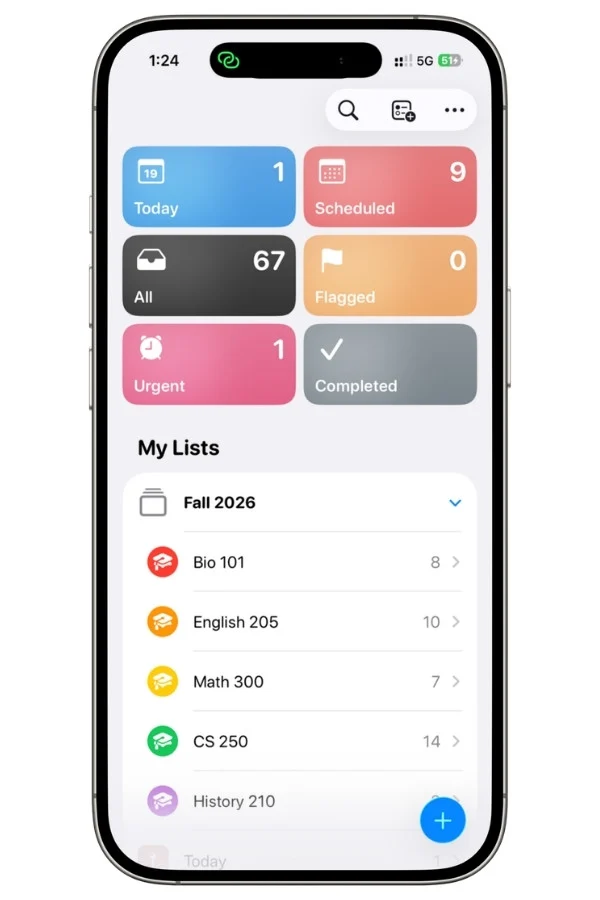
2. The Semester Setup: One List Per Class, Nothing Fancier
Start here, because the structure decides whether the whole thing works.
The rule I gave him was simple: one list per class.
Not a single giant “Homework” list with everything dumped in. One list for each course. Bio 101 gets its own list. English 205 gets its own list. So does the math class he was dreading.
People push back on this. Is it not simpler to have one master list of assignments? It is not, and here is the concrete reason.
When everything lives in one list, you cannot share just one class with your group project teammates without exposing your entire academic life.
With separate lists, he shared the Bio 101 list with his lab partners and nothing else. They saw the group work. They did not see he was three weeks behind in English.
Separate lists also let you glance at a single class and see only that class. During finals, when his brain was already full, opening “Chem 201” and seeing four things beat opening “Everything” and seeing forty.
One small thing about the names. My brother insists on naming every list by the course code, Bio 101, CS 250, Math 300, never the full subject. I asked him why, and he could not actually explain it. “That’s just what they’re called.” I think he has typed those codes so many times on assignments that the real words have stopped existing in his brain. Whatever the reason, it works in your favor here: short codes fit better on screen, read cleaner in the lists, and you instantly know which class is which. Name yours however you label them in your own head. That is the one that will stick.
2.1. Use Sections Inside Each Class
Inside each class list, sections group the type of work.
His class lists all followed the same template:
- Readings for the chapters and articles
- Assignments for problem sets and papers
- Exams for midterms, the final, quizzes
- Admin for the boring stuff like emailing the professor or printing the syllabus
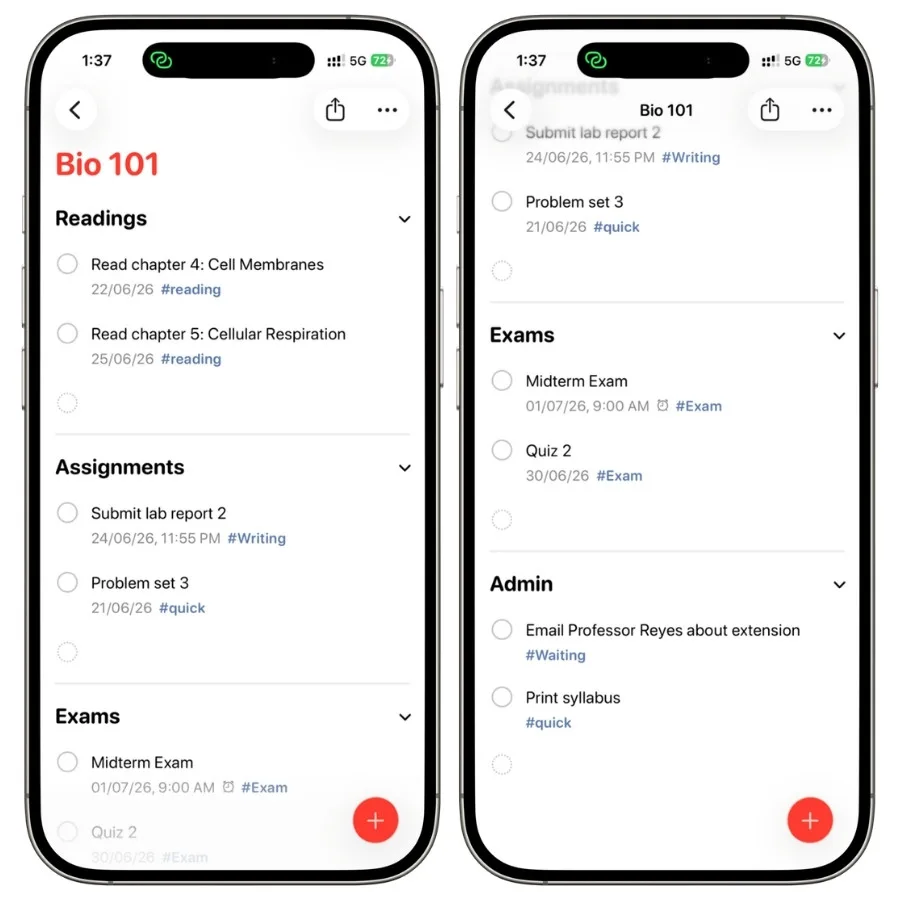
To add a section, open the list, tap the more (three dots) button, and choose to add a section.
Tasks live under whichever section you drop them in, and you can collapse a section you do not need right now.
During a normal week, he kept Readings collapsed and only expanded it on weekends.
2.2. One Group To Hold The Whole Semester
Reminders does not call these folders, even though that is what everyone expects.
The feature is called a Group, and it holds multiple lists under one collapsible heading.
Make a group called something like “Fall 2026” and put all the class lists inside it. Next semester, you make a new group, and the old one collapses out of the way. Clean break, no clutter, the whole academic history stays archived without crowding the daily view.
There are two ways to make one:
- The fast way: touch and hold a list, then drag it on top of another list. Reminders bundles them into a new group and asks you to name it.
- The menu way: tap Edit at the top right of the main Reminders screen, then tap Add Group at the bottom, name it, and choose which lists to include.
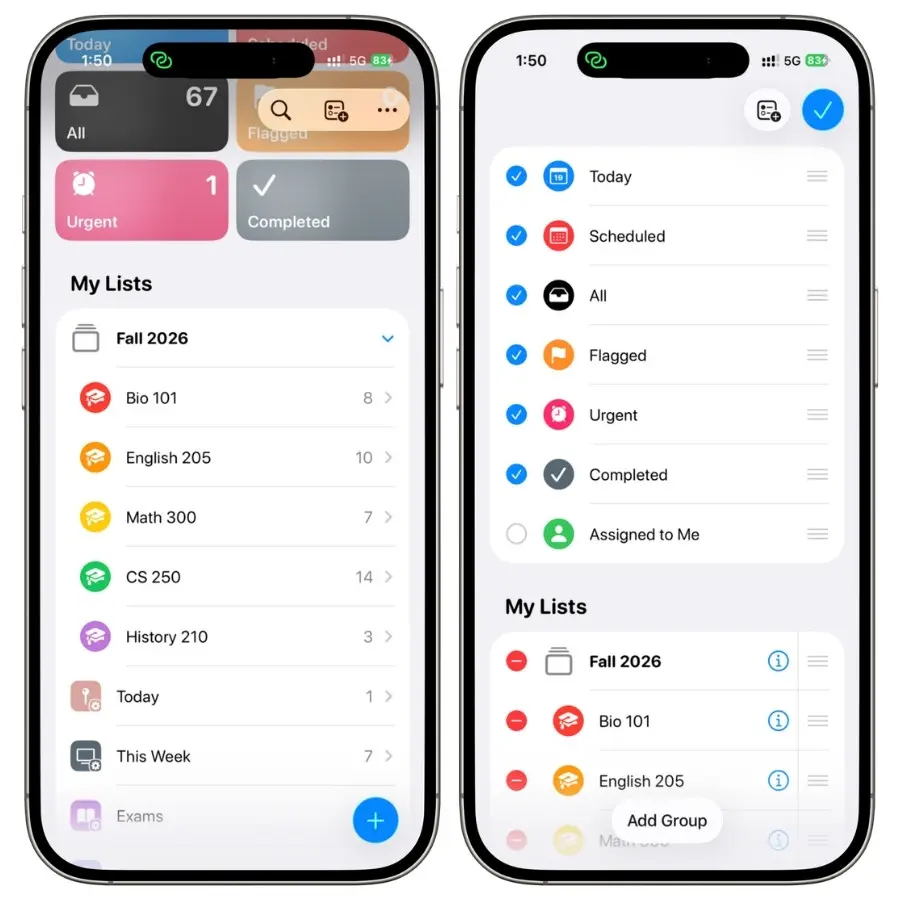
You can drag lists in and out of a group anytime, so reshuffling mid-semester is painless.
My brother ran this structure for about three weeks across five classes before he trusted it enough to stop double-checking against Canvas. By week four he had stopped opening Canvas to check deadlines entirely, which is the real test of whether a system has taken over.
3. The Five Smart Lists That Run Your Day
Here is where Reminders stops being a list and starts being a system.
Once the classes were set up, I told him to almost never open the individual class lists during a normal day. You operate out of smart lists instead.
A smart list is a saved filter. It pulls tasks from every class automatically based on rules you set, so you get one dashboard instead of clicking through six classes every morning.
To make one, scroll to the bottom of your lists, tap Add List, switch it to Smart List, and set the filters.
These are the five I built for him:
| Smart List | What It Filters For | When He Used It |
|---|---|---|
| Today | Due today or overdue, plus flagged | Every morning, the main view |
| This Week | Due in the next 7 days | Sunday-night planning |
| Exams | The “exam” tag | Checking the testing schedule ahead |
| Quick Wins | The “quick” tag | Dead time between classes |
| Waiting On | The “waiting” tag | Tracking things stuck on other people |
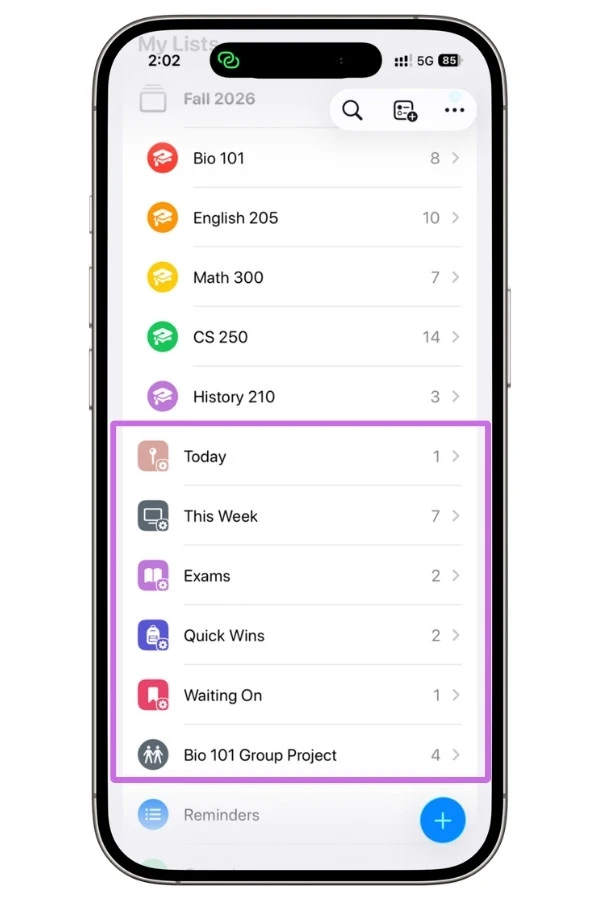
A few of these deserve a closer look.
- Today mixes the hard deadlines the system already knows about with the handful of things he personally flagged to do that day. It was the only list he looked at most mornings.
- Exams pulls every test out of the daily noise so he could see his whole testing schedule for the month without homework cluttering it.
- Waiting On tracks things stuck on someone else. Waiting for a professor to answer an extension email. Waiting for a teammate to send slides. Without this list, those tasks vanish from your brain the second you hit send, and then you are blindsided when nothing happened.
3.1. Tags Are The Glue
The tags are what make the smart lists work.
A tag crosses every list, so a task in Bio 101 tagged “quick” shows up in Quick Wins right alongside a quick task from English. Add tags by typing # in a task or from the task detail screen.
Keep the tag list short. He used five tags total. The moment you have twenty tags, you will not remember which is which, and the system rots.
I’ve put both through a lot more than store tags. If you want the honest, fully tested rundowns, here are my Apple Reminders Smart Lists guide and my complete guide to tags.
4. The Do-Date Trick That Actually Beats Procrastination
This is the most useful idea in this entire guide, and almost nobody uses it correctly.
When a ten-page paper is assigned a month before it is due, what does everyone do? They set a reminder for the due date.
Which means the reminder politely shows up on the exact day the paper is due, when it is already far too late to start.
The reminder did its job, and you are still up at 3 a.m.
The deadline is not the date you need to be reminded. The date you need to be reminded is the date you should start.
Reminders solves this with a feature hiding in plain sight: Early Reminder.
You set the real due date as the actual deadline, then add an early reminder offset, anything from a few minutes before up to a custom number of days before. So the paper’s due date is the real deadline, and the early reminder fires ten days before.
On that day, ten days out, the notification surfaces and says Start this now.
Here is how to set one:
- Tap the task, then tap the info button (i) next to its name
- Make sure a due date is set first; this is your real deadline
- Tap Early Reminder
- Choose when you want the nudge, from quick presets like “5 minutes before” or “2 days before,” or set a custom number of days
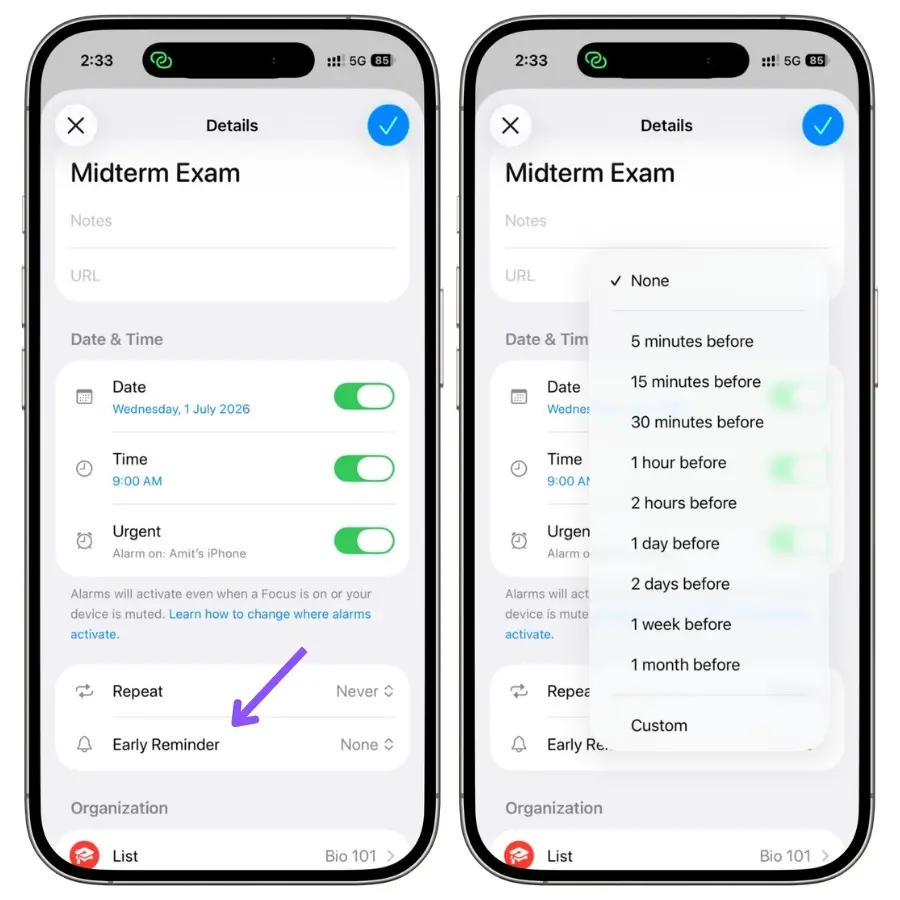
That second notification is your start date. The due date stays put as the hard deadline.
Here is the part that makes it genuinely smart.
The early reminder is linked to the due date. If a professor pushes the deadline back five days, you change the due date and the early reminder slides forward by the same five days automatically. You keep your full lead time without recalculating anything.
I had him treat every paper and big project this way.
The real deadline goes in as the due date. A start-date early reminder goes in based on how long the thing actually takes:
- A problem set: 2 days of lead time
- A research paper: 10 days of lead time
It reframes the whole task from a panic on the due date to a normal thing he started on time. If you take only one habit from this guide, take this one.
Also Read: How Apple Reminders Early Reminders Actually Work (I Tested Every Setting)
5. Urgent Alarms For The Deadlines You Literally Cannot Miss
A normal notification is a banner you swipe away on autopilot while clearing forty other alerts.
For most tasks, that is fine. For a few, it is a disaster.
- Course registration opening at 7 a.m
- The financial aid form that closes at midnight
- The internship application due at 5 p.m. sharp
For those, iOS 26 added something better.
In iOS 26.2, Apple gave Reminders a real alarm. You mark a task as Urgent, and instead of a quiet banner, it rings like a wake-up alarm when the time hits, with a snooze.
It cuts through silent mode and even through a Focus. You cannot absentmindedly swipe it away.
To turn it on, tap the task, tap the info button, and under Date and Time, switch on Urgent. The date and time have to be set, or it defaults to the next hour.
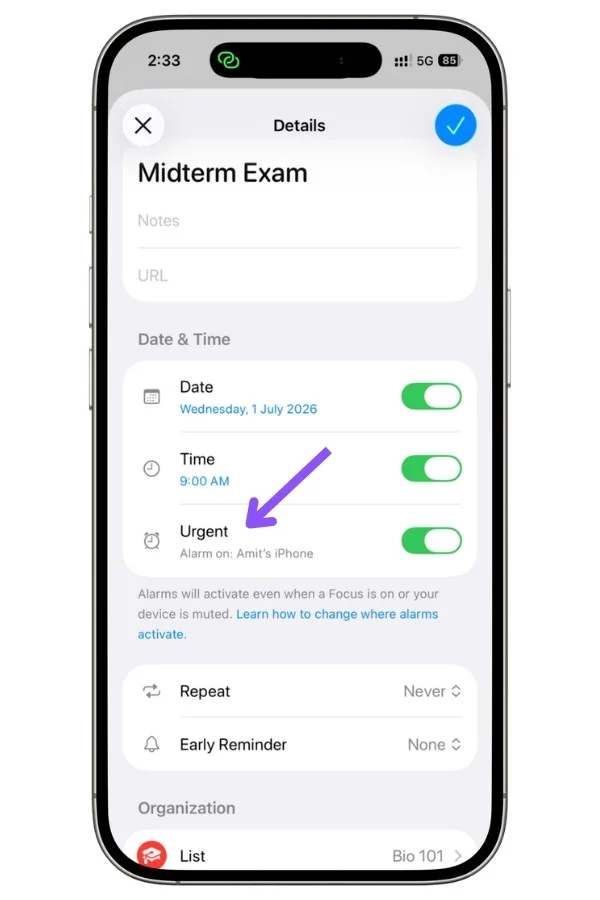
Then in iOS 26.4, Apple added a dedicated Urgent list that appears automatically near the top of your screen, right alongside the built-in Today and Flagged lists.
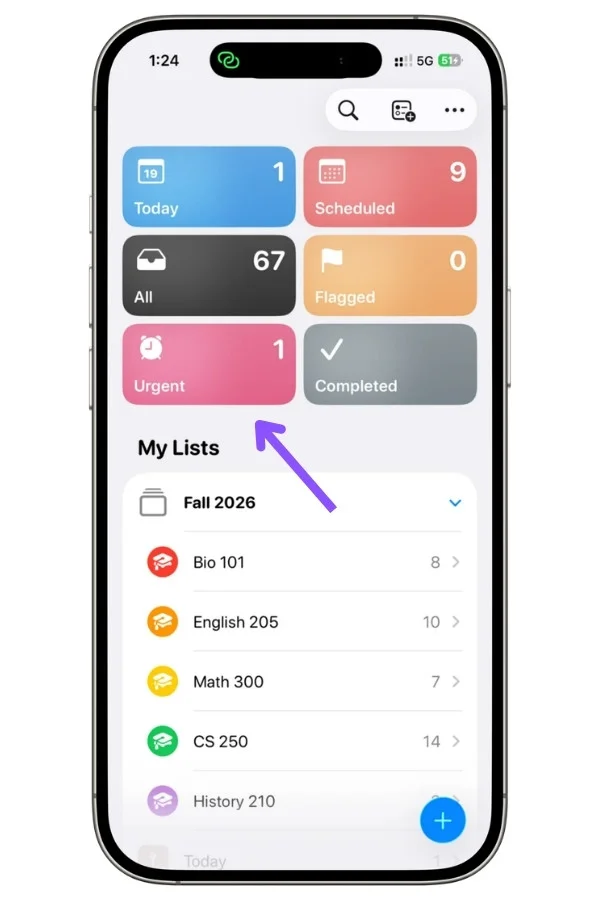
You do not create this one or set any filters. The moment you mark a task Urgent, it shows up here on its own, pulling every urgent task from every list into one place.
So unlike the five smart lists you built earlier, this one builds itself. If your Today list ever gets overwhelming, flipping to Urgent shows only the things with real hard stops.
5.1. The Gotcha Nobody Warns You About
One honest catch we hit while testing:
The alarm only fires on the device that Find My uses as your location, and you have to give Reminders permission to use alarms first.
If you mark something Urgent and the alarm never goes off, that is why.
- Go to Settings > Apps > Reminders and turn on Alarms
- Check in Find My which device is set as your location, because that is the one that will ring
My brother set a registration-day reminder as Urgent, expecting the alarm to wake him, and it never made a sound because the alarm was firing on his iPad sitting in another room, not his iPhone, before we sorted this out.
And do not mark everything urgent.
If ten things ring like alarms every day, you will start ignoring the alarm too, and then you have lost the one tool that was supposed to be un-ignorable.
He kept it to two or three truly critical things at a time.
6. Turning A Syllabus Into Tasks Without Typing It All Out
Syllabus week is the worst.
Every class hands you a document with a dozen deadlines, and you are supposed to transcribe all of them by hand, and one typo means a missed assignment in week three.
6.1. The Method That Works On Any iPhone
My brother is on an iPhone 13, so he did not have any AI shortcut for this.
He used the method that works on every iPhone, and honestly, it is not bad once you have a rhythm.
Open the syllabus on one side and use Siri to fire tasks in by voice as you read down the list.
“Remind me to submit essay one on October 3.” Next line. “Remind me the midterm is on October 17.”
It is faster than thumb-typing each one, and Siri parses the dates for you.
He got through a full syllabus in about eight minutes this way. Slower than the AI version below, but it cost him nothing, and it never depended on his phone being new enough.
The one habit that matters here: capture the date and the class in the same breath, then sort into the right list during your nightly reset. Do not stop to organize mid-syllabus or you will lose momentum.
6.2. The Faster Way If You Have A Newer iPhone
If you are on an iPhone 15 Pro or newer, iOS 26 can pull the deadlines out for you. The feature is Suggested Reminders, part of Apple Intelligence, and it works through the share sheet.
I tested this on my own iPhone 17 Pro, since my brother’s 13 cannot run it at all.
The basic flow:
- Open the text you want to pull tasks from, a note, an email, or a webpage
- Select the part with the dates and assignments
- Tap Share, then tap Reminders
- Under Suggestions, Apple Intelligence lists the tasks it found
- Tap the + next to the ones you want, or tap Include All
- Choose a list and confirm
When it works, it is genuinely good.
To test it, I grabbed the Biology study note I had set up for my brother back when I built our Apple Notes for Students guide, which already had four assignments laid out as clean lines with due dates. Apple Intelligence read all four, rewrote each one into a proper task, and attached the right date.
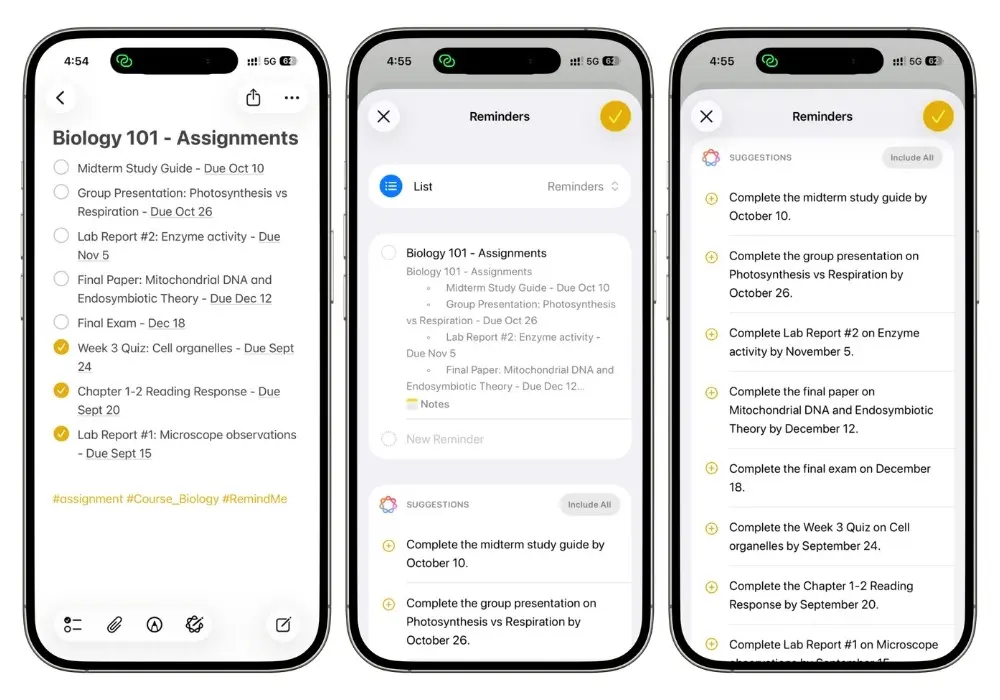
That rewriting is worth knowing about as it does not copy your text word for word; it rephrases each item into a proper to-do, so the wording will not match your original exactly.
Now the honest part, because I hit every snag a reader will hit.
It only works if the text looks like tasks
I shared a course catalog webpage first and got nothing, the Suggestions box loaded, then vanished.
That is not a bug. The AI wants clear actions and dates, and a catalog page is mostly description.
Feed it a syllabus schedule or a clean note with “assignment, due date” lines. Feed it a random webpage, and you get nothing.
Apple Intelligence has to finish downloading first
My early tries failed silently because the models had not downloaded, even though the feature was switched on.
The fix: enable it in Settings, stay on Wi-Fi until it downloads, then restart. If a brand-new eligible iPhone does nothing here, the models are not ready yet, it is not broken.
It is beta, so check its work
Apple says the output varies and to verify important details.
In my testing, it nailed it; all four assignments pulled correctly with the right dates, but I checked every date against the source anyway.
Let it do the heavy lifting, not the final word on when your paper is due.
Bottom line: if you have the hardware and you feed it clean, task-shaped text, Suggested Reminders saves real time. If you do not have the hardware, the Siri method in 6.1 gets you to the same place for free. My brother proved you do not need the newest phone to run this whole system, just this one shortcut.
7. Group Projects: The One Place Reminders Genuinely Shines For Teams
Group projects are where most personal apps give up, because they are built for one person.
Reminders handles shared work better than you would expect, and it is free for everyone in the group, which matters when half the team is broke.
Share the class list, or better, make a dedicated list just for the project and share that.
Open the list, tap the share button, and send the invite through Messages. Everyone who joins can add tasks, check things off, and see each other’s changes in real time.
7.1. Assigning Tasks To Real People
The part that makes it useful for teams is assignment.
Inside a shared list, you type @ followed by a teammate’s name to assign a task to them.
Each person opens the Assigned to Me smart list and sees only their slice. It is written down and assigned to a name.
7.2. Column View For Long Projects
For a longer project, a thesis or a semester build, try column view.
Add sections named for stages, like To Do, In Progress, and Done, then switch the list to view as columns from the More menu.
Now you drag tasks across the board as they progress. For a group, it gives everyone a shared picture of where things stand without a status meeting.
We tested the shared-list flow between my iPhone 17 Pro and my brother’s iPhone 13, with each of us adding and checking off tasks, and the syncing was near-instant, changes showed up on the other phone within a couple of seconds.
The honest limit: everyone has to be on iCloud with Reminders turned on. If a teammate is on Android, this does nothing for them. For an all-iPhone team, it is great. For a mixed team, you are back to a group chat.
8. Location And Message Triggers For Campus Life
Two smaller features that fit college life almost too well.
8.1. Location Reminders
Location reminders fire when you arrive somewhere or leave somewhere.
To set one, open a task’s details, scroll to Places & People, and turn on Location.
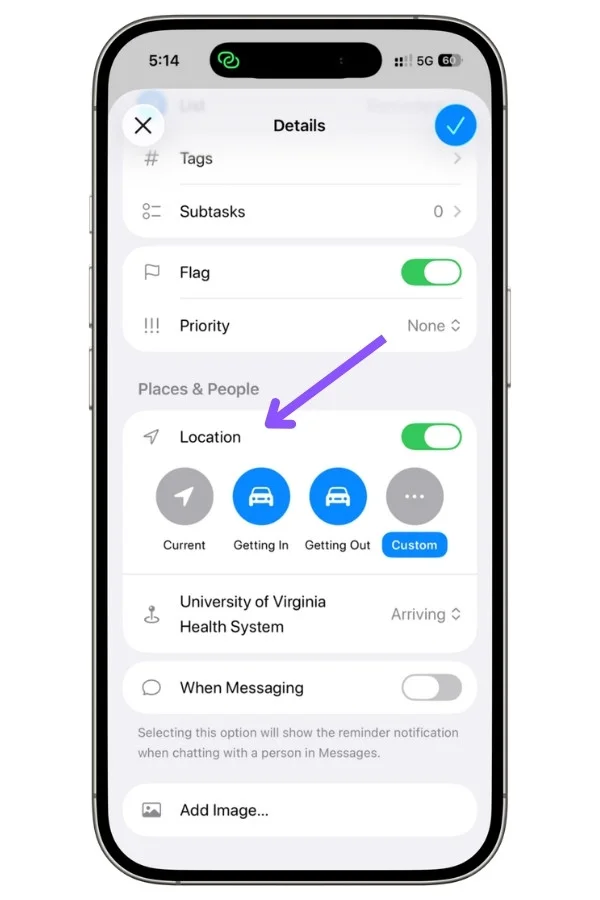
You will see a few presets, Current, Getting In, and Getting Out (those last two trigger when you get in or out of a connected car), plus Custom. For a campus building, tap Custom, search the place, and choose Arriving or Leaving.
My brother set “print the midterm essay” to ping him on Arriving at the library, and “pick up package” to trigger at the campus mailroom.
On a big campus where you are constantly walking between buildings, getting reminded at the right place beats getting reminded at the wrong time.
8.2. Message-Based Reminders
Message-based reminders are the sleeper feature.
You attach a task to a person, so it surfaces the next time you open a text thread with them.
He set “ask Sarah for the lecture notes” with the when-messaging option toggled on for Sarah. The task stayed quiet until the next time he texted her, then popped up exactly when he could act on it.
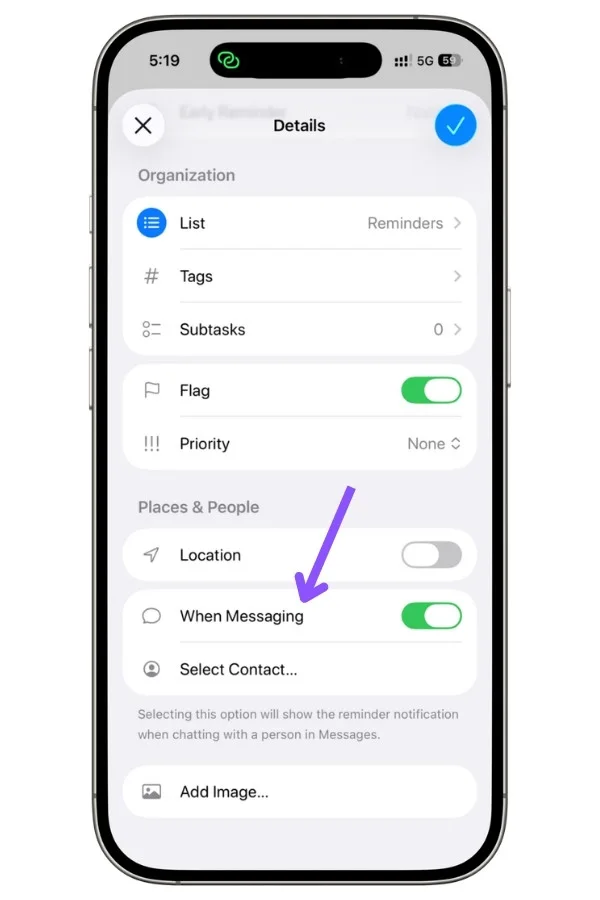
For all the “I keep forgetting to ask my classmate that one thing” moments, this is the fix.
9. Where Reminders Quits On You, And What To Pair With It
I promised honesty, so here is the wall you will hit. Watching my brother use it for a full semester made the gaps obvious.
Reminders manages deadlines. It does not help you study. Specifically:
- No built-in focus timer, so no Pomodoro
- Nothing for flashcards or spaced repetition, so it cannot help you memorize
- The notes attached to a task are shallow, so it is no place to draft or think
- It does not block time on its own, so it will not tell you when in your day the work fits
That last gap has a partial fix worth knowing.
A reminder with a specific due time shows up on your Apple Calendar timeline automatically, as long as Reminders is toggled on in the Calendar app.
So you see your fixed class schedule and your timed tasks layered together, which makes it much harder to fool yourself into thinking you can write two papers and study for a midterm in one evening.
It is not true time-blocking inside Reminders, but pairing Reminders with Calendar gets you most of the way.
For the actual studying, Reminders is the wrong tool, and that is fine.
Use it to know what is due and when to start. Use something else, even a plain timer and a stack of index cards, for the learning itself.
Asking Reminders to be your study method is like asking a calendar to write your essay.
9.1. A Light Note On Focus And Time-Blindness
If you struggle with focus or losing track of time, a couple of Reminders habits genuinely help, no diagnosis required:
- Capture by voice the instant a task occurs to you, before it evaporates. Just say “remind me to email my advisor at 4” to Siri, and it is captured. Removing that friction was the single biggest change for my brother.
- Put a Today smart list widget on your home screen so you confront the list every time you unlock your phone, instead of it living out of sight and out of mind. You can check tasks off straight from the widget without opening the app.
10. The Five-Minute Nightly Reset That Keeps It Alive
A system is only as good as its upkeep, and this one needs about five minutes a night.
Skip it, and within a week, your lists are a swamp.
The routine I gave him:
- Empty the inbox. Move anything captured loosely into the right class list.
- Add tags to anything new.
- Check off what you finished. It honestly feels good and is half the point.
- Flag the three to five things you will actually do tomorrow, so the Today list greets you with a short, real plan instead of an avalanche.
He did this in bed each night before putting his phone down, and it took him about four minutes once he got the hang of it.
The mornings after he had done the reset were the calm ones. The mornings he skipped it, he opened the app to chaos and wasted the first twenty minutes just figuring out what mattered.
The Verdict
Apple Reminders is the best free deadline system a college student can run, full stop.
Set up one list per class, live out of a handful of smart lists, use early reminders as start dates, and mark only the true emergencies as urgent.
Do that, and you will not miss anything for an entire semester. My brother went the entire semester, start to finish, without dropping a single deadline.
But know what you are holding.
It is a deadline engine, not a study tool.
It tells you the paper is due Thursday and nudges you to start on Monday. The writing, the learning, the actual focus, that is still on you and whatever you pair it with.
Stop expecting it to be your whole academic life, and it becomes the most reliable part of it.
FAQs
Is Apple Reminders good for college students?
Yes, for managing deadlines. It is free, built into every iPhone, and handles class schedules, due dates, and exam alerts well. It is not a study tool though, there is no timer, focus mode, or flashcards, so pair it with something else for actual studying.
Is Apple Reminders free?
Completely. It comes built into every iPhone, iPad, and Mac, with no subscription and no in-app purchases. iCloud sync across your devices is free too.
How do I make a reminder ring like an alarm?
Open the task, tap the info button, set a date and time, then turn on Urgent under Date & Time. This needs iOS 26.2 or later, and you have to allow Reminders to access alarms in Settings, Apps, Reminders.
Why is my urgent reminder alarm not going off?
Two common reasons. You have not granted Reminders alarm access in Settings, or the alarm is firing on a different device. Urgent alarms only sound on the device Find My uses as your location, so check Find My, tap Me, and see which device that is.
How do I hide recurring reminders until they are due?
Make a Smart List that shows today’s tasks but excludes the list holding your daily repeating chores. There is no single toggle for it, the exclude-a-list filter is the workaround most people use to keep their main view clean.
Can I share an Apple Reminders list for a group project?
Yes. Open the list, tap the collaborate button, and invite people through Messages. Everyone can add and check off tasks, and you can assign a specific task to a person by typing @ and their name. Everyone needs an iPhone or iPad on iCloud.
What is the difference between a list and a Smart List?
A regular list is a folder you put tasks into by hand. A Smart List builds itself using filters you set, like a tag or a due date, pulling matching tasks from across all your lists automatically. You create tasks in regular lists and view them through Smart Lists.
Does Apple Reminders work with Android?
No. Reminders is Apple-only and syncs through iCloud, so Android users cannot join a shared list. For a mixed group, a shared note or group chat is the fallback.
How many tags should I use in Reminders?
Keep it small, around five. Tags only help if you remember what each one means. A handful of broad tags like #reading, #writing, and #exam works far better than twenty narrow ones you will never reuse.