
How to Use Tags in Apple Reminders (And Where They Break)
Lists put a reminder in one place. Tags let it live in several at once. That’s what turns Reminders from a checklist app into something you can actually filter.
Typing # is the easy part. Making tags do real work is where it gets interesting.
This guide covers how tags actually behave, how to combine them with Smart Lists to build views that update themselves, and two tagging systems you can copy straight over.
Plus the things you only find out by living in the app: the one Smart List filter that silently breaks your list, why your tags vanish the moment you share, and how to clean up a messy tag setup in seconds once you know where to look.
All tested on iPhone.
Table of Contents
1. How tags actually work
A reminder lives in exactly one list. It can carry as many tags as you want. That single difference is what tags are for.
Right now I’m running about 30 tags across my grocery setup, a student setup, and a few systems I’ve kept going for months.
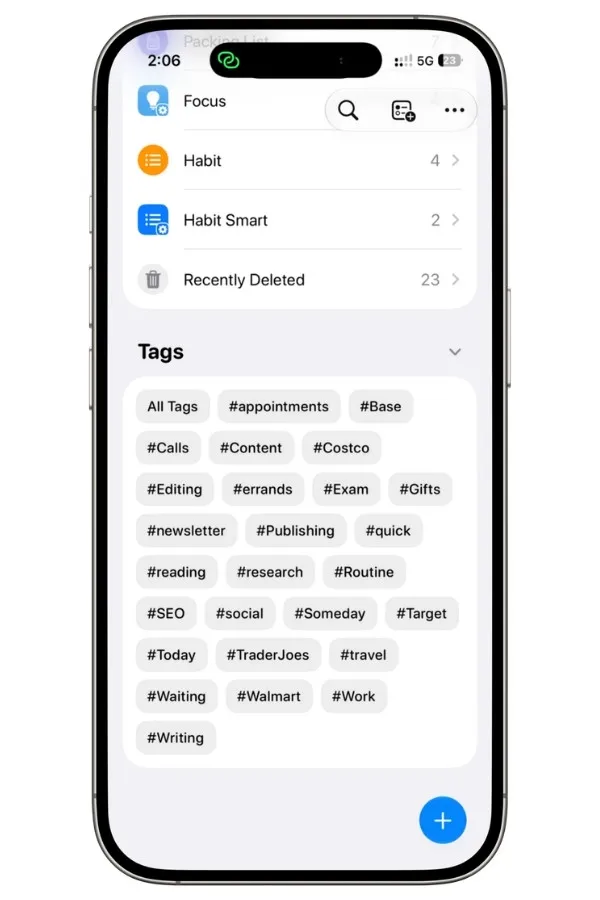
During heavy testing, that number has climbed past 100 before I cleared it back down. Thirty is roughly where it stays useful.
1.1 Creating and applying a tag
Tap any reminder and a row of buttons appears underneath it.
The # button in that row opens your full tag list, with every tag you’ve already made and an option to create a new one.
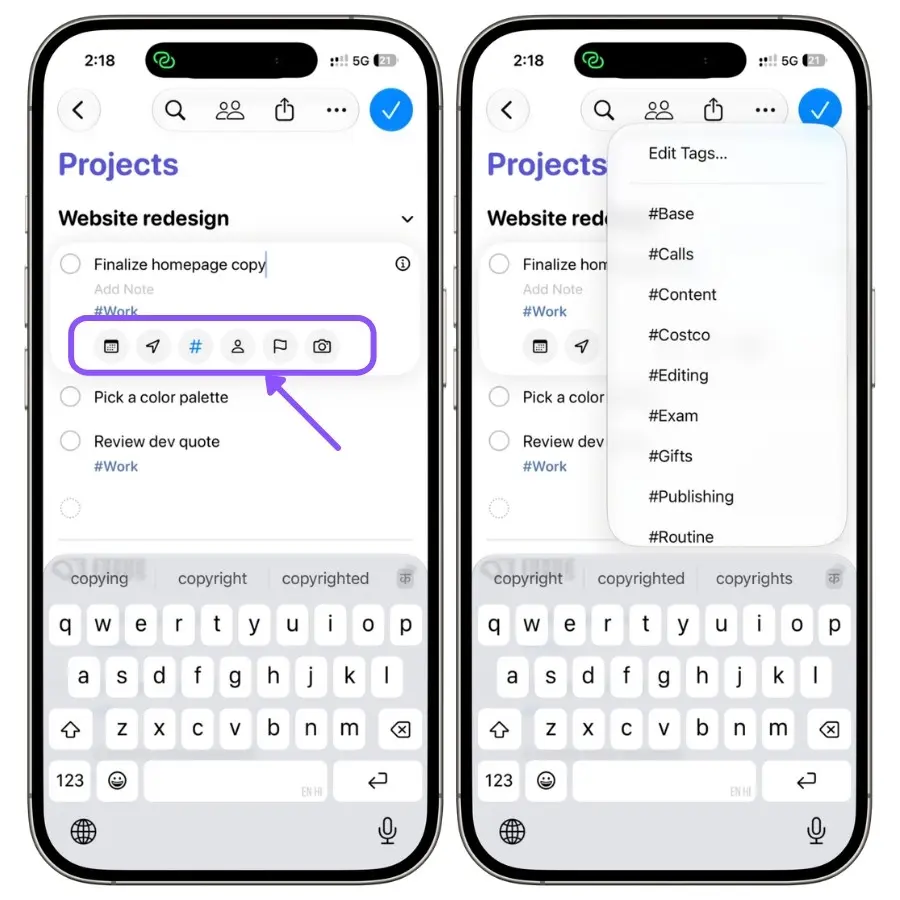
That’s the safest way to tag something, because you’re picking from what exists instead of retyping it.
Typing works too. Type # in the reminder title and keep going to name the tag.
It autocompletes against existing tags as you type, which matters more than it sounds like: type it slightly differently and you get #work and #Work as two separate tags, splitting your reminders across both.
Tags can’t contain spaces. Hit the space bar and the tag ends there. So #meal prep won’t work as one tag. Use #mealprep or #meal-prep instead.
Once a tag exists, it shows up in three places: the Tags section at the bottom of your main Reminders screen, the tag picker on that toolbar, and search.
Tapping a tag in the bottom section pulls every reminder carrying it, across every list.
There’s a third way if you’re already in a reminder’s Details screen (tap the ⓘ button): under Organization, the Tags row opens the same picker, showing how many tags are currently on that reminder.
1.2 Tags vs lists
The rule I use: a list is where something lives, a tag is what it is.
Groceries is a list. Everything in it belongs there and nowhere else. But #costco is a tag, because Costco items show up in the grocery list, the household list, and whatever I’m planning for a trip.
Filtering by list means opening three lists. Filtering by #costco means one tap.
So lists work when a reminder has one obvious home. Tags work when the thing you care about cuts across several.
Trip planning is actually where I lean on Apple Notes more than Reminders, since a trip is one big document rather than a list of tasks. If that’s what you’re after, I broke down my full system in how I plan a trip in Apple Notes.
The mistake worth avoiding early is building a tag that duplicates a list you already have.
If every reminder tagged #groceries is already sitting in your Groceries list, the tag does nothing except add a step every time you create a reminder.
Tags earn their place when they group things your lists can’t.
2. Tags and Smart Lists
A tag on its own gets you a one-tap filter.
Pair it with a Smart List, and you get a view that maintains itself: set the rules once, and reminders drop in and out as they match.
To build one, go to Add a List and pick Smart List instead of a standard list. Add your filters, name it, done.
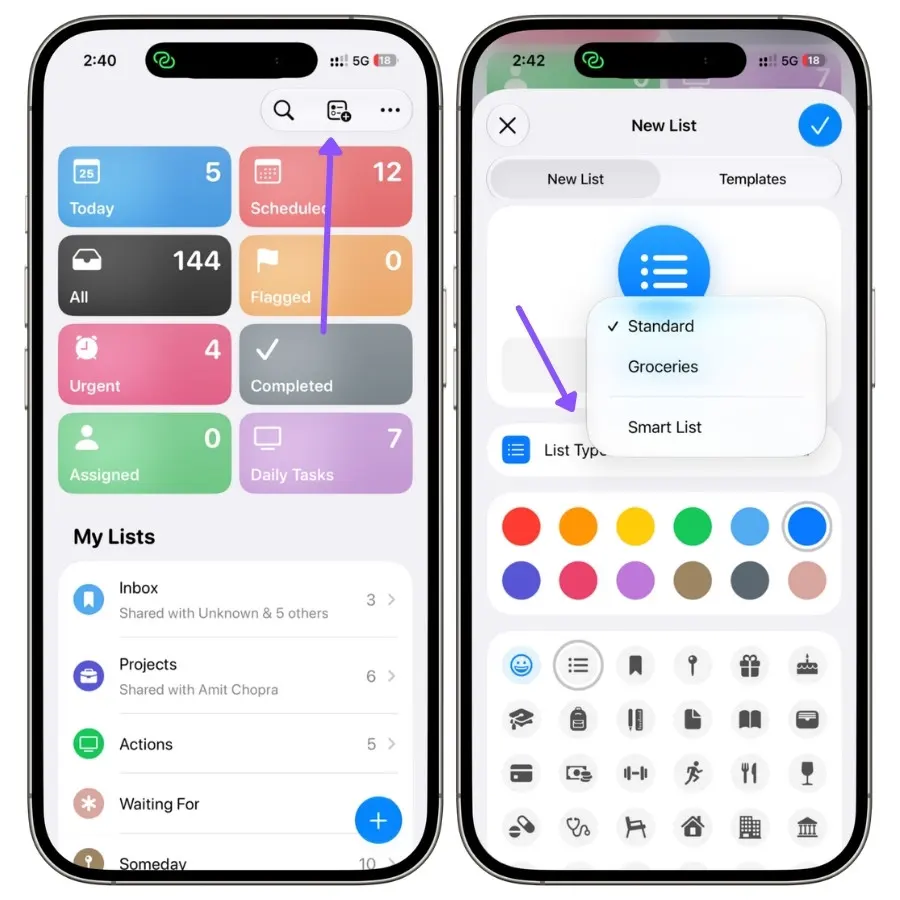
It sits in your sidebar like a normal list, except nothing lives in it. It’s a saved question.
Smart Lists do a lot more than filter by tag. If you want the full picture, date filters, location, priority, and the rest, I covered every option in my complete guide to Apple Reminders Smart Lists.
2.1 The five tag filter options
Open the Tags filter inside a Smart List, and you get five choices. What each one does:
- Off — the filter is inactive. Tags are ignored entirely, and your other rules do the work.
- Any Tag — any reminder carrying at least one tag, whatever it is.
- Any Selected Tags — OR logic. Pick #work and #errands, and you get reminders carrying either one.
- All Selected Tags — AND logic. Pick #work and #urgent and a reminder has to carry both to appear.
- No Tags — only reminders with no tags at all.
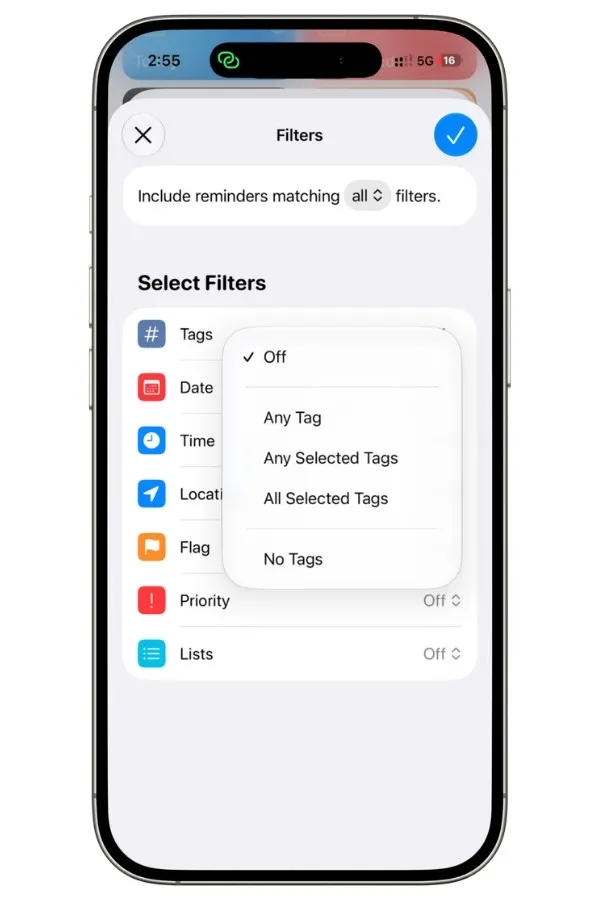
That last one is worth pausing on, because a lot of what’s written about Reminders tags online assumes it doesn’t exist.
It does, and it solves a real problem: an untagged reminder is one you captured and never processed. Build a Smart List with No Tags, and you’ve got an inbox review view that fills itself.
2.2 The exclude trap
You can exclude a tag, it’s just hidden.
In the Smart List filter screen, tap a tag once to include it, tap it again and it crosses out, which means exclude.
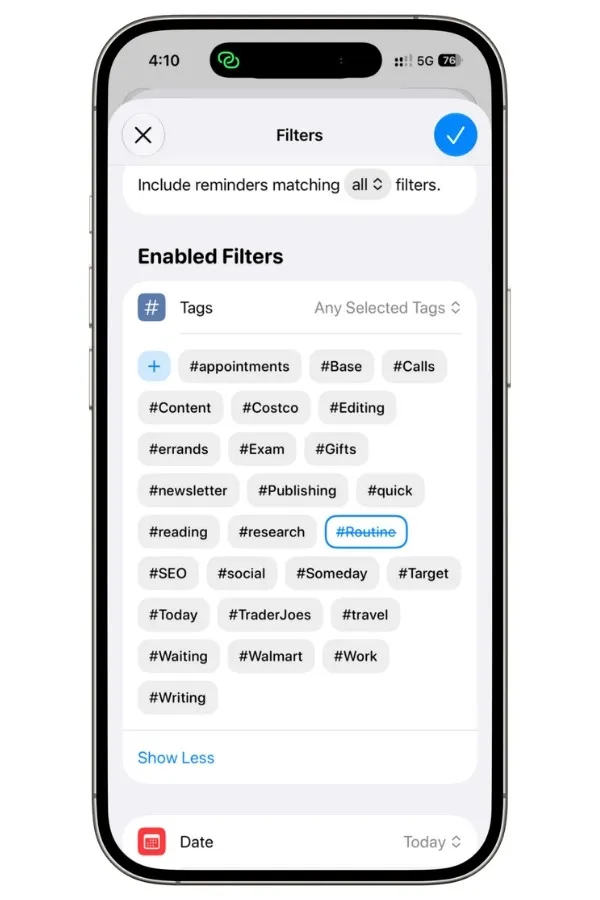
So you can build “everything due today, except #routine” by crossing out #routine.
Except it doesn’t do what you’d expect, and this is the one thing in Reminders that will quietly break a Smart List without you noticing.
The moment you exclude a tag, every untagged reminder disappears from the list too. Not just the ones you excluded. All of them.
Here’s the test I ran. A list with four reminders due today: two tagged #routine, one tagged #work, and one with no tag at all. I built a Smart List for today and crossed out #routine. It should have shown the #work reminder and the untagged one. It showed only #work.
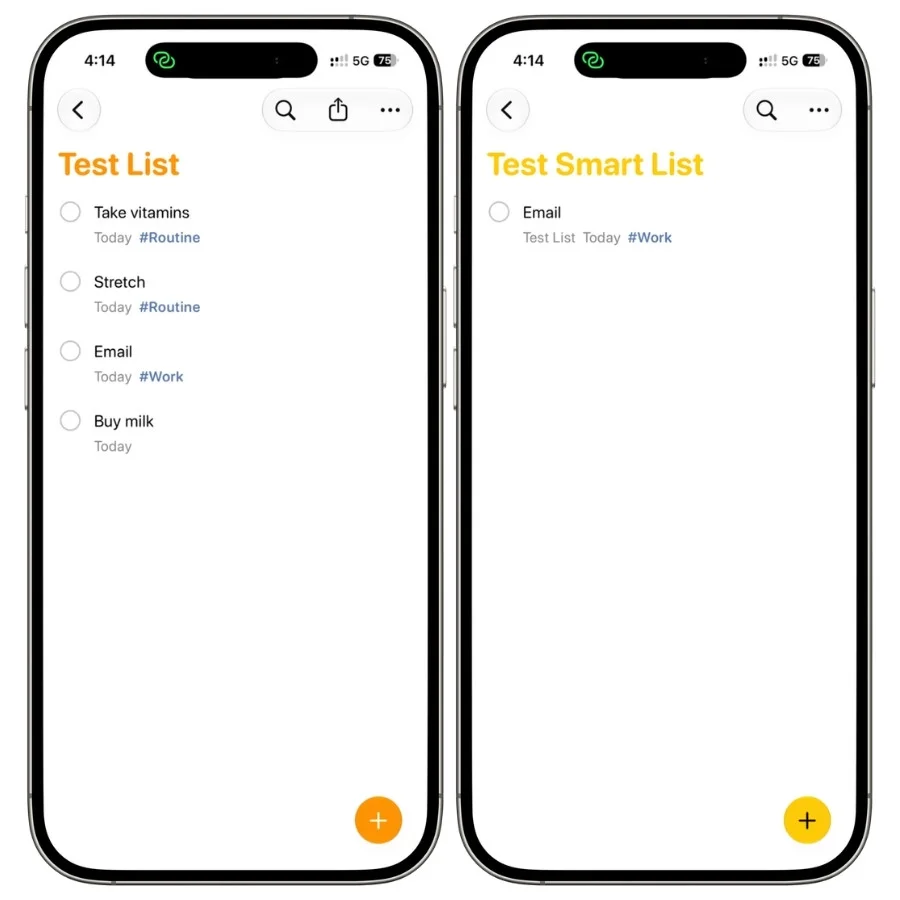
The untagged reminder was gone. Add any tag to that reminder, and it comes straight back. That’s the tell.
The exclusion filter only looks at reminders that already have a tag, so anything with no tag gets dropped the instant you exclude anything.
It’s got nothing to do with what you excluded.
Why this matters: the most natural way to use exclusion is a clean Today view that hides your daily habits. But most people don’t tag every reminder, so the ones you just capture and forget to tag are exactly the ones that vanish, which are often the ones you most need to see.
The filter fails silently. Nothing warns you the list is incomplete.
The fix: a base tag on everything
The way around it is to make sure no reminder is ever untagged.
Give every reminder at least one throwaway tag, something like #base, and the exclusion filter always has something to evaluate, so nothing drops.
Tagging every single reminder by hand isn’t realistic. This is where Shortcuts helps. You can build one that finds any reminder with no tags and adds #base automatically.
On an iPhone that supports Apple Intelligence, you can describe it in plain words in the Shortcuts app:
Find all reminders, check each one for tags, and add the tag #base if it has none.
It builds the shortcut for you.
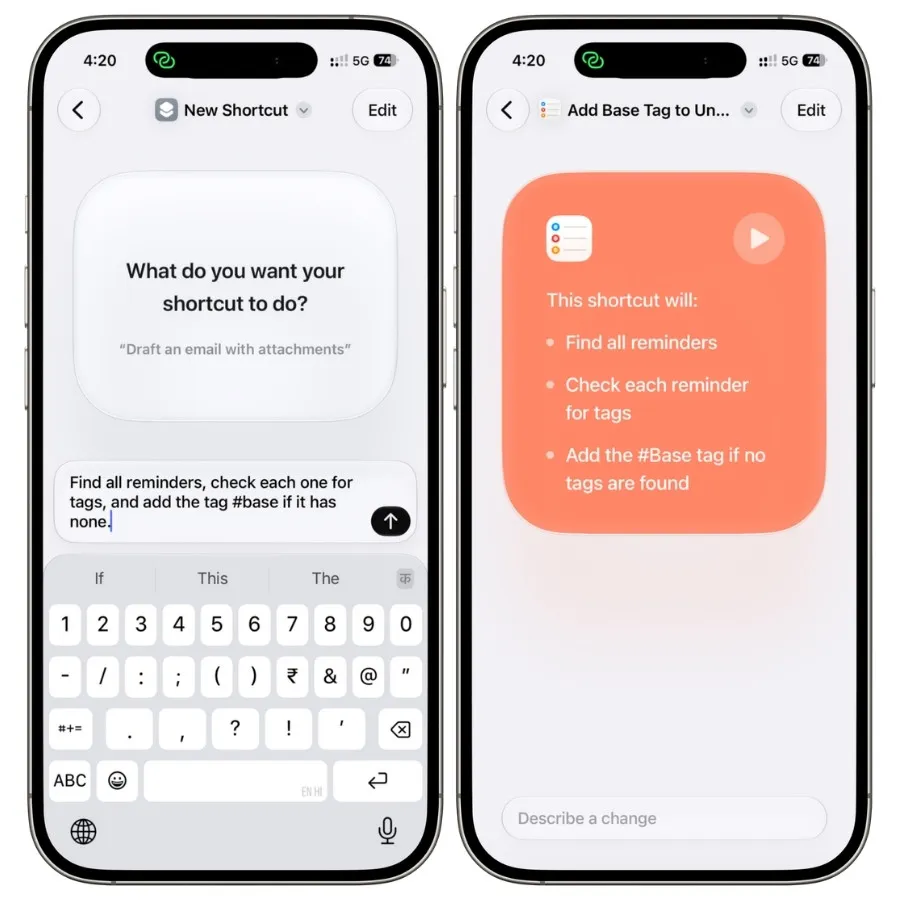
Worth knowing it won’t create a simple “find untagged reminders” filter, because Reminders doesn’t offer one, so it fetches everything and checks each in a loop. It also sweeps in completed reminders, which is harmless but slower on a big database.
Building the shortcut by hand (older iPhones)
If your iPhone doesn’t support Apple Intelligence, you can build the same thing yourself. Follow the order exactly, because a few actions have to sit inside the ones above them.
- Open the Shortcuts app and tap the + at the top to start a new shortcut.
- Search Find Reminders and tap it to add it.
- Search Repeat with Each and add Repeat with Each Item. It fills in “Reminders” on its own.
- Search Reminders and tap Get Details of Reminders. Drag it so it sits right after “Repeat with each item.” Then tap the blue detail word on it and choose Tags. It should read Get Tags from Repeat Item.
- Search and add Count. Drag it to sit after the previous step.
- Search If and add it. Drag it after the count. Tap the number field and set it to 0.
- Search Reminder again and tap Edit Reminder. Drag it to sit after the previous step. Now set its three parts:
- Tap Detail and choose Tags.
- Long-press the blue Count, tap Variables, and choose Repeat Item.
- Tap the Value field and type Base, or whatever throwaway tag you want. It should read Set Tags of Repeat Item to Base.
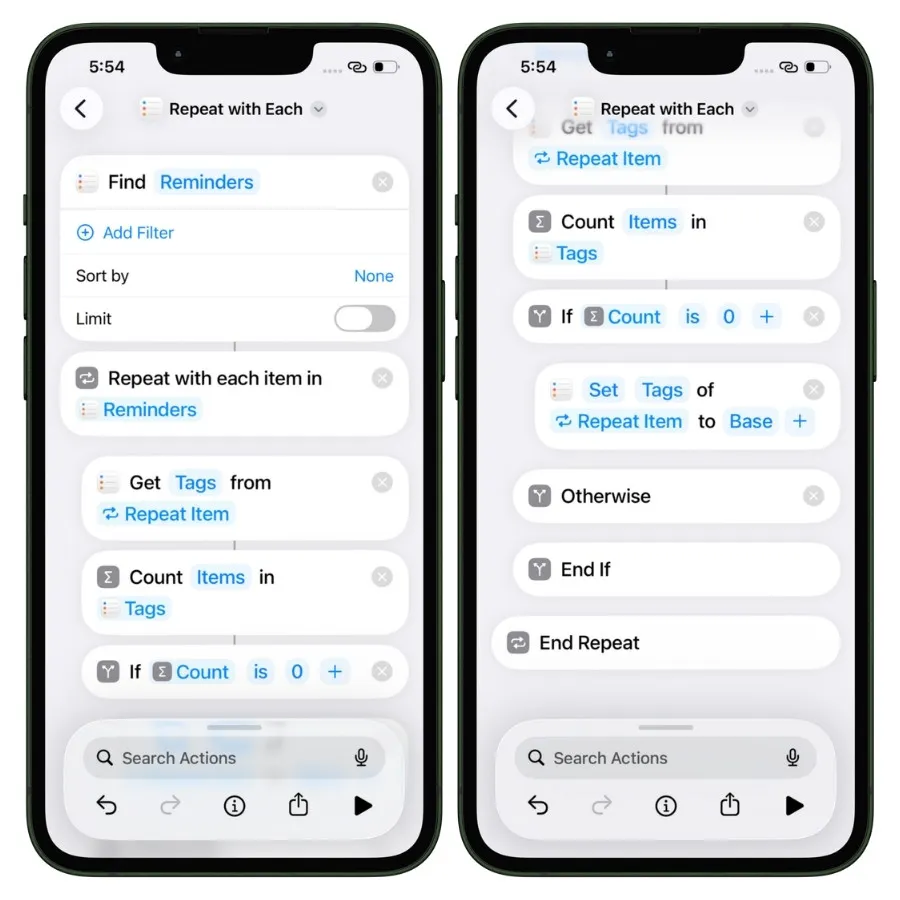
Run it once by tapping the play button. The first run can take a minute if you have a lot of reminders, because it checks every one. That’s normal.
3. Tags in shared lists
Share a list, and your tags stop working.
Add a reminder to a shared list, tag it #urgent, and the other person sees the reminder. They don’t see the tag.
It isn’t hidden or greyed out, it just isn’t there.
Tags are stored against your iCloud account, not against the reminder itself, so they don’t travel with a shared item.
Creating the same tag on their end doesn’t fix it either. Matching names don’t bridge anything, because there’s nothing to bridge to.
That kills the obvious use case.
You can’t tag a shared grocery list with #costco and #target and have your partner filter by store. You can’t tag a shared project list by priority and have anyone else see it.
Any tagging system you build on a shared list is yours alone.
Assignees don’t rescue this. You can assign a reminder to someone on a shared list, but you can’t filter a Smart List by assignee, so there’s no way to build a “just my tasks” view out of it.
What people end up doing instead is splitting one shared list into several: one for each person, plus one for shared items. Then each person builds a Smart List pulling their own list and the shared one.
It works, and it’s clumsy, and it’s a list-based solution to a problem tags should have handled.
If you run anything collaborative in Reminders, plan around this from the start rather than discovering it three weeks in.
4. Two tagging systems worth copying
Here are two setups that put tags to work, both of which you can rebuild in a few minutes.
4.1 GTD in three lists
The idea behind GTD is that a task’s context matters more than which project it belongs to. You don’t want “the marketing plan,” you want “the three calls I can make right now.”
Tags are what make that possible in Reminders.
The setup uses three lists and does the real work with tags. The lists are Inbox (where everything lands when you capture it), Processed (everything you’ve sorted), and Reference (things you want to keep but never act on).
Every reminder in Processed gets one status tag and at least one context tag.
Status tags, and here’s a trick worth stealing: prefix them with numbers.
- #1Next — the next action, ready to do
- #2Waiting — blocked on someone else
- #3Someday — maybe later
The numbers force the tags to sort in that order in your sidebar instead of alphabetically, so your list of tags reads in priority order on its own.
Context tags describe what you need to act: #home, #errands, #call, #laptop, whatever fits your life.
Now the payoff. Build a Smart List with All Selected Tags set to #1Next and #call, and you’ve got every call you can make right now, pulled from every project at once.
Another with #1Next and #errands is your errand run. The tags do the filtering; you just act.
4.2 The Eisenhower matrix
Simpler, and good if GTD is more structure than you want.
The Eisenhower matrix sorts tasks on two axes: urgent or not, important or not. Four combinations, four tags:
- #urgentimportant — do now
- #importantnoturgent — schedule it
- #urgentnotimportant — do fast or hand off
- #neither — probably delete
Tag your reminders as they come in, then build four Smart Lists, one per tag, or just tap the tags directly from the bottom of your Reminders screen when you want a quadrant.
Reminders does have a built-in Priority field, which sounds like it does the same job. It doesn’t, quite.
Priority gives you None, Low, Medium, and High, which is one axis with a few levels.
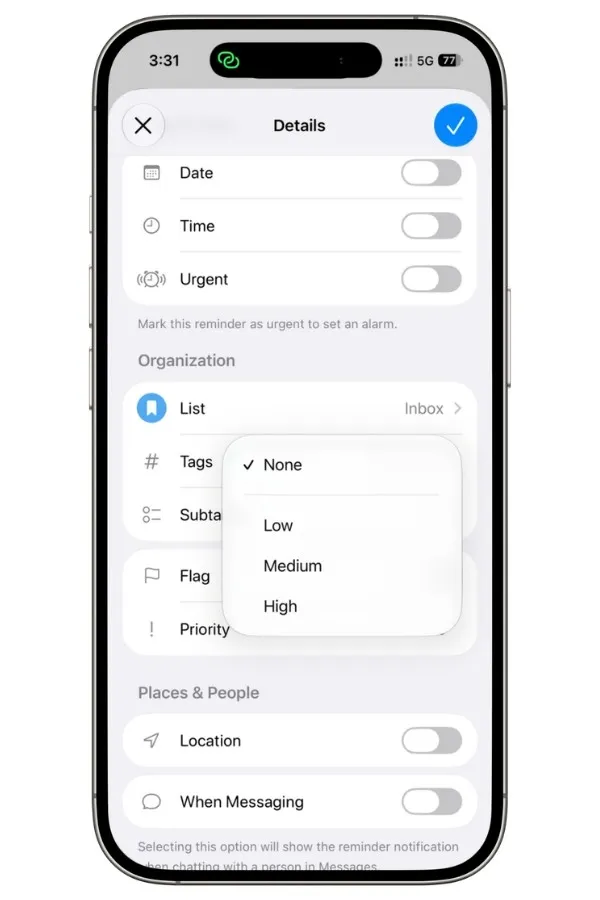
The Eisenhower matrix is two axes. If all you want is a high-medium-low ranking, use Priority. If you want to separate urgent from important, tags are the only way to do it.
Reminders also has an Urgent toggle, but that just sets an alarm-style alert for a task, it isn’t a priority level, so it doesn’t help build the matrix either.
5. Managing your tags
Long-press any tag in the Tags list at the bottom of your Reminders screen, and you get two options: Rename Tag and Delete Tag.
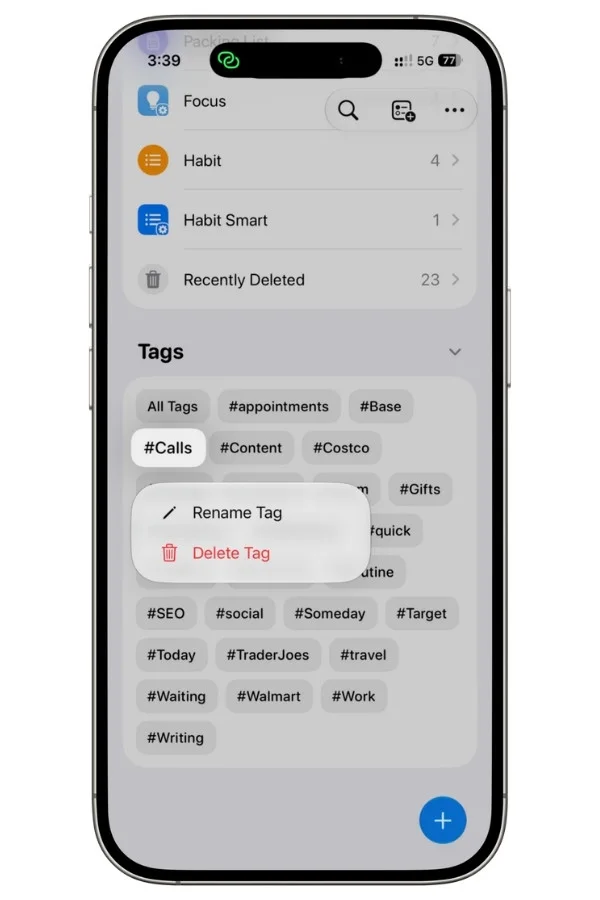
- Rename changes the tag everywhere at once. Every reminder carrying it updates in one go, so fixing #work to #office is one action, not a hunt through every reminder.
- Delete removes the tag from every reminder that has it. The reminders themselves stay exactly where they are; they just lose that one tag. Nothing gets deleted except the tag.
That covers the two things people assume Reminders can’t do.
There’s still no merge, so if you’ve got #work and #office and want them as one, the move is to delete one after renaming the other to match, which collapses them together.
Minor, and easily worked around. Because rename and delete both exist, tag cleanup is quick, and you don’t need a Shortcut for it.
Where a Shortcut still helps is bulk tag changes on the reminders themselves, like adding a tag to everything in a certain list, but for straightforward renaming and clearing, the long-press menu does the job.
The practical takeaway is smaller now: keep your tag set tidy, and when it drifts, the long-press menu fixes it in seconds.
The verdict on tags
Tags are better than their reputation.
Most of the problems people warn about are out of date, ghost tags clear themselves, and rename and delete are right there in a long-press.
For anything that cuts across your lists, GTD contexts, shopping by store, priority quadrants, they do exactly what you want.
The one real trap is the exclude bug: cross out a tag in a Smart List and every untagged reminder silently drops out too.
The base-tag fix handles it, but you have to know to look.
Sharing is the other limit. Tags are personal, they don’t travel to people you share with, and there’s no assignee filter to compensate.
Solo on one iPhone, though, tags are genuinely good. Tag everything, even a throwaway base tag, and you sidestep the one thing that would trip you up.
FAQ
How many tags can you have in Apple Reminders?
There’s no practical limit. I’ve run past 100 during testing and around 30 in regular use with no issue. The problem was never the count, it’s keeping the set small enough to be useful.
Do tags sync across your own devices?
Yes. Tags are tied to your iCloud account, so they show up on every device signed into the same Apple ID. That’s also exactly why they don’t work on shared lists, where the other person is on a different account.
Can you tag a whole list at once?
No. Tags go on individual reminders, not on lists. A list is already its own container, so tagging one would be redundant, but if you want every reminder in a list to carry a tag, you’re adding it one at a time or using a Shortcut to do it in bulk.
Do tags work on completed reminders?
Yes, the tag stays on a reminder after you complete it, and it clears from your tag list only when the last reminder using it is gone.
What’s the difference between tags and Sections?
Sections are visual groupings inside a single list, so they only organize that one list. Tags cut across every list at once. Use Sections to tidy one long list, tags to pull related reminders from everywhere.
Can you filter a Smart List to exclude a tag?
Yes, but carefully. Tap a tag twice in the filter, and it crosses out, which excludes it. The catch: excluding a tag also hides every untagged reminder, not just the ones you excluded.
Can you rename or delete a tag?
Both. Long-press the tag in the Tags list at the bottom of your Reminders screen. Rename updates it everywhere at once, delete removes it from every reminder without touching the reminders themselves.