
Apple Reminders Early Reminder: What I Found Testing It on My iPhone 17 Pro
Most people think Apple Reminders only pings you once, right when something is due.
That’s the default, and it’s also why so many reminders show up exactly when it’s already too late to do anything useful about them.
But Reminders can warn you early.
There’s a separate alert, called an Early Reminder, that fires ahead of the due time, and you control how far ahead down to the minute:
- Set a bill due Friday, and you can get nudged Wednesday.
- Set a subscription that renews next month, and you can get told a week out, while you can still cancel.
I spent a few days testing every part of this feature on two iPhones, an iPhone 17 Pro and an iPhone 13.
And what I found is that early reminders are more flexible than Apple lets on in some places, quietly inconsistent in others, and built on top of one flaw that can defeat the entire point of the feature if you don’t know it’s there.
Here’s everything I confirmed by testing it myself, including the setting that changes depending on whether you add a time, the difference between an Early Reminder and the newer Urgent alarm, and the fix for the one problem that makes early reminders easy to miss.
Table of Contents
- 1. What an early reminder actually is
- 2. How to set an early reminder
- 3. The two preset menus that change based on your settings
- 4. The 9:00 AM rule for date-only reminders
- 5. Early Reminder vs. Urgent: two features people mix up
- 6. The one flaw that makes early reminders easy to miss
- 7. When to actually use an early reminder
- Closing thoughts
- FAQs
1. What an early reminder actually is
An early reminder is a second notification that fires before your task is due.
That’s the whole idea. It doesn’t replace the alert you get at the due time, it adds one ahead of it.
So a single reminder can ping you twice:
- Once early, at the lead time you choose (a day before, a week before, whatever you set).
- Once on time, at the actual due date and time, the way Reminders normally works.
This sounds minor until you reframe what the two alerts are actually for.
The due date isn’t really telling you when to do the task. It’s telling you the deadline, the last moment before there’s a consequence.
The early reminder is the one telling you when to start.
That distinction is the key to the entire feature. Think of it this way:
- The due date is your deadline. Miss it, and the bill is late, the trial has renewed, the flight has left.
- The early reminder is your start date. It’s the tap on the shoulder that says begin this now, while you still have room.
Once you see early reminders as start dates instead of just “a second alarm,” they stop feeling redundant and start doing real work.
A task due in two weeks isn’t useful sitting silently in a list for thirteen days.
An early reminder set to three days before turns it into something that reaches out and tells you to move while there’s still time to act calmly instead of scrambling at the deadline.
This is also why early reminders are so good for anything with a hard cutoff you’d rather not hit at the last second: renewals, payments, packing before a trip, buying a gift before the date, refilling a prescription before you run out.
In every one of those cases, being reminded at the deadline is close to useless. Being reminded early is the entire point.
2. How to set an early reminder
Setting one takes a few taps, but there’s a catch that trips people up before they even find the option:
The Early Reminder row doesn’t appear until you turn on a due date. No date, no early reminder.
This is the single most common reason people think the feature is missing.
Here’s the full flow on iPhone:
- Open a reminder and tap the Details button (the i in a circle), or create a new one and tap Details.
- Toggle on Date, and pick the day the task is due.
- Optionally toggle on Time and set the exact hour. (This step matters more than it looks, and I’ll get to why in the next section.)
- Tap Early Reminder, which now appears in the list.
- Choose a preset like 1 day before or 1 week before, or tap Custom to set your own.
- Tap the checkmark to save.
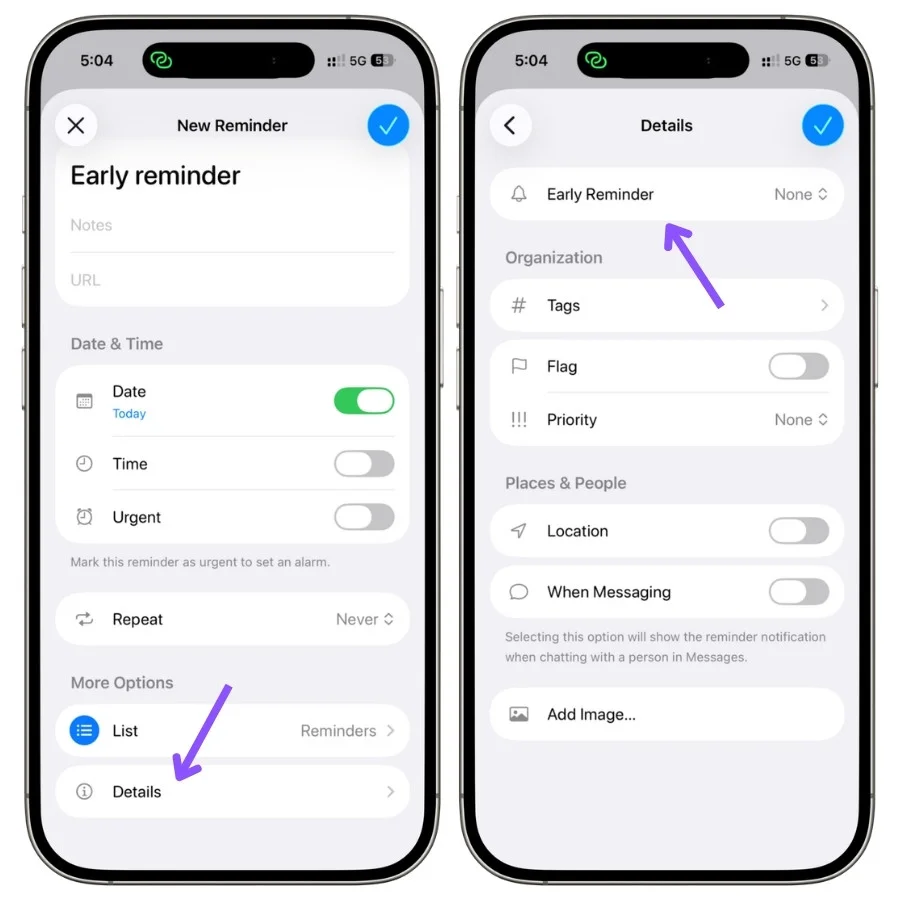
That’s it. The reminder now carries two alerts, your early one and the due-time one.
On a Mac, it’s the same idea in a slightly different spot. Hover over a reminder and click the (i) button (or right‑click and choose “Edit Reminder”), turn on a date and time, and the Early Reminder dropdown is in that same info panel.
A few things worth knowing once it’s set:
- It syncs everywhere automatically. Set an early reminder on your iPhone, and it carries over to your iPad, Mac, and Apple Watch through iCloud.
- You get one early reminder per task. There’s no way to stack multiple advance alerts on a single reminder. If you want to be nudged a week out and a day out, you’d need two separate reminders.
- You can change or remove it anytime. Reopen Details, tap Early Reminder, and pick a new lead time or set it back to None.
3. The two preset menus that change based on your settings
Here’s something easy to miss:
The early reminder options you’re offered change depending on whether you set a time. Not just the wording, the actual menu.
Apple quietly swaps in a different set of choices depending on how you set up the reminder.
With a date but no time, the presets skew long-range:
- 1 day before
- 2 days before
- 1 week before
- 2 weeks before
- 1 month before
- 3 months before
- 6 months before
Once you add a time, that menu disappears, and a short-range one takes its place:
- 5 minutes before
- 15 minutes before
- 30 minutes before
- 1 hour before
- 2 hours before
- 1 day before
- 2 days before
- 1 week before
- 1 month before
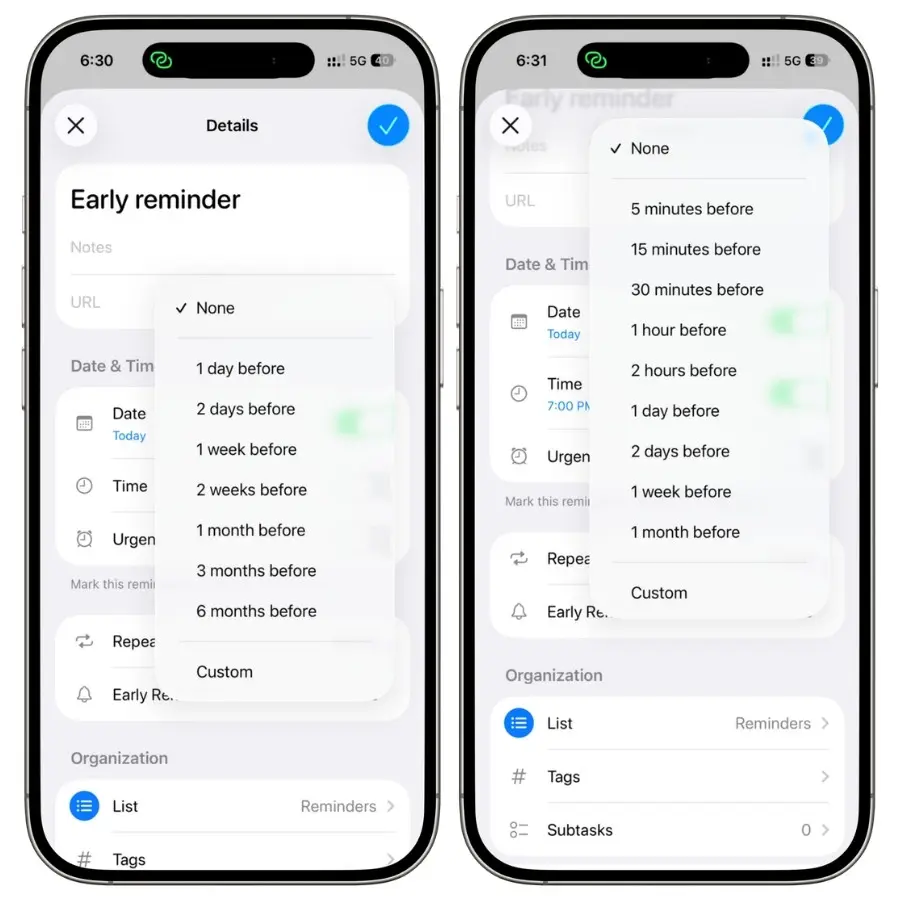
The logic makes sense once you see it.
If a task has no specific time, Apple assumes you’re planning further out, so it offers weeks and months.
If you’ve pinned an exact time, it assumes you might want a nudge minutes or hours ahead, so it offers those instead.
Reasonable, but it means the right set of options is hidden behind a choice you made two steps earlier. If you don’t know that, you’ll go looking for 3 hours before on an all-day task and never find it.
The unlock: Custom ignores both menus. Tap Custom at the bottom instead of a preset, and you get a full picker that lets you dial in any amount from minutes to months, in whatever combination you want, regardless of whether you set a time.
So if the lead time you want isn’t in the list you’re staring at, you’re not stuck. Either add or remove a time to flip to the other menu, or skip both and go straight to Custom.
Also Read: Apple Reminders as a Task Manager: My Full System
4. The 9:00 AM rule for date-only reminders
If you set an early reminder on a task that has a date but no time, you might expect it to just… not have a time either.
It does have one. Apple picks it for you, and the answer is 9:00 AM.
Here’s what actually happens.
Say you set a task due July 20th with no specific time, and give it an early reminder of 2 days before. That early alert doesn’t fire at midnight, or at some point tied to the task. It fires at 9:00 AM on July 18th. I tested this directly, and every date-only early reminder came through at 9:00 AM local time.
This catches people out because the lead time looks precise but the delivery isn’t tied to anything you set.
You asked for “2 days before” and mentally filed it as sometime on the 18th. Reminders filed it as 9:00 AM sharp on the 18th, and if you’re the kind of person who doesn’t want a buzz at 9:00 AM, that’s a small daily surprise.
The useful part: that 9:00 AM default isn’t fixed. You can change it.
It’s controlled by the all-day reminder time in Settings:
- Open Settings.
- Go to Apps, then Reminders.
- Find All-Day Reminders and set it to whatever time you want.
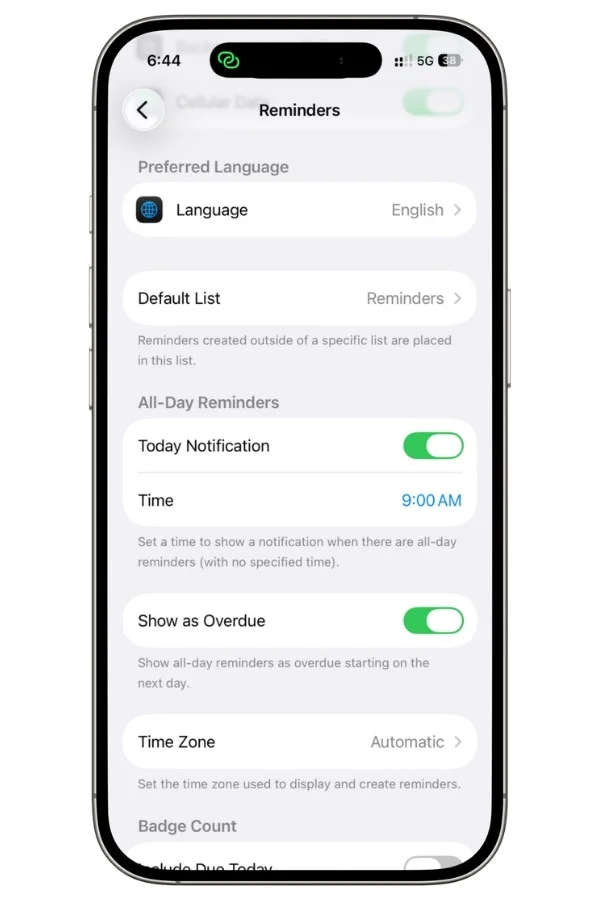
Change that, and every date-only early reminder shifts with it.
One thing to keep straight: this only applies to reminders without a set time. The moment you add a specific time to a task, the early reminder calculates off that time instead.
5. Early Reminder vs. Urgent: two features people mix up
Reminders has a second alert feature that’s easy to confuse with early reminders, and it does almost the opposite job.
It’s called Urgent, and the difference matters.
- An early reminder is a quiet, early nudge. It fires ahead of the deadline as a normal notification you can glance at or swipe away.
- An Urgent reminder is a loud, on-time alarm. It fires at the due time and behaves like an actual alarm, not a notification.
You’ll find Urgent as its own toggle in the same Details panel, right below Time. That word, alarm, is the whole point.
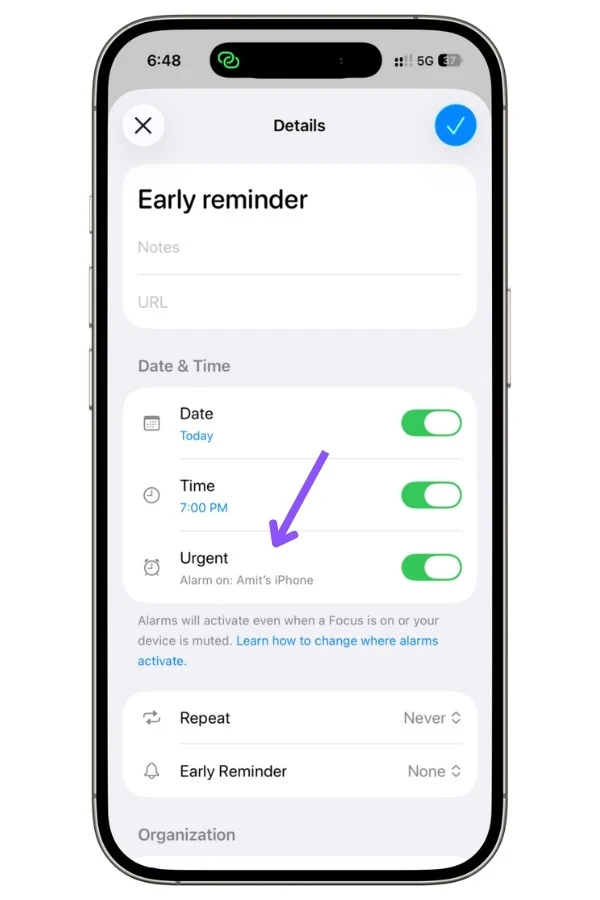
Here’s what makes Urgent different, and it’s the part worth understanding before you rely on it.
An Urgent reminder breaks through Focus and Do Not Disturb.
I tested this with Focus mode turned on, and the Urgent alarm came through anyway, full sound, while a normal reminder set for the same time stayed silent.
That’s genuinely useful for the handful of things you cannot miss: medication, a flight, a can’t-be-late call.
It’s also why you wouldn’t want it on everything, because an alarm that ignores your Focus modes is exactly as disruptive as it sounds.
Now the part that surprised me, and the one thing to check before you trust an Urgent alarm with something critical.
An Urgent alarm rings on your Find My location device, not necessarily the phone you set it on.
I created an Urgent reminder on one iPhone, and the alarm went off on the other device, because that was the one designated as my location in Find My.
If you have more than one Apple device and the alarm sounds somewhere other than the phone in your pocket, this is why.
So if you’re setting an Urgent reminder for something that truly can’t slip, take ten seconds to confirm which device Find My has as your location, and make sure it’s the one you’ll actually have on you.
Otherwise the alarm could be dutifully going off on an iPad sitting at home.
A quick way to keep the two straight:
- Want a heads-up before the deadline? Use an early reminder.
- Want an alarm you cannot miss at the deadline? Use Urgent.
- Want both? You can set an early reminder and mark the task Urgent on the same reminder.
Here’s how the three alert types compare at a glance:
| Fires when | Breaks through Focus / DND? | Best for | |
|---|---|---|---|
| Standard due alert | At the due time | No | Everyday reminders |
| Early reminder | Before the due time | No | Getting a head start on deadlines |
| Urgent | At the due time | Yes | Things you absolutely cannot miss |
6. The one flaw that makes early reminders easy to miss
This is the part you need to know before you rely on early reminders for anything that matters, because it’s a real weakness and it’s built into how the feature works.
An early reminder only ever shows up as a notification. It never puts the task in your Today list.
Here’s what I mean. When your early reminder fires, you get a notification on the lock screen or in Notification Center, exactly like any other alert.
But that’s all you get. The task itself doesn’t move into the Today view in the Reminders app.
As far as the app’s lists are concerned, the task still isn’t due until its actual due date.
I tested this: the early reminder came through, I dismissed the notification, and the task was nowhere to be found in Today. It stayed tucked in its list, invisible, until the real deadline arrived.
You can probably see the problem. Notifications are the easiest thing in the world to lose. You swipe it away on reflex, or it gets buried under texts and emails, or you glance at it while your hands are full and mean to deal with it later.
And the moment that notification is gone, the task disappears with it. There’s no second surface catching it, no list quietly holding it for you.
It drops out of view completely and doesn’t come back until the deadline hits, which is the exact last-minute scramble the early reminder was supposed to prevent.
So an early reminder, on its own, is really just a single chance to notice something. Miss the notification, and you’ve missed the whole point.
The fix: give your started tasks a home with a Smart List.
The way around this is to stop relying on the notification alone and build yourself a persistent list that holds tasks you’ve “started” but aren’t due yet.
A Smart List does exactly that. Here’s a simple version:
- Pick a tag you’ll use for active work, something like #active.
- Create a new Smart List filtered to show any reminder with that tag.
- When an early reminder fires and you can’t act right then, add the #active tag to that task.
Now that task lives in your Smart List, visible every time you open Reminders, until you finish it and clear the tag.
Also Read: How to Use Tags in Apple Reminders (And Where They Break)
You’ve essentially rebuilt the “start date” behavior the app is missing: the early reminder tells you when to start, and the Smart List keeps the task in front of you from that moment until it’s done, instead of letting it vanish the second you dismiss a notification.
It’s a small bit of setup, but it’s the difference between an early reminder being a genuine head start and being a notification you’ll probably miss.
Pair the two and the feature finally does what it promises.
If you want to go further with this, Smart Lists can filter by tags, dates, priority, and more, and they’re the backbone of keeping Reminders organized once you have more than a handful of tasks. I broke down all seven filters and how to combine them in my full guide: How Apple Reminders Smart Lists Work.
7. When to actually use an early reminder
Early reminders are most useful for anything with a hard cutoff you’d rather not hit at the last second.
The trick is picking the right lead time, because too short and you’re scrambling anyway, too long and you’ll have forgotten by the time it matters.
Here’s the rule of thumb I use: the lead time should match how long the task actually takes to act on.
Pick your task type below for a suggested lead time and how to set it:
Lead-time helper
How early should the reminder fire?
Pick what the task is. You’ll get a suggested lead time and how to set it.
None of these are rules, they’re starting points.
If your bank is slow, push the bill reminder to five days. If you know a gift needs custom engraving, give it two weeks.
The point is to set the reminder for when you need to start, not when the task is due, and let the deadline itself stay where it belongs.
Closing thoughts
Early reminders are one of the most useful things Apple Reminders can do, and one of the easiest to set up wrong or miss entirely.
After testing every part of the feature on an iPhone 17 Pro and an iPhone 13, here’s what actually matters:
- Turn on a date first, or the option never appears.
- The preset menu changes depending on whether you set a time, and Custom gives you everything either way.
- Date-only reminders fire at 9:00 AM, and you can change that in Settings.
- Urgent is a different feature for things you truly can’t miss, and its alarm rings on your Find My device.
- The one real flaw: an early reminder is just a notification, so pair it with a Smart List, or you’ll eventually swipe one away and lose the task.
Get those right, and the feature does exactly what it promises.
It stops telling you about deadlines the moment they arrive, and starts telling you when to begin, while there’s still time to do the thing calmly.
That shift, from deadline to start date, is the whole reason early reminders are worth setting up at all.
FAQs
Why is the Early Reminder option missing?
The Early Reminder row only appears once you turn on a due date for the task. Open the reminder’s Details, toggle on Date, and the option shows up below Repeat.
Why won’t my early reminder set?
If the lead time you chose falls in the past, Reminders won’t schedule it. You’ll see a red “1 day before” warning or an Early Reminder Unavailable message saying you won’t get one because the time has passed. Pick a shorter lead time or move the due date further out.
Can I set more than one early reminder per task?
No. Reminders allows one early reminder per task. If you want to be nudged a week out and again a day out, create two separate reminders.
What time do date-only early reminders fire?
At 9:00 AM local time by default. You can change this under Settings → Apps → Reminders → All-Day Reminders, and every date-only early reminder shifts with it.
Does an early reminder show the task in my Today list?
No. It only fires a notification. The task itself doesn’t appear in Today until its actual due date, which is why it’s worth adding started tasks to a Smart List so they stay visible.
What happens to the early reminder if I change the due date?
It stays fixed to the lead time you set. An early reminder of 3 days before stays 3 days before the new due date, so it moves automatically when you reschedule.
Do early reminders sync across devices?
Yes. They sync through iCloud, so an early reminder set on your iPhone also applies on your iPad, Mac, and Apple Watch.
What’s the difference between an early reminder and an Urgent reminder?
An early reminder is a quiet notification before the deadline. An Urgent reminder is an alarm at the deadline that breaks through Focus and Do Not Disturb. Use early reminders for a head start, Urgent for things you absolutely cannot miss.