
Apple Reminders Smart Lists: Stop Doing It Wrong
Most people think a Smart List is a folder you drag tasks into. It isn’t. And that one misunderstanding is why so many of them sit empty or show way too much.
A Smart List is a filter. It pulls in reminders that already live in your other lists and shows the ones that match the rules you set.
The tasks don’t move. Delete the Smart List, and nothing happens to your actual reminders, you just lose the view.
Get that, and the rest is easy.
So this is everything about Smart Lists in one place. What they are, how to build one, what every filter does, the toggle that decides whether your list works at all, the setups I actually use, and the stuff Smart Lists flat out can’t do, with workarounds where they exist.
I tested all of it on two iPhones (iPhone 13 and iPhone 17 Pro) so I could tell you what works, what breaks, and what changes depending on your phone and your account.
Build one right, and it surfaces exactly what you need exactly when you need it. That’s the whole point.
If you’re brand new to the app and still finding your feet, my Apple Reminders for beginners guide covers the fundamentals first. Otherwise, let’s get into it.
Table of Contents
- 1. What a Smart List Actually is
- 2. The Built-in Smart Lists You Already Have
- 3. Before You Build Anything: Turn On iCloud
- 4. How to Create a Smart List
- 5. The Seven Filters, Explained
- 6. The Engine: Match Any vs Match All
- 7. Tags Are The Foundation (build these first)
- 8. Smart List Recipes That Actually Earn Their Place
- 9. What Smart Lists Can’t Do (the honest verdict)
- The One Thing to Remember
- FAQs
1. What a Smart List Actually is
A Smart List doesn’t store anything. It’s a live filter that scans all your other lists and pulls the matching reminders into one view.
Think about how it actually works.
Say you have a reminder to call the dentist sitting in your Personal list, and it’s tagged #calls. You build a Smart List that grabs everything tagged #calls.
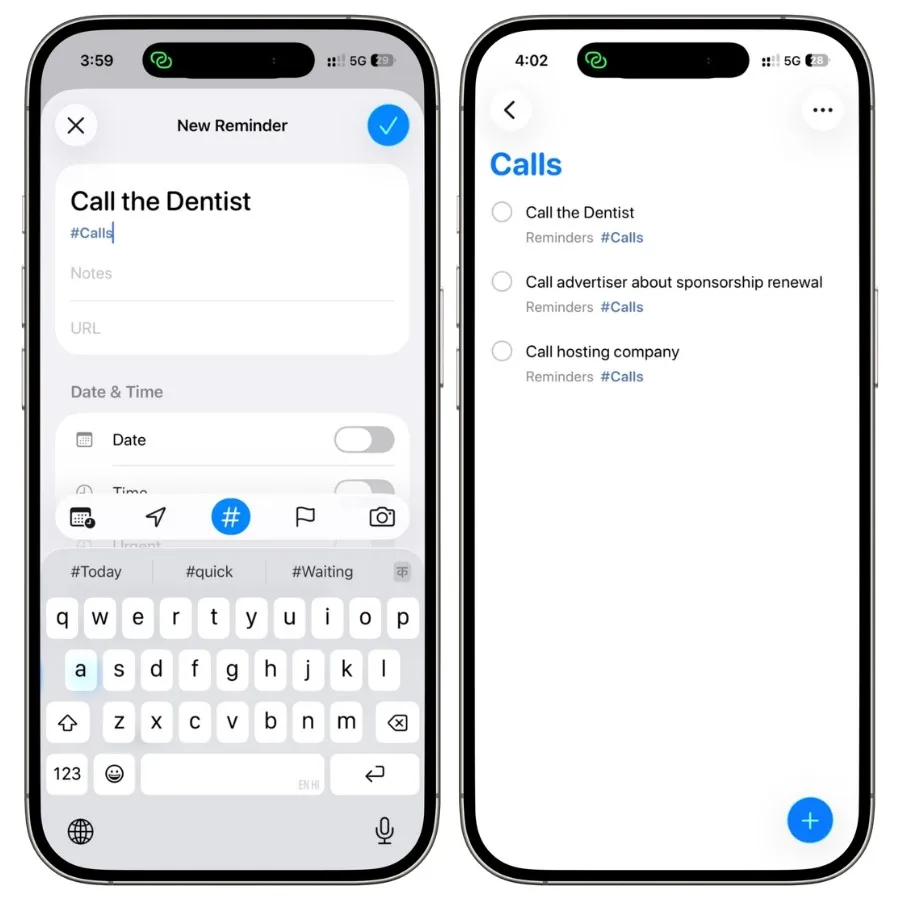
That dentist reminder now shows up in both places at once. It hasn’t moved. It still lives in Personal. The Smart List is just a window looking at it from a different angle.
That’s the part that trips people up:
- A regular list is a place where reminders live.
- A Smart List is a question you’re asking your reminders: “show me everything that matches this.”
Apple’s own description gets it right for once, a Smart List gathers reminders from across your lists based on criteria you choose, and the reminders themselves stay in their original lists.
This is also why deleting one is harmless. If you build a Smart List, decide you don’t like it, and delete it, your reminders are all still sitting exactly where they were.
You only deleted the question, not the answers.
I delete and rebuild mine constantly while tuning filters and have never lost a task doing it.
If you’ve used Smart Playlists in Music or Smart Folders on a Mac, it’s the same idea. You set the rules once, and the list keeps itself updated:
- Add a new reminder tagged #calls next week and it appears automatically.
- Check one off and it drops out.
- You never drag things in or out by hand.
So before you build a single one, get this straight in your head: you’re not making a container, you’re writing a rule.
Everything else in this guide, every filter, every recipe, comes back to that one idea.
2. The Built-in Smart Lists You Already Have
Before you build anything custom, you’ve already got a handful of Smart Lists Apple made for you.
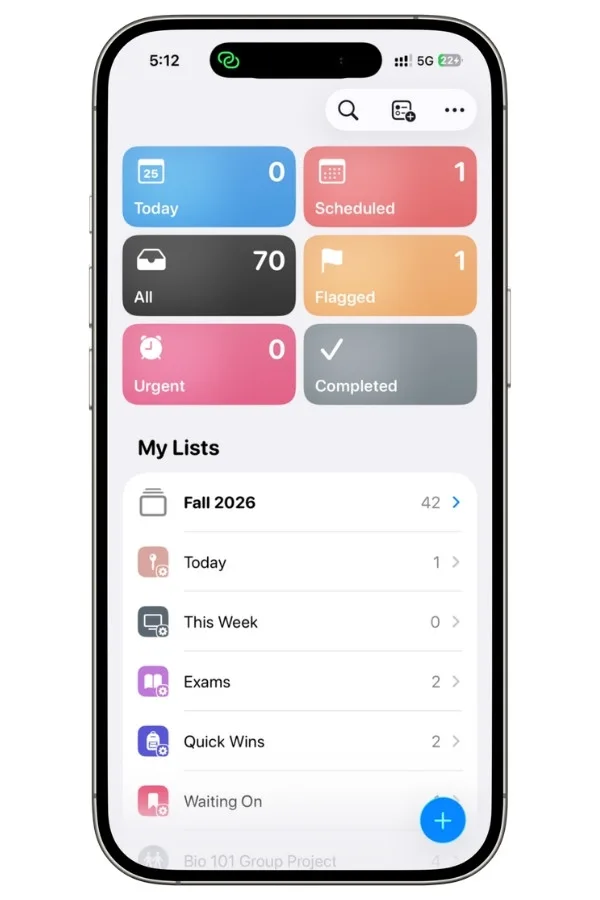
They sit at the top of the Reminders home screen, and most people glance past them without realizing they’re the same kind of filter you’re about to build yourself.
Here’s what each one actually shows:
- Today pulls every reminder due today, and it includes overdue ones too. This is the one I open most.
- Scheduled shows everything with a due date, past, present, and future, grouped by date.
- All shows every reminder you have, organized by which list it lives in.
- Flagged collects anything you’ve flagged, no matter which list it’s in.
- Urgent gathers every task you’ve marked urgent into one place.
- Completed is your history, everything you’ve checked off.
- Assigned to Me shows tasks assigned to you from shared lists, but it only fills up if you share lists with other people.
A couple of things worth knowing.
These built-in lists are filters just like custom ones, but you can’t edit their rules and you can’t sort Today, Scheduled, or All the way you’d sort a list you made.
You get them as Apple built them. You can choose which ones show up though.
On Mac it’s View, then Show Smart List, and you drag them into the order you want. On iPhone you tap Edit at the top of the lists screen and toggle them on or off.
One small note on Today. It catches overdue tasks, which sounds helpful until your overdue pile gets big and starts burying what’s actually due today. That’s a real limitation, and it’s one of the first reasons people end up building a custom list instead. More on that later.
2.1 The Urgent Smart List
This is the newest addition, and it’s worth understanding properly because it works differently from everything above.
Start with the feature behind it.
In iOS 26.2, Apple added the ability to mark a reminder as Urgent. When a reminder is urgent and its due time arrives, your iPhone fires an actual alarm, not a normal notification.
The difference matters: an urgent alarm goes off even when your phone is silenced or a Focus is on. You can snooze it for nine minutes or stop it, same as a regular alarm. It’s built for the handful of things you genuinely cannot miss.
To mark something urgent, open the reminder, tap the info button, and under Date and Time turn on Urgent.
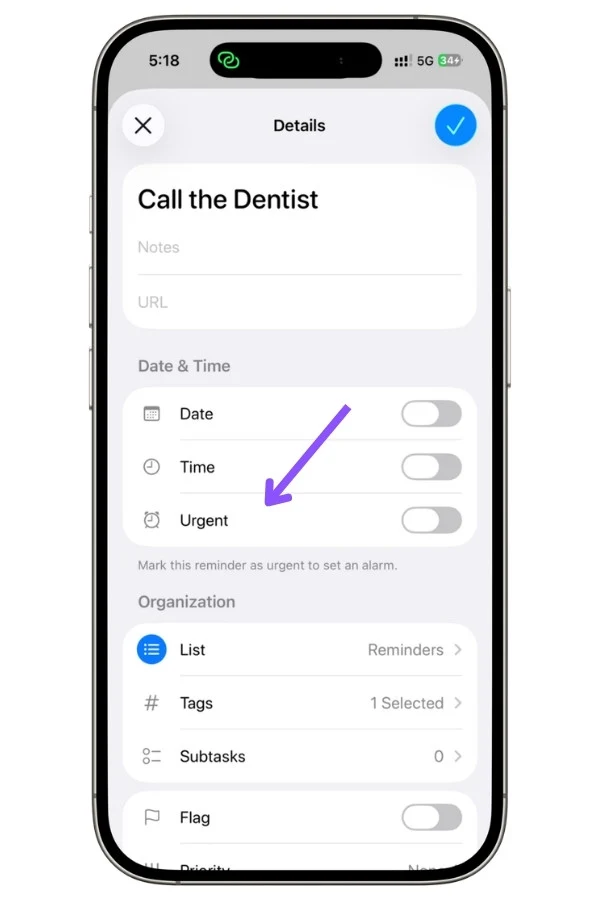
If you haven’t set a date and time, it defaults to the next hour.
Two things to know before you rely on it:
- You have to let Reminders access your alarms. That’s in Settings, Apps, Reminders, and turn on Alarms.
- The alarm only fires on the device Find My uses as your location. If it goes off on your iPad instead of your iPhone, that’s why.
Then in iOS 26.4, Apple added the Urgent Smart List.
It’s a built-in list that automatically collects every task you’ve marked urgent, no matter which list it actually lives in.
Same idea as Flagged, just for urgent items.
iOS 26.4 also added two faster ways to mark something urgent: long-press the task and tap Mark as Urgent, or tap the calendar icon in the quick toolbar and set it there.
Testing it on both phones, the Urgent Smart List and the alarm worked the same on the iPhone 17 Pro and the iPhone 13, this isn’t an Apple Intelligence feature, so older hardware isn’t left out.
One honest take. Urgent is genuinely useful, but it’s easy to overuse. If you mark ten things urgent, none of them are.
I keep it for hard deadlines only, the dentist appointment I’ll actually miss, the prescription pickup before the pharmacy closes.
For everything else, a flag or a due date is enough.
3. Before You Build Anything: Turn On iCloud
Get this wrong and you’ll think Smart Lists are broken, when really they were just never switched on.
Here’s the deal.
Smart Lists, tags, the Urgent toggle, grocery lists, custom icons, almost all the good stuff only works on reminders stored in iCloud. If your reminders live in a Gmail, Outlook, Exchange, or Yahoo account, or in a “local” on-device list, those features either don’t show up or quietly do nothing.
Apple states this on basically every Reminders help page, but it’s buried in a note most people never read.
So if you open Reminders, go to make a Smart List, and the List Type option just isn’t there, this is almost always why. Your account isn’t set up for it.
Here’s how to fix it. On your iPhone:
- Open Settings and tap your name at the top.
- Tap iCloud, then See All under the apps using iCloud.
- Find Reminders and turn it on.
- Open the Reminders app. If it prompts you to Update, do it. That upgrade is what unlocks Smart Lists, tags, and the rest.
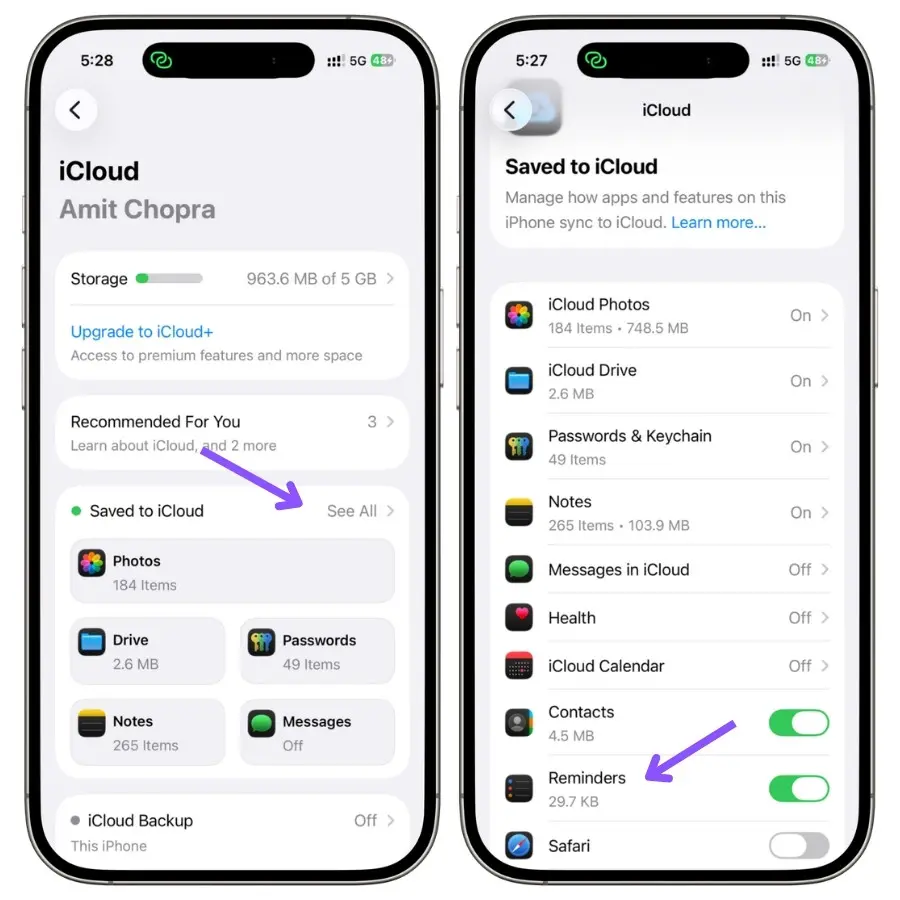
That’s usually all it takes.
If you’ve got reminders in a Gmail or Outlook account and you want the full feature set, you’ll need to create your lists in iCloud instead, because changing your default account doesn’t move the old ones over.
A couple of things worth knowing while we’re here:
- iCloud, not an iCloud email. You don’t need an @icloud.com email address. You just need iCloud sync turned on for Reminders. Those are two different things and people mix them up.
- Smart Lists don’t show on iCloud.com. If you check your reminders in a browser, your Smart Lists won’t be there. The web version doesn’t support them. They’re on your iPhone, iPad, and Mac, just not the web.
Once iCloud is on and you’ve updated, everything in the rest of this guide will work. If you skip this step, half of it won’t, and you’ll spend an afternoon wondering what you did wrong.
4. How to Create a Smart List
There are three ways to make a Smart List. Start from scratch, build one from a tag you’re already using, or convert a regular list you already have.
The from-scratch method is the one you’ll use most, so start there.
4.1 From Scratch (the main method)
On your iPhone:
- Open Reminders and tap Add List in the top-right corner.
- Give it a name, then pick a color and an icon. These aren’t just decoration, a distinct color makes the list easy to spot when you’ve got a few of them.
- Tap List Type and choose Smart List.
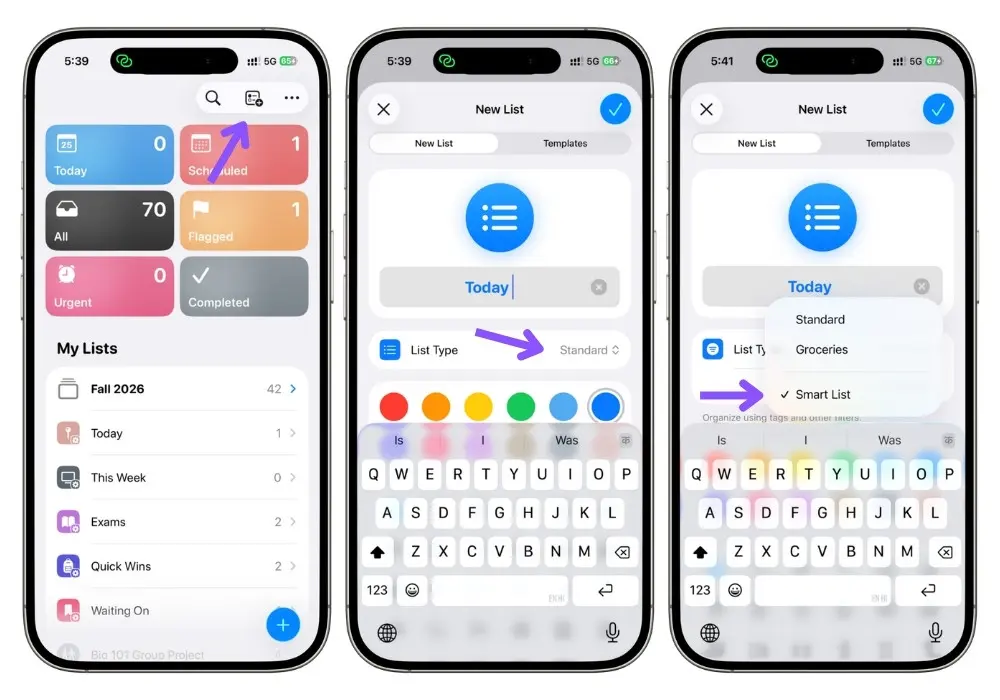
- Tap Edit Filters and choose one or more filters.
- Choose whether items need to match any or all of your filters. This one setting matters a lot, and section 6 is all about it.
- Tap Done.
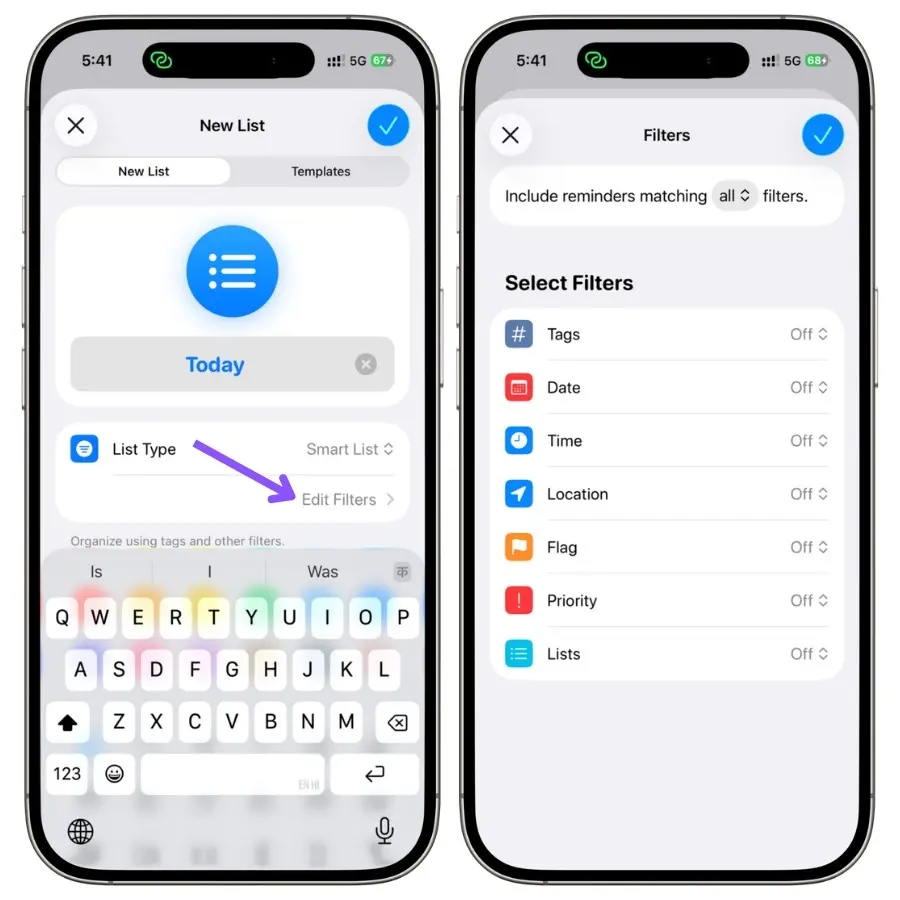
That’s it. The list immediately fills with every matching reminder from across all your other lists.
On Mac it’s the same idea with a bigger window. Click Add List at the bottom-left, set List Type to Smart List, then use the plus and minus buttons to add or remove filters. The Mac is genuinely the easier place to build a complicated Smart List because you can see all your filters at once. On iPad the flow matches the iPhone.
4.2 From a Tag
If you’ve already been tagging reminders, this is the fastest route.
At the bottom of the Lists screen you’ll see the Tag Browser. Tap a tag (or a few of them) to see everything carrying that tag.
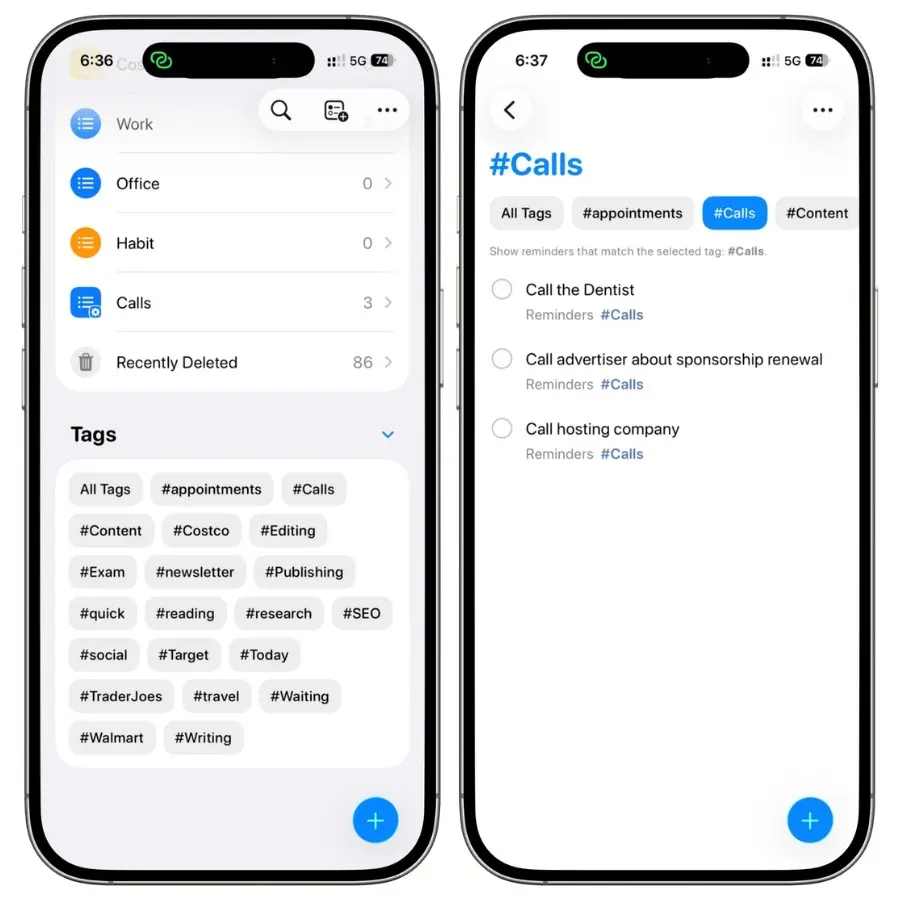
Then tap the More button and choose Create Smart List.
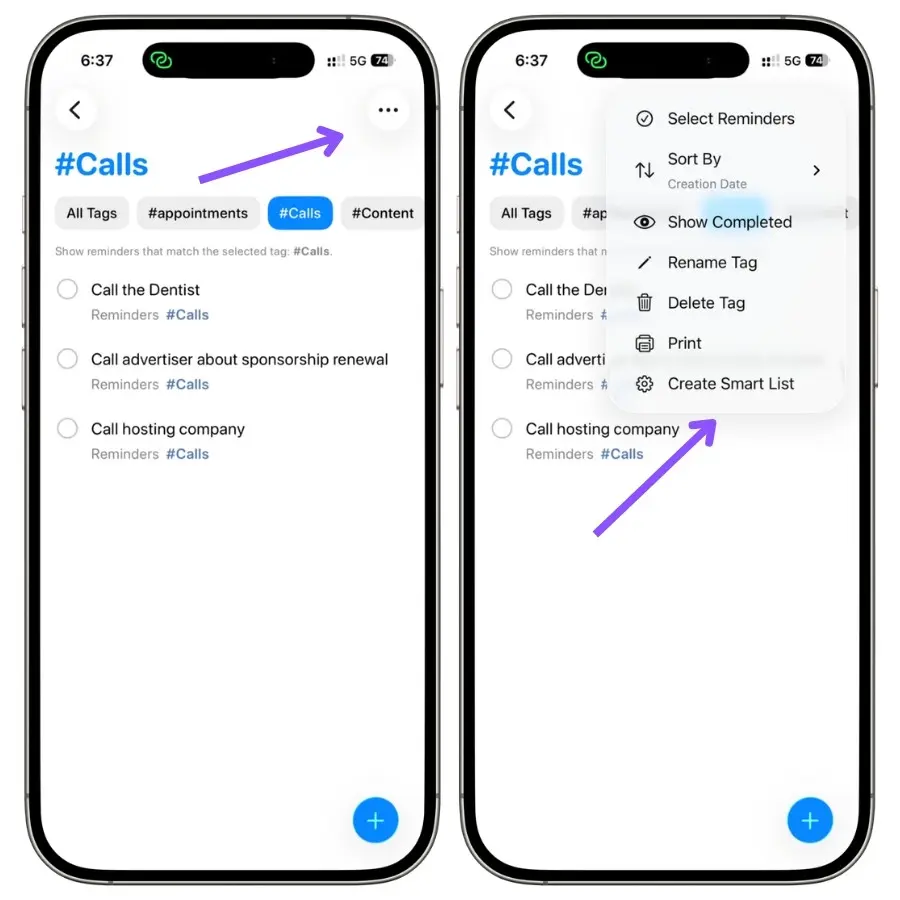
The new list is named after the tag, and here’s the useful part: any reminder you add to that Smart List later gets the tag applied automatically.
So the list keeps itself populated without you thinking about it.
This is my favorite way to build one because the tag does double duty. It filters the list and it auto-tags new entries.
4.3 Converting an Existing List
You can turn a regular list into a Smart List, but read this before you do, because it changes your data and you can’t undo it.
Open the list, tap the More button, tap Show List Info, scroll to the bottom, and tap Convert to Smart List.
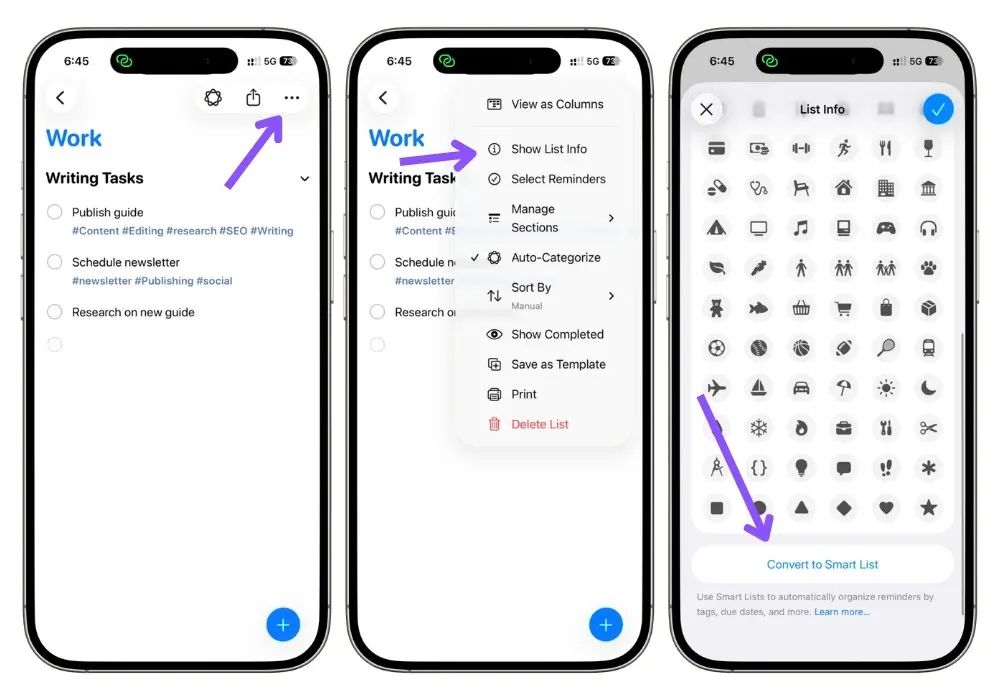
Here’s exactly what happens when you convert, and why you need to know it first:
- Your reminders get a new tag named after the list, and they’re moved to your default list. They don’t stay put. The Smart List then uses that tag to pull them back into view.
- Subtasks get flattened. Any subtask is bumped up to the top level and loses its connection to its parent task. If your list relies on subtasks, this will scramble it.
- You can’t convert a shared list, and you can’t convert your default list.
- There’s no undo. Once it’s done, it’s done.
So conversion works best on a simple, flat list of tagged-able items.
If your list has a careful subtask structure, don’t convert it, build a fresh Smart List from scratch instead and leave the original alone.
5. The Seven Filters, Explained
Every Smart List is built from filters.
There are seven of them, and once you know what each one actually catches, you can build a list for almost any situation.
I’ll go through all seven with a real example for each, plus the catch where there is one, because a few of these don’t behave the way you’d expect.
5.1 Tags
Tags are the most powerful filter, and the one your best Smart Lists will lean on.
A tag is a keyword you stick on a reminder by typing # in front of it, like #calls or #errands. One reminder can carry several tags.
When you filter by tags, you get four options:
- Any tag grabs anything that has at least one tag of any kind.
- Any selected grabs reminders with at least one of the tags you pick.
- All selected grabs only reminders that have every tag you pick.
- No tags grabs reminders with no tags at all.

That “all selected vs any selected” distinction matters. Say you tag with #work and #urgent.
All selected shows only reminders carrying both.
Any selected shows anything with either one.
Pick the wrong one and your list looks broken when it’s actually doing exactly what you told it.
Tags have more depth than the filter options suggest, including one exclude behavior that quietly breaks Smart Lists if you don’t know about it. I covered the whole system in my complete guide to Apple Reminders tags.
5.2 Date
The date filter is the deepest one, with the most options. You can filter by:
- Any date (any reminder that has a due date at all)
- Today
- On a Date (one specific date)
- Before a Date or After a Date
- Specified Range (pick a start and end date)
- Relative Range (in the next, or in the past, X hours, days, weeks, months, or years)
- No Date (reminders with no due date at all)
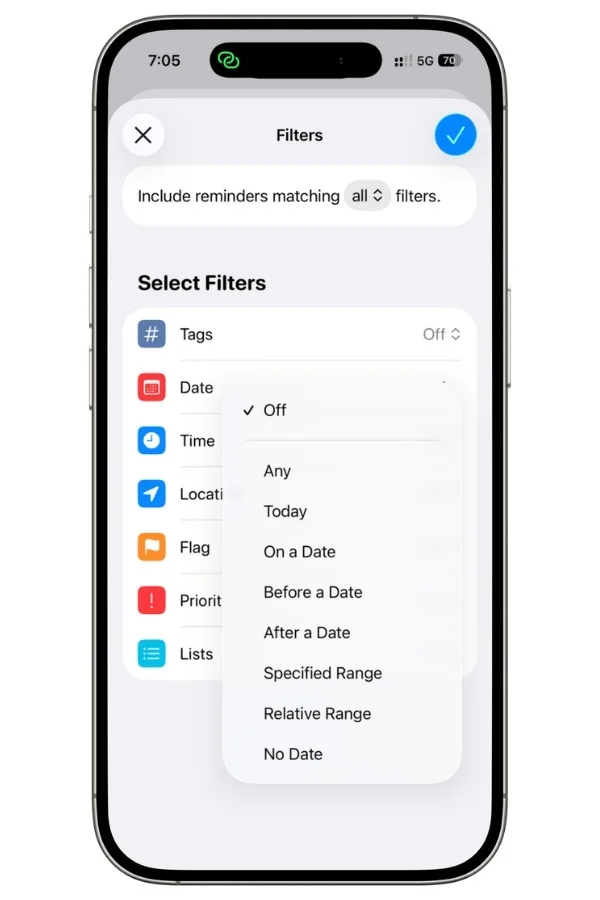
The relative range is the useful one for recurring views. “In the next 7 days” gives you a rolling week that updates itself every day, no maintenance.
The catch: the relative range always includes today and everything overdue, with no way to exclude them. So you can’t build a clean “tomorrow only” or “next week but not today” list. This trips up a lot of people, and I’ll come back to it in the limitations section because it’s one of the most common complaints about the feature.
5.3 Time
This filters by the time of day a reminder is due:
- Morning, afternoon, evening, or night
- No time (a due date but no specific time)
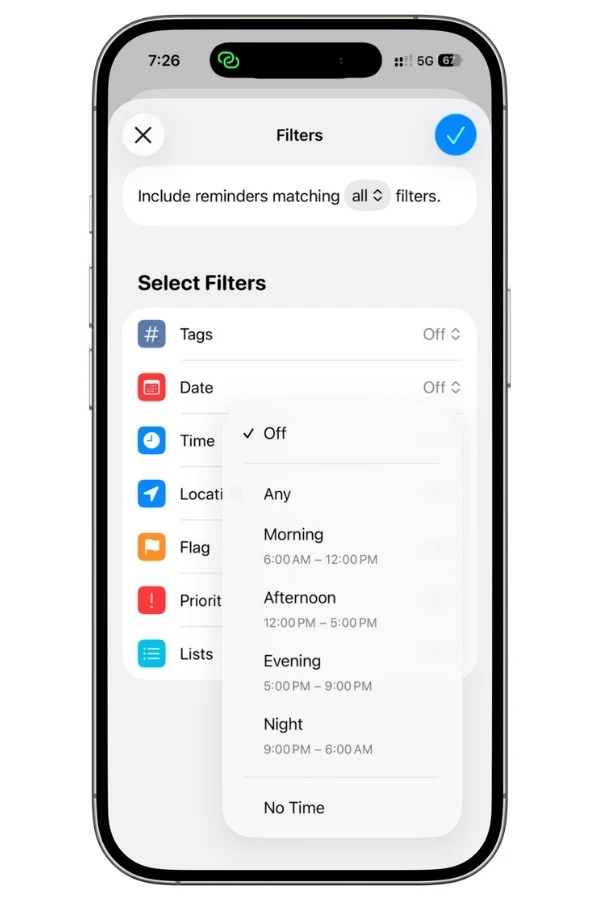
Honestly, this is the filter I use least.
It only works if you’re disciplined about setting specific times on tasks, and most people aren’t. But if you batch your day into blocks, a “morning” Smart List can be a clean way to see just your early tasks.
5.4 Location
Filters reminders tied to a place. There are two options:
- Specific lets you pick a place. That can be a saved spot like Home or Work, your current location, or a custom address you type in.
- No Location catches reminders with no place attached.
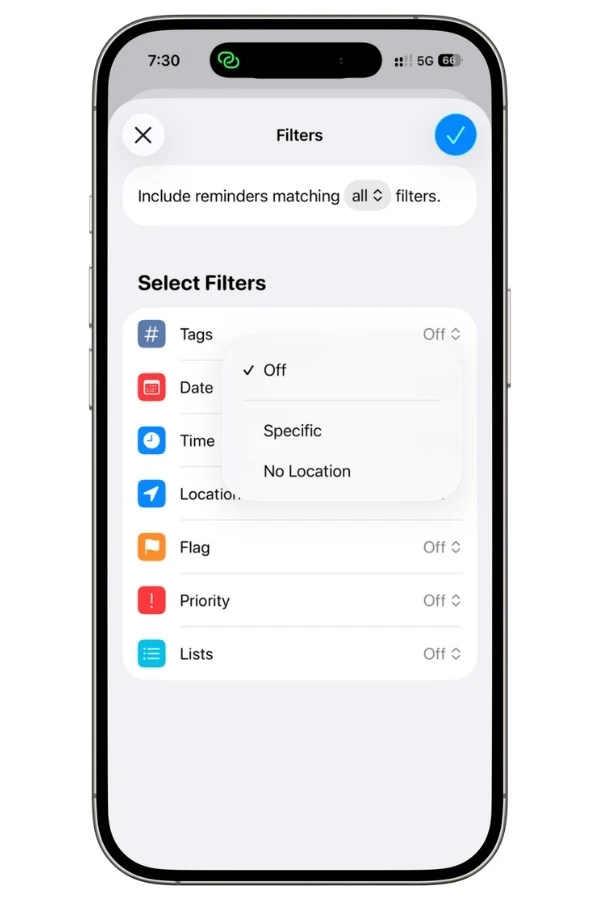
For this to work, you need Location Services turned on for Reminders. It’s niche, but powerful for errands.
Example: Tag store-specific tasks and set a Specific location for the shop, so the list lights up when you’re actually there.
5.5 Flag
This one’s simple, almost too simple:
- Flagged or not flagged
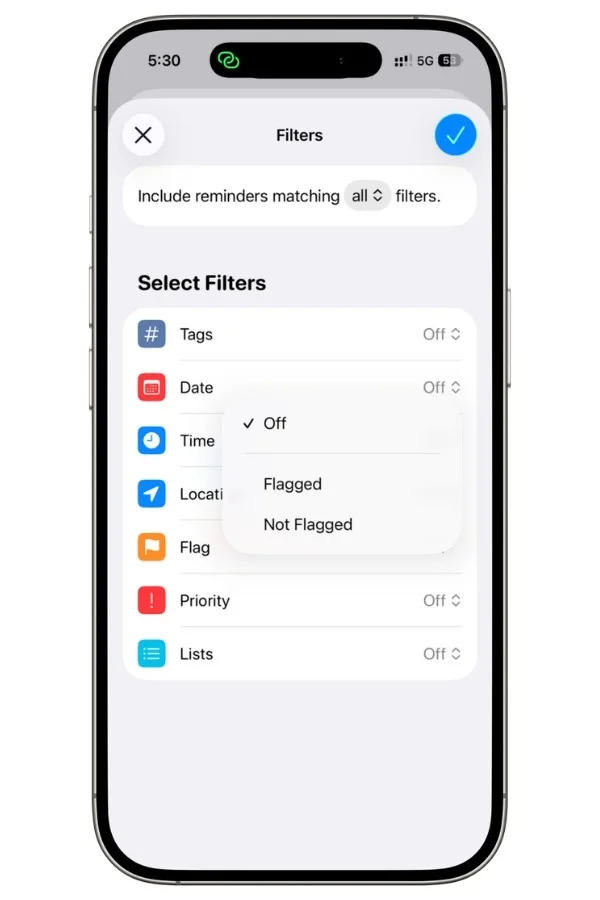
That’s it. A flag is just an on-or-off marker, the orange flag you can swipe to add.
The appeal is speed. Flagging a task takes one swipe, while setting priority means digging into the reminder’s details.
A lot of people, myself included, use flags as a fast “deal with this today” marker.
Example: Pair Flagged with Today to see only the important tasks due now, which is one of the most popular Smart List setups out there.
5.6 Priority
Filters by the priority level you’ve assigned a reminder:
- Any (anything with a priority set, low, medium, or high)
- Low, Medium, or High (one specific level)
- No Priority (nothing assigned)
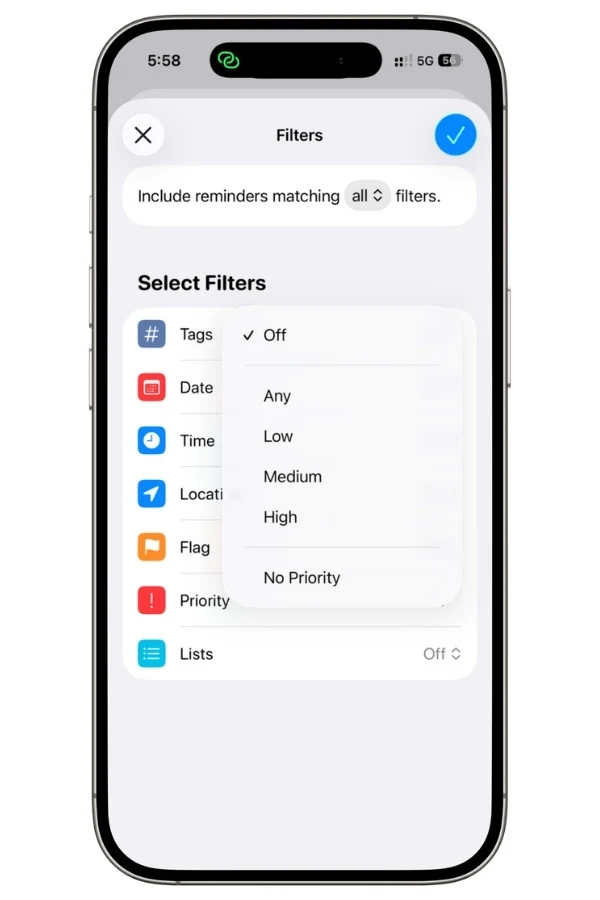
The “no priority” option is quietly clever.
Build a Smart List that shows everything with no priority set, and you’ve got a list of tasks you haven’t triaged yet. Good for a weekly cleanup.
5.7 Lists
This one lets you build a Smart List from your other lists:
- Include a selected list
- Exclude a selected list
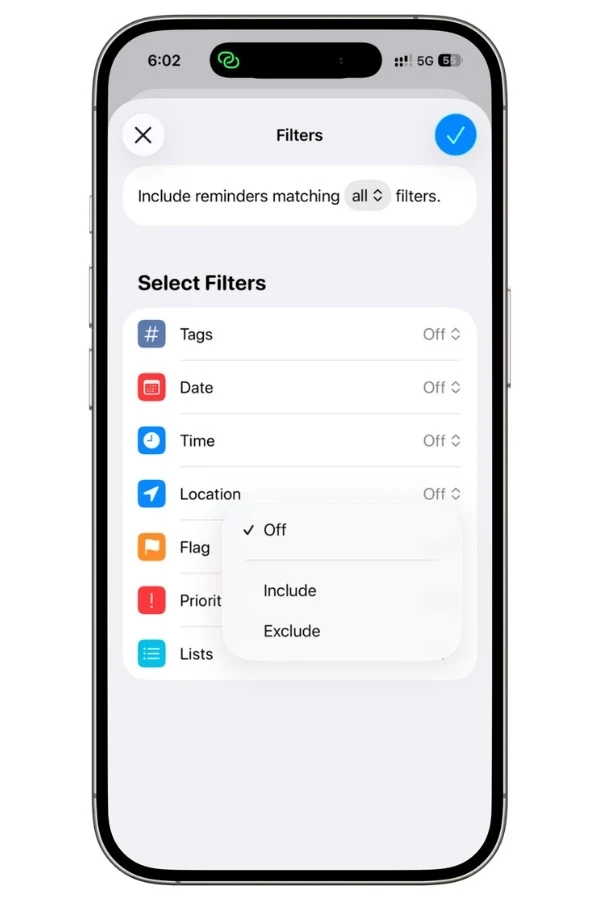
So you could make a Smart List that pulls from everything except your Work list, for a “personal life only” view.
The catch: you can only pick one list to include or exclude, just one. You can’t say “include Kroger, Whole Foods, and Target.” And you can’t reference another Smart List here either. This is easily the most complained-about limit of the bunch, because it makes the List filter far less useful than it looks at first.
6. The Engine: Match Any vs Match All
This is the most important setting in the whole app, and the one people get wrong most often.
It’s a tiny toggle, easy to skip past, but it decides whether your Smart List shows you the right things or a useless pile.
When you set up filters, Reminders asks whether reminders need to match all of your filters or any of them.
- Match all means a reminder has to satisfy every single filter to show up. This is an AND. It narrows things down.
- Match any means a reminder only has to satisfy one of your filters. This is an OR. It widens things out.
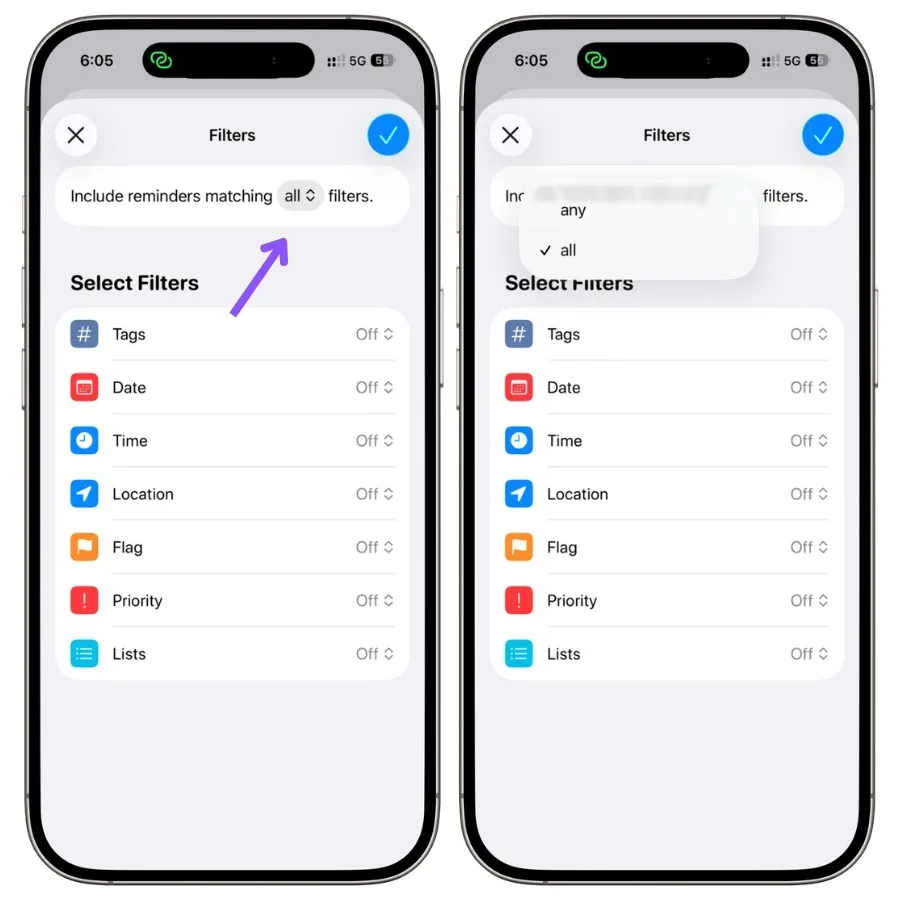
Here’s why it matters so much. The exact same two filters give you two completely different lists depending on which way this toggle is set. Say you build a list with two filters: tagged #work, and due today.
A reminder must be #work and due today.
Leaves out #work tasks due another day, and today’s tasks that aren’t #work.
Result: a tight, focused list.
A reminder needs to be #work or due today.
Pulls in every #work task plus everything else due today, work or not.
Result: a much wider list.
Look at the difference. Two filters, one toggle, and the lists barely resemble each other.
Match All gives you one tightly focused list: the work tasks that are actually due today.
Match Any gives you a sprawling list: every work task you have, plus everything else due today, work or not.
Same filters. The toggle did all of it.
So here’s the rule of thumb I use:
- Want to narrow down? Use Match All. The more filters you add, the smaller and more precise the list gets. Good for “show me exactly this specific slice.”
- Want to gather up? Use Match Any. The more filters you add, the bigger the list gets. Good for “show me anything that fits any of these.”
Most of the time, you’ll want Match All, because the whole point of a Smart List is usually to cut through the noise and see one specific slice of your tasks.
But Match Any has its uses. The “Today plus flagged” recipe coming up later only works with Match Any, because you want to see anything due today OR anything flagged, not just tasks that are both.
If you ever build a Smart List and it shows nothing, or shows way too much, check this toggle first. Nine times out of ten, that’s the problem. You told it “all” when you meant “any,” or the reverse.
One more thing worth knowing, because it confuses people.
This toggle is global. It applies to every filter in the list at once. You can’t set one filter to “and” and another to “or” within the same Smart List. It’s all-and or all-any, never a mix.
That single limitation is behind a lot of the “why can’t I build the list I want” frustration, and I’ll get into it properly in the limitations section.
7. Tags Are The Foundation (build these first)
Here’s something that took me a while to accept: your Smart Lists are only as good as your tags.
You can understand every filter and master the match toggle, but if your tagging is a mess, your Smart Lists will be a mess too.
This is the part most people skip, and it’s why their Smart Lists never feel useful. They build the list before they build the system, feeding it.
So before the recipes, spend a minute on tags.
A tag is just a keyword with a # in front, like #work, #calls, or #errands. You add one by typing # when you’re writing a reminder, or by tapping the tag button.
One reminder can hold several tags. And unlike a list, a tag cuts across everything, a #calls tag works whether the reminder lives in your Work list, your Personal list, or anywhere else.
That’s exactly what makes tags the perfect fuel for Smart Lists.
The single biggest mistake is tag sprawl. People start tagging enthusiastically and end up with forty tags, half of them near-duplicates like #call, #calls, and #phone.
Once that happens, no filter can save you, because your own tags are inconsistent.
My rule, and one I’ve seen work for a lot of people: keep it to a small, deliberate set, ideally under ten tags.
If you find yourself needing more than that, you probably want a different organizing approach, not more tags.
Here’s the way I think about it.
Don’t tag by topic, tag by how you’ll want to pull the task later. Ask yourself: when will I want to see this? The answer is usually one of a few things:
- Where you’ll do it: #home, #work, #errands
- What kind of action it is: #calls, #email, #buy
- What state it’s in: #waiting (for someone else), #someday (not now)
That’s seven tags, and they’ll cover a surprising amount.
Each one maps cleanly to a Smart List you’d actually use. A #waiting list shows everything you’ve handed off and are waiting to hear back on.
A #someday list is your parking lot for things you might do eventually.
An #errands list is what you check before leaving the house.
Notice what these tags have in common: they’re all about context, not category.
“Buy a birthday gift” isn’t tagged #shopping because shopping is the topic. It’s tagged #errands because that’s the moment you’ll want to see it, when you’re already out.
If you want to see how these tags fit into a full task management system, my Apple Reminders task management guide covers the whole workflow.
A couple of practical notes:
- A tag is one word. You can’t do #to-buy as two words, but hyphens and underscores work, so #to-buy or #to_buy are fine.
- Be consistent about singular or plural. Pick #call or #calls and stick with it forever. The app suggests existing tags as you type, so lean on those suggestions instead of retyping and accidentally creating a duplicate.
- Delete a tag, and it leaves your Smart Lists too. If you rename or delete a tag, any Smart List built on it updates automatically. So clean up your tags, and your lists clean up with them.
Get your tags right, and the next section practically builds itself. Every recipe that follows is really just a Smart List pointed at a well-chosen tag.
8. Smart List Recipes That Actually Earn Their Place
Now the fun part.
Here are the Smart Lists I actually use and recommend, each one with the exact filters and the match setting so you can build it in under a minute.
Pay attention to the match toggle on each, because as you saw, it changes everything.
Build the ones that fit your life. You don’t need all of them.
8.1 Today, But Better
This is the one I open most.
The built-in Today list is fine, but it can’t show flagged tasks that aren’t due today. This fixes that.
- Filters: Date set to Today, with Include Past Due Reminders turned on, and Flag set to Flagged.
- Match: Any
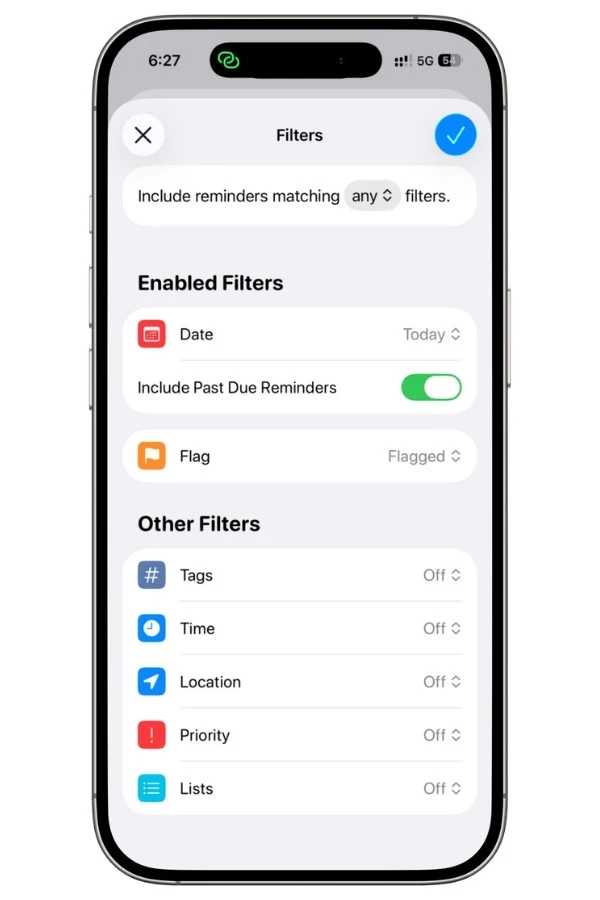
Why it works: You see everything due today OR anything you’ve flagged, in one view. So when something important comes up that isn’t due today, you just flag it and it shows up here. It becomes your real daily command center. The match-any setting is essential, with match-all you’d only see tasks that are both due today and flagged, which misses the point.
8.2 The Untagged Inbox (your cleanup list)
Tasks you dump in with Siri or a quick note often never get tagged, so they vanish into the pile. This list catches them.
- Filters: Tags set to No Tags.
- Match: All (only one filter, so it doesn’t matter)
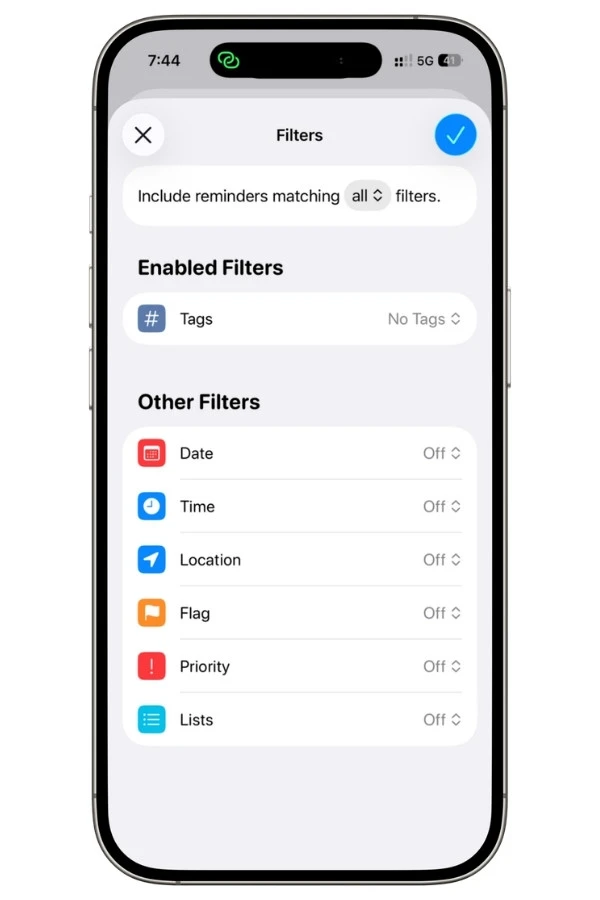
Why it works: It shows every reminder with no tags, which is basically your “I haven’t dealt with this yet” pile. I run through it once a week, tag what matters, and delete what doesn’t. Think of it as your inbox-zero list. If it’s empty, you’re caught up.
8.3 Waiting On Someone Else
This is the single most underrated Smart List, and it’s a productivity game-changer. It tracks everything you’ve handed off and are waiting to hear back on.
- Filters: Tags set to #waiting.
- Match: All
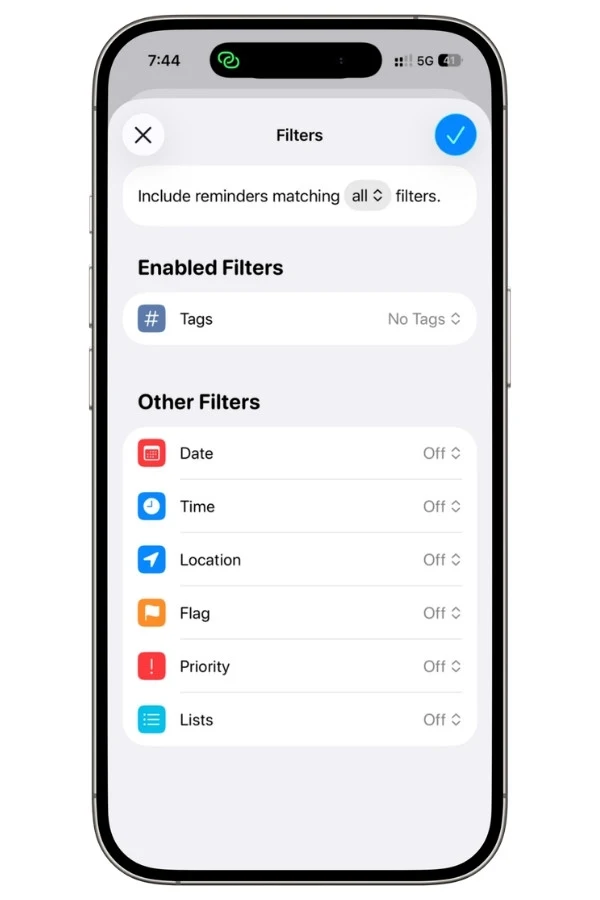
Why it works: You tag anything you’ve delegated or are blocked on, an email you’re waiting for a reply to, an approval you need, a package on the way, with #waiting. Then this list shows them all in one place. Instead of mentally tracking what hasn’t come back yet, you just glance at the list. Stuff stops falling through the cracks.
8.4 Someday (the parking lot)
Not everything needs to happen now. This keeps your “maybe later” ideas out of your active lists without losing them.
- Filters: Tags set to #someday.
- Match: All
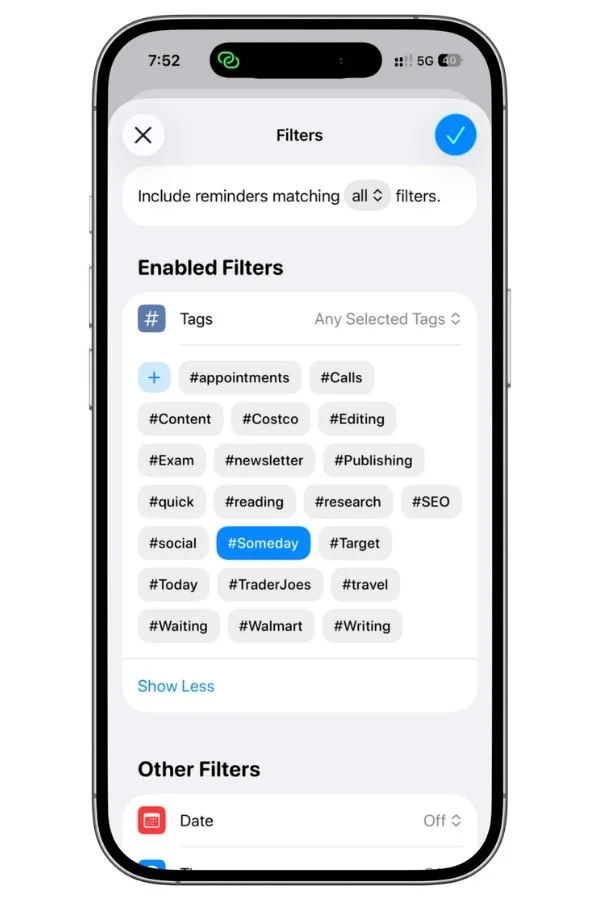
Why it works: Anything you might want to do eventually but not now gets tagged #someday and lives here, out of sight until you go looking. It keeps your daily lists clean while making sure good ideas don’t disappear. Review it occasionally and pull things into action when the time’s right.
8.5 This Week (the tickler)
A rolling view of what’s coming up over the next several days.
- Filters: Date set to Relative range, In the next 7 days.
- Match: All
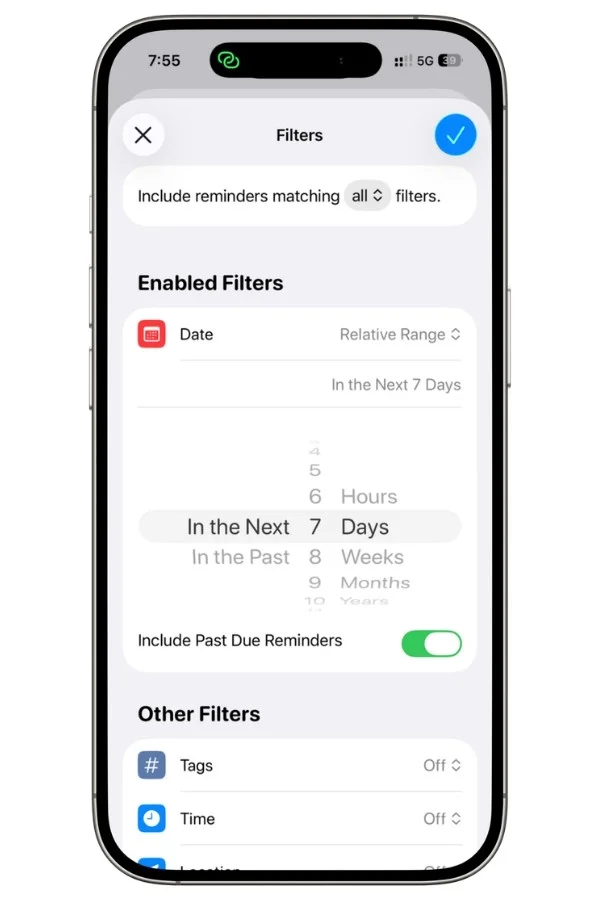
Why it works: It always shows the week ahead and updates itself daily, no maintenance. Good for a Sunday-night look at what’s coming. One honest caveat, this includes today and anything overdue, because the relative range can’t exclude them. There’s no clean “next 7 days but not today” option.
8.6 Context Lists (where you’ll do the task)
These are the heart of a tag-based system. One Smart List per context, so you only see what you can actually act on right now.
- Filters: Tags set to a context like #errands, and Date set to No date.
- Match: All
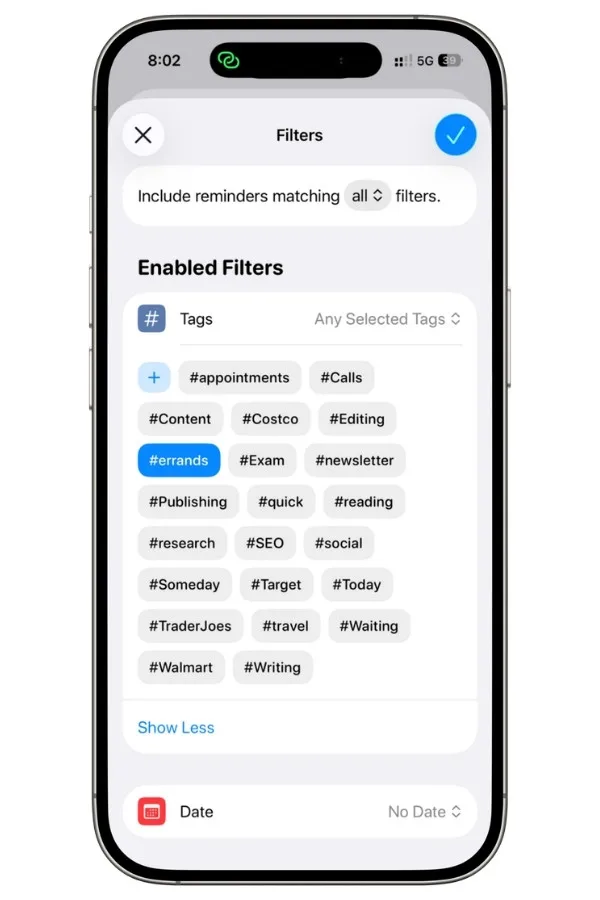
Why it works: Say you build an #errands list. Adding the Date “no date” filter hides anything that’s already scheduled for a specific day, so you’re left with just the loose errands you can knock out whenever you’re out. Build one for each context that matters to you, #home, #work, #calls, and you’ve got a clean view for each moment of your day. When you’re at your desk, open #work. Heading out, check #errands.
8.7 Errands by Location
If you tie tasks to places, this lights up exactly when you need it.
- Filters: Tags set to #errands, and Location set to a specific store.
- Match: All
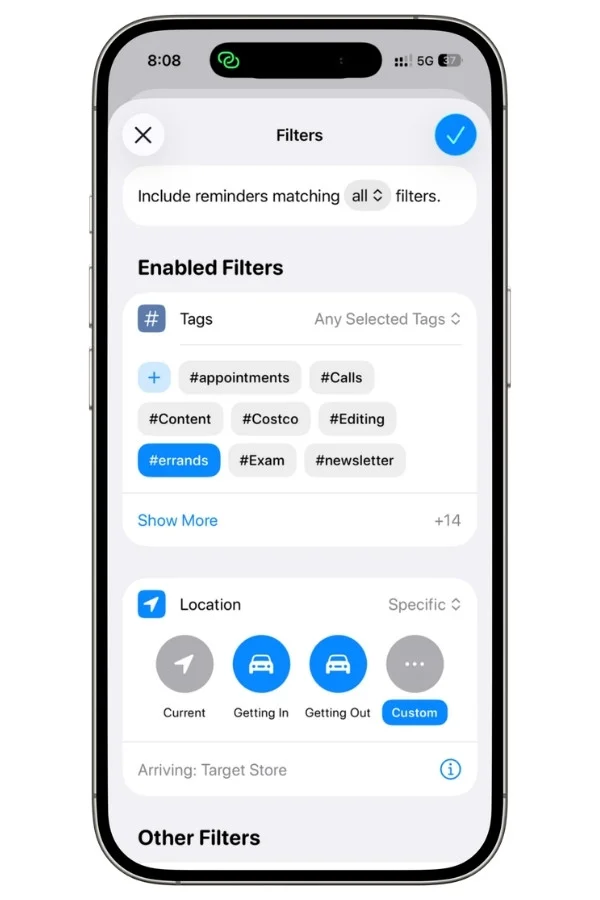
Why it works: Tag store-specific tasks and pin them to a location, and the list surfaces them when you’re actually there. Pair it with a location-based alert and your phone reminds you to grab what you need the moment you walk in. This one needs Location Services on for Reminders.
8.8 Grocery by Store
A clever one if you shop at more than one store. Keep a single grocery list, then split it by where you buy each thing.
- Setup: One master grocery list. Tag each item by store, #kroger, #target, #wholefoods. Then build one Smart List per store, each filtering for its tag.
- Match: All
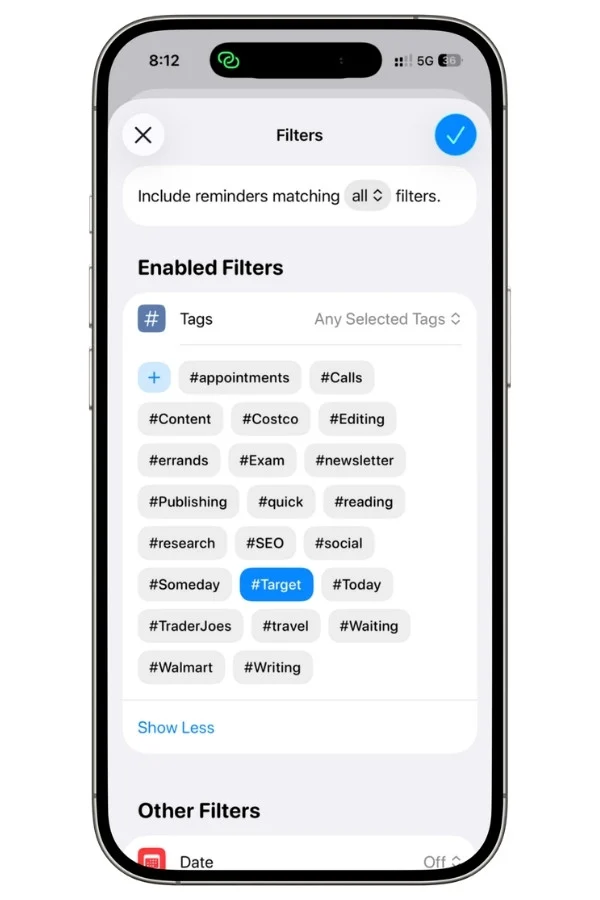
Why it works: You shop from the store’s list, but checking an item off there checks it off everywhere, because it’s all one underlying list. You can even reorder each store’s list to match its aisles. It’s the closest Reminders gets to a proper shopping system. If you want the full setup, I go deep on it in my Apple Reminders grocery list guide.
If I had to pick three to start with: Today-but-better, the untagged inbox, and one context list. Those three alone will change how you use Reminders, and they teach you the match toggle and tags in practice. Add the rest as you need them.
9. What Smart Lists Can’t Do (the honest verdict)
I’ve shown you a lot of what Smart Lists can do.
Now let me be straight about where they fall short, because they do have real limits, and if you don’t know them going in, you’ll waste time trying to build something the app simply can’t.
These aren’t deal-breakers. But they’re the things people bang their heads against, and a few of them are genuinely frustrating.
You get one condition per filter type. This is the big one. You can have one Date filter, one Tag filter, one Priority filter, and so on, but you can’t have two of the same kind. So you can’t build “due this week AND also undated tasks from my Work list,” because that needs two Date conditions. You can’t show “morning AND afternoon” tasks, because that’s two Time conditions. One of each, that’s all.
There’s no real OR across different filters in a useful way. Remember the match toggle is global. You can’t say “match all of these date rules but any of these tags.” It’s all-and or all-any for the entire list. So the genuinely complex logic people want, this tag and that date, but either of these locations, just isn’t buildable.
No clean “overdue only” or “tomorrow only.” Because the relative range always includes today and everything past due, you can’t isolate just overdue tasks, or just tomorrow’s. Apple confirmed this is a limitation, not a bug you’re missing. A lot of people want a pure overdue list, and there’s no native way to get one.
The List filter only takes one list. You can include or exclude exactly one list, not several. So “show me everything from my Kroger, Target, and Costco lists together” isn’t possible through the List filter. And you can’t reference another Smart List inside a List filter either, they don’t even appear as options.
Flags are just on or off. No colors, even though Mail and Finder give you seven flag colors. In Reminders, a flag is binary, flagged or not. If you want more nuance, you’re back to tags.
No start or defer dates anywhere. Reminders only understands due dates. There’s no concept of “don’t show me this until next Monday.” So you can’t build a Smart List that hides tasks until they become relevant, because the app has nothing to filter on.
Subtasks can go missing. If a subtask doesn’t have its own due date, it won’t show up in date-based Smart Lists or the Today view, even if its parent task does. The subtask just stays hidden in its original list.
Smart Lists don’t show on the web. If you use iCloud.com in a browser, your Smart Lists won’t be there at all. They live only on your iPhone, iPad, and Mac.
That’s the honest list. None of it makes Smart Lists useless, far from it, but it explains why power users sometimes hit a wall.
9.1 Workarounds For The Biggest Limits
The good news is that a few of these have decent workarounds. Here are the ones worth knowing.
For “I want an untagged catch-all”: use the Untagged reminders only tag filter, which we built back in section 8. It’s the closest thing to an inbox for stuff you haven’t sorted.
For missing subtasks: give the subtask its own due date, not just the parent. Once a subtask has a date, it shows up in Today and in date-based Smart Lists like everything else. It’s a small bit of extra effort, but it works reliably.
For the “overdue includes today” problem: lean on the built-in Today list instead of fighting the relative range. Today already groups overdue items at the top, above today’s tasks, so you can at least see them clearly, even if you can’t isolate them into their own list.
For wanting tasks from several lists in one view: don’t use the List filter at all. Use a tag instead. Tag everything across those lists with one shared tag, then filter by that tag. Tags cross list boundaries freely, which is exactly what the List filter won’t do.
The pattern you’ll notice: when a filter limit blocks you, tags are almost always the way around it. That’s the real reason section 7 mattered so much. A good tag system doesn’t just power your Smart Lists, it rescues them when the built-in filters run out of road.
The One Thing to Remember
If you take just one idea from all of this, make it the one we started with:
A Smart List isn’t a place to put tasks, it’s a question you ask your existing ones. Everything else, the filters, the match toggle, the tags, is just how you phrase the question.
That’s the shift that makes Reminders click.
Most people treat it as a glorified checklist, a few lists they scroll through.
Smart Lists turn it into something that actually surfaces the right tasks at the right moment, so you’re not hunting for what matters, it’s just there when you open the app.
You don’t need to build all of this at once. Honestly, don’t.
Start with three things:
- Turn on iCloud, from section 3, or none of this works.
- Build the “Today” list, so you’ve got one daily view that actually reflects your priorities.
- Pick one tag, maybe #waiting or one context like #work, and build a single Smart List around it.
Live with those for a week. Once the match toggle and tagging feel natural, the rest of the recipes take about a minute each to add.
The system grows with you instead of overwhelming you on day one.
Smart Lists aren’t perfect, we were honest about where they fall short.
But for a free app that’s already on your phone, they do something genuinely useful: they get out of your way and show you what you actually need to deal with.
That’s the whole point of a to-do system, and most people never get there. Now you will.
FAQs
Do Apple Reminders Smart Lists sync across iPhone, iPad, and Mac?
Yes. As long as iCloud is turned on for Reminders, your Smart Lists sync automatically across your iPhone, iPad, and Mac. Build one on your phone and it shows up on your Mac within seconds. The one exception is the web, Smart Lists don’t appear on iCloud.com in a browser.
Can you share a Smart List in Apple Reminders with someone else?
No. You can share regular lists, but not Smart Lists. A Smart List is a personal view of your own reminders, so there’s nothing to hand over, it’s just a filter pointed at tasks that live in your other lists.
Why aren’t my tags showing up for people I share a Reminders list with?
Tags are personal. When you share a list, the other person sees the tasks but not your tags, and you won’t see theirs. Apple confirms this is intended behavior. So you can’t build a shared Smart List around tags, because each person’s tags are their own.
Why is there no “List Type” or “Make into Smart List” option in my Reminders app?
Almost always because iCloud isn’t set up for Reminders. Turn on Reminders in your iCloud settings and accept the update prompt in the app. If iCloud is already on and the option is still missing, you may be hitting a known bug on some non-English system languages, switching your iPhone to English temporarily makes it reappear.
Do Apple Reminders Smart Lists work without iCloud?
No. Smart Lists, tags, and most of the app’s better features only work on reminders stored in iCloud. If your reminders are in a Gmail, Outlook, or Exchange account, or in a local on-device list, Smart Lists won’t be available to you.
Why don’t my subtasks show up in a Smart List or the Today view?
Because the subtask doesn’t have its own due date. A subtask only appears in date-based views if you give it a date directly, having a date on the parent task isn’t enough. Add a date to the subtask and it’ll show up like any other reminder.
Can I see my Apple Reminders Smart Lists on Apple Watch?
Not reliably. The Watch handles your basic lists and the Today view well, but custom Smart Lists don’t display dependably on it. For now it’s best to treat Smart Lists as an iPhone, iPad, and Mac feature.
What’s the difference between a tag and a list in Apple Reminders?
A list is a single place a reminder lives, a reminder can only be in one list at a time. A tag is a label that cuts across all your lists, and one reminder can carry several tags. Lists are containers, tags are cross-cutting labels, which is exactly why tags make such good fuel for Smart Lists.
How many Smart Lists can you have in Apple Reminders?
For practical purposes, as many custom ones as you want, there’s no meaningful cap. On Mac there’s a limit of nine for the combined total of pinned lists and the built-in Smart Lists shown at the top, but that doesn’t restrict the custom Smart Lists you create.
If I delete a Smart List in Apple Reminders, do I lose my reminders?
No. Deleting a Smart List only removes the view, your reminders stay exactly where they are in their original lists. That’s the whole nature of a Smart List, it never held the tasks to begin with.