
Apple Reminders Grocery List That Runs Itself
Apple Reminders is one of the best grocery list tools you already have on your phone, and most people barely scratch what it can do.
I test Apple’s built-in apps to their limit. That’s the whole point of this site.
And Reminders is one I keep coming back to, because for grocery shopping specifically, it quietly does more than almost anyone realizes.
While I was putting this together, I also read through a lot of Reddit and Quora threads to see how real people actually use it, what systems they’ve built, and where they keep getting stuck.
Some of the smartest setups I’ve seen didn’t come from Apple’s documentation at all. They came from people who got frustrated and engineered their own way around the limits.
So this guide pulls all of that together into one system.
The whole thing, start to finish:
- How to set up a list that sorts itself
- How to stop forgetting the same three items every week
- How to shop across two or three stores without a mess
- How to share a list with the person you live with so you stop buying duplicate milk
- How to automate the tedious parts
I’ll also be straight about where Reminders falls short, because it does in a few specific places, and I’ll show you the exact workarounds.
That duplicate-milk problem isn’t trivial either. The EPA estimates the average American household of four throws out around $2,913 of food a year, and a lot of that is buying things you already had at home.
A shared, self-deduplicating list is one of the simplest fixes for it, and it costs you nothing.
By the end of this guide, you’ll have a grocery setup that basically runs itself. Let’s build it.
Table of Contents
- 1. The Whole System in One Screen
- 2. Setting Up a Real Grocery List
- 3. The Two Systems Apple Actually Gives You
- 4. The Master Template Method
- 5. Shopping Across Multiple Stores
- 6. Adding Items Hands-Free With Siri
- 7. Sharing With Your Household
- 8. Location Reminders That Actually Fire
- 9. Beyond the App: Widget, Recipes, and Delivery
- 10. When the Grocery List Isn’t Working
- 11. Apple Reminders vs the Dedicated Grocery Apps
- The Honest Verdict
- FAQ
1. The Whole System in One Screen
Before any setup, here’s the actual system you’re building.
Five stages:
- Capture — items hit the list the second you think of them, by voice or widget. No friction.
- Sort — Reminders files each item under the right category on its own.
- Shop — you walk the store and check things off as you go.
- Reset — the list clears for next time without you rebuilding it.
- Reuse — your regulars come back automatically, so you’re never starting from a blank page.
Most people only ever use the middle one. They type a list, they shop, done.
If you’re new to the app, my complete guide on Apple Reminders for Beginners covers the basics, setup, syncing, smart lists, tags, and everything else you’ll want to know before building a system like this.
That works, but it’s the manual version, and it’s why grocery lists feel like a chore.
The payoff is in the other four. Capture so nothing slips. Reset and reuse, so you stop rewriting the same list every week.
You don’t need all of it. Set up the basic list, bolt on the parts that fix your actual problems, ignore the rest.
2. Setting Up a Real Grocery List
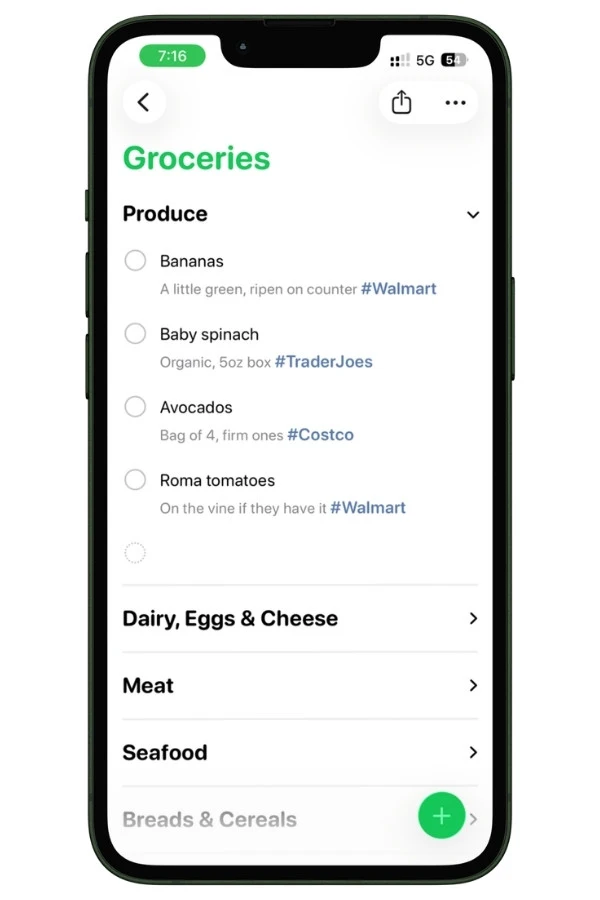
The difference between a list that sorts itself and a dumb column of text is one setting: the list type.
Most people never touch it, which is exactly why their list never sorts.
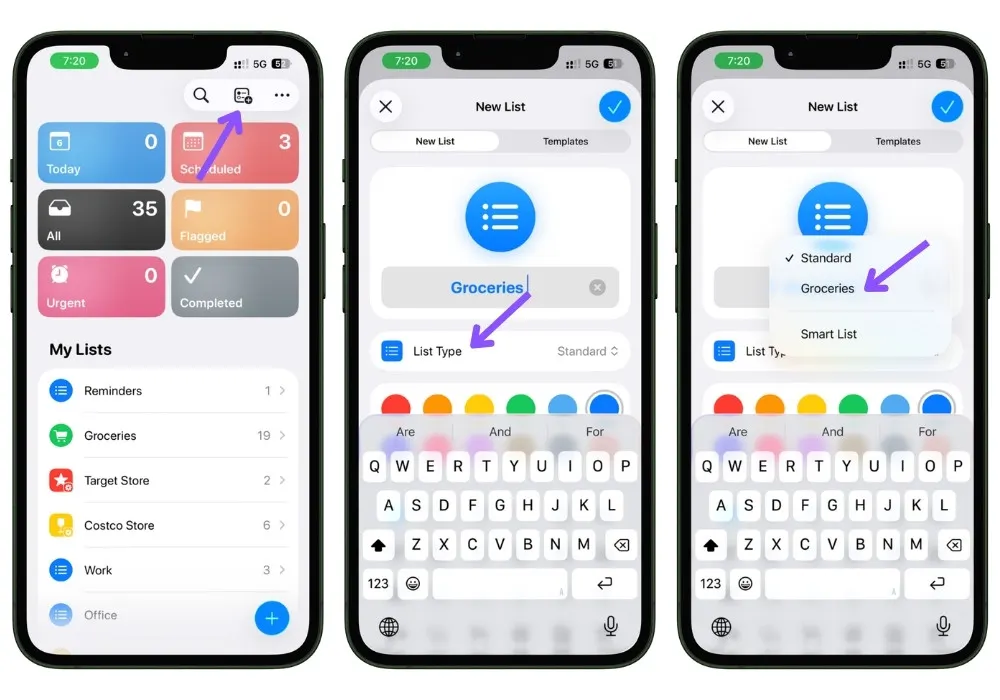
Here’s the setup:
- Open Reminders and tap Add List.
- Give it a name, pick a color and icon.
- Tap List Type and choose Groceries.
- Tap Done.
That’s it. Now, as you add items, each one gets filed under a category like Produce, Meat, or Frozen Foods, so the list is already organized by the time you’re in the store.
2.1 Turn On iCloud First, or None of This Works
The sorting runs on iCloud. If it’s off, Groceries won’t behave.
Go to Settings → Your Name → iCloud → Reminders and switch it on across your devices.
This is also what keeps the list in sync between your iPhone, iPad, and Apple Watch. Worth getting right before anything else.
2.2 The Categories It Sorts Into
Reminders files items into a set of grocery categories: Produce, Dairy/Eggs & Cheese, Meat, Seafood, Breads & Cereals, Beverages, Frozen Foods, Snacks & Candy.
Anything it can’t place lands under Others at the bottom.
It’s smarter than it looks. Type a brand name like Cheerios, and it still knows that’s cereal.
But here’s the thing worth understanding, because it explains every weird result you’ll get: it sorts by what the item is, not which aisle you buy it in.
So it reads “frozen shrimp” and files it under Seafood, because it’s looking at the shrimp, not the word frozen. “Frozen blueberries” landed under Beverages in my testing because it locked onto blueberries and guessed a drink.
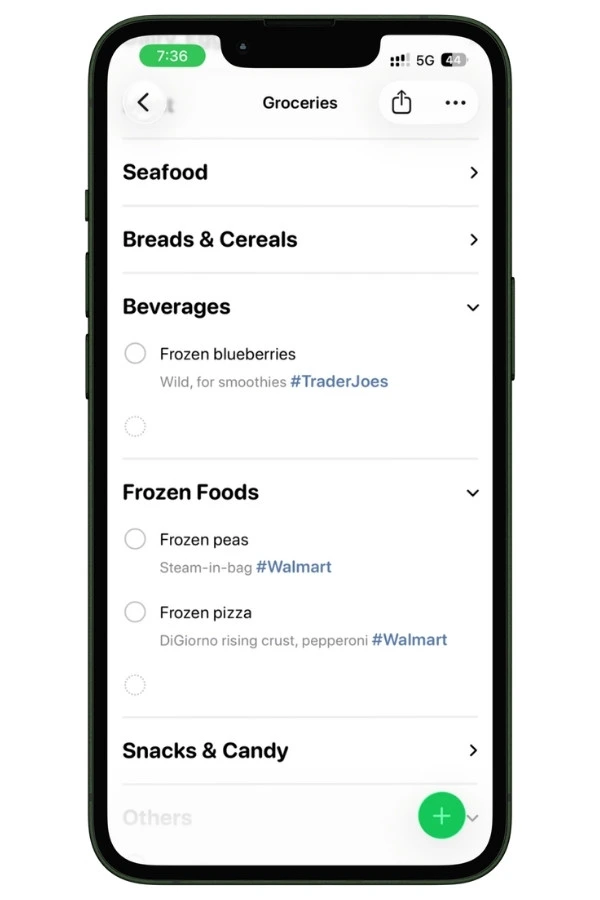
Neither is wrong exactly; it’s just sorting on the core item, not the part of the store you actually walk to.
Once you get that, the odd placements stop being annoying and start being predictable. Anything in a frozen, canned, or dried form may land with its fresh version instead of where you shop for it.
When that happens, drag the item to the right section once. It remembers your choice and files it there next time.
3. The Two Systems Apple Actually Gives You
Reminders has two separate ways of organizing groceries. Worth knowing which is which, so you’re not sitting around waiting on a feature you don’t actually need.
3.1 System One: Automatic Grocery Sorting
The one from Section 2. Set the list type to Groceries, and it files items into Produce, Dairy, and so on.
It’s been around since iOS 17, runs on basically any iPhone, and needs nothing but iCloud. This is the one you’ll use every single day.
3.2 System Two: Apple Intelligence
On newer iPhones, Reminders layers two AI features on top:
- Auto-Categorize — sorts any list into sections, not just grocery lists, from the three-dot menu.
- Suggested Reminders — pulls grocery items or recipe ingredients out of a Safari page, an Apple News+ recipe, an email, or a note, already sorted.
Here’s the part that trips people up: you don’t need Apple Intelligence to get a self-sorting grocery list.
The everyday sorting works without it. Don’t let the AI features make you think the basic thing is out of reach. It isn’t.
3.3 No Apple Intelligence? Build Sections by Hand
If your iPhone doesn’t do Apple Intelligence, you can still make your own sections.
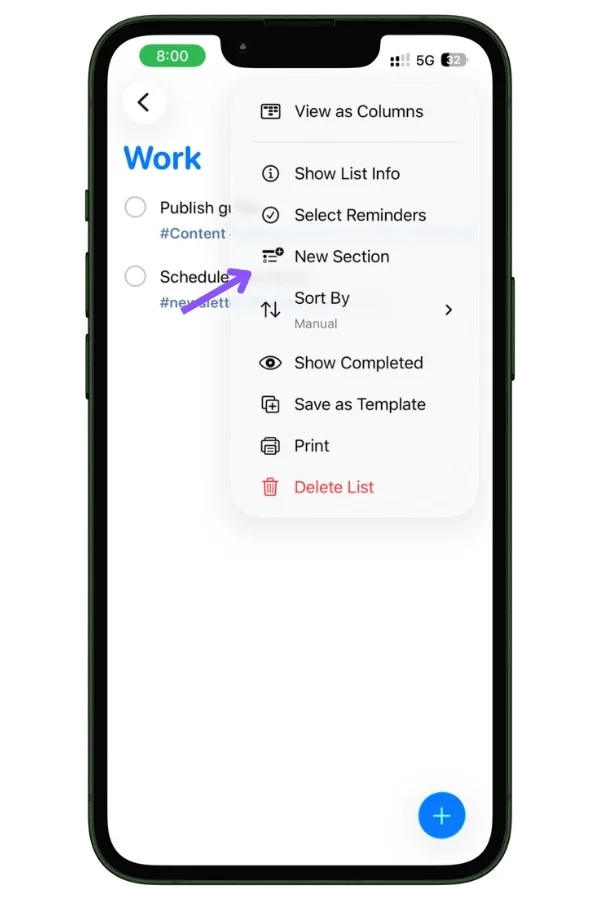
Tap the three-dot menu → New Section, name it, drag items in. Same result as Auto-Categorize, just done by hand, and it works on any iPhone.
4. The Master Template Method
Most people build a grocery list by trying to remember what they’re out of. That’s backwards, and it’s the reason you always forget something.
Flip it. Start with everything you ever buy and work down from there. Reminders has a feature built for exactly this.
4.1 Save Your List as a Template
Build one list with every item you buy regularly. Milk, eggs, dish soap, the snacks, all of it.
Then save it so you can reuse it forever:
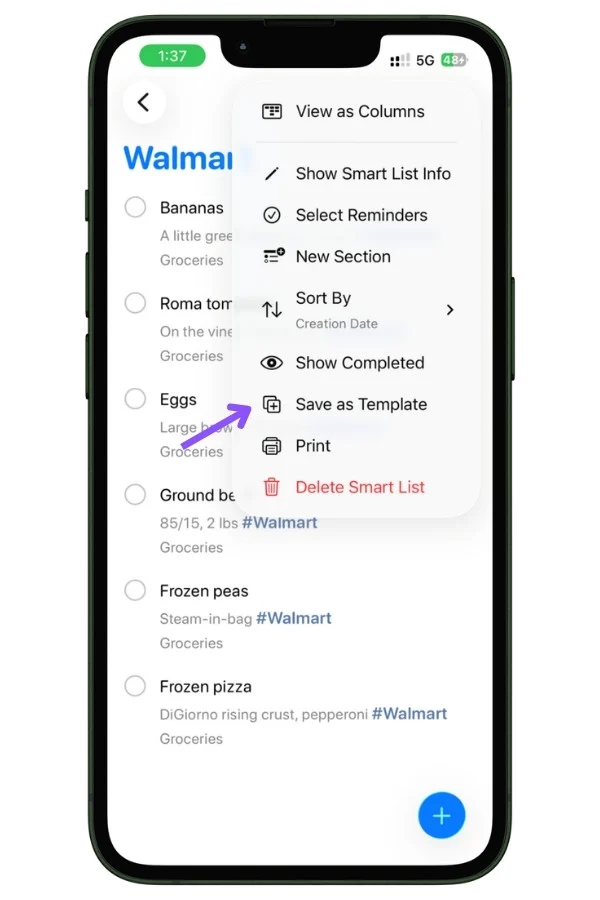
- Open the list and tap the three-dot menu.
- Tap Save as Template.
- Decide whether to flip on Include Completed Reminders, then tap the checkmark.
Now whenever you need a fresh list, open the menu on the main Reminders screen, tap Templates, and create a new list from it.
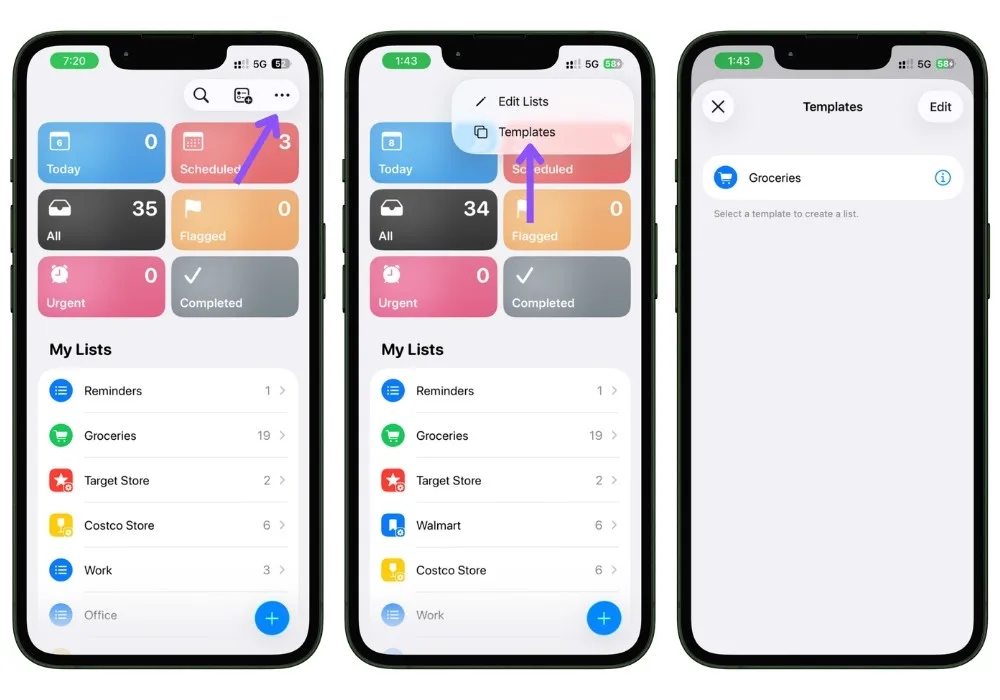
Clean copy every time. Your master stays untouched. Nothing to rebuild.
4.2 The Quick Alternative: Hide Completed
If you don’t want to bother managing templates, there’s a lighter version on a single list:
- Keep your full master list in place.
- Before a trip, check off everything you already have at home.
- Tap the three-dot menu and Hide Completed. What’s left is what you need to buy.
- After shopping, Show Completed to bring the full list back.
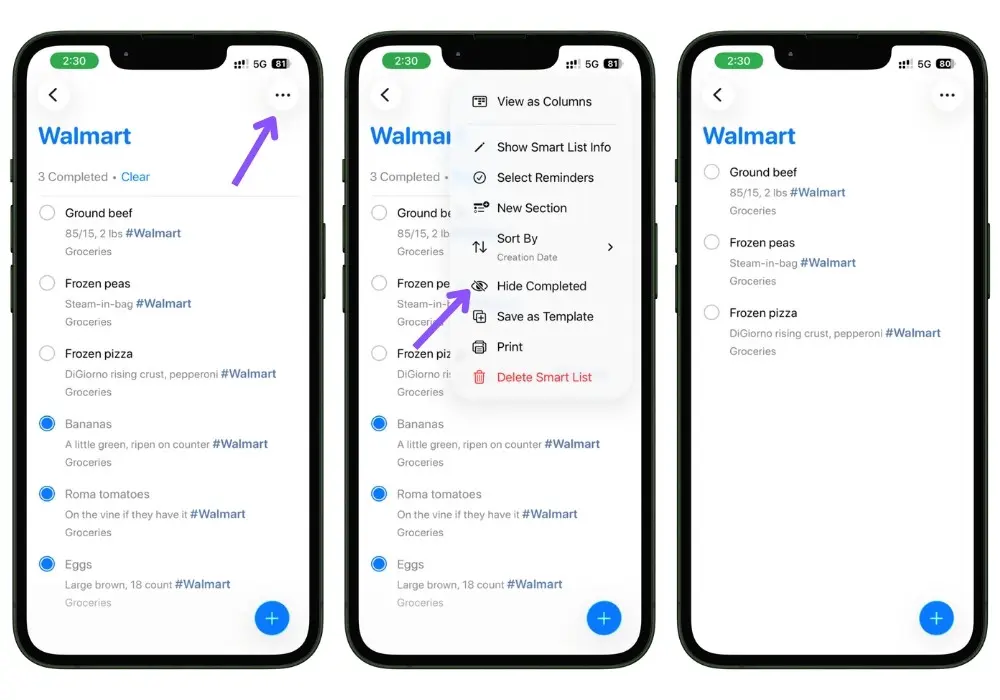
One catch with this one: when items come back, Reminders doesn’t always hold your order. Things shuffle inside a section. Marking everything uncompleted resets it. The template method in 4.1 doesn’t have this problem, which is why it’s the better long-term setup. I’d use templates and keep this as the backup.
5. Shopping Across Multiple Stores
Here’s where the built-in list hits a wall.
It assumes you shop at one store. Most people don’t. Bulk stuff at Costco, everyday stuff at the regular place, a couple of specialty things somewhere else.
One flat list is useless when you’re standing in a specific store trying to figure out what belongs there.
The fix is tags plus smart lists.
Keep one master list, label each item by store, then make a filtered view per store that shows only what you need there.
5.1 Tag Each Item by Store
When you add an item, drop in a hashtag for its store:
- Milk #TraderJoes
- Eggs #Walmart
- Cheese #Costco
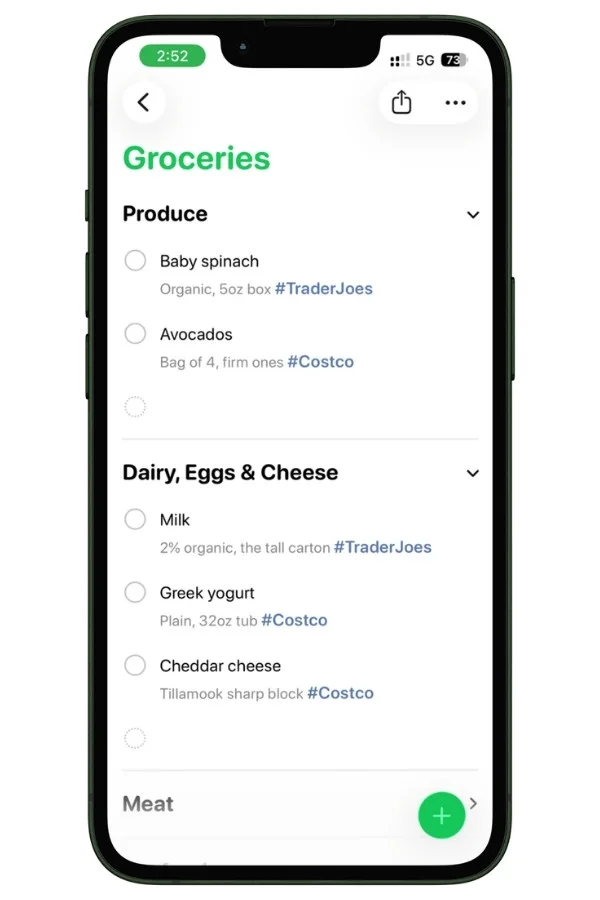
The tag is tappable and searchable. Everything still lives on the one master list, so you’re not hand-managing five separate lists. You’re just labeling.
Store tags are just the start of what tagging can do. For the full system, filtering, the two setups I use, and the one tag trap worth avoiding, here’s my complete guide to Apple Reminders tags.
5.2 Build a Smart List for Each Store
A smart list is just a saved filter. You tell it “show me everything tagged #Walmart,” and it pulls those items out of your master list automatically.
Here’s the full setup:
- On the main Reminders screen, tap Add List.
- Name it after the store, like Walmart, and pick a color or icon if you want.
- Tap List Type and choose Smart List (the third option, under Standard and Groceries).
- You’ll land on the Filters screen. Under Select Filters, tap Tags.
- Your tags appear as bubbles. Tap the store tag you want, like #Walmart. It turns blue when it’s selected.
- Tap the checkmark to save.
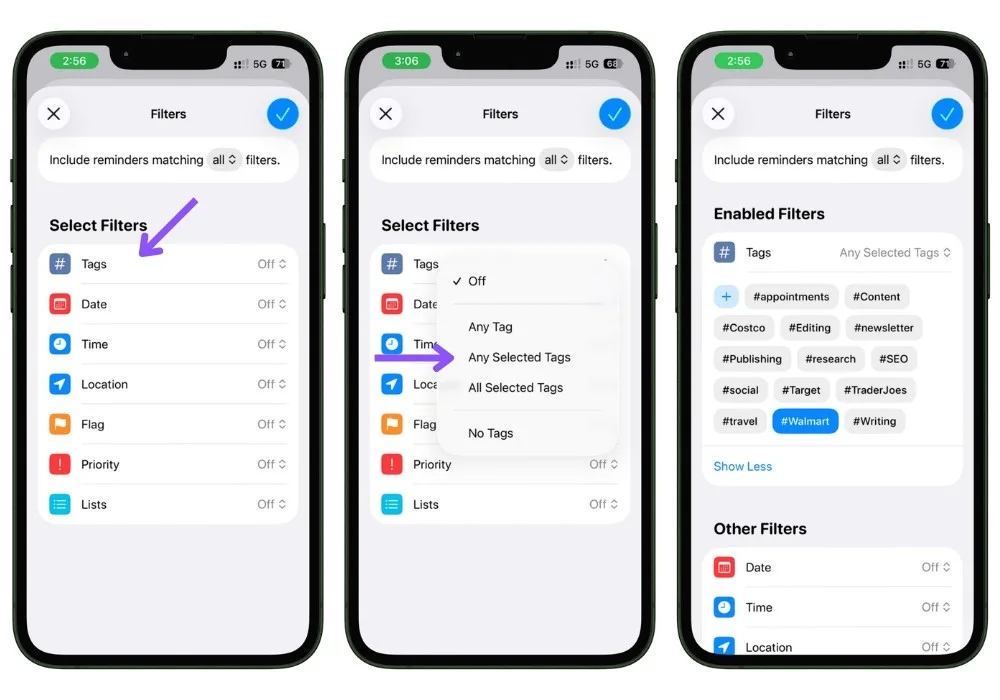
That’s it. The Walmart smart list now shows only the items you tagged #Walmart, pulled straight from your master grocery list.
Repeat it for each store: one for Costco, one for Target, one for Trader Joe’s.
5.3 The Part That Makes It Actually Work
Here’s the thing that makes this whole system click: a smart list isn’t a copy. It’s a live view of the same items.
So when you check off milk inside your Walmart smart list, it also checks off on the master Groceries list, because it’s the exact same item shown in two places.
Nothing falls out of sync because there’s only ever one version of each item.
In the store, you open that store’s smart list, and everything you can’t buy there is simply gone from view. No scrolling past Costco items while you’re standing in Target.
Smart lists can do a lot more than store sorting. If you want the full breakdown, here’s my complete guide on Apple Reminders Smart Lists.
6. Adding Items Hands-Free With Siri
You’re cooking, hands covered in flour, and you spot you’re almost out of olive oil. This is what voice entry is for. Say it, keep cooking.
“Hey Siri, add olive oil to my groceries list.”
It lands on the list, sorted, without you touching anything. For quick one-off adds while your hands are busy, nothing’s faster.
6.1 The Phrasing That Works
Siri’s picky about wording. A few habits keep it reliable:
- Name the list. Say “add to my groceries list,” not just “add olive oil.” Naming it stops Siri guessing.
- One thing at a time when it matters. Siri mishears long strings, so keep specific items short.
- Speak clearly. “Add eggs to my groceries list” beats a rushed mumble every time.
6.2 When Siri Drops Items Into Notes
Common one: you ask Siri to add something, and it makes a note instead, or dumps it on the wrong list. Usually, the default list setting.
The fix:
- Go to Settings → Apps → Reminders → Default List.
- Set it to your everyday Reminders list, not the grocery one.
- Name the grocery list out loud when you want something on it.
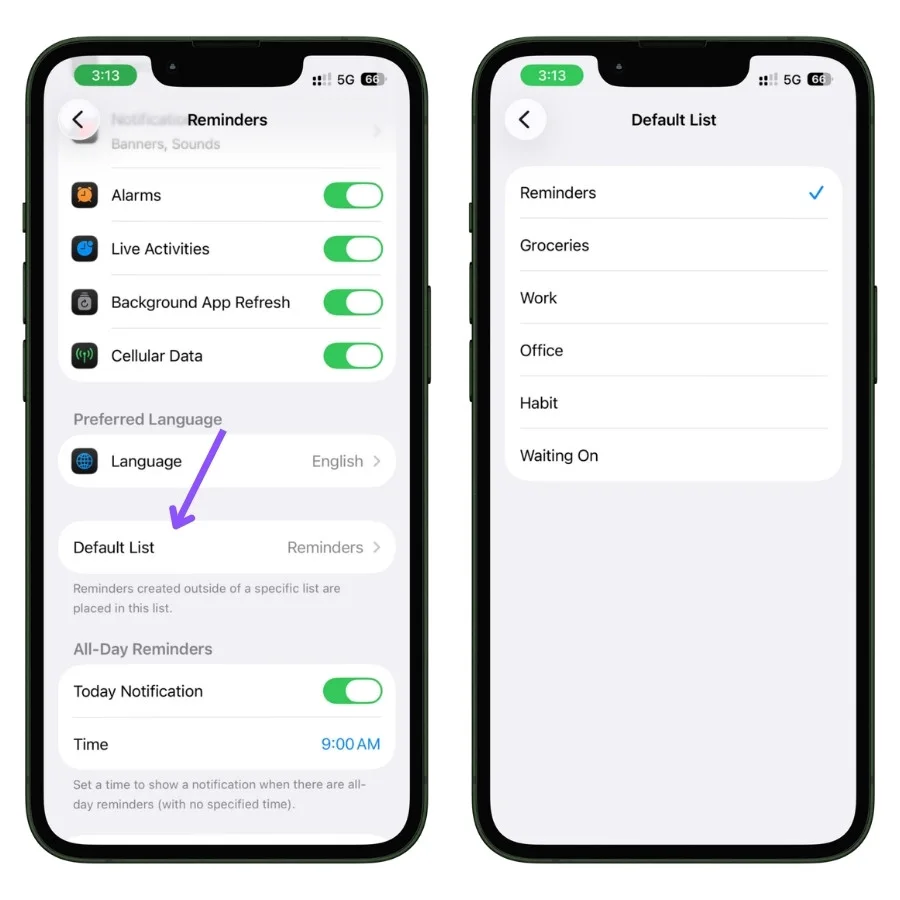
If Siri still misfires mid-session, dismiss the on-screen confirmation before your next command.
Items pile onto the previous list when you stack requests too fast. It’s a known annoyance, not you doing it wrong.
7. Sharing With Your Household
Most double-buying isn’t a memory problem. It’s a visibility problem.
Two people keeping two separate lists in two separate heads. You buy milk on the way home, so did they, and now there’s two.
A shared list fixes this, and it’s the closest thing Reminders has to a superpower for households.
One list, everyone sees it, it updates the second anyone touches it.
7.1 Set Up a Shared Grocery List
Open your grocery list, tap the share button near the top, and send the invite. Messages is the easiest way.
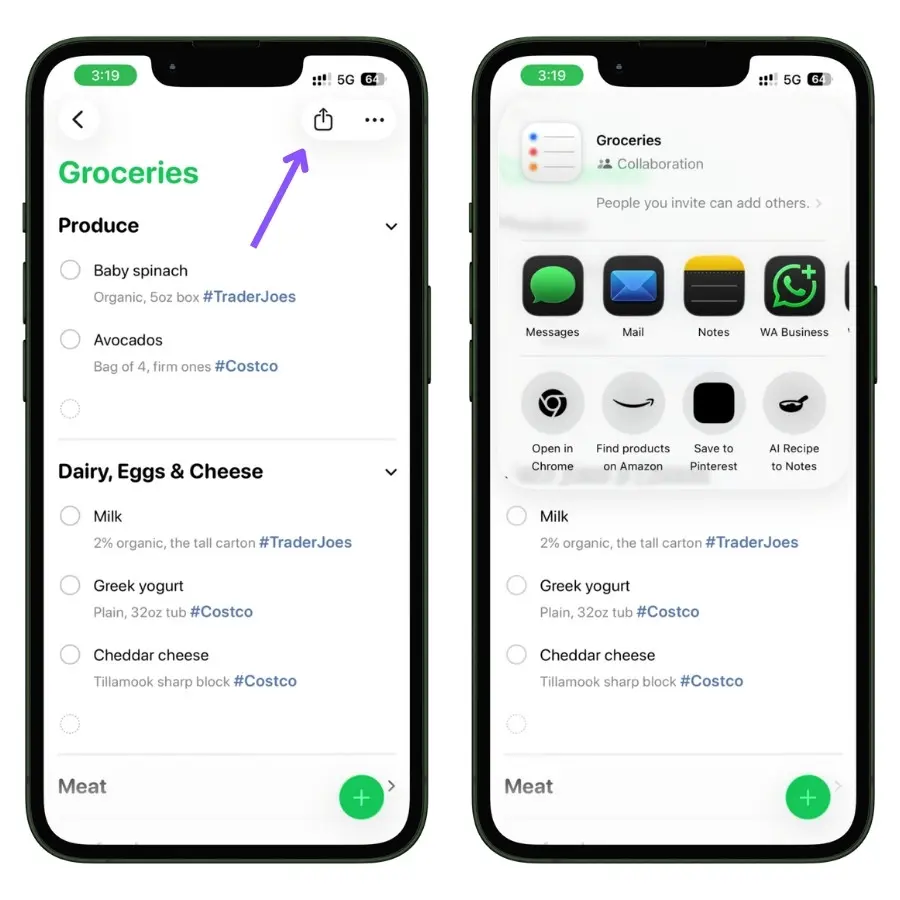
Once they accept, the list is on everyone’s phone, and someone can add paper towels from the office, and it’s on your list before you reach the store.
That’s the whole thing. Nothing to maintain.
7.2 Divide the Store in Real Time
Shopping together is where this pays off. Split up, cover the store faster, and let the live sync do the coordinating.
- Check off an item, and it vanishes for everyone, instantly. You don’t both end up grabbing the same thing in different aisles. This alone is most of the value.
- Assign items if you want to split the list formally. On a shared list, you can tap an item and assign it to a specific person, so it shows as theirs to grab. You won’t always need it; checking off as you go usually does the job, but it’s there when you want clear lanes.
7.3 The Catch Nobody Tells You
The app syncs perfectly. People don’t. A shared list only works if everyone actually puts things on it.
The moment someone keeps a side list in their head or texts you “grab bread” instead of adding it, the system is dead, and you’re back to two lists.
So the rules are boring, but they’re the entire game:
- If it’s not on the list, it doesn’t get bought. No exceptions, or the whole thing falls apart.
- Check the kitchen before you add. Stops you adding what you already have.
- Be specific. Write “sourdough loaf,” not “bread,” unless you enjoy surprises.
None of that is an app problem. Reminders gives you the shared list. The discipline is on you.
8. Location Reminders That Actually Fire
Reminders can ping you when you arrive somewhere.
In theory, you walk up to the store, and your list pops up on its own. No remembering, no checking. When it works, it’s great.
The problem is the word “arrive.” Reminders fires the alert when you cross into a circle drawn around the store, and by default, that circle is small.
So the reminder often goes off when you’re already inside, standing in an aisle. Too late to be useful.
8.1 Set a Location Reminder
- Tap the item, then tap the info (i) button to open its Details.
- Scroll to Places & People and turn on Location.
- You’ll see four options: Current, Getting In, Getting Out, Custom. Tap Custom to set a specific store.
- Search for the store, then make sure the toggle on the map is set to Arriving (not Leaving).
- Tap the checkmark to save.
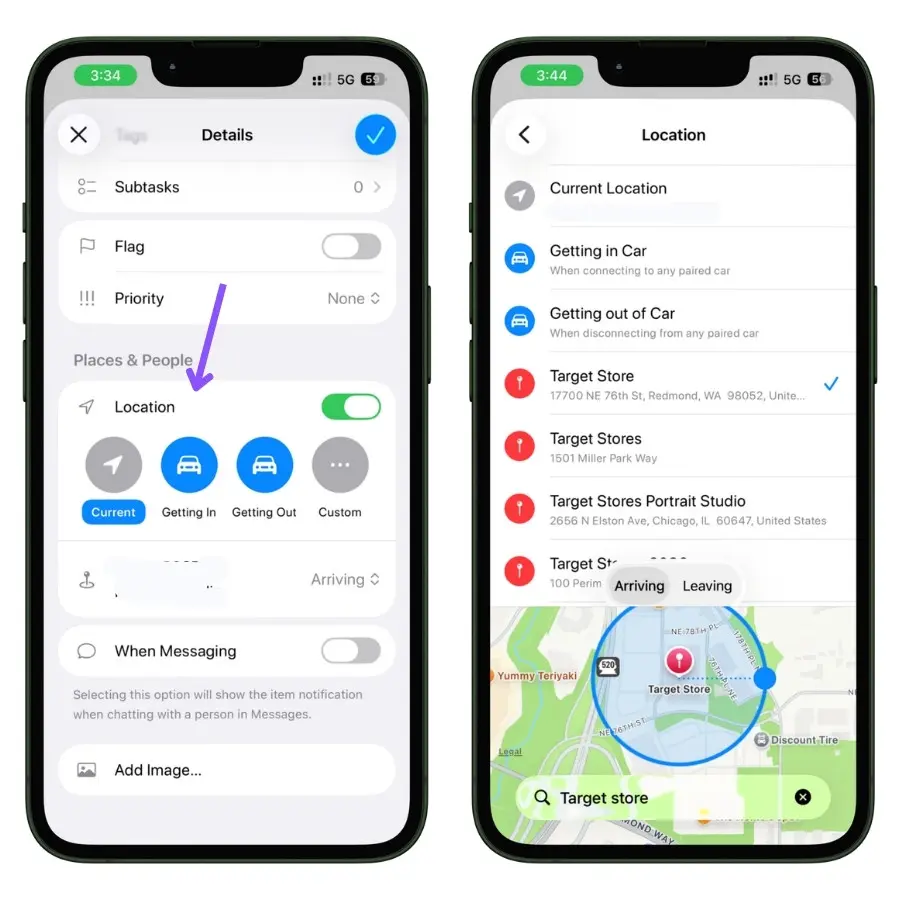
The Getting In and Getting Out options are car-based, they fire when your phone connects or disconnects from your paired car, which is handy if your reminder is “grab the list when I start driving.”
But for a specific store, Custom is what you want.
For any of this to work, Reminders needs Always location access and Precise Location turned on in Settings. Without those, location reminders just quietly never fire, and you’ll never know why.
8.2 Widen the Circle So It Fires in the Parking Lot
This is the fix nobody mentions.
Once you’ve set a Custom location, the map shows a circle around the store with a draggable dot on its edge. Drag that dot outward to make the circle bigger.
A wider circle means the alert fires as you pull into the parking lot, not when you’re already deep in the store. That gap is the whole difference between a reminder that’s useful and one that’s pointless.
I’d rather get pinged a minute early in the car than after I’ve already walked past the produce.
One more thing worth knowing: the pin Apple drops on a store isn’t always sitting on the actual building. Sometimes it’s off to one side. A bigger circle covers for that too, so a slightly wrong pin doesn’t mean a reminder that never fires.
9. Beyond the App: Widget, Recipes, and Delivery
The grocery list doesn’t have to stay inside Reminders. A few connections make it faster to use and harder to forget.
9.1 Put the List on Your Home Screen
The fastest way to use a list is to never have to open the app.
Add the Reminders widget to your home screen, and your grocery list sits right there, items visible, checkable without opening anything.
Long-press the home screen → Edit → Add Widget → Reminders, and pick the widget size that shows your list. Put it where you’ll see it.
A list you glance at every time you unlock your phone is a list you actually keep up to date.
9.2 Pull Ingredients Straight From a Recipe
On iPhones with Apple Intelligence, Reminders can read a recipe and lift the ingredients into a grocery list for you.
Browsing a recipe in Safari or Apple News+, you can send those ingredients to your list, and they land sorted by category, no typing.
If your iPhone doesn’t have Apple Intelligence, this one’s not available to you, but it’s not a big loss.
Typing the four things you actually need from a recipe takes seconds, and you usually have half of them already.
9.3 Send the List Straight to DoorDash
If you’d rather not go to the store at all, DoorDash can import a grocery list directly from Reminders.
You build the list like normal, then pull it into DoorDash, and it fills your cart from what’s there.
Worth knowing this exists if you do delivery. If you don’t, ignore it. It’s a convenience, not a reason to change how you build the list.
10. When the Grocery List Isn’t Working
Most of the time, Reminders just works. But a few specific things break in ways that make no sense until someone explains them.
Here are the ones worth knowing, and the fix for each.
10.1 There’s No “Groceries” Option in List Type
You go to make a grocery list, and the Groceries option isn’t there. The list type menu shows something else, or nothing useful at all.
This is almost always a language setting.
The auto-sorting only works in supported languages, and if your iPhone’s system language isn’t one of them, the option disappears entirely.
The fix is to set your system language to English in Settings → General → Language & Region. Annoying, but that’s the actual cause.
10.2 Items Aren’t Sorting Into Categories
You’re adding items, and they’re just piling up uncategorized instead of falling under Produce, Dairy, and so on.
Two usual causes:
- iCloud is off for Reminders. The sorting depends on it. Turn it on in Settings → [your name] → iCloud → Reminders.
- The list type isn’t set to Groceries. A plain list won’t sort. Open the list info and confirm the type is Groceries.
If it sorts on your iPhone but not your Mac, that’s a known inconsistency, not something you did wrong. Quitting and reopening Reminders on the Mac usually sorts it out.
10.3 Items Aren’t Syncing Between Devices
Your list looks different on your iPhone than your iPad, or a shared list isn’t updating for the other person.
- Check iCloud for Reminders is on across every device.
- Make sure all devices are on the same Apple Account.
- Give it a minute. Sync is usually fast but not always instant, especially right after adding a lot at once.
10.4 Siri Is Adding Things to the Wrong Place
Covered this in Section 6, but since it’s the most common complaint, if Siri keeps dropping groceries into Notes or the wrong list, fix your Default List in Settings and name the grocery list out loud when you add. That’s the fix.
11. Apple Reminders vs the Dedicated Grocery Apps
Reminders isn’t the only option, and it isn’t the most powerful.
Apps like AnyList, OurGroceries, and Paprika were built only for this, and in some ways they’re better at it.
Worth knowing what you’re giving up before you decide Reminders is enough. For most people, it is.
Here’s the honest comparison.
11.1 What the Dedicated Apps Do Better
- Recipe handling. AnyList and Paprika are built around recipes. Paste a link, they pull the ingredients, merge duplicates, and build the list. Reminders can’t really do this without Apple Intelligence or a shortcut.
- Store layouts. Some let you map the exact aisle order of your specific store, so the list matches the path you actually walk. Reminders gives you broad categories, not your store’s layout.
- No Apple lock-in. OurGroceries works on Android too. If your household isn’t all on iPhones, that matters a lot.
11.2 Where Reminders Wins
- It’s already there. Nothing to download, no account to make, no one to convince. That sounds minor. It’s the whole reason it sticks.
- It’s free, with no upsell. No subscription, no premium tier nagging you.
- It’s wired into everything Apple. Siri, Apple Watch, the widget, sharing through Messages, all of it works without setup. The dedicated apps make you reconnect each of those.
11.3 So Which One
If you cook from recipes constantly, or you need your list to match your store aisle by aisle, or your house is split between iPhone and Android, a dedicated app is worth the setup.
That’s a real need Reminders won’t fully meet.
For everyone else, Reminders is enough, and “already on your phone with nothing to maintain” beats a longer feature list you’ll never fully use.
The best grocery app is the one the whole household actually opens. Usually, that’s the one already sitting on the home screen.
The Honest Verdict
Reminders isn’t the most powerful grocery app you can get. I said that earlier, and I’ll say it again here.
If you cook from recipes every night or you need your list mapped to your store aisle by aisle, something like AnyList will serve you better.
But for most people, that power is theoretical.
You’ll never use half of it. What you’ll actually use is a list that sorts itself, syncs to your watch, shares with the person you live with, and comes back ready every week.
Reminders does all of that, for free, already sitting on your phone.
Here’s the part that matters: the best grocery list is the one everyone in the house actually opens. Not the one with the longest feature list. The one with no account to make, nothing to learn, nothing to maintain.
That’s almost always the one already on the home screen.
So set up the Groceries list type. Save a template. Share it with your household. Add the three or four pieces from this guide that fix your specific problems, and skip the rest.
That’s the whole system, and once it’s running, it mostly runs itself.
That’s the point of Reminders. It’s not trying to be impressive. It’s trying to get out of your way.
For groceries, that turns out to be exactly enough.
FAQ
Do you need Apple Intelligence for the grocery list?
No. The auto-sorting into categories works on basically any iPhone with iCloud turned on. Apple Intelligence only adds extras like pulling ingredients from recipes. The everyday grocery list doesn’t need it.
Why is there no Groceries option in Reminders?
Almost always a language setting. The feature only works in supported languages, so if your system language isn’t one of them, the option disappears. Switch to English in Settings → General → Language & Region to get it back.
Why is my Apple Reminders grocery list not sorting?
Two usual reasons: iCloud is off for Reminders, or the list type isn’t set to Groceries. Check both. A plain list won’t sort, and the sorting depends on iCloud.
Does Apple Reminders grocery list work on Apple Watch?
Yes, and it’s one of the best parts. Your list shows on your wrist and you can check items off as you shop, without pulling your phone out.
Can you print a grocery list from Apple Reminders?
Yes. Open the list, tap the three-dot menu, and choose Print. Handy if someone in the house still likes paper.
Is Apple Reminders free?
Yes. It’s built into iOS, no subscription, no premium tier, no upsell. That’s a real edge over most dedicated grocery apps.
How do I share my grocery list with family?
Tap the share button on the list and send an invite through Messages. Once they accept, everyone sees the same list and it updates live for all of you.
How do I make a reusable grocery list template in Apple Reminders?
Open the list, tap the three-dot menu, and choose Save as Template. After that you can spin up a fresh copy anytime from the Templates menu on the main Reminders screen.
Why does Siri add my groceries to Notes instead of Reminders?
Usually the default list setting. Fix your Default List in Settings, and name your grocery list out loud when you ask Siri to add something.