

Apple Reminders List Ideas: 45 Lists Worth Actually Making
I’ve spent the last few months breaking Apple Reminders on purpose.
Subtask recurrence bugs, Smart List filter logic, whether Urgent actually punches through Focus mode (it does), what happens to a list synced across an iPhone 17 Pro and an iPhone 13 at the same time.
So when I tell you a list is worth making, it’s because I built it, lived with it, and watched what the app did, not because it sounded good in a blog post.
And here’s what all that testing taught me about lists specifically: the name is the least important part.
Most “list ideas” posts hand you a pile of names, “Groceries,” “Goals,” “Someday,” as if writing it in the sidebar is the win.
It isn’t. A list only earns its spot if Reminders does something for it, pings you at the store, nags you at 9pm, resets every Monday, or bubbles up on its own when it’s due.
Everything else is just clutter with a label, and I’ve got fourteen dead lists in my own app to prove it.
So this is 45 lists paired with the exact feature that makes each one work, location triggers, recurrence, tags, Smart Lists, the stuff I’ve already stress-tested.
I built and used every one on my own device before it made this list. I’ll tell you which ones stuck and which I deleted within a week. Steal what fits, skip the rest.
The goal was never more lists, it’s lists you’ll actually open twice.
Table of Contents
- 1. Shopping & errands
- 2. Work & projects
- 3. Health & meds
- 4. Daily & household
- 5. Finance & admin
- 6. Travel & packing
- 7. Family & kids
- 8. Seasonal & occasional
- 9. Personal & fun
- 10. How to actually build these lists
- 11. Making your lists talk to each other
- 12. When a list is worth it, and when it’s just clutter
1. Shopping & errands
This is the category where Reminders stops being a notepad and starts being useful, because of one feature almost nobody turns on: location triggers.
A shopping list that pings you when you walk into the store is a genuinely different tool than a list you have to remember to open.
I tested this to death, and it’s the single feature that took my lists from “made once, ignored forever” to actually load-bearing.
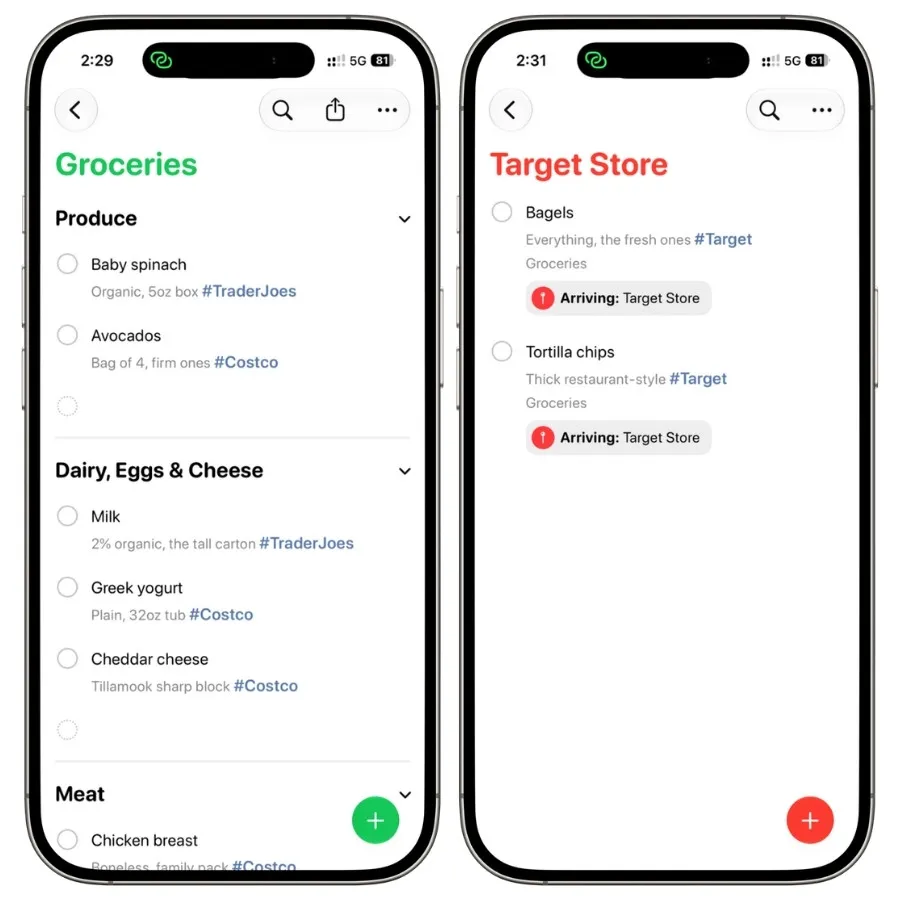
1.1 Groceries
The obvious one, and the one worth setting up properly.
Don’t just type items, attach a location reminder to the list so it surfaces the moment you’re at your grocery store.
I set mine to my usual store and a backup, and the ping the first time it worked felt like the app finally earning its keep.
Shared with whoever else in the house shops, so items added at home show up on their phone too. This one stuck harder than any list I made.
1.2 Costco / bulk run
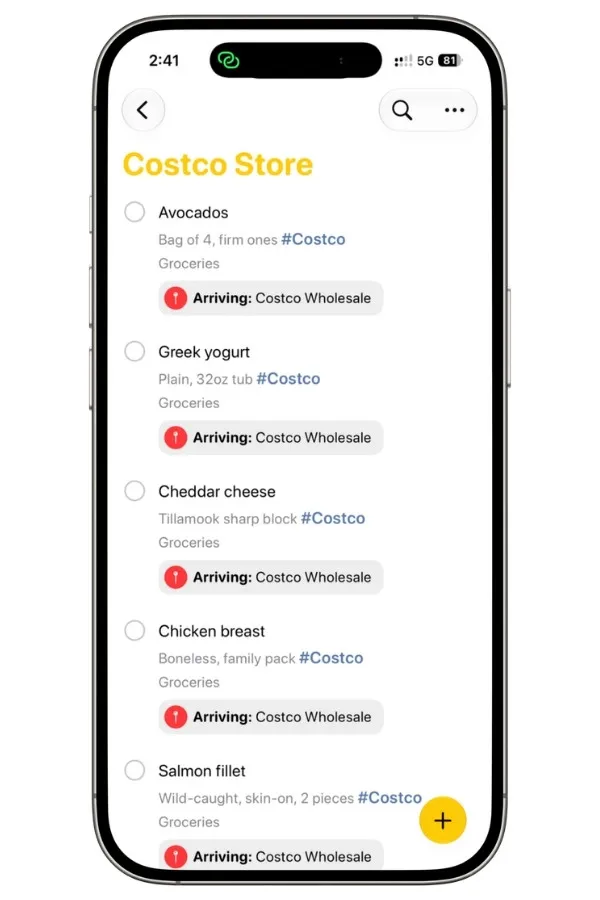
Separate from groceries on purpose, because bulk trips are infrequent and the list is different (paper goods, pantry restock, the one giant thing you drove out for).
A dedicated location reminder on the warehouse means it only ever pings when you’re actually there, so it’s not noise the other 29 days of the month.
Recurring monthly if your run is predictable.
1.3 Hardware store
The classic “I’ll remember” list you always forget half of. Location-triggered at your hardware store, this is the one that saves you the second trip.
I keep mine running permanently and just add to it whenever something breaks, so it’s populated by the time I’m standing in the aisle. Low effort, high payoff.
1.4 Pharmacy pickup
Small but it earns its place with priority, not location.
Set individual items to Urgent so they punch through Focus mode, because a prescription you forgot is not a “notify me later” problem.
Pairs well with the Refill reminders list further down, one flags what’s running low, this one catches you at the counter.
1.5 Gift list
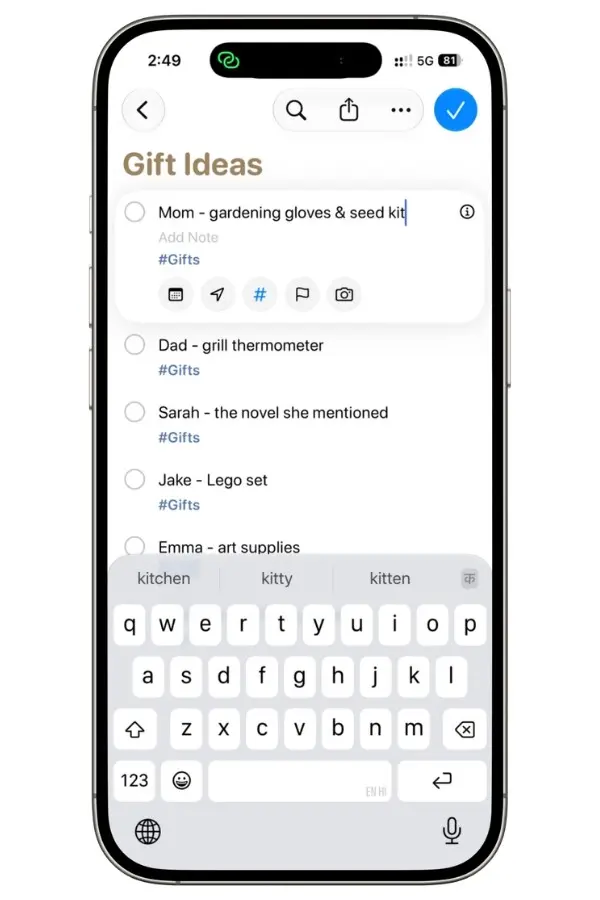
A year-round running list, not a December scramble. No due dates, just a place to dump ideas the moment someone mentions something they want.
Tag entries by person (or just #Gifts) so you can filter later (this is where tags quietly beat folders). Mine has caught me three good gifts I’d have otherwise forgotten by the time it mattered.
1.6 Household restock
The “we’re almost out of X” list, distinct from groceries because it’s the boring stuff, batteries, light bulbs, dish soap, filters.
Shared with the household so anyone can flag a low item, and it feeds into whichever store run happens next.
This is the list that quietly prevents the “who forgot to buy toilet paper” argument.
1.7 Returns to make
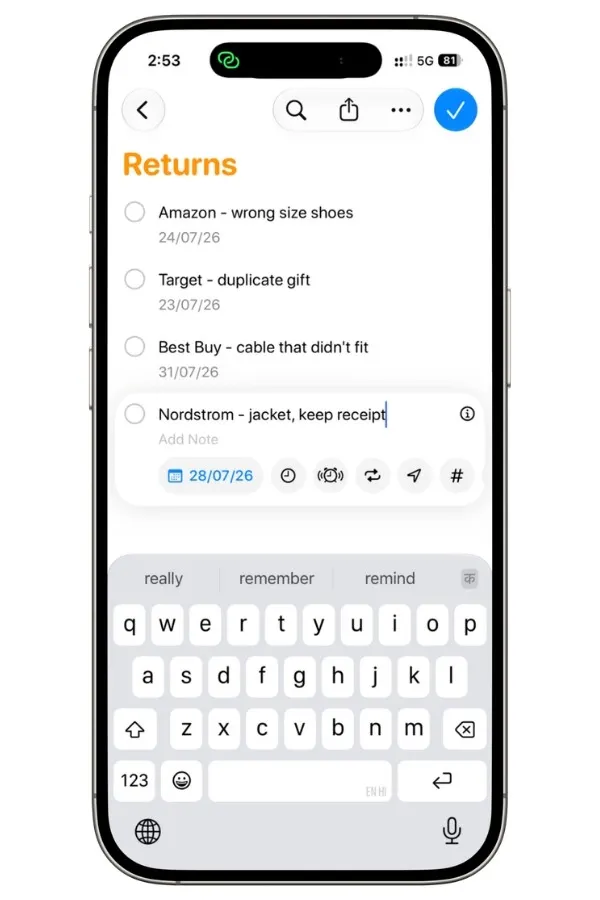
The one nobody thinks to create, and everybody needs.
Items to return, with the deadline as a due date and an early reminder a few days before the return window closes, because that’s the reminder that actually saves money.
I added this one late in testing, and it immediately caught a return I’d have missed by two days.
Verdict on this category: Groceries, Household restock, and Returns are the keepers; location is doing all the heavy lifting, so if you take one thing from here, turn on “At a Location” on a shopping list.
2. Work & projects
This is where people either make Reminders sing or give up and go back to sticky notes.
The difference is two features: tags and Smart Lists. Tags let one task belong to many contexts (a task can be @work and @urgent and @waiting at once), and Smart Lists pull those scattered tasks into one view automatically.
I spent a real chunk of testing time on Smart List filter logic specifically, because that’s the feature that turns a pile of work lists into something that actually functions like a system.
2.1 Daily 3 priorities
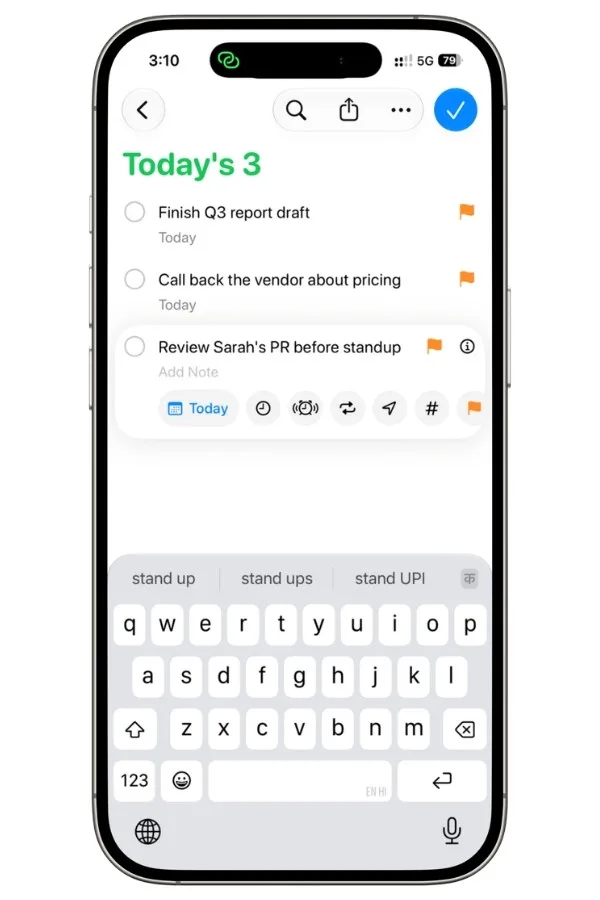
The antidote to a 40-item to-do list you never finish. One list, three things, the ones that actually matter today.
I rebuild mine each morning and flag all three, so they surface in a “Flagged” Smart List alongside nothing else.
The constraint is the feature here, not the app, but Reminders’ Today view plus a flag makes it stick better than a note ever did.
This one survived testing easily.
2.2 Follow-ups & waiting-on
The list that makes you look organized. Everything you’re waiting on someone else for, emails unanswered, approvals pending, the thing your coworker “will send over.”
Tag each @waiting so a Smart List shows everything stalled on someone else in one glance.
This is the list that catches the dropped ball three days before it becomes a problem.
2.3 Meeting prep
A running list of what to raise, ask, or bring to specific meetings, with an early reminder set for a couple hours before so you actually prep instead of walking in cold.
I tested the early-reminder timing a lot, and “morning of” beats “15 minutes before” for anything you need to think about. Pairs with your calendar rather than replacing it.
2.4 Someday / maybe
The pressure-release valve, everything you might do but won’t commit to yet. Crucially, no due dates, because a date you’ll just snooze forever is worse than no date.
Tag it @someday and keep it out of your daily views entirely; the whole point is it doesn’t nag you. Review it monthly, promote what’s ready, delete what’s gone stale.
2.5 Recurring weekly admin
The boring operational stuff that runs your work life, timesheets, weekly reports, the Friday wrap-up.
Set each to recurring on its real cadence so the list rebuilds itself and you stop re-remembering the same chores.
This is Reminders doing what Notes can’t, and it’s the most “set it and forget it” list in the category.
2.6 Ideas parking lot
A capture bucket for work ideas mid-flow so they don’t derail what you’re doing.
Honestly, this is the softest list in the category, its feature hook is weak, since a no-date, no-location capture list is barely using Reminders over Notes or Drafts.
I’m including it because capture-friction matters, but it’s the one to scrutinize when you build.
Verdict on this category: Daily 3, Follow-ups, and Recurring admin are the keepers; if a work list isn’t feeding a tag or a recurrence, ask whether it should be a Reminders list at all.
3. Health & meds
This is the category where getting it wrong has real consequences, so it’s the one I’d trust to Reminders only after testing that the features actually fire.
The two that matter here: recurring schedules (a meds list is worthless if you have to recreate it daily) and Urgent priority, which I specifically tested against Focus mode, a medication alert punches through Do Not Disturb, which is exactly the behavior you want when it’s the one notification you can’t afford to miss.
All six below lean on time-of-day recurrence or priority.
3.1 Medication schedule
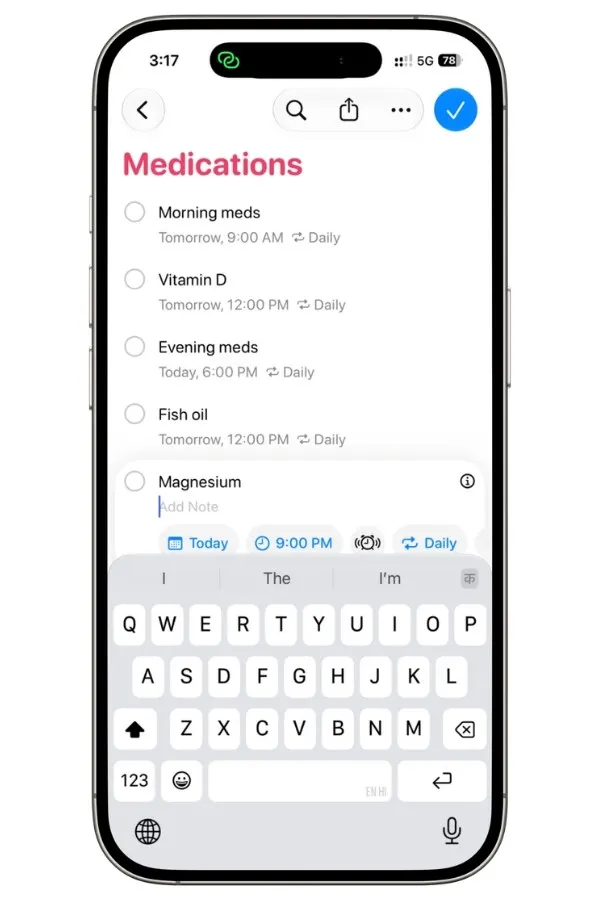
The flagship of the category. Each medication as a recurring reminder at its real time, morning meds at 9 am, evening at 9 pm, set to repeat daily so the list rebuilds itself forever.
Set them to Urgent so they break through Focus; this is the one case where I want the app to be loud.
I tested recurrence across a few days, and it held, which is the whole ballgame for something you can’t afford to miss.
3.2 Water/hydration
Lighter, but a good use of interval recurrence, a reminder every couple of hours during the day rather than a single nag.
Honestly, a softer one; some people find it motivating, others find it noise and mute it within a day.
Set it, live with it two days, keep only if you’re actually still tapping it done.
3.3 Appointments
Not a replacement for your calendar, a companion to it, for the prep around appointments: fasting before bloodwork, bringing your insurance card, the question you meant to ask the doctor.
Early reminder the day before so you walk in ready. This catches the stuff a calendar event’s title never holds.
3.4 Symptom log
A running, no-date list you add to as things happen, useful when you’re tracking something to report at your next appointment.
The feature hook is light here (it’s mostly capture), so its value is timing, having it on your phone the moment something happens rather than trying to recall it in the waiting room.
One to scrutinize if you don’t have an active reason to track.
For anything beyond a quick jot, this belongs in a real tracker, here’s the Apple Notes health tracker I set up for it.
3.5 Refill reminders
The genuinely clever one.
A recurring reminder timed to before you run out, not after, so you reorder with days to spare instead of rationing pills. Pairs with the Pharmacy pickup list from the Shopping section: this one tells you to reorder, that one catches you at the counter.
This is Reminders preventing a problem instead of just recording one.
3.6 Fitness / movement
A recurring nudge to move, stretch, or hit a workout, on whatever cadence you’ll actually honor.
Keep it realistic, a daily reminder you dismiss unread teaches you to ignore the app, which is worse than not having it.
Better as a few-times-a-week nudge than a daily guilt trip.
Verdict on this category: Medication schedule and Refill reminders are the standouts; set your meds to Urgent and confirm it breaks through Focus on your own phone before you rely on it.
4. Daily & household
The tail categories lean on one workhorse feature: time-of-day recurrence.
These are the lists that rebuild themselves so you stop re-remembering the same chores. Nothing exotic here, just recurrence doing quiet, reliable work.
4.1 Morning routine
The sequence you do every morning but still somehow skip a step of, set as a recurring daily list at your wake time.
Useful mostly while you’re building a habit; once it’s automatic, you’ll outgrow it, and that’s fine.
4.2 Evening reset
The ten-minute tidy that makes tomorrow easier, dishes, bag packed, tomorrow’s list glanced at.
Recurring at a set evening time so it becomes a cue rather than a decision.
4.3 Weekly cleaning rota
Chores spread across the week instead of one dreaded Saturday, each set to recur on its assigned day.
This is recurrence at its best: set it once and the week organizes itself.
4.4 Trash / recycling day
The classic “which bin this week” problem, solved with a recurring reminder the night before on the right cadence (weekly trash, biweekly recycling).
Small, but it’s the kind of thing you’re glad fires automatically.
4.5 Plant watering
Recurring on each plant’s actual schedule, since the fern and the succulent don’t want the same thing. Low stakes, but a genuinely good fit for interval recurrence.
Verdict on this category: Cleaning rota and Trash day are the keepers, recurrence carries them completely; the routine lists are training wheels you’ll drop once the habit sticks.
5. Finance & admin
This category is where recurrence on specific dates and early reminders earn real money, sometimes literally.
These are lists where being late has a cost, so the feature isn’t convenience, it’s a save.
5.1 Bills due
Each bill as a recurring reminder on its actual due date, with an early reminder a few days ahead so you’re never paying a late fee because it snuck up on you.
This is the list that pays for itself the first time it catches a due date you’d have blown past.
5.2 Subscriptions to cancel
The one everyone needs and nobody makes.
Log every free trial and renewal with the cancel-by date as a due date, plus an early reminder before the charge hits.
The whole value is the reminder landing while you can still cancel, not after the money’s gone.
5.3 Renewals
Insurance, domains, memberships, registration, the annual stuff you forget exists until it lapses.
Recurring yearly with a generous early reminder, because these are the ones where a lapse is a genuine headache, not a small one.
5.4 Tax docs to gather
A seasonal checklist of what to collect before filing, W-2s, 1099s, receipts.
Lives dormant most of the year, then earns its place every spring. No feature fireworks, just a capture list that saves you the scramble.
5.5 Money someday
The no-date wishlist for big purchases you’re saving toward. Softer hook (no date, no recurrence), so its value is purely capture and intention.
Keep it only if you actually revisit it; otherwise it’s a note pretending to be a list.
Verdict on this category: Bills, Subscriptions, and Renewals are the standouts, early reminders on real due dates genuinely save money; Tax docs is a seasonal keeper and Money someday is the soft one.
6. Travel & packing
The standout feature here is one people rarely think to use on a list: saving a list as a template.
Build a packing list once, then duplicate it for every trip instead of rebuilding from scratch.
That single trick is what makes these lists worth keeping between trips rather than deleting after each one.
6.1 Reusable packing list
The master list you save as a template once, then create a fresh copy from for every trip.
Tap the three-dots menu, Save as Template, and from then on you spin up a new list from it and trim for the specific trip.
This is the one that turns “what am I forgetting” into a solved problem.
6.2 Pre-trip checklist
The stuff you do before leaving that isn’t packing, pause mail, set the thermostat, arrange the pet, unplug things.
Set a due date the day before departure with an early reminder so it fires while there’s still time to act.
6.3 Itinerary / day-of
A lightweight day-of plan with time-based reminders for check-ins, reservations, and departures.
Not a replacement for a proper itinerary app, but genuinely useful for the two or three time-sensitive things you can’t miss.
6.4 Travel docs
A checklist of what to bring and confirm, passport, IDs, confirmations, tickets.
Pairs naturally with your Notes travel-planning setup: keep the documents in Notes, keep the “did I pack it” check here.
6.5 Trip prep
The wind-down list for the last hour before you leave, the final sweep so you’re not turning the car around.
Overlaps a little with Pre-trip, so pick one or the other depending on how you travel; some people want two stages, most want one.
Verdict on this category: Reusable packing list is the keeper and the whole reason this category exists; Pre-trip checklist is the money list for catching the stuff you’d regret forgetting.
7. Family & kids
This is the category built entirely on one feature: shared lists, plus assigned reminders on top.
A list only you can see doesn’t help a household run; a list everyone shares, and where reminders land on the right person’s phone, does.
Everything here assumes you’ll share it with the people it involves.
7.1 Kids’ chores
A shared list where each chore is assigned to a specific kid, so the reminder lands on their device, not yours.
Assigned reminders are the feature that ends the “I didn’t know it was my turn” argument, the phone tells them, you don’t have to.
7.2 School dates & forms
Permission slips, picture day, early dismissals, the forms that need signing by Friday. Due dates with early reminders so nothing gets discovered the morning it’s due.
Shared with a partner so you’re not both assuming the other handled it.
7.3 Shared family list
The household catch-all everyone can add to, the “we need to talk about X” or “someone should book Y” list.
Shared with the whole household so anything anyone flags is visible to all.
7.4 Activities / carpool
Practices, games, lessons, and who’s driving when. Time-based reminders shared with whoever’s on duty, so the carpool reminder reaches the parent actually driving that day.
Verdict on this category: Kids’ chores and School dates are the keepers; the value of this whole category is the sharing, so if you’re not sharing these, they belong in another section.
8. Seasonal & occasional
The feature that makes this category work is Smart Lists surfacing “due this month” across everything, so occasional tasks appear when they’re relevant instead of cluttering your daily view year-round.
Yearly recurrence does the rest.
8.1 Holiday prep
The recurring seasonal checklist, decorations, cards, travel, gifts, that rebuilds itself each year instead of starting from a blank page every December.
Set it yearly, and past-you does the planning for future-you.
8.2 Spring cleaning
The once-a-year deep-clean tasks that don’t belong in your weekly rota, gutters, filters, the closet purge. Recurring annually so it resurfaces on schedule and then gets out of your way for eleven months.
8.3 Car maintenance
Service intervals you always lose track of, oil, tires, registration, inspection.
Each set to recur on its own cadence so the reminder arrives on schedule, and a Smart List pulls whatever’s “due this month” into one glance.
This is the list that saves you from finding out you’re overdue at the worst possible time.
8.4 Birthdays
The dates you keep meaning to remember and keep forgetting until it’s too late to do anything about it.
Set each to recur yearly with an early reminder a week ahead, so you have time to actually send something rather than a last-minute scramble.
Feeds the same “due this month” Smart List as the rest of this category.
Verdict on this category: All four are useful because they stay out of sight until they’re relevant, that’s the feature; recurrence plus a “due this month” Smart List is the whole system.
9. Personal & fun
The lightest category, and the most honest test of your “does it earn its spot” rule.
The feature hook here is tags for cross-cutting, and deliberately no dates, these are low-pressure lists, and a due date would ruin the point.
9.1 Books / movies to consume
The running “I’ll get to it” list for books, shows, and films. Tag by medium or mood so you can filter to what fits the moment.
Honestly borders on being a Notes job, its value is capture-in-the-moment, so keep it here only if you actually pull it up when you’re choosing what to watch.
9.2 Restaurants to try
Places you’ve heard about and mean to visit, ideally with a location note so the spot resurfaces when you’re nearby.
That location hook is what nudges this above a plain note, without it, it’s just a list you’ll forget you made.
9.3 Bucket list
The big someday list, deliberately no dates, no pressure.
This is the softest one in the entire guide, its feature hook is essentially nothing, so I’m including it, honestly flagged: it’s here because people want it, not because Reminders does much for it. If you’re a purist, cut it.
Verdict on this category: Restaurants earns its spot on the location hook; Books/movies and Bucket list are the soft ones, keep them only if you genuinely use them.
10. How to actually build these lists
Most of the ideas above lean on four features, and they’re all faster to set up than people expect.
This section is the how, kept short on purpose so it doesn’t turn into a separate tutorial.
10.1 Save a list as a template
Open a list, tap the three-dots menu, and tap Save as Template (it’ll ask whether to include completed items).
To reuse it, tap the three-dots menu on your lists screen, tap Templates, pick the template, name the new list, and tap Create.
This is the whole trick behind the reusable packing list: build once, spin up a fresh copy per trip, trim it down.
One thing I hit while testing, the template and the list are independent after creation, so editing your original list later won’t update the template, and vice versa. You have to re-save if you want changes carried over.
10.2 Add a location trigger
Open a reminder, tap the info button, toggle “Location,” and pick a spot.
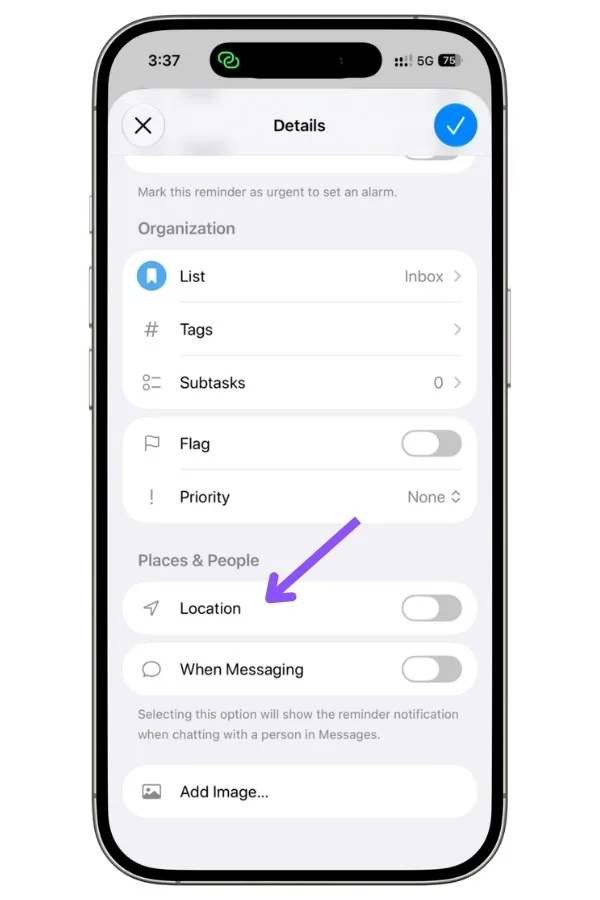
That’s what makes the grocery and hardware lists ping you at the store instead of waiting to be opened. You set it on individual reminders, not the whole list, so put it on the items that matter.
10.3 Set recurrence
Same info panel, tap Repeat, choose the cadence. Daily for meds, weekly for chores, yearly for renewals.
This is the feature that lets a list rebuild itself so you stop recreating it by hand.
10.4 Tag as you go
Type # (or tap on #) inside a reminder to add a tag.
Tags are what let one task show up in multiple contexts, and they’re the raw material Smart Lists feed on, which is the next section.
For the deeper mechanics, subtasks, sections within a list, and the recurrence edge cases I tested, that’s all in the task management guide. This is just enough to build everything above.
11. Making your lists talk to each other
Here’s the shift that turns a pile of lists into a system: you stop opening lists one by one and let Smart Lists pull across all of them at once.
A Smart List isn’t a list you add to, it’s a saved filter that gathers matching reminders from everywhere automatically.
A few that earn their place immediately:
11.1 Everything due this week
One Smart List filtered by date, and suddenly bills, appointments, school forms, and chores all show up in a single view regardless of which list they live in.
This is the antidote to “which of my fourteen lists has the thing that’s due.”
11.2 Everything tagged @errand
Tag items across your shopping, household, and returns lists, then a Smart List collects them, so when you’re heading out, one view shows every errand no matter where you filed it.
11.3 Everything flagged
Flag your daily priorities across work and personal, and a flagged Smart List becomes your real “today,” pulled from everywhere at once.
This is where the tags and flags from the sections above pay off. A tag you never filter on is just decoration; a Smart List is what cashes it in.
I went deep on the filter logic, match-all vs match-any, nested conditions, in the Smart Lists guide, but even one or two basic Smart Lists on top of these lists changes how the whole setup feels.
12. When a list is worth it, and when it’s just clutter
I built all of these on my own phone and lived with them.
Here’s the honest part: some earned permanent spots, and some I deleted within a week.
The difference was never the idea, it was whether Reminders actually did something for it.
12.1 The pattern for keepers
Every list that stuck used a feature a note can’t offer, a location trigger, a recurring schedule, a shared assignment, an early reminder on a real deadline.
- Groceries pings me at the store
- Meds break through Focus
- Bills warn me before the late fee
Those aren’t lists, they’re small automations, and that’s why they lasted.
12.2 The pattern for clutter
The lists I deleted were the no-date, no-trigger capture lists, bucket list, ideas parking lot, money someday.
Useful in theory, but they were just notes wearing a list’s clothes, and Reminders did nothing for them that Notes wouldn’t do better.
If a list has no date, no location, no recurrence, and no sharing, ask whether it should be a reminder at all.
12.3 Too many lists is its own problem
Fourteen lists where four get used isn’t organization, it’s a graveyard you scroll past. Better to run six lists you actually open than twenty you feel vaguely guilty about.
Start with the keepers from your own life and add only when a real need shows up.
12.4 When lists get ignored or won’t sync
The usual culprit for a dead list is a bad trigger, a recurrence that fires at the wrong time, or a location set to the wrong place, so the reminder never reaches you and you quietly stop trusting the list.
For sync gaps across devices, confirm the same iCloud account and that Reminders is enabled in iCloud settings on both; nearly every “my list didn’t show up on my other phone” case I hit came down to that.
And the honest limitation on the whole app: Reminders is not a project manager.
The heavier work lists, anything with dependencies, sub-projects, or real complexity, will eventually outgrow it, and when they do, that’s a signal to graduate them to a real project tool, not to fight Reminders into being something it isn’t.
It’s brilliant at exactly what these 45 lists ask of it, and it’s fine to let it stop there.