
Apple Notes vs Google Keep on iPhone: A Real Side-by-Side Test
I spent the past week running Google Keep and Apple Notes side by side on my iPhone 13. Not comparing spec sheets.
I installed Keep fresh (on iOS 26), created real notes in both apps, copied checklists back and forth between them, timed how fast each app syncs to my laptop, and tested how quickly each one can find text inside a photo.
Some of it surprised me.
Keep’s sync is just as fast as iCloud. Its search filters are smarter than I expected.
But I also watched a note I formatted in Keep on my laptop sync to my iPhone with every bit of formatting silently stripped out. And when I moved notes between the two apps, every single checklist died. In both directions.
So here is the short answer.
On an iPhone, Apple Notes is the better app, and it is not close. Keep on iOS has no text formatting, no home screen widget, and no Apple Watch app since Google pulled it in July 2025.
Keep still makes sense in two situations: you use a Windows PC or an Android device alongside your iPhone, or you regularly share lists with people who are not on Apple devices.
Keep handles both of those better than Notes does.
Everything below is what I actually tested, with screenshots and timings, including exactly what breaks if you try to switch.
Table of Contents
- 1. Two Different Ideas Of What A Note Is
- 2. The Feature Face-Off
- 3. Keep On iPhone Is A Second-Class Citizen
- 4. Organization: Folders Vs Labels
- 5. Search: Where Keep Puts Up A Real Fight
- 6. Sync Speed: An Honest Tie
- 7. Reminders: One App Vs A Trip Through Google’s Ecosystem
- 8. Collaboration: Keep’s Cleanest Win
- 9. What Actually Breaks When You Switch
- My Honest Take
- FAQs
1. Two Different Ideas Of What A Note Is
The biggest difference between these two apps is not any single feature. It is what each app thinks a note is.
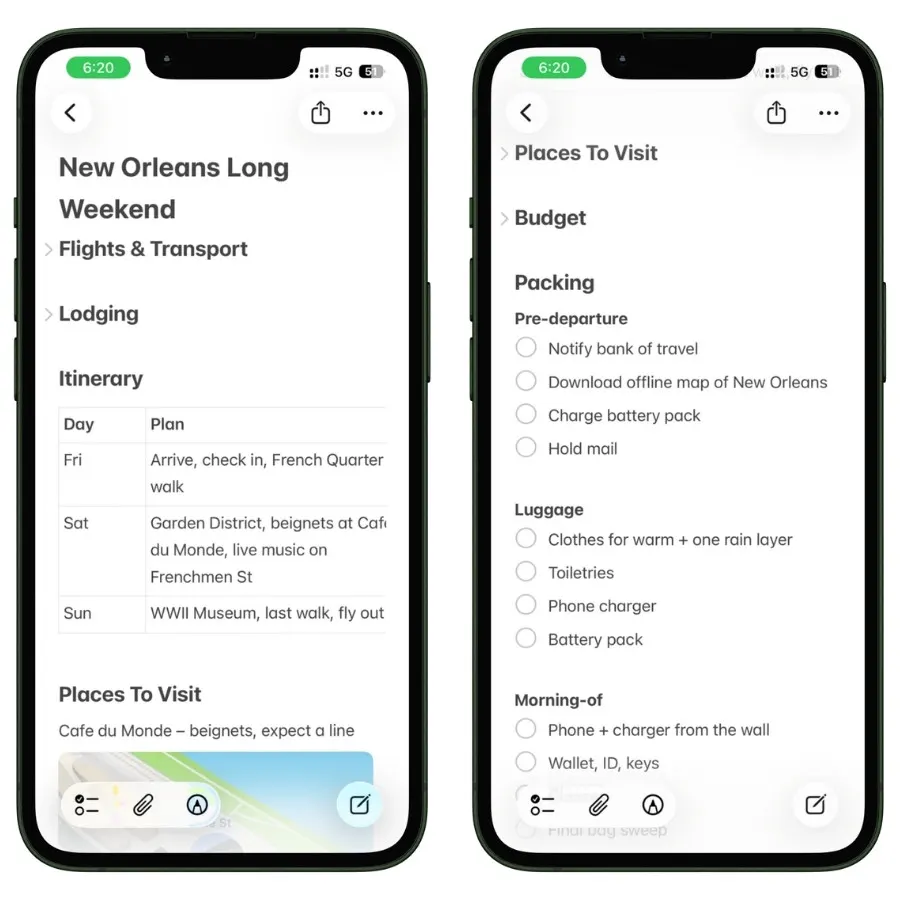
In Apple Notes, a note is a document. One note can hold a paragraph, then a checklist, then a table, then a scanned receipt, then more text below all of it.
You can mix everything in any order, and most of my real notes do.
A trip note might have a packing checklist at the top, a table of bookings under it, and confirmation screenshots at the bottom. All one note.
In Google Keep, a note is a card.
And every card is one of two things: a text note or a checklist. Never both.
I found this out within minutes of installing Keep. I created a note, tapped the checkbox option, and the entire note converted into checklist mode.
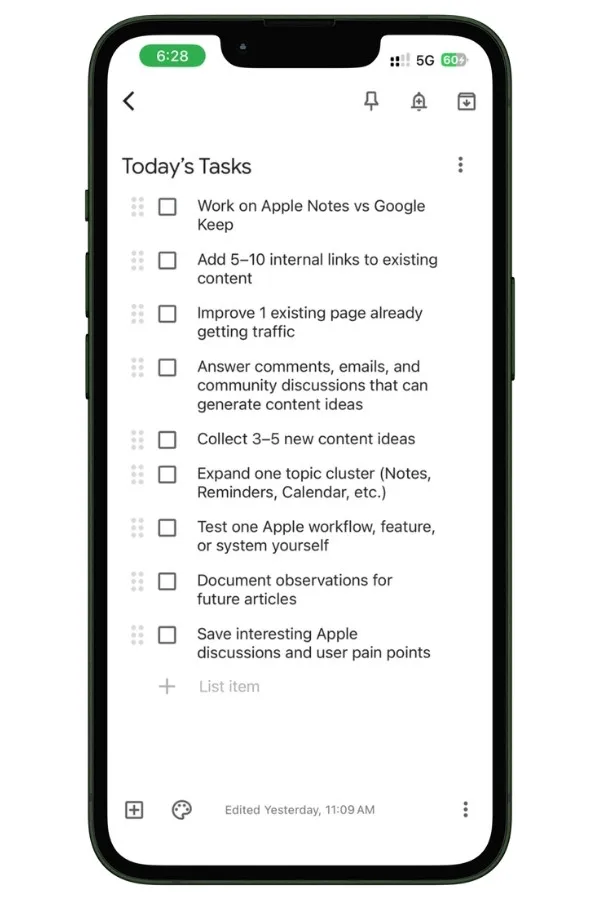
After that, tapping anywhere outside the list did nothing. I could not add a single line of plain text above or below my checklist.
If I want a paragraph and a checklist about the same topic, Keep makes me create two separate cards.
The attachment story follows the same pattern.
Keep’s entire insert menu on iPhone is five items: take photo, choose image, drawing, recording, and checkboxes.
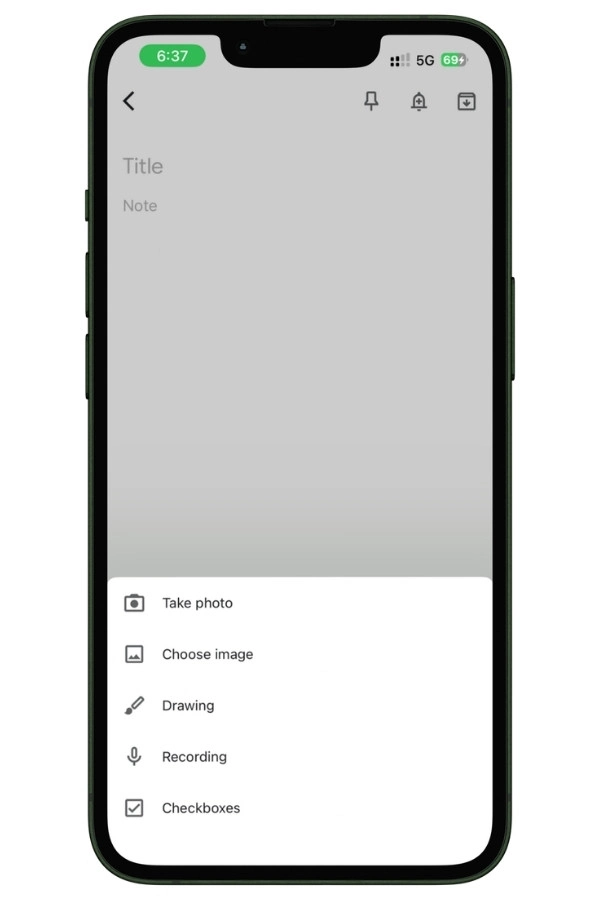
That is the complete list. No tables, no document scanning, no file attachments.
Apple Notes handles all of those from the same toolbar.
Neither model is wrong. Keep’s card system is built for fast, throwaway capture, closer to sticky notes than documents. But the moment your notes have any structure at all, you hit Keep’s walls.
For me, that took about ten minutes.
Also Read: How to Use Apple Notes for Expense Tracking (Free Shortcut)
2. The Feature Face-Off
Every row below reflects what each app actually does on an iPhone, tested in 2026.
Google Keep behaves differently on iPhone than it does on Android, so a feature working on one does not mean it works on the other.
| Feature | Apple Notes | Google Keep (iOS) |
|---|---|---|
| Text formatting (bold, headings) | Yes | No |
| Mix text and checklists in one note | Yes | No |
| Tables | Yes | No |
| Document scanning | Yes | No |
| File attachments | Yes | Photos, drawings, and recordings only |
| Lock individual notes | Yes, with Face ID | No |
| Search text inside images | Yes, instantly | Yes, after a short indexing delay |
| Home screen widgets | Yes | No |
| Apple Watch app | Yes, since watchOS 26 | No, removed in July 2025 |
| Works with Siri and Apple Reminders | Yes | No, reminders route to Google Tasks |
| Collaboration | iCloud users only | Anyone with a Google account |
| Web access | icloud.com | keep.google.com, full featured |
| Windows access | Browser only | Browser plus Chrome extension |
| Android app | No | Yes |
| Price | Free | Free |
Count the rows, and Apple Notes wins comfortably. But look at where Keep wins: the bottom of the table, which is everything outside the Apple ecosystem.
That pattern is the entire story of this comparison, and it decides which app is right for you more than any individual feature does.
If your devices and your people are all Apple, the top of the table matters. If they are not, the bottom does.
3. Keep On iPhone Is A Second-Class Citizen
Google has not abandoned Keep on the iPhone. The app gets updates, it runs fine, and it never crashed on me. But spend a week with it next to the Android and web versions and a pattern shows up: the iPhone version is the one Google maintains, not the one Google invests in. Three findings from my testing make the case.
3.1 No Text Formatting At All
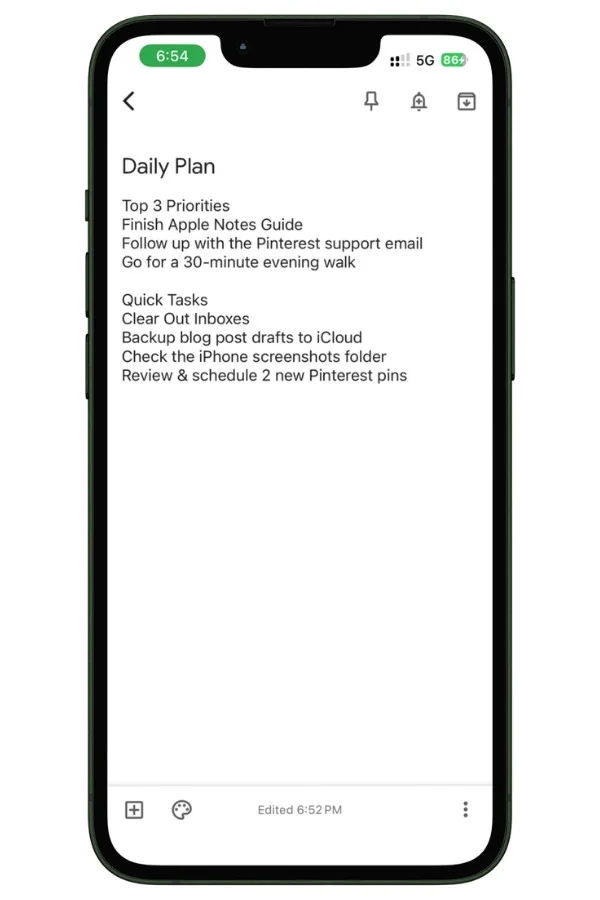
Keep on iPhone has zero text formatting. No bold, no italics, no headings, nothing. I tapped through every menu in the app to make sure I was not missing a hidden toolbar. There is none.
What makes this strange is that Keep does have formatting on Android, where it arrived back in 2023, and on the web.
The iPhone app is the only version of Keep still living in plain text.
3.2 Your Formatted Notes Silently Break On iPhone
This was the most surprising find of my whole test.
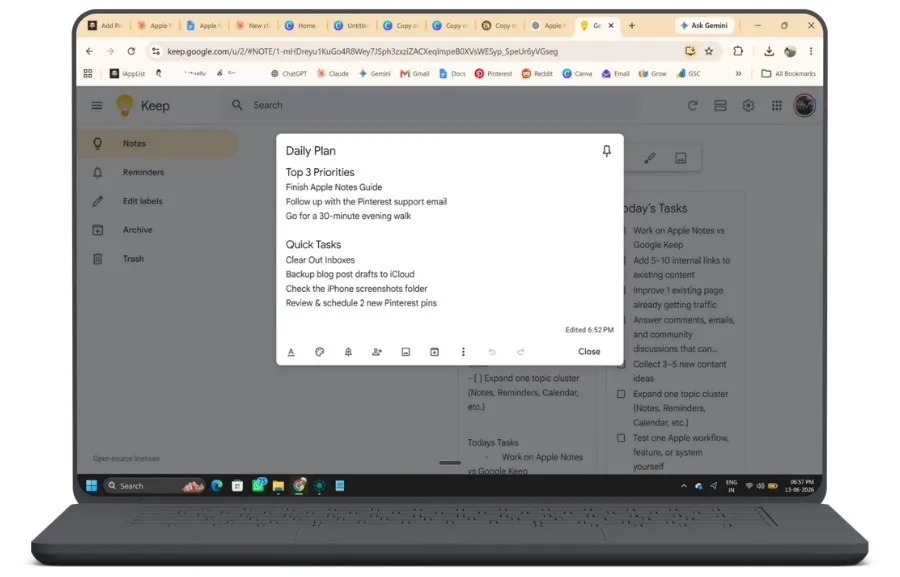
I opened Google Keep on my laptop, created a note, and formatted it with bold text and headings. Then I opened Keep on my iPhone.
The note synced over in seconds, every word intact. But the formatting was gone. No warning, no placeholder, nothing to tell me the note ever looked different.
If you format your notes at your desk, your iPhone will quietly show you a broken version of them, and Keep will never mention it.
3.3 No Widget, No Watch, No Gemini
Keep has no home screen widget on iOS. It used to have one, and Google’s own support forums have threads from users asking where it went.
The Apple Watch app is gone too. Google removed it in July 2025, in the same season Apple finally brought Notes to the watch in watchOS 26.
And the Gemini features Google promotes in Keep on Android are nowhere in the iPhone app.
Add it up, and the conclusion is hard to avoid.
If you use Keep on an iPhone, you are using the version of Keep that Google cares about the least.
4. Organization: Folders Vs Labels
Apple Notes organizes like a filing cabinet. You get folders, subfolders, smart folders that fill themselves based on rules, tags, and pinned notes.
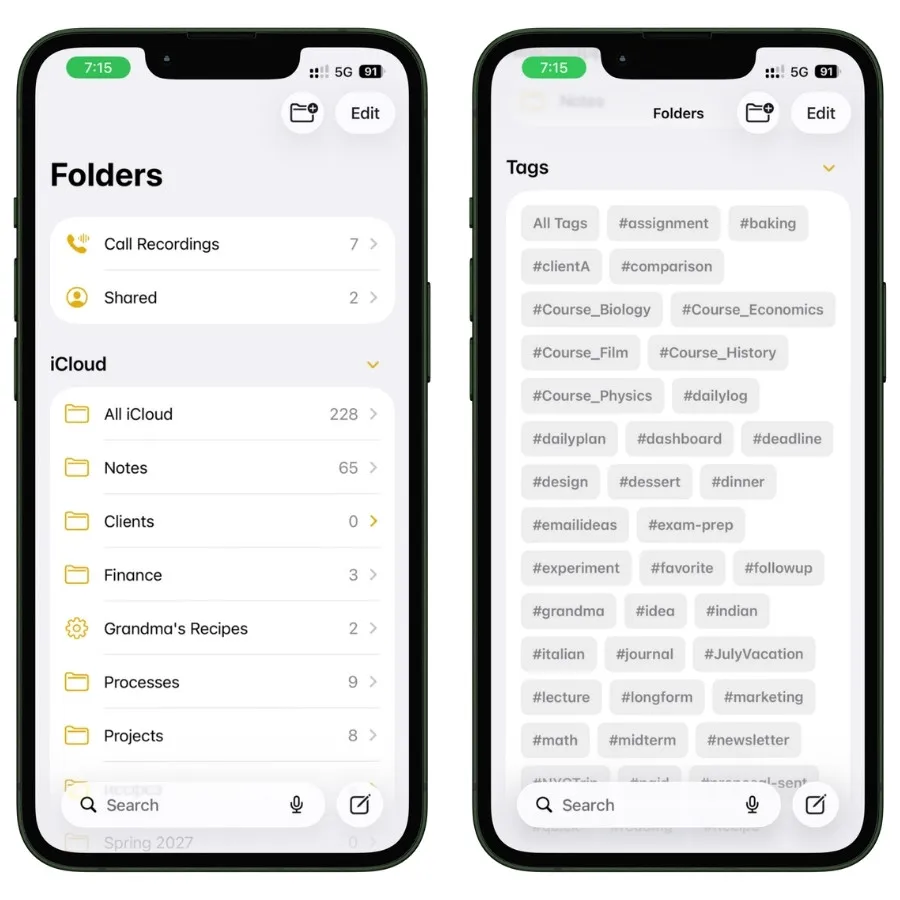
My own setup runs on folders for each project with tags cutting across them, and I have written a full guide on smart folders and tags if you want to go deep on that system.
Keep organizes like a corkboard.
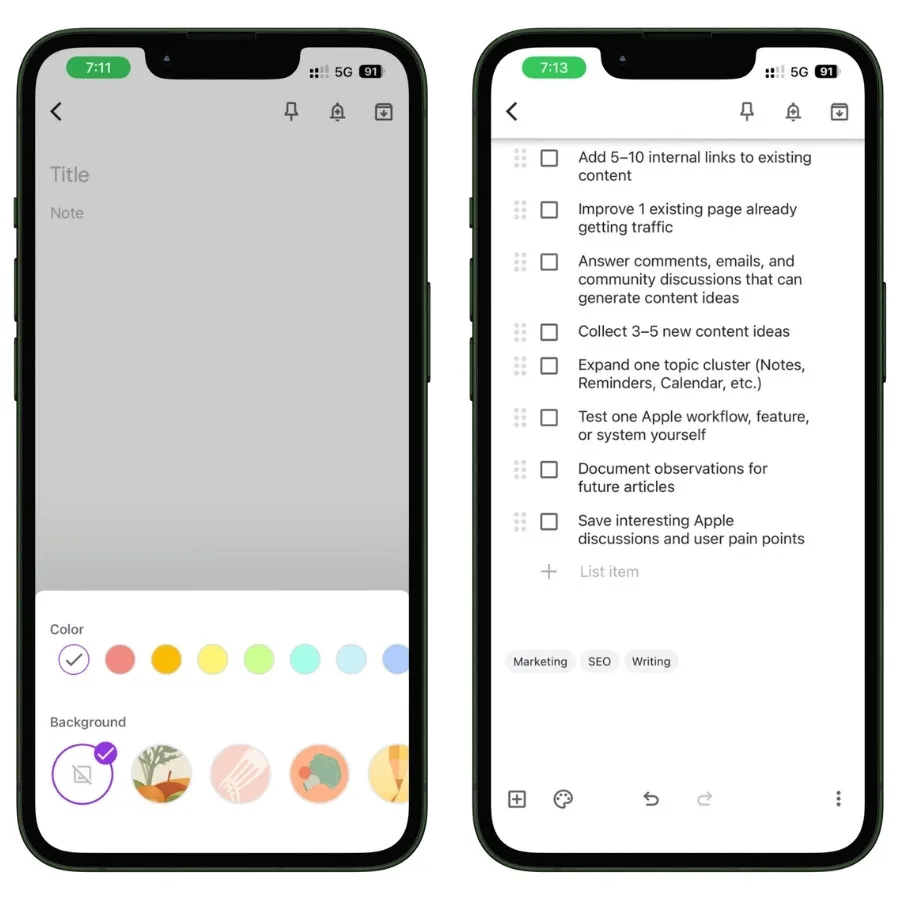
There are no folders at all. Every note lives on one wall of cards, and your tools for taming that wall are labels, colors, backgrounds, pinning, and an archive.
The labels work like tags, so a note can carry more than one. The colors are honestly pleasant to use, and Keep even adds illustrated backgrounds for things like groceries and recipes.
Here is the fair version of this comparison.
For a small collection, the corkboard wins on speed. Scanning a wall of colored cards is faster than tapping through folders, and for maybe under a hundred notes, labels plus colors are genuinely all you need.
The problem is growth.
Labels do not nest, the wall gets longer every month, and Keep gives you no way to build structure on top of it.
Apple Notes asks a little more setup from you upfront and pays it back for years. Keep asks nothing upfront and slowly buries you.
5. Search: Where Keep Puts Up A Real Fight
5.1 Keep’s Filter System Is Smarter Than It Looks
Tap the search bar in Keep, and you do not get an empty box. You get filter chips, and they build themselves based on what is in your notes.
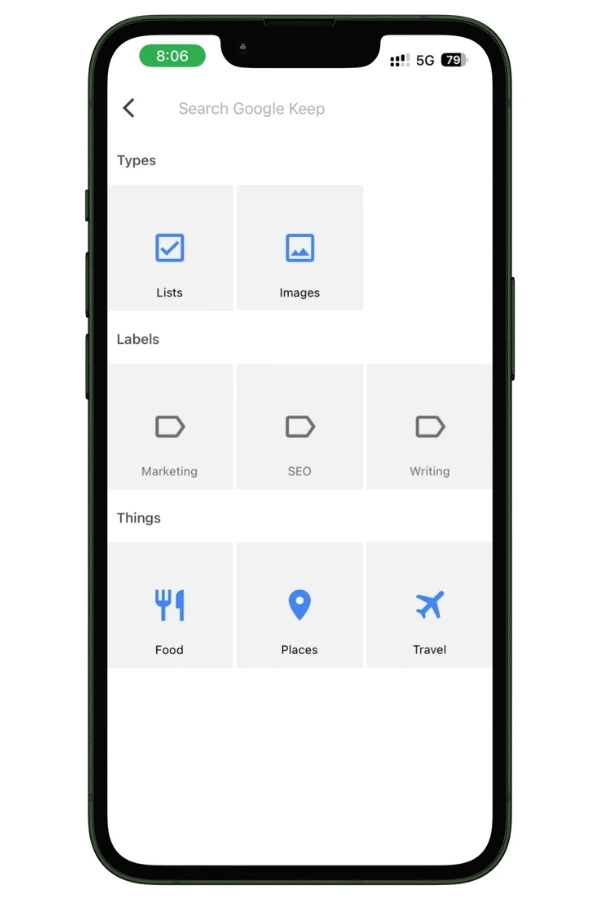
When I only had checklists, the Types row showed just one chip, Lists. The moment I added a photo to a note, an Images chip appeared on its own. Keep also adds a Things row with categories like Food, Places, and Travel that it detects from your note content.
For an app with no folders, this is how Keep expects you to find things, and it works better than I expected.
Apple Notes search is strong too, with suggestions, recent searches, and filters for attachments, checklists, and locked notes.
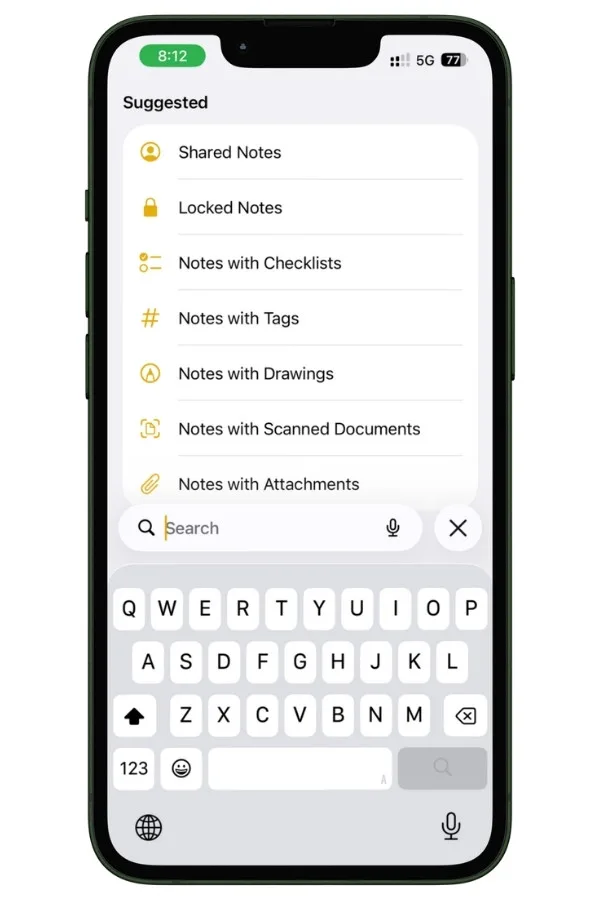
But Keep’s self-building chips are the more clever idea, and credit where it is due.
5.2 Finding Text Inside Images: Instant Vs Eventually
Both apps can search text inside your photos. The difference is when.
I added a photo containing text to Apple Notes, typed a word from it into search, and the note appeared instantly. No waiting at all.
I ran the same test in Google Keep, and my first search found nothing.
I honestly thought the feature was missing from the iPhone app. Then I tried again a little later, and the note showed up.
Across my tests, Keep took anywhere from a few seconds to about a minute before the text inside an image became searchable.
The reason is architecture.
Apple Notes reads image text on your iPhone itself, using the same Live Text system built into iOS. Keep sends your image to Google’s servers, reads it there, and your search works once that round trip finishes.
A minute is not a long wait. But when you are standing in a store trying to find the photo of a receipt, instant beats eventually.
6. Sync Speed: An Honest Tie
I expected this section to produce a winner. It did not.
I tested sync in both directions for both apps. I created notes on my iPhone and watched for them in my laptop browser, on keep.google.com for Keep and icloud.com for Notes.
Then I reversed it and created notes on the laptop, watching for them on the phone.
Every single time, in every direction, the new note appeared almost instantly.
If I am being picky, Apple Notes felt a touch faster, but the difference is small enough that I would never notice it in real use. On sync speed, these apps are equals.
One honest caveat for the Apple side. In early 2026, iOS 26.4 shipped with a bug that broke real-time iCloud sync across many apps, and Notes users were among those reporting endless sync wheels. Apple fixed it in iOS 26.4.1 in April 2026, and my tests on the current version show sync working as fast as it should.
The lesson is not that Notes sync is unreliable. It is that Notes sync lives and dies with iOS itself, so keep your iPhone updated.
Keep’s sync runs through Google’s servers and does not care which iOS version you are on.
7. Reminders: One App Vs A Trip Through Google’s Ecosystem
This is the section where the two apps stop being note apps and start being citizens of their ecosystems.
In Apple Notes, reminders are not really a Notes feature. They are an iPhone feature. Siri sets them, the lock screen shows them, and the Reminders app manages them, with Notes linking into that system where it makes sense.
If you live on Apple devices, you already know how deep this runs, and I have a whole cluster of guides on building systems in Apple Reminders for exactly that reason.
Google Keep on iPhone tells a different story. There is a reminder bell right at the top of every note, which looks promising.
But when I tapped it, Keep pointed me toward installing another Google app.
Google moved Keep’s reminders into Google Tasks, so managing them properly on an iPhone means adopting a second Google app alongside Keep. And none of it connects to anything Apple.
Keep reminders do not appear in Apple Reminders, Siri cannot set or read them, and your Apple Calendar never hears about them.
I will be straight with you: I did not install Google Tasks to test the full flow, because at that point I would be reviewing the Google ecosystem rather than a notes app.
That is exactly the conclusion that matters.
A reminder in Apple Notes is one tap inside the system your iPhone already runs on. A reminder in Google Keep is an invitation to install more Google apps.
If you already live in Google Calendar and Gmail, that invitation might suit you fine. If you do not, it is friction with no payoff.
8. Collaboration: Keep’s Cleanest Win
Open the menu on any Keep note, and Collaborators sits right there as a first-class option.
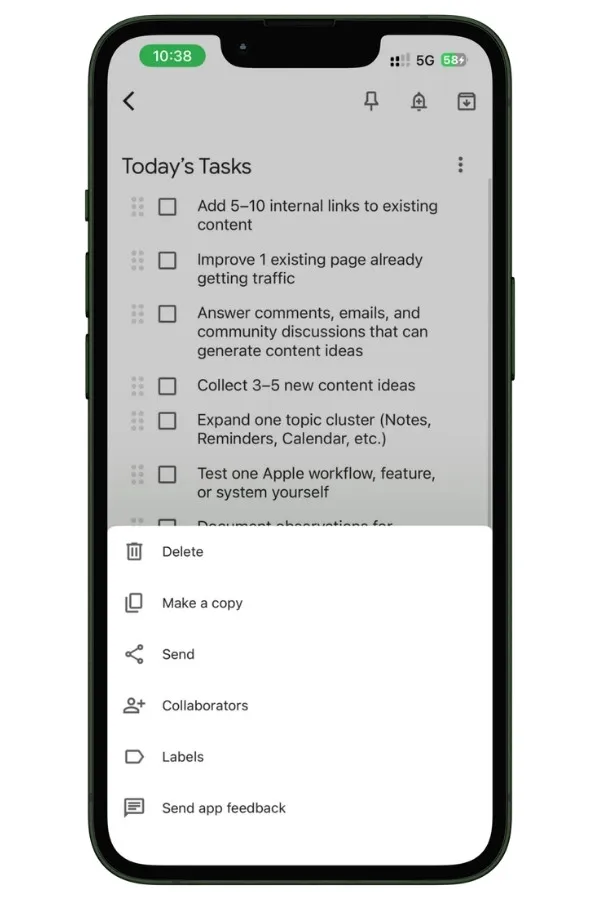
Add someone by their Google account, and since nearly everyone has a Google account, that means you can share a note with practically anyone, on any device.
Your iPhone, their Android, a work Windows laptop through the browser, all editing the same grocery list.
This is the one place where Keep’s cross-platform nature stops being a spec sheet line and becomes something you feel.
Apple Notes collaboration is genuinely good, and it has grown well beyond basic sharing, with shared folders and the ability to see who changed what.
But it has one hard boundary: everyone needs to be in the Apple world with an iCloud account. Share a note with someone on Android, and the whole idea falls apart, because there is no Notes app waiting on the other end.
So the question that decides this section is not which sharing feature is better built. It is who you share with.
If your household and the people you share lists with are all on iPhones, Notes sharing is seamless, and you lose nothing.
If your partner carries an Android phone or your family group chat is green-bubbled, Keep is the only one of these two apps that can hold your shared lists at all.
For a lot of mixed-device American households, this single section outweighs half the Apple wins in this guide, and it deserves to be said that plainly.
9. What Actually Breaks When You Switch
Here is the part nobody warned me about.
There is no importer between these apps. Not in either direction.
You will find forum guides claiming you can bridge them by adding your Gmail account to iPhone Settings and turning on Notes sync.
I looked into it, and that trick connects Apple Notes to an old Gmail notes label, not to Google Keep, and the forums are full of people watching it half work or not work at all.
The real migration path is the one I tested: copy and paste, note by note.
So I moved my actual notes both ways to see what survives. The answer depends heavily on the direction.
9.1 Apple Notes To Google Keep: Almost Nothing Survives
I pasted real notes from Apple Notes into Keep, including a checklist, a table, and a note with attachments. The results:
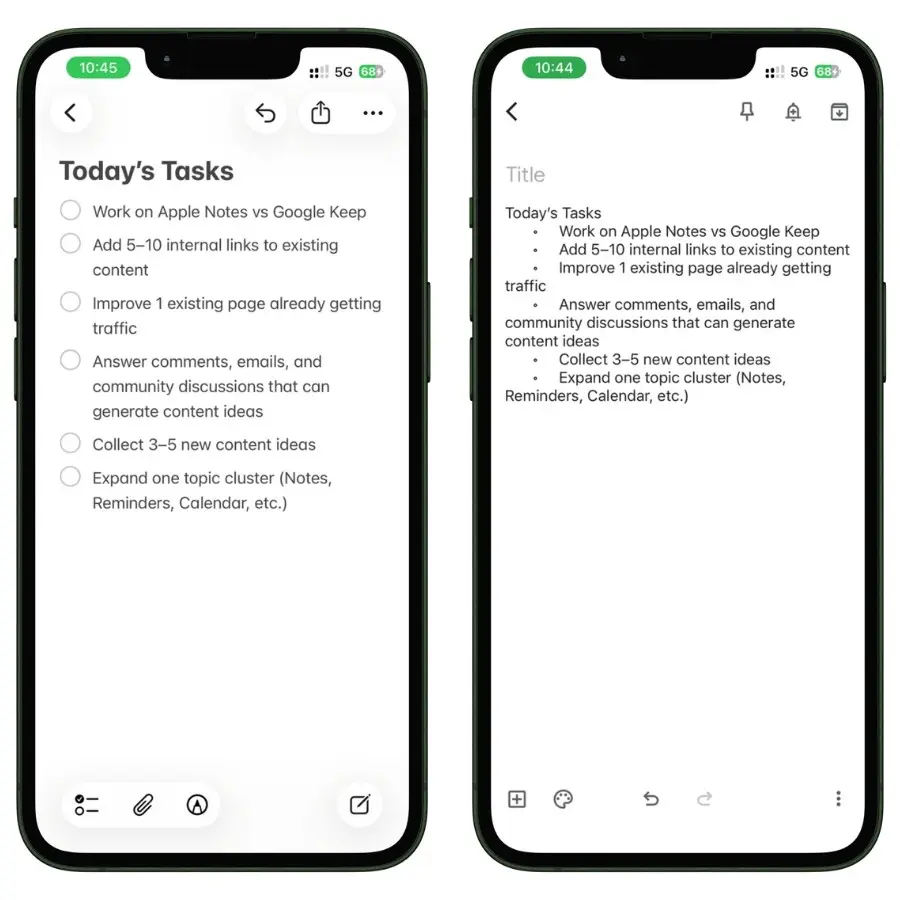
My checklists arrived as plain bullet points. Not tappable checkboxes, just dots and text. Every list would need rebuilding by hand inside Keep.
My table did not arrive at all. Keep has no concept of a table, so that content simply has nowhere to go.
Same story for attachments and scans: gone. And any formatting gets stripped, since Keep on iPhone has none to receive it.
If your Apple Notes are plain text, the move is painless. If they have any structure, you are not migrating your notes. You are migrating their skeletons.
9.2 Google Keep To Apple Notes: Survivable, With One Surprise
The reverse direction went better, with two quirks worth knowing.
First, Google Keep checklists arrive in Notes as plain text with literal [ ] brackets in front of each line.
![Screenshot showing a Google Keep checklist imported into Apple Notes as text with [ ] brackets before each item](https://iapplist.com/wp-content/uploads/2026/06/google-keep-checklist-pasted-into-apple-notes.webp)
Keep’s share function exports checklists in that bracket style, and here is the funny part: paste that export back into Keep itself, and even Keep cannot turn it back into a working checklist.
The app cannot re-import its own export.
Second, the surprise. Keep forces every image to the top of a note.
I added images between paragraphs while testing, and Google Keep moved them to the top every time, ignoring where I put them.
But when I shared and pasted that note into Apple Notes, the images appeared exactly where I had originally placed them.
Keep remembered my layout all along. It just refuses to show it to me. Keep’s export is more faithful to your note than Keep’s own screen.
9.3 One More Friction Point For List People
While testing all this, I hit a smaller annoyance worth recording.
In Keep, you cannot select multiple checklist items and copy them together. It is one item at a time, or you use Share and copy the entire note.
Apple Notes lets you select across a whole checklist like any other text.
The summary of this entire section fits in one line.
If your life runs on checklists, switching apps means rebuilding every list by hand, in either direction.
My Honest Take
After a week of side-by-side testing, I do not think this comes down to a score. It comes down to who you are.
So here is the verdict by person instead.
Choose Apple Notes If
- Your devices are an iPhone, iPad, or Mac, and the people you share with are mostly on Apple too
- Your notes have structure: checklists mixed with text, tables, scanned documents, attachments
- You want to lock private notes behind Face ID
- You search text inside photos and want results instantly, not eventually
- You want reminders that work with Siri, your lock screen, and the Reminders app you already have
Choose Google Keep If
- There is a Windows PC or an Android device anywhere in your daily life
- You share lists with people outside the Apple world, like a partner or family on Android
- Your notes are short, fast, and disposable, closer to sticky notes than documents
- You already live in Gmail and Google Calendar, so Google Tasks for reminders is a feature rather than a burden
Google Keep is not a bad app. The card design is pleasant, the self-building search filters are clever, sync is just as fast as iCloud, and collaboration is the easiest of the two.
The problem is that none of that good design gets Google’s full attention on the iPhone.
- No formatting while Android and the web have it
- No widget where one used to exist
- No watch app as of July 2025
Keep on iOS is a good app kept on life support.
Apple Notes has no such asterisk. It is built into the phone, deeply connected to everything else on it, and Apple keeps improving it every single year.
On an iPhone, Apple Notes wins. The only question worth asking is the one Keep answers better than Notes ever will: who else needs to see your notes, and what phones are they carrying?
FAQs
Does Google Keep Have A Widget on iPhone?
No. Keep currently offers no home screen widget on iOS. It had one, years ago, and Google’s own support forums have threads from users asking where it went. Apple Notes offers multiple widget sizes plus lock screen options.
Does Google Keep Work On Apple Watch?
No. Google removed the Keep watch app in July 2025 with version 2.2025.26200, the same season Apple brought Notes to the watch in watchOS 26. If wrist access to notes matters to you, only Apple Notes can do it now.
Does Google Keep Have Text Formatting on iPhone?
No. Keep has bold, italics, and headings on Android and on the web, but the iPhone app has none. Worse, if you format a note on keep.google.com, it syncs to your iPhone with the formatting silently stripped. I tested this myself in June 2026.
Can I Transfer My Apple Notes To Google Keep?
Only by copying and pasting each note. There is no importer, and the Gmail account trick from forums connects to an old Gmail notes label, not to Keep. In my testing, checklists arrived as plain bullets, and tables and attachments did not arrive at all.
Is Google Keep Free? What About Storage?
Both apps are free. Keep notes do not count toward your Google account’s 15 GB storage limit. Apple Notes stores attachments in iCloud, where the free tier is 5 GB shared with everything else, so a photo-heavy Notes library can push you toward a paid iCloud plan sooner.
Is Apple Notes or Google Keep Better On iPhone?
Apple Notes, clearly, for anyone living on Apple devices. Google Keep earns its place only if you need your notes on Windows or Android, or you share lists with people outside the Apple ecosystem.