
Apple Reminders in iOS 27: 8 New Features and Changes
Apple Reminders didn’t get one massive headline feature in iOS 27, but after testing the update, I think it has become noticeably faster to use.
The biggest change is that I can now type a reminder the way I would actually say it.
I tried “Pay the credit card bill on the last Friday of every month at 7pm,” and Reminders figured out the date, time, and repeating schedule on its own. Even “Buy milk when I get home” correctly turned into a location-based reminder.
But that’s not the only change.
Apple has also redesigned the controls for creating reminders, added some genuinely useful new Shortcuts actions, introduced a huge Home Screen widget, and made Reminders work more intelligently with Siri and Messages.
I tested most of these changes myself on my iPhone 17 Pro, and I also compared parts of the new Reminders interface with iOS 26.
In this guide, I’ll show you exactly what changed, what’s actually useful, and which features you won’t get without Apple Intelligence.
Table of Contents
- 1. You Can Describe a Reminder Instead of Setting Everything Manually
- 2. Creating and Editing a Reminder Is Faster in iOS 27
- 3. Messages Can Suggest Adding Something to Reminders
- 4. Siri Can Create Reminders Using What’s Already on Your Screen
- 5. Shortcuts Can Now Build Entire Reminders Lists
- 6. Grocery Lists Should Categorize Items More Accurately
- 7. Reminders Gets a Full-Page Home Screen Widget
- 8. Reminders Looks a Little Different in iOS 27
- A Few Reminders Features That Aren’t Actually New in iOS 27
- Final Take
1. You Can Describe a Reminder Instead of Setting Everything Manually
This is probably the biggest Reminders change in iOS 27.
Instead of creating a reminder and then manually setting the date, time, repeat schedule, or location, you can now describe the whole thing in one sentence.
For example, I typed “Take vitamin D every Sunday at 9 am,” and Reminders automatically set it to repeat every Sunday at 9 AM.
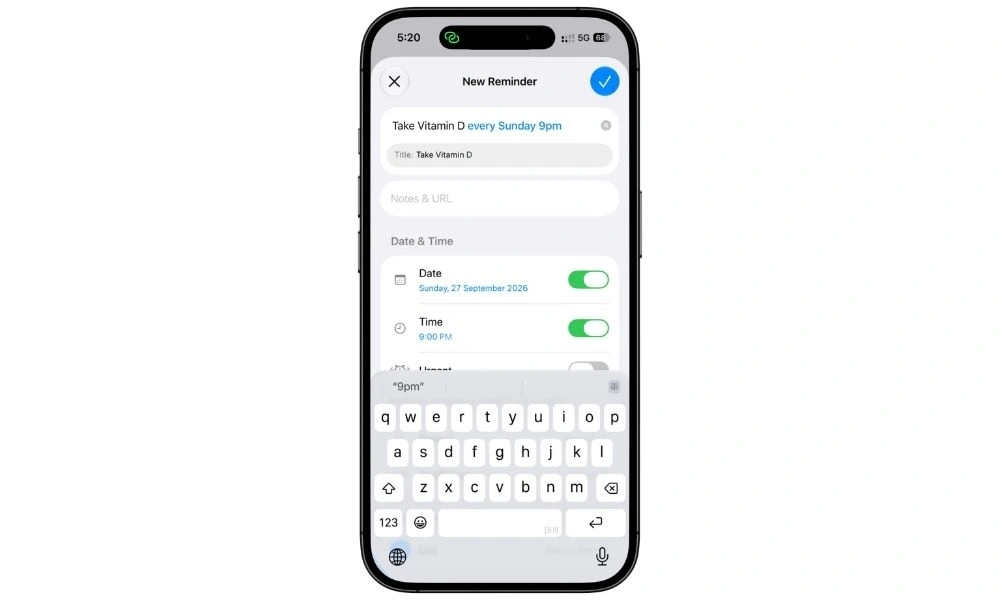
I also tried “Pay the credit card bill on the last Friday of every month at 7pm” and “Buy milk when I get home.”
Both worked exactly as expected, including the repeating schedule and location trigger.
Reminders could already recognize simple dates like tomorrow at 5pm, but iOS 27 goes further by understanding the full instruction and filling in the reminder details for you.
This feature requires Apple Intelligence, so it won’t be available on every iPhone running iOS 27.
Also Read: Apple Notes in iOS 27: 7 New Features I Actually Tested
2. Creating and Editing a Reminder Is Faster in iOS 27
Apple also changed the controls you see while creating or editing a reminder.
In iOS 27, more options are available right around the reminder itself, including Date, Time, Urgent, Repeat, Location, Tags, Flag, and Camera.
That means you can change most of the important details without opening the full reminder settings every time.
I compared this with iOS 26, and the difference is pretty obvious. The older version gives you fewer controls up front, while iOS 27 puts a lot more of them within easy reach.
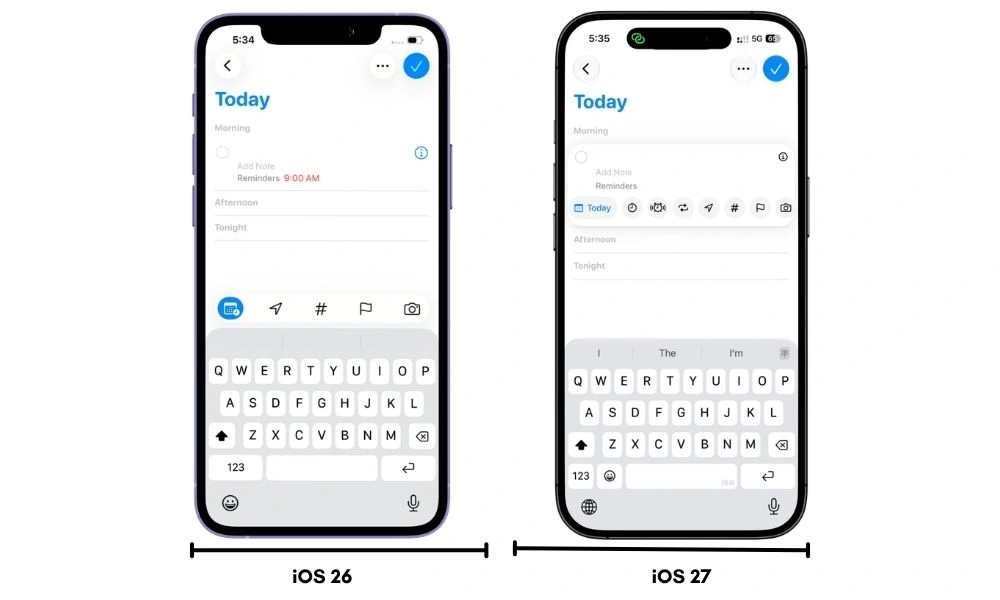
It’s a small change, but if you create reminders often, it makes the app feel noticeably quicker to use.
3. Messages Can Suggest Adding Something to Reminders
This one is technically more of a Messages feature, but I’m including it because it gives you another faster way to create reminders in iOS 27.
With Apple Intelligence, Messages can recognize when a conversation contains something you may need to remember and surface an Add to Reminders suggestion.
For example, if someone sends “Please send me the photos tomorrow morning,” iOS can recognize the action and give you a quick way to turn it into a reminder without leaving Messages.
It’s a small integration, but it removes the usual copy, switch apps, and create-the-reminder-manually process.
4. Siri Can Create Reminders Using What’s Already on Your Screen
Siri could already create reminders before iOS 27, but now it can understand more of what you’re looking at when you ask.
For example, if you’re viewing a recipe, you can say, “Add these ingredients to my grocery list,” and Siri can understand what these ingredients refer to and use the information already on your screen.
The same idea works with other content too. You can ask Siri to remind you about this without having to explain the entire thing again.
That makes Siri much more useful with Reminders because the reminder can come directly from whatever you’re already doing on your iPhone.
5. Shortcuts Can Now Build Entire Reminders Lists
Apple also added several new Reminders actions to the Shortcuts app in iOS 27.
You can now use actions such as Create Group, Create List, Create Section, Delete Group, Delete List, and Delete Section.
That means a shortcut can do more than just add individual tasks to an existing list.
For example, I created a shortcut that builds a new Reminders list and adds sections inside it automatically.
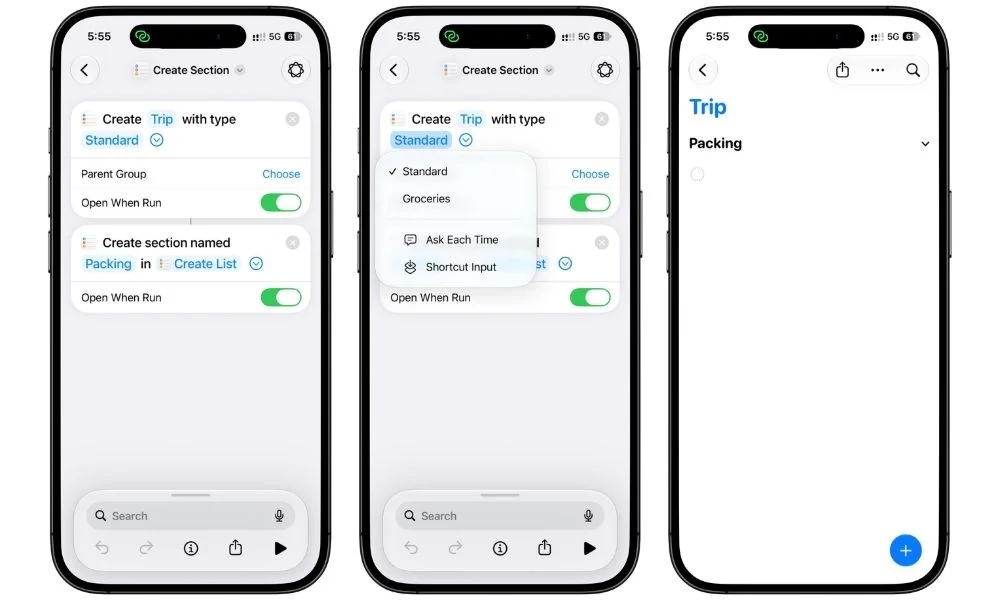
You could use the same idea to create something like a Vacation list with sections for Packing, Bookings, Before the Trip, and Things to Do.
Once the shortcut is set up, one tap can create the whole structure for you.
For anyone who uses Reminders for projects or repeatable workflows, this is one of the more useful power-user changes in iOS 27.
6. Grocery Lists Should Categorize Items More Accurately
Grocery Lists themselves aren’t new in iOS 27, but Apple says the automatic categorization is now more accurate.
When you add items to a Grocery List, Reminders can automatically sort them into sections such as Produce, Dairy, Bakery, Frozen Foods, and Household Items.
In iOS 27, Apple has improved the system behind that sorting and expanded support for more languages.
So the feature works the same way as before, but it should make fewer mistakes when deciding where an item belongs.
If you already use Reminders for grocery shopping, this is more of a refinement than a major new feature, but it should make the automatic organization a little more reliable.
7. Reminders Gets a Full-Page Home Screen Widget
iOS 27 also adds a much larger Reminders widget for the Home Screen.
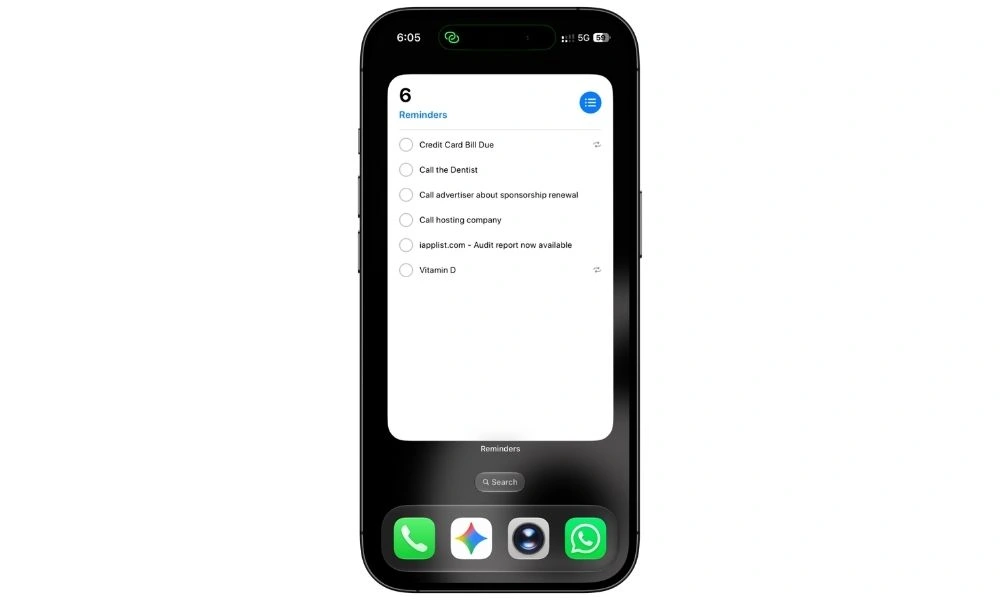
The new extra-large size can take up almost an entire Home Screen page, which gives you a much better view of your tasks without opening the app.
You can use it to keep a large Today list visible, check upcoming reminders, or turn one Home Screen page into a simple task dashboard.
I think this is especially useful if you already use Reminders as your main task manager, because you can see far more at a glance than with the smaller widgets.
It’s not a complicated feature, but it makes Reminders much more useful directly from the Home Screen.
8. Reminders Looks a Little Different in iOS 27
Apple Reminders also gets some of the broader visual changes that come with iOS 27.
You’ll notice updated buttons, menus, icons, and more of Apple’s Liquid Glass styling throughout the app.
The changes aren’t dramatic, and Reminders still feels very familiar if you were using it on iOS 26.
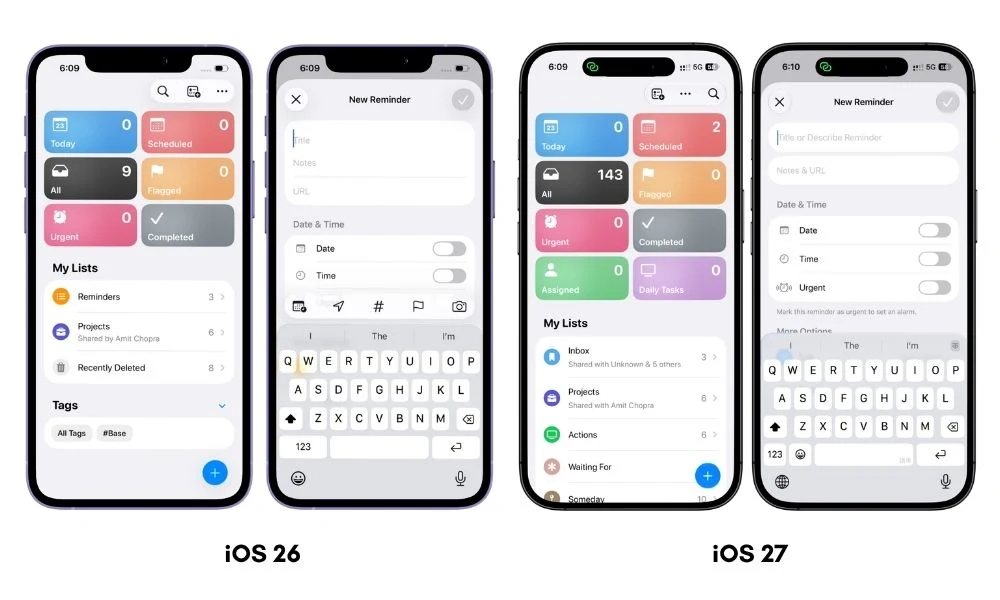
The bigger visual difference is actually the new reminder editing interface I mentioned earlier, where more controls are available directly while you’re creating or editing a task.
So I wouldn’t call this a major Reminders feature, but the app does look a little cleaner and more consistent with the rest of iOS 27.
A Few Reminders Features That Aren’t Actually New in iOS 27
While testing the update, I also came across a few Reminders features that are easy to mistake for something new.
Suggested Reminders from apps like Safari and Mail were already available before iOS 27.
Automatic categorization of reminders into sections isn’t new either, although Apple has improved some of that intelligence in iOS 27.
The same goes for Urgent reminders. The Urgent option itself was introduced earlier, but iOS 27 now makes it much easier to access from the redesigned reminder controls.
I’m mentioning these because if you’ve seen them included in other “new in iOS 27” lists, they’re not completely new features.
Final Take
Apple Reminders doesn’t feel completely different in iOS 27, but it does feel faster.
The biggest improvement for me is Describe a Reminder.
Being able to type something like “Pay the credit card bill on the last Friday of every month at 7pm” and have Reminders set everything up automatically removes a lot of small steps.
The redesigned reminder controls help too, and the new Shortcuts actions make Reminders much more flexible if you like building your own workflows.
Most of the changes are small on their own, but together they make Reminders easier to use without changing what already worked well about the app.