

Apple Notes for Business: What It Actually Replaces (and Where It Breaks)
I’ve run my business out of Apple Notes for years. Client briefs, meeting notes, half-finished ideas, invoice reminders, the lot.
And here’s the honest verdict before I waste a minute of your time:
Apple Notes is the right business tool if you’re a solo operator or a small all-Apple team doing non-regulated work. It’s the wrong one if your team is bigger than a handful of people, you handle protected health information, or you work with anyone on Windows or Android.
That’s the whole guide in two sentences. Everything below is me showing my work.
Most articles on this topic won’t tell you that. Search “apple notes for business” and you’ll find a wall of pieces explaining how to pin a note and add a hashtag, all written like Apple Notes is a secret productivity weapon nobody else has discovered.
Here’s what those guides leave out:
- The 100-person cap on a shared note, fine for a small team, a real problem as you grow.
- No version history. One bad paste can wipe an hour of work, and there’s nothing to roll back to.
- The HIPAA problem. Apple won’t sign a Business Associate Agreement, which quietly disqualifies Notes for anyone in healthcare.
They sell you the dream and skip the part where it breaks. I’m not going to do that.
I’ve tested every workflow in this guide on my actual setup, and you’ll see screenshots and real numbers throughout, how much iCloud storage my Notes setup actually uses, where the transcription got things wrong, the exact point where Notes stopped working for me.
Here’s what’s worth knowing up front: Apple Notes genuinely earns its place for a lot of businesses. It’s free, it’s instant, and it never makes you wait for a page to load.
And as of recent updates, it does things that used to need a paid app:
- It records audio and transcribes it on-device
- It scans documents and reads the text inside them
- And in iOS 26, it finally lets you import and export Markdown files, which matters if you write for the web like I do
For a freelancer or a two-person shop, that covers a surprising amount of ground.
But “free and fast” isn’t the same as “right for your business.”
The honest answer depends entirely on whether you’re working alone or working with a team, and those are two completely different stories.
So that’s how I’ve structured this guide.
First, I’ll help you figure out which side of the line you’re on. Then I’ll show you exactly what works, exactly what breaks, and what to switch to when you outgrow it.
Let’s start with the question that decides everything else.
Table of Contents
- 1. Should You Use Apple Notes for Business?
- 2. Does Apple Have Access to Your Notes?
- 3. Is Apple Notes Secure Enough for Client Work?
- 4. Apple Notes for Solopreneurs and Freelancers
- 5. Apple Notes for Teams: Where It Breaks Down
- 6. When You Outgrow Apple Notes: Where to Go Next
- 7. What’s New in Apple Notes for Business (2024–2026)
- The Bottom Line
- FAQs
1. Should You Use Apple Notes for Business?
After years of running my own work through Notes, I’ve learned the decision isn’t actually about features. It’s about one thing: are you working alone, or working with a team?
Apple Notes was built for individuals.
Everything it does well, it does well for one person. Everything it does badly, it does badly the moment a second or third person needs real access.
So before you commit your business to it, run yourself through this.
1.1 The Quick Decision Table
Here’s the honest version. Find the row that sounds like you.
| If this is you… | Apple Notes is… |
|---|---|
| Solo freelancer or consultant, all-Apple devices | A great fit. Stop reading, go set it up. |
| Two- or three-person team, everyone on Apple | A good fit, with workarounds you can live with. |
| You handle client health data (therapist, coach, medical) | Not an option. Apple won’t sign a BAA. See Section 3. |
| You work with Windows or Android collaborators | A poor fit. The sharing model will fight you daily. |
| Team of 5+, or growing fast | A short-term fix at best. Plan your exit now. |
| You need version history, audit logs, or admin control | Not the tool. It has none of these. See Section 5. |
| You just need personal capture alongside another system | Perfect. This is what it’s quietly best at. |
If you landed on “great fit” or “good fit,” the rest of this guide shows you exactly how to build it out.
If you landed on anything else, skip ahead to Section 5 and Section 6. I’ll show you where it breaks and what to use instead, and I’ll save you the painful migration I’ve watched other people go through.
Also Read: How I Use Apple Notes as a Daily Planner
1.2 Why the Solo-vs-Team Line Matters So Much
Here’s the thing that took me too long to understand. Apple Notes doesn’t degrade gracefully as your team grows. It hits a wall.
For one person, it’s frictionless. There’s nothing to manage — no permissions, no workspace settings, no admin panel. You open the app, and your entire business is just there, synced across your iPhone, iPad, and Mac.
That zero-friction quality is the whole point, and no team tool can match it.
But the features that make team tools feel “heavy”, permission levels, version history, admin controls, activity logs, aren’t bloat. They’re the things that keep a shared system from falling apart.
Apple Notes doesn’t have them. So the moment you have real collaborators, you’re not running a lightweight tool. You’re running a tool that’s missing the safety rails, and you won’t notice until something goes wrong.
I’ll show you exactly what that looks like in Section 5. For now, just know the line is real, and it’s sharp.
1.3 What Apple Notes Costs You (the Honest Math)
One reason Notes is so tempting for business: the price tag. It’s free, and it comes with every Apple device. No per-seat fee, no subscription.
But “free” has a quieter cost, and it’s storage.
Notes lives in iCloud, and iCloud’s free tier is only 5 GB, shared with your photos, your device backups, and everything else. Scan enough receipts and contracts, attach enough images, and you’ll fill that fast.
The realistic business answer is a paid iCloud+ plan, which starts at $0.99 a month.
So the honest framing isn’t “Apple Notes is free.” It’s:
Apple Notes is nearly free, with no per-person cost, which makes it dramatically cheaper than a per-seat team tool for a small business, as long as you stay inside what it can actually do.
That last part is the whole rest of this guide.
Also Read: How to Use Apple Notes for Expense Tracking (Free Shortcut)
2. Does Apple Have Access to Your Notes?
This is the question that should stop you before you put a single client file into Apple Notes, and almost nobody asks it until it’s too late.
Here’s the short answer:
By default, YES, Apple technically can access your notes.
Not because Apple is reading them, but because of how the encryption is set up.
The good news is you can change that. The important news is that the fix comes with trade-offs that directly affect how you use Notes for business.
There are three privacy tiers, and you need to know which one you’re on.
2.1 Standard Protection: The Default (and Its Catch)
Out of the box, your notes sync through iCloud using what Apple calls standard data protection.
Apple’s own documentation describes it plainly: your iCloud data is encrypted, the encryption keys are stored in Apple’s data centers, and only some categories of data are end-to-end encrypted.
Notes is NOT in that end-to-end encrypted group by default.
In practical terms, that means:
- Your notes are encrypted in transit and encrypted on Apple’s servers. A random hacker isn’t reading them.
- But Apple holds a copy of the keys. So Apple can technically decrypt your notes, and will, if served with a valid legal request like a subpoena.
- The upside of this same setup: if you forget your password, Apple can help you recover your data.
For a lot of businesses, standard protection is genuinely fine. Marketing notes, content drafts, internal SOPs, meeting recaps, that’s not data anyone needs a court order to be worried about.
But if you’re storing anything you’ve promised a client is confidential, keep reading, because the default isn’t good enough for that.
2.2 Locked Notes: True Encryption, Real Limits
Apple Notes lets you lock individual notes with a password or Face ID. And a locked note isn’t just hidden, it’s genuinely end-to-end encrypted.
The note is scrambled with a key derived from your passphrase, and not even Apple can read it.
That sounds like the answer for client work. It’s not, quite, and here’s the part most people don’t find out until they need it:
- A locked note cannot be shared or collaborated on. Lock it, and it’s yours alone. The moment you need a second person in that note, you have to unlock it.
- Locked notes only support certain attachments — images, sketches, tables, maps, and websites. If your note has a PDF or other file type attached, you can’t lock it at all.
So locked notes are perfect for a private vault, passwords, sensitive client details, financial figures you reference but never share. They are not a way to run collaborative confidential work.
That’s a real limitation, and it’s worth designing around rather than discovering mid-project.
Also Read: How I Secure Sensitive Information in Apple Notes
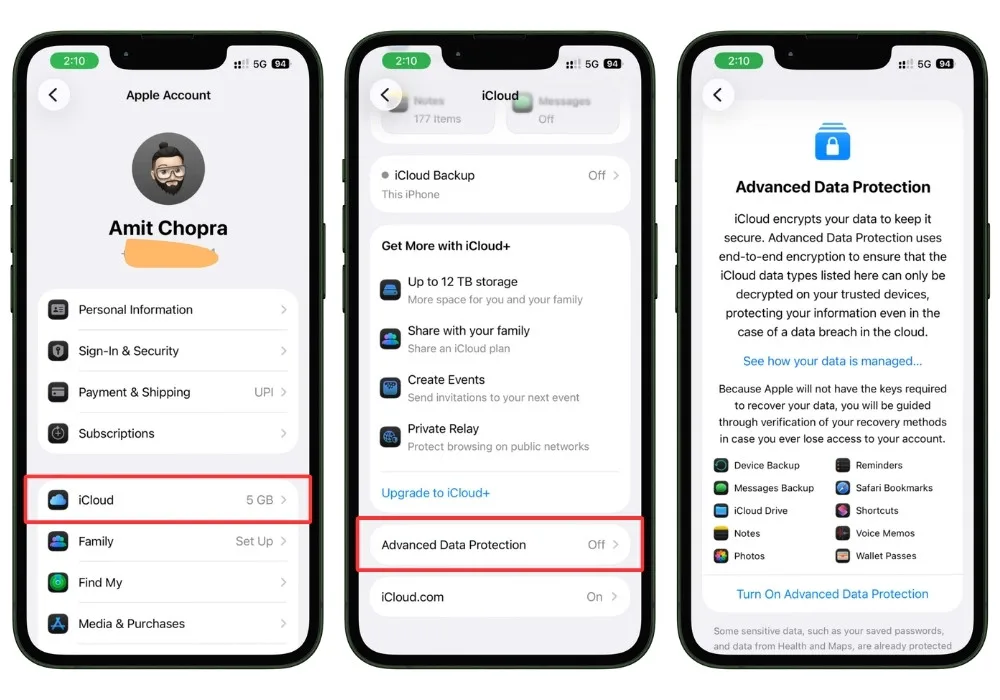
2.3 Advanced Data Protection: The Full Lockdown
The third tier is Advanced Data Protection, an optional setting you switch on for your whole account.
When it’s on, the number of data categories protected with end-to-end encryption rises from 14 to 23, and Notes is one of the categories that gets added.
With Advanced Data Protection enabled, your notes are end-to-end encrypted whether they’re locked or not. Apple cannot read them. A breach of Apple’s servers cannot expose them.
For a business handling sensitive client work, this is the setting you want.
But, and this matters, it changes how Notes behaves:
- You become solely responsible for recovery. Apple no longer holds your keys, so you must set up a recovery contact or a recovery key. Lose access with no recovery method, and your data is genuinely gone. Apple cannot get it back.
- Shared notes only stay fully encrypted if everyone has it on. A shared note keeps end-to-end encryption only when every collaborator also has Advanced Data Protection enabled. If one person doesn’t, that shared note drops to standard protection.
- Managed Apple Accounts can’t use it. If your business runs on Apple Business Manager with managed accounts for employees, Advanced Data Protection isn’t available to those accounts at all. This quietly rules it out for a lot of organized teams.
- Web access gets switched off by default. With it on, getting to your data at iCloud.com is disabled unless you specifically re-authorize a device, which closes off one of the few ways a Windows colleague could ever see your notes.
2.4 The Myth Worth Killing
The single most common misconception about Apple Notes, and I’ve believed it myself, is that everything in Apple Notes is end-to-end encrypted because it’s Apple, and Apple is the privacy company.
It isn’t. Not by default.
A standard, unlocked note synced to iCloud is encrypted in a way that protects it from outsiders but still leaves Apple holding a key. End-to-end encryption, the kind where nobody but you can read it, only kicks in when you lock the note, or when you turn on Advanced Data Protection.
So here’s the honest setup advice for business use:
- Lower-sensitivity work: standard protection is fine. Don’t overthink it.
- A few genuinely sensitive notes you never share: lock them individually.
- Anything client-confidential, especially across many notes: turn on Advanced Data Protection and accept the recovery responsibility that comes with it.
3. Is Apple Notes Secure Enough for Client Work?
This section is about something different, and it trips up a lot of smart business owners:
Being secure and being legally cleared are not the same thing.
Apple Notes can be genuinely well encrypted. That still does not make it legal for every kind of client data.
If you work in healthcare, law, or with European clients, this section is the one that decides whether Apple Notes is even an option for you.
For most people, the answer is “use it carefully.” For some of you, the honest answer is “do not use it at all,” and I would rather tell you that now than after a compliance problem.
3.1 Apple Notes and HIPAA: A Hard No
If you are a therapist, a health coach, a medical provider, a billing service, or anyone who touches protected health information, here is the answer with no hedging:
Apple Notes is not HIPAA compliant, and you cannot make it compliant.
The reason is not encryption. It is a contract that does not exist.
Under HIPAA, any vendor that stores or handles protected health information on your behalf is a “business associate,” and you are required to have a signed Business Associate Agreement (a BAA) with that vendor before any patient data goes near their service.
No BAA, no compliance. It does not matter how strong the encryption is.
Apple does not sign Business Associate Agreements for iCloud or any consumer service. And this is not Apple being slow to get around to it. Apple’s own iCloud terms explicitly prohibit using the service in any way that would make Apple a business associate.
As compliance specialists put it, Apple clearly states that storing PHI is not permitted and would violate HIPAA rules.
It is a deliberate decision: Apple sells iCloud as a consumer product and has chosen to stay out of regulated healthcare entirely.
So the situation is simple. Apple Notes syncs through iCloud. iCloud has no BAA. Therefore, client health information cannot go into Apple Notes. Not in a locked note, not with Advanced Data Protection on.
Encryption protects data from intruders. It does nothing about the missing contract, the missing audit logs, and the missing administrative controls that HIPAA also requires.
What to do instead: if you handle protected health information, you need a platform that will sign a BAA. Microsoft 365 and Google Workspace both will, on their business and enterprise tiers, and both include note-taking tools (OneNote, Google Keep) that can sit inside that compliant environment. That is the path. Apple Notes is not.
3.2 Lawyers and Client Confidentiality
HIPAA is a bright line. Legal confidentiality is fuzzier, and that fuzziness is its own trap.
If you are an attorney or anyone who owes clients a duty of confidentiality, Apple Notes is not automatically off the table the way it is for healthcare.
There is no BAA equivalent forcing the issue. But the professional responsibility still sits with you, and standard data protection means Apple holds a key to anything you have not locked.
For privileged client material, that is a real consideration.
The honest guidance here is not “never,” it is “not on the default settings.”
If you are going to keep confidential legal notes in Apple Notes, you should at minimum lock those notes individually, and seriously consider turning on Advanced Data Protection for the whole account so nothing privileged is sitting under standard protection.
And if your bar association or your own risk tolerance says client matters belong only in a system with audit trails and access logs, then believe that, because Apple Notes does not have either. Section 5 covers that gap in detail.
3.3 EU Clients and GDPR
If you serve clients in the European Union, GDPR is in the picture, and the practical answer for Apple Notes is more reassuring but still has an edge to it.
Apple as a company complies with GDPR, and iCloud data centers and policies are built with European data rules in mind.
So simply having an EU client’s name and project details in Apple Notes is not a violation. For ordinary business information, you are fine.
The edge is this: under standard data protection, Apple can technically access unlocked notes, and GDPR takes the handling of personal data seriously.
So if you are storing meaningful personal data about EU clients, the same advice from 3.2 applies and applies harder.
Lock those notes, turn on Advanced Data Protection, and as a simple rule of thumb, do not store any personal data about a client that you would not be comfortable explaining to that client directly.
That instinct will keep you out of trouble better than any setting will.
4. Apple Notes for Solopreneurs and Freelancers
This is the section where I stop hedging and tell you the good news.
If you are a solo operator on Apple devices, Apple Notes can genuinely run the core of your business, and I have been doing exactly that for years.
The trick is knowing which jobs to give it. Apple Notes is not a project manager, not a CRM, and not an accounting tool.
But it is a fast, reliable home for the information those tools usually scatter across ten browser tabs.
Here are the five workflows I actually use, what each one looks like in practice, and the point where each one stops working.
4.1 Client Management
This is the workflow people are most surprised by, because everyone assumes you need a “real” CRM. For a solo business with a manageable number of clients, you do not.
Here is the setup that works:
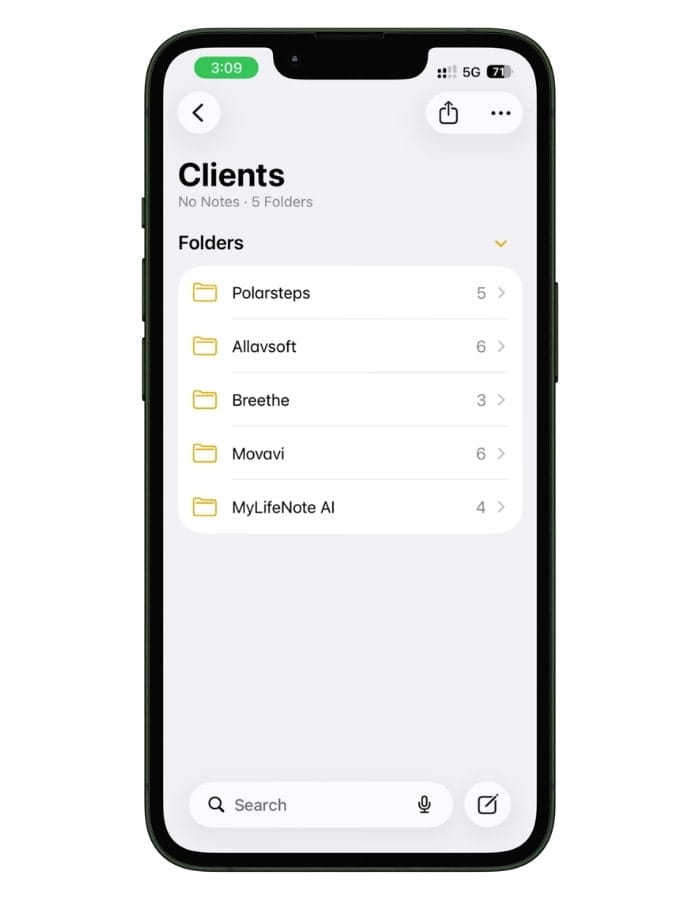
- One parent folder called Clients.
- One subfolder per client inside it.
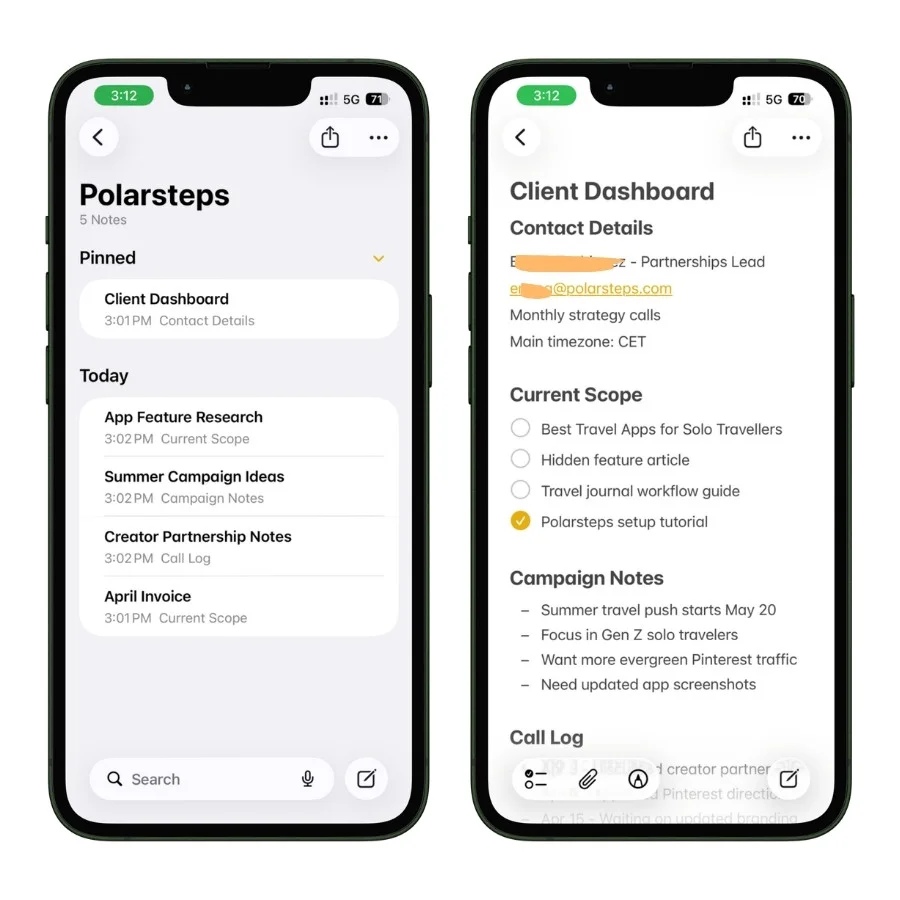
- Inside each client’s subfolder, one master note for that client, plus separate notes for anything big enough to deserve its own space (a proposal, a contract, a long brief).
The master note is where the magic is. Use Apple Notes’ heading styles to break it into sections, then collapse the ones you are not looking at.
A client master note of mine has collapsible sections for contact details, current scope, session and call log, deliverables, and invoice history. Collapsed, the whole client fits on one screen. Expanded, every detail is one tap away.
Add hashtags to make status visible across every client at once.
I use tags like #followup, #proposal-sent, and #paid. Then a Smart Folder for #followup becomes your “who needs me this week” list, pulled automatically from every client folder.
Where it breaks: this is a client record, not a CRM. There is no pipeline view, no deal stages you can drag, no automated reminders, no email integration. The moment you are tracking enough clients that you need to see your pipeline as a board, or you want a reminder to fire on its own, Notes has hit its limit. Pair it with Apple Reminders for anything that needs a date and an alert. Notes holds the knowledge, Reminders holds the deadlines.
4.2 Meeting Notes and Transcription
This used to be the workflow that justified a paid app. It is now built in.
In recent versions of Apple Notes, you can record audio directly inside a note, and it transcribes that audio on your device as it records.
For a solo business, that means client calls, discovery sessions, and your own dictated thoughts all land in the same note, as both a recording and a searchable transcript, with no third-party service in the loop.
My actual workflow: open a fresh note before the call, title it with the client name and date, tag it #meeting, hit record. After the call, the transcript is already there. On an Apple Intelligence device you can then generate a short summary of the transcript so you are not rereading the whole thing.
Where it breaks: in-note audio recording does not label speakers, so a meeting with several people comes out as one undifferentiated block of text with no sense of who said what. It also transcribes one language at a time. If you run multi-speaker meetings where attributing each point matters, a dedicated meeting tool like Otter or Fireflies still wins. One legal note that has nothing to do with Apple: if you’re recording other people, consent laws apply, and several US states require every party to agree. Know your state’s rule before you record.
4.3 SOPs and Documentation
Even a one-person business needs documented processes, if only so you are not reinventing your own onboarding flow every quarter.
And the day you hire your first contractor, having your SOPs already written is the difference between a smooth handoff and a bad week.
Apple Notes handles this well.
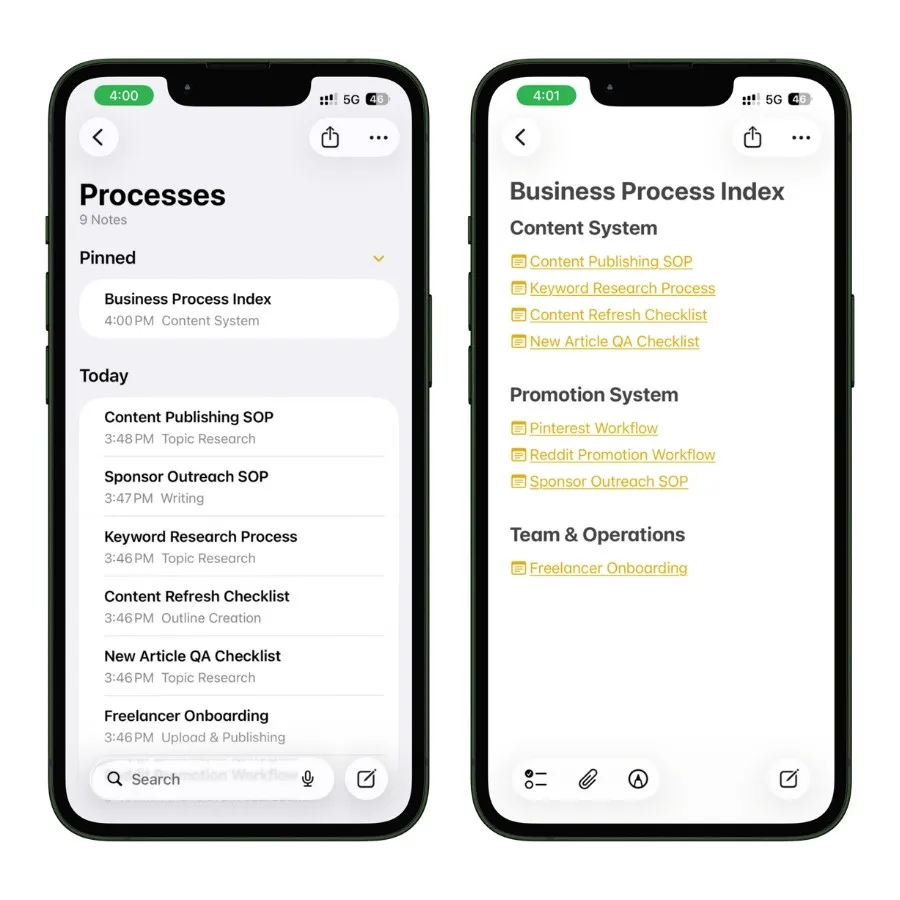
Create a folder for your processes and write one note per process. The feature that pulls it all together is internal linking, which lets one note link straight to another.
There are two ways to create one of these links:
- The fast way: in the note you are writing, type two greater-than signs (
>>). A list of your recent notes pops up. Pick the one you want, and Apple Notes drops in a tappable link using that note’s title. If the note you want is not in the list, just keep typing its title until it appears. - The full way: touch and hold an empty spot in the note, tap Add Link in the menu, and search for the note by title. This method also lets you set custom link text instead of using the note’s title.
One handy detail: if you link a note by its title and later rename that note, the link text updates itself automatically.
One limitation worth knowing: these links only go one direction. Apple Notes does not show backlinks, so a note cannot tell you which other notes point to it.
With linking set up, you can build a master index note, a simple table of contents that links out to every individual SOP. Pin that index note, and your entire process library is one tap from anywhere. Inside each long SOP, use collapsible headings to keep it readable.
Where it breaks: there are no permission levels inside a note or folder. Anyone you share an SOP folder with sees everything in it, with no way to give one contractor access to one process and nothing else. For a solo operator that is irrelevant. The moment you have a small team and “who can see what” becomes a real question, it is a genuine limitation, and it is one of the things Section 5 digs into.
4.4 Receipts and Invoices
This is the humble workflow that quietly saves you every tax season.
Apple Notes has a built-in document scanner, and crucially, its search can read the text inside your scans and photos.
So a scanned receipt is not just an image. It is searchable.
The setup is simple: a folder named for the tax year, for example, Receipts 2026. Scan receipts straight into it as they happen. Snap invoices and contracts the same way. When you need to find the hardware-store receipt from March, you search the word, not the date you cannot remember.
One more thing Apple Notes quietly handles here: live math.
Type a calculation inside a note and it solves it on the spot, which is genuinely useful for working out a quick quote or totting up expenses without leaving the note.
I broke down everything it can do in my full Apple Math Notes guide.
Where it breaks: Notes stores receipts, it does not account for them. There is no expense total, no category report, nothing that exports cleanly into accounting software. It is a shoebox, just a searchable one. It also leans on storage: scans are images, images are large, and iCloud’s free tier is only 5 GB. A heavy scanning habit is a real reason you will end up on a paid iCloud+ plan.
And one quirk worth knowing, because it has bitten people: exporting a multi-page scan as a PDF sometimes only exports the first page. If you need the full PDF, open the attachment directly rather than using the share sheet on the note.
4.5 Project Tracking
You can run a project out of Apple Notes, as long as you are honest about what “run” means.
What works: a single master note for the project, pinned to the top of your list so it is always one tap away. Inside it, a table for status at a glance, collapsible sections for each workstream, and internal links out to child notes for research, drafts, and detail. For a solo project with a handful of moving parts, that is genuinely enough, and it is faster to update than any dedicated tool.
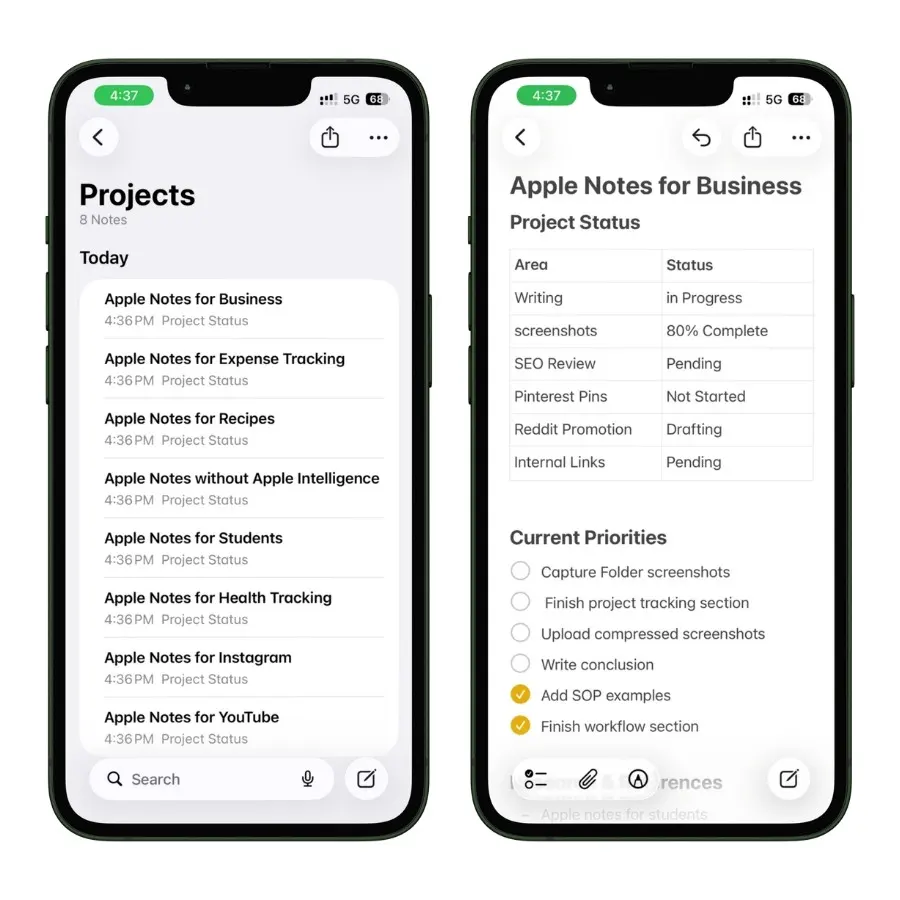
Where it breaks: Notes has no real project-management spine. No Kanban board, no Gantt chart, no task dependencies, no due dates that actually notify you. It cannot show you a timeline or warn you that one slipped deadline just pushed three others. For a solo workload that is fine, you hold the timeline in your head and let Reminders handle the dates. For anything with genuine complexity or a team depending on the schedule, this is where you reach for Notion, ClickUp, or a true project tool. Section 6 covers that jump.
If you do want to push Apple Notes as far as it goes for project work first, I wrote a full walkthrough of my own setup in how I use Apple Notes for project management. It goes deeper than I can here on the exact folders, tables, and pinned-note system I run day to day.
4.6 The Honest Verdict for Solo Operators
Put those five workflows together, and you have something real:
- Client records
- Meeting capture
- Documented processes
- A searchable receipt archive
- Lightweight project tracking
…all in one free app that opens instantly and syncs across every device you own.
The pattern in every “where it breaks” note above is the same, and it is worth saying plainly:
Apple Notes is excellent at holding information and poor at acting on it.
It will not remind you, it will not enforce a deadline, it will not show you a pipeline or a timeline.
Pair it with Apple Reminders for the time-sensitive half of your work and, as a solo operator, you have a business system most people pay monthly for, and you are paying nothing.
5. Apple Notes for Teams: Where It Breaks Down
Here is where I have to be the bad-news messenger.
Everything in Section 4 was true and good. But it was all about YOU.
The moment Apple Notes has to hold a team together instead of one person’s work, the same app starts working against you.
Not dramatically. It will not crash or lose your data on day one. It just quietly fails to do the things a team tool has to do, and you usually find out at the worst possible moment.
I want to be precise here, because “it does not scale” is the kind of lazy line that gets repeated without explanation.
Here is exactly what breaks, and why each one matters.
5.1 The Collaboration Ceiling
Apple Notes does let you collaborate.
You can share a single note or a whole folder, set people to “can edit” or “view only,” and everyone sees changes in real time. For a tight team, that genuinely works.
But there is a hard limit, straight from Apple’s own support documentation: up to 100 people can collaborate on a note. Hit that ceiling, and you cannot add anyone new until you remove someone.
For most small businesses, 100 sounds like plenty. The real problem is not the number, it is everything the number reveals.
The cap exists because Notes’ collaboration was built as a feature bolted onto a personal app, not as a workspace designed for organizations.
There is no concept of a team, a workspace, or a member directory. There are just individual notes and folders, each shared person by person, by you, by hand.
Onboard a new hire, and you are not flipping one switch. You are hunting down every relevant note and folder and re-sharing each one.
Offboard someone, and you are doing the same removal by hand, hoping you did not miss a folder. There is no central place that shows you who has access to what.
5.2 No Version History
This is the one that genuinely worries me.
Apple Notes has no version history.
There is no revision log, no “restore previous version,” no way to see what a note looked like yesterday. The Activity view will show you that edits happened and roughly who made them, but it will not let you go back.
For solo work, that is a shrug. For a team, it is a real hazard.
Picture a shared note that several people edit. Someone selects all, pastes in the wrong thing, and syncs. That paste is now the note, on every device.
In a tool with version history, you roll back thirty seconds and move on. In Apple Notes, the previous version simply does not exist anymore. The work is gone, and your only recovery is whether someone happens to have an old copy.
The wider problem this creates: you cannot fully trust a shared Apple Notes document. Anyone with edit access can change or delete anything, at any time, with no trail back.
For a grocery list, fine. For your team’s operating procedures or a live client deliverable, that is a foundation with no floor under it.
5.3 The Apple-Only Problem
Apple Notes collaboration only works with people inside the Apple ecosystem.
To join a shared note, a person must be signed in to an Apple Account with Notes turned on in iCloud. No Apple Account, no access. There is no real cross-platform path: no proper web app for outside collaborators, no Windows app, no Android app.
For an internal team that is all-Apple, you may never feel this.
But businesses do not run only on internal teams. They run on clients, contractors, and partners, and you do not get to choose what devices those people use.
The first time a client on Windows or a contractor on Android needs to access a shared note, you simply cannot bring them in.
What you can do is “Send Copy,” which emails or messages them a static, frozen snapshot.
It does not sync, it does not update, and their edits never come back to you. That is fine for handing over a finished document. It is not collaboration, and quietly, it is the single most common reason businesses outgrow Apple Notes.
Your tools should not dictate which clients you can work with.
5.4 No Admin Controls
Step back, and the deepest problem comes into focus. Apple Notes has no administrative layer at all.
There is:
- No admin console
- No way to centrally manage who is on the team and what they can reach
- No audit log of who viewed or changed what
- No single sign-on
- No enforced security policy
- No way to provision and deprovision people
When an employee leaves, there is no master switch that cuts their access to everything. You are personally walking through every shared note and folder, by memory, removing them one at a time.
For any business that has to answer the question “who has access to our information, and can you prove it,” Apple Notes has no answer.
That is not a missing feature you can work around. It is a structural fact about what the app is.
Notes was built for a person. It was never built for an organization, and no amount of clever folder structure changes that.
5.5 The Honest Verdict for Teams
So here is the line, as clearly as I can draw it.
Apple Notes can work for a small, stable, all-Apple team that trusts each other and does not handle regulated or high-stakes data.
Two to four people who all own iPhones, sharing a folder of working notes, can run that way for a long time and be perfectly happy.
But it is not a team platform, and the cracks widen fast as you grow.
If your team is heading past a handful of people, if you regularly bring in clients or contractors on other devices, if you need to roll back a mistake, or if you ever need to prove who could see what, Apple Notes is already the wrong tool. Not soon. Now.
6. When You Outgrow Apple Notes: Where to Go Next
If Section 5 felt like it was describing your business, this section is the practical follow-up: where do you actually go?
Here is the mistake I want you to avoid:
Most people, when they outgrow Apple Notes, panic-pick the most popular alternative they have heard of, migrate everything, and discover three months later that they traded one set of problems for a different set.
The right move is quieter. Figure out why Notes broke for you specifically, and let that pick the tool.
So, before the full breakdown, here is a shortcut. Tell the tool below the biggest reason Apple Notes is not working for you, and it will point you to the alternative that actually fits, along with the honest trade-off that comes with it. Then read the matching section underneath for the full picture.
Where Should You Go Instead?
What is the biggest reason Apple Notes is not working for you?
Pick the one that matters most. If a few apply, the section below covers how they overlap.
Your best-fit alternative
Why it fits
Be clear-eyed about
Each subsection below covers one alternative in depth. If you used the tool, jump straight to the one it recommended.
6.1 Leave for Notion: When You Need Structure
Notion is the right next step if Notes broke because you needed structure:
- Databases
- Project boards
- A proper shared team space
- Ability to see information as a table or a board instead of a flat list of notes
Notion does the things Apple Notes structurally cannot:
- Real databases you can filter and sort
- Genuine team workspace with permission levels
- Public link sharing, so a client on any device can open a page in a browser with no Apple Account required
- Templates, so your processes are repeatable
It is, in the truest sense, the tool that fixes the Section 5 complaints.
The trade-offs are real and worth naming. Notion is slower to open and slower to feel “set up” than Notes, you have to build your system rather than just typing, and it is not free for teams.
Paid team plans run somewhere around $10 per person per month, with a more advanced business tier higher again.
Pick Notion if: you are a growing team that needs shared structure and does not mind investing setup time to get it.
6.2 Leave for OneNote: When You’re Cross-Platform
If Apple Notes broke for you because your team is split across Windows, Android, and Apple devices, OneNote is your answer.
This is the problem OneNote solves better than anything else:
It runs as a proper, full app on Windows, Mac, iPhone, iPad, Android, and the web. Not a stripped-down viewer on the non-Apple platforms, a real app.
A mixed-device team, the exact scenario that breaks Apple Notes hardest, is OneNote’s home turf.
On top of that, it uses a notebook, section, and page structure that scales far better than Apple Notes’ flat folders once you have a lot to organize.
There’s a second reason OneNote often wins, and it is a quieter one: cost.
If your business already runs on Microsoft 365, OneNote is sitting in that subscription right now at no extra charge.
For a team already paying for Microsoft, switching to OneNote is a free move to a tool built for exactly the cross-platform problem you have.
Its trade-off against Apple Notes is mostly polish. OneNote’s free-form canvas can feel loose and less tidy, and on a Mac, it never feels quite as native as Apple Notes does.
But for a team that needs everyone on the same page regardless of device, that is a small price to pay.
Pick OneNote if: your team runs on a mix of Windows, Android, and Apple devices, especially if you are already paying for Microsoft 365.
6.3 Leave for Obsidian: When You Want to Own Your Data
This one is for a specific person: usually a solo consultant, researcher, or knowledge worker who left Apple Notes not because of team limits but because Notes felt like a closed box they could not get their information out of.
Obsidian stores your notes as plain text files on your own computer. You own them outright.
There is no vendor holding your data, no proprietary format, no lock-in. It links notes together richly, it extends through a large library of plugins, and for building a personal knowledge base, it goes far deeper than Notes ever will.
The honest trade-offs: Obsidian has no real built-in collaboration, so it is a personal tool, not a team one.
It also asks more of you. There is a learning curve, and you assemble your own setup rather than getting one handed to you.
Pick Obsidian if: you are a solo knowledge worker who wants to truly own your notes and never feel locked in again.
6.4 Leave for Bear: When You Want Notes, but Better
Sometimes you do not have a big structural problem. You just want what Apple Notes is, with a few of the rough edges sanded off. That is Bear.
Bear keeps the simplicity and the Apple-native feel that made you like Notes in the first place, but adds Markdown-native writing, a cleaner tag system, and genuinely lovely design.
For a solo writer or founder who wants Notes’ calm without some of its quirks, it is the gentlest possible switch.
Be clear-eyed about what it does not fix, though.
Bear is Apple-only, exactly like Notes, so it does nothing for the cross-platform problem. And it has no real team collaboration. It is a single subscription of roughly $30 a year.
Pick Bear if: you are a solo Apple user who likes Notes but wants Markdown and a bit more polish, and you do not need to collaborate or go cross-platform.
6.5 A One-Look Decision Guide
If you want the whole section compressed into a single glance:
| Why Apple Notes broke for you | Where to go |
|---|---|
| Need databases, boards, real team structure | Notion |
| Mixed Windows/Apple/Android team, or already on Microsoft 365 | OneNote |
| Want to own your data with no lock-in (solo) | Obsidian |
| Just want Apple Notes with Markdown and more polish (solo) | Bear |
| Handle protected health information | None of these by default. You need a BAA-signed platform. See Section 3. |
One last piece of advice before you migrate anything. Do not move all of it. Even when you outgrow Apple Notes as your main system, it is still the best quick-capture tool on an Apple device.
Most people who switch well keep Notes for fast personal capture and move only the team and structured work to the new tool.
That is not failure to commit. That is using each tool for what it is genuinely best at.
7. What’s New in Apple Notes for Business (2024–2026)
Here is something I want to make sure you do not miss, even if Section 5 convinced you Notes is not your team’s main tool.
Apple Notes has changed a lot in the last two years. The features added across iOS 18, iOS 18.1, and iOS 26 are not cosmetic. Several of them genuinely replace paid apps that businesses used to pay for monthly.
So even if you have moved your team to Notion or OneNote, this section is worth reading because it tells you what Apple Notes can now do that might still earn it a spot in your personal workflow.
A quick note on requirements before we start: some of these features need a recent iPhone, and the AI-powered ones need an Apple Intelligence device. I will flag that as we go, because nothing is more frustrating than reading about a feature your device cannot run.
7.1 Audio Recording and On-Device Transcription
This is the big one. As of iOS 18, you can record audio directly inside a note, and Notes transcribes it for you.
Open a note, tap the attachment icon, choose Record Audio, and you are recording.
As you talk, a real-time transcript builds alongside the audio. When you play the recording back, the transcript highlights along with it, and you can tap any line to jump straight to that moment in the audio.
The recording lives as a small embed inside the note, and you can have several in one note.
For a business, this quietly replaces a category of paid voice-note and transcription apps.
Audio recording works on iPhone 12 and later, and also on iPadOS 18 and on Macs with Apple silicon running macOS Sequoia.
On an Apple Intelligence device, you can also tap Summary to get a short AI-generated recap of a long recording.
One honest limitation worth knowing: an in-note audio recording transcript does not separate speakers. A two-person conversation comes out as one continuous block of text. For solo dictation, that does not matter at all. For multi-person meetings, it does.
7.2 Phone Call Recording
iOS 18.1 went a step further: you can now record actual phone calls, with the recording and transcript saved into Apple Notes.
While you are on a call, a record button appears in the top corner. Tap it and, importantly, everyone on the call hears an automated announcement that recording has started.
That is not optional, and that transparency is deliberate.
The recording and its transcript save into a dedicated “Call Recordings” folder in Notes.
Unlike in-note audio, these call transcripts are labeled by speaker, so you can tell who said what, and on an Apple Intelligence device, you get a Summary button on top.
The business value is obvious: client calls, interviews, and verbal agreements all become searchable, documented records.
But two warnings, and I will not soften either.
First, the legal one. The automated announcement does not make recording legal everywhere. Several US states require the consent of every party to a call.
The announcement helps you get that consent, but you still need to actually have it. Know your state’s law before you rely on this.
Second, the encryption point connects back to Section 2. These recordings are stored locally and protected, but if you are recording sensitive client calls, the Section 3 rules still apply.
A recorded call is client data like any other.
7.3 Apple Intelligence Features
Across recent updates, Apple has layered its AI, branded Apple Intelligence, into Notes. For business use, three pieces are worth knowing.
Summaries, mentioned above, condense a long transcript or a long note into a short recap.
The Writing Tools can proofread, rewrite, or adjust the tone of text right inside a note, which is useful for turning rough notes into something client-ready.
The honest caveat is hardware.
Apple Intelligence requires a recent device: broadly, an iPhone 15 Pro or the iPhone 16 line and later, iPads with Apple silicon, and Macs with Apple silicon.
If your phone is older, the recording and transcription features in 7.1 and 7.2 still work, but these AI extras will not appear.
Do not plan a workflow around a feature your hardware cannot run.
Also Read: How I Get Everything Done on Apple Notes Without Apple Intelligence
7.4 iOS 26: Markdown Support
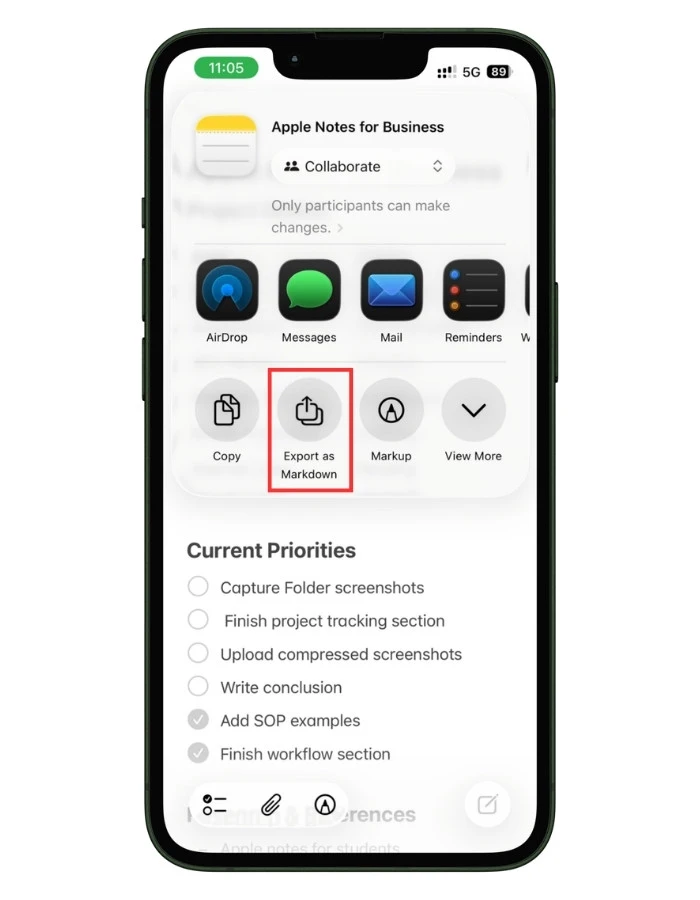
The most significant recent change for a business user, and especially anyone who publishes content, arrived in iOS 26: Apple Notes now imports and exports Markdown.
This matters more than it sounds.
One of the longest-standing complaints about Apple Notes was that it felt like a closed box: getting your content out cleanly was genuinely hard, which is exactly the lock-in worry that pushed people toward tools like Obsidian.
Markdown export directly addresses that.
You can now move a note out of Apple Notes into a clean, portable, universally readable format, and pull Markdown files in while keeping their formatting.
For a business, this does two things:
- It makes Apple Notes a more reasonable place to draft, because your words are no longer trapped there
- And it quietly weakens one of the strongest arguments for leaving
The lock-in problem is not fully solved, but it is meaningfully smaller than it was.
7.5 What This Adds Up To
Put the last two years together, and the pattern is clear. Apple Notes has steadily absorbed features that used to require separate paid apps:
- Voice recording
- Transcription
- Call recording
- Light AI assistance
- And now portable Markdown
None of this changes the Section 5 verdict.
These updates do not give Notes version history, admin controls, or cross-platform collaboration, so they do not turn it into a team platform.
What they do is widen the gap between Apple Notes and every other free note app, and strengthen the real conclusion of this whole guide:
As a tool for an individual, Apple Notes is more capable now than it has ever been.
The Bottom Line
I have run my business out of Apple Notes for years, and after all of the above, here is where I land.
For a solopreneur or a small all-Apple team doing non-regulated work, Apple Notes is one of the best business tools you are not paying for.
It is fast, it is reliable, it syncs everywhere, and over the last two years, it has absorbed features (audio recording, transcription, call recording, Markdown export) that used to cost real money.
For client records, meeting notes, processes, receipts, and light project tracking, it genuinely holds up.
But its limits are real, and they are structural, not bugs Apple will patch away.
- No version history
- No admin controls
- No true cross-platform collaboration
- And no path to handling regulated data like protected health information
These are not reasons to avoid Apple Notes. They are reasons to be honest about what it is: a superb tool for an individual, and a poor foundation for a growing team.
The smartest way to use Apple Notes for business is not to ask it to be everything.
It is to give it the jobs it is brilliant at, pair it with Reminders for deadlines, move your team and structured work to a real platform when you outgrow it, and keep Notes for the fast personal capture it does better than anything else.
Use it for what it is. On those terms, it is hard to beat.
FAQs
Can I use Apple Notes for business legally and safely?
Yes, for most businesses. Lock sensitive notes and turn on Advanced Data Protection for confidential client work. The exception is regulated health data, which Apple Notes cannot legally handle (see 8.4).
Does Apple have access to my notes?
By default, yes. Standard iCloud notes are encrypted, but Apple holds a key and can decrypt them under valid legal request. Locked notes and notes under Advanced Data Protection are end-to-end encrypted, so not even Apple can read them.
Can my employees or clients read my notes?
Only notes you explicitly share. A shared note or folder is visible to the people you invite, and each of them needs an Apple Account. Everything else is private to you.
Is Apple Notes HIPAA-compliant?
No. Apple does not sign a Business Associate Agreement for iCloud, which makes Apple Notes off-limits for protected health information regardless of how you configure it. Healthcare businesses need a BAA-signed platform instead.
Can non-Apple users see my shared notes?
Not through collaboration. Joining a shared note requires an Apple Account, so there is no Windows, Android, or public-link access. You can only send them a static “Send Copy” snapshot that does not sync or update.
How do I back up all my Apple Notes at once?
There is no native bulk export. iCloud sync is not a backup. For a real archive, use a Mac tool like the Exporter app to save every note as Markdown, or export critical notes individually as PDFs.
Why did my notes disappear?
Almost always an iCloud sync issue, not a true deletion. Check that Notes is enabled in iCloud settings, look in the Recently Deleted folder, and confirm you are viewing the right account. Apple Notes has no version history, so back up anything critical.
Can I use Apple Notes as a CRM?
For a small client list, yes, as a lightweight client record (see Section 4.1). But it has no pipeline view, no automated reminders, and no reporting, so a growing business will outgrow it.
Can I record meetings and phone calls in Apple Notes?
Yes. Notes records audio with an on-device transcript (iOS 18+), and records phone calls into a Call Recordings folder (iOS 18.1+). Call recording plays a mandatory announcement to all parties, and you must still follow your state’s recording-consent law.
Apple Notes vs Notion for small business: which is better?
Apple Notes wins for solo speed, instant capture, and zero cost. Notion wins for teams, databases, structure, and cross-platform access. Solo and all-Apple, choose Notes; growing team, choose Notion (see Section 6).
Can I scan business cards into Contacts with Apple Notes?
Not well. Notes can scan the card as an image, but it does not parse the details into Contacts fields. The iPhone Camera with Live Text handles this better, and a dedicated business-card app is better still.
Do I need to pay anything to use Apple Notes for business?
The app is free with no per-person fee. The only real cost is iCloud storage: the free tier is 5 GB, and a business that scans files will likely need a paid iCloud+ plan starting at a few dollars a month.
What’s new in Apple Notes for business in 2025 and 2026?
Audio recording with on-device transcription, phone call recording, Apple Intelligence summaries and writing tools, expanded Math Notes, and Markdown import and export in iOS 26 (see Section 7).