

Apple Math Notes: The Complete Guide
Apple Math Notes turns your iPhone or iPad into a calculator that thinks more like a notepad.
You write a math expression, add an equals sign, and the answer appears right where you typed it. No separate calculator screen, no copying numbers back and forth.
It solves arithmetic, remembers variables you define, converts units and currencies, and draws graphs from your equations, all inside a regular note.
Most people assume it needs the newest iPhone or some AI subscription. It doesn’t.
Math Notes works on a wide range of older devices, and almost everything it does happens right on the device.
This guide covers all of it:
- What Math Notes is
- The two ways to open it
- Every feature with the situations it actually helps in
- The limitations worth knowing before you rely on it
- And answers to the questions people ask most.
Some of what follows comes from hands-on testing on two different iPhones, including details you won’t find in Apple’s own documentation.
Table of Contents
- 1. What Apple Math Notes actually is
- 2. Do you need Apple Intelligence for Math Notes?
- 3. The two ways to open Math Notes
- 4. Solving basic math
- 5. Variables and dynamic updates
- 6. Unit conversion
- 7. Currency conversion
- 8. Graphing Equations
- 9. Handwriting math
- 10. Turning results on, off, or to suggestions
- 11. When something goes wrong
- 12. What Math Notes can’t do
- 13. Math Notes vs. other math apps
- The bottom line
- FAQs
1. What Apple Math Notes actually is
Math Notes is a built-in feature that solves math as you write it.
Type or handwrite an expression, add an equals sign, and the result appears inline. Change a number later, and the answer updates on its own.
It lives in two places that share the same engine: the Notes app and the Calculator app.
That shared engine is the thing to understand first.
Math Notes isn’t really a Calculator feature or a Notes feature. It’s one capability that the Notes app powers, and the Calculator app gives you a shortcut into it.
This is why anything you create through the Calculator shows up later in your Notes app. Same data, two doors.
Apple introduced Math Notes in iOS 18, iPadOS 18, and macOS Sequoia, released in September 2024.
The 2025 updates (iOS 26 and iPadOS 26) added 3D graphing, which is covered later in this guide. You can read Apple’s official overview in its Math Notes support documentation.
Math Notes also turns up in a few other places across the system, not just the two main apps:
- Spotlight search. Type a quick calculation into search, and you get the answer without opening anything.
- Messages. Start an equation in a text, add an equals sign, and the result appears as a suggestion. Useful for splitting a bill mid-conversation.
- Freeform and Journal. The same math solving works inside both, handy when a board or entry includes numbers you want worked out.
What it’s good at: fast everyday math, budgets and lists that recalculate themselves, quick conversions, and casual graphing.
What it’s not built for: solving algebra for an unknown, calculus, or the kind of graphing you’d want in an exam.
Those limits are worth knowing up front. For most quick calculations though, it’s faster than reaching for a separate calculator.
2. Do you need Apple Intelligence for Math Notes?
No. Math Notes works on any iPhone or iPad that can run iOS 18 or iPadOS 18 and later. It has nothing to do with Apple Intelligence, and you don’t need one of the newest models to use it.
This trips people up for a good reason, so it’s worth being precise.
Apple Intelligence runs only on newer hardware (iPhone 15 Pro, iPhone 15 Pro Max, and the iPhone 16 line and later).
Math Notes runs on far more than that.
I tested every feature on an iPhone 13, which can’t run Apple Intelligence, and all of it worked. If a device that can’t run Apple Intelligence can run Math Notes, the feature clearly doesn’t depend on it.
We tested this directly to be sure. Every core Math Notes feature works on an iPhone 13, which does not support Apple Intelligence at all:
- Handwriting math with a finger
- Currency and unit conversion
- Variable assignment and live updates
- 2D graphing from equations
- 3D graphing, including the newer feature added in 2025
All of it ran on the iPhone 13 with no Apple Intelligence anywhere in the picture.
So where does the confusion come from?
Apple lists Math Notes alongside genuine Apple Intelligence features on some of its Notes marketing and support pages.
A few of those features really do need the newer hardware, and it’s easy to assume Math Notes is one of them. It isn’t.
To keep them straight:
- Needs Apple Intelligence: Image Wand (turning a rough sketch into a polished image) and AI summaries of audio recordings and call transcripts in Notes.
- Does not need Apple Intelligence: everything in Math Notes, including solving, variables, conversions, handwriting, and all graphing.
If you’ve been holding off because you thought your iPhone was too old, it almost certainly isn’t. As long as it’s running iOS 18 or later, Math Notes is already there.
3. The two ways to open Math Notes
Math Notes has two entry points.
They reach the same feature, but they don’t behave identically, and knowing the difference saves a lot of confusion about where your math actually lives.
3.1 Opening from the Calculator app
Open the Calculator app and tap the calculator icon in the corner. A menu appears with Basic, Scientific, Math Notes, and Convert. Tap Math Notes.
This drops you into a note where you can start writing math right away.
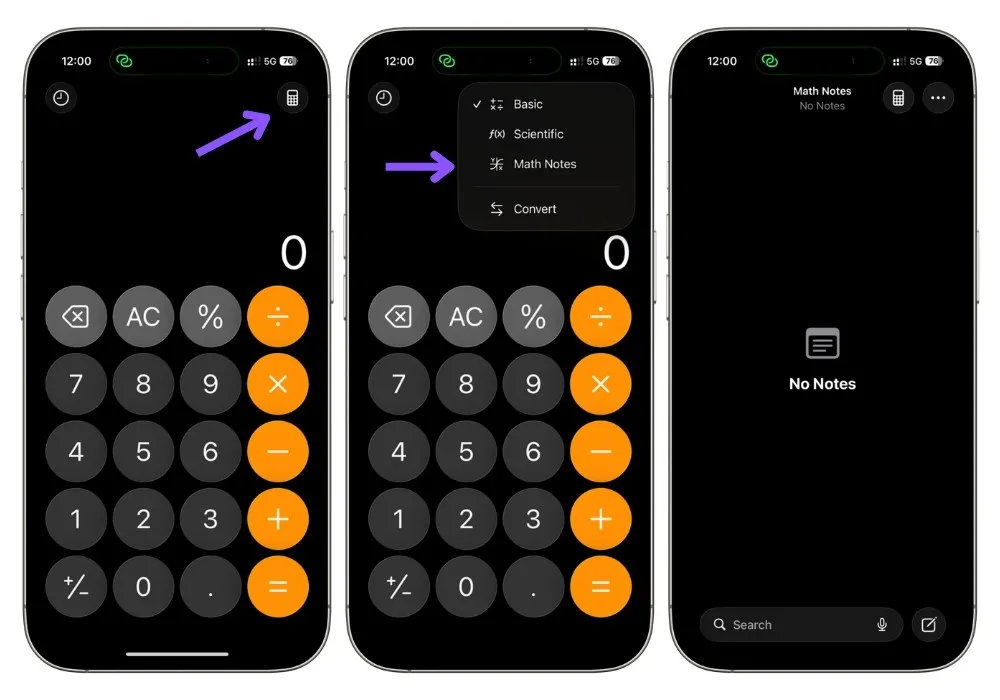
Notes you create this way are saved into a dedicated Math Notes folder that the system creates automatically in your Notes app.
You’ll see it at the top of your folder list with a small graph icon.
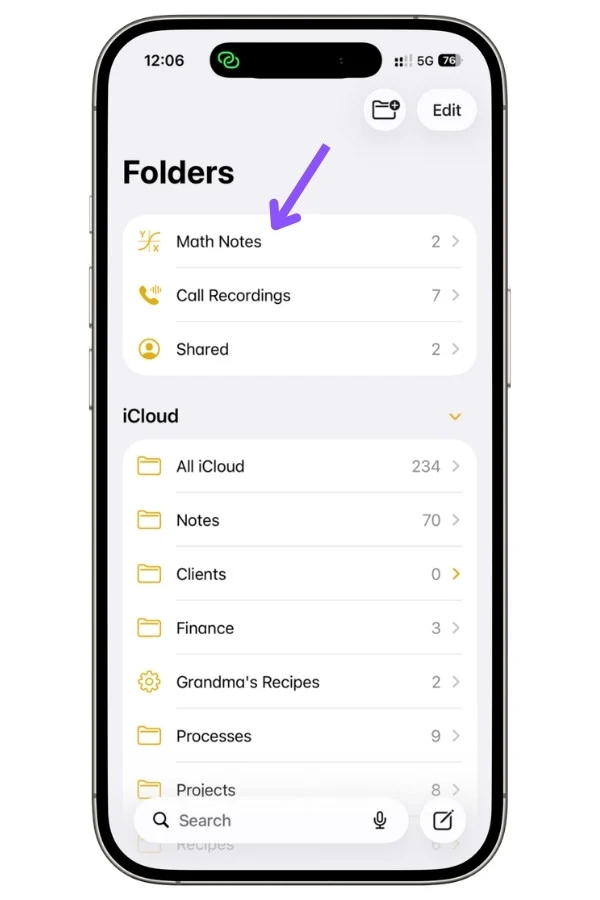
Every Math Note you start from the Calculator lands here.
One detail specific to this doorway: you keep a calculator icon in the top corner of the note, so you can jump back to the Basic or Scientific calculator whenever you want. The note and the calculator stay linked in this view.
3.2 Opening from the Notes app
You don’t need the Calculator at all.
Open any note, new or existing, type a math expression, add an equals sign, and Math Notes solves it. This works in any note, in any folder.
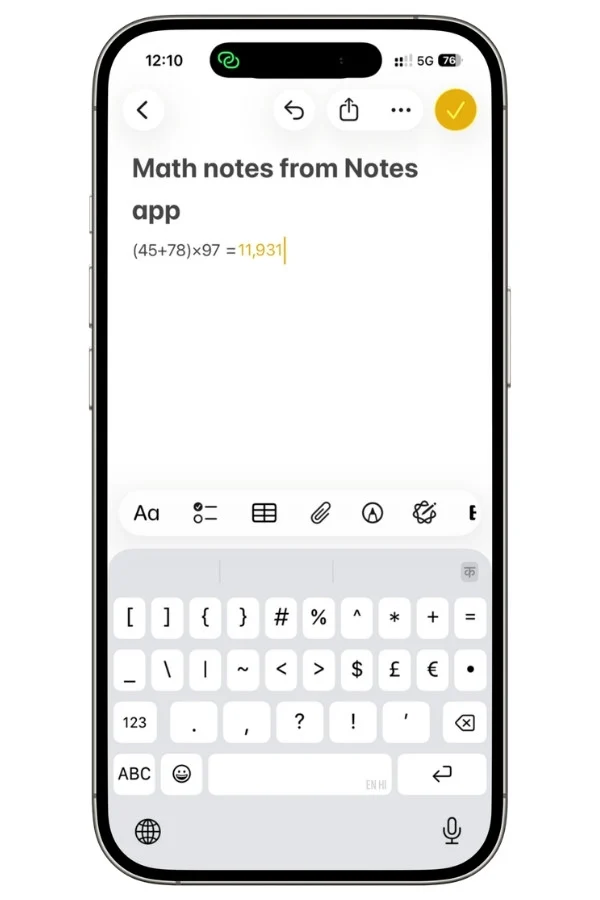
The same note opened from the Notes app looks slightly different from the Calculator version.
That calculator icon in the corner is gone because you’re now in a plain note rather than the Calculator’s view of it.
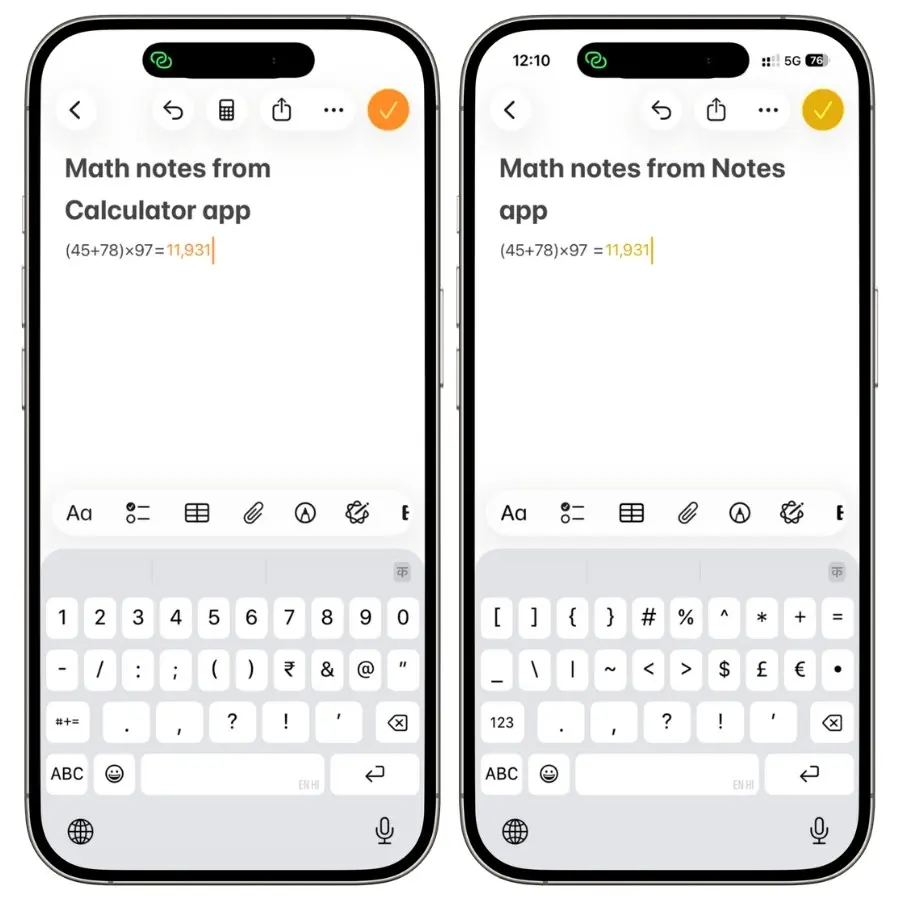
The math still works exactly the same. Only the surrounding interface changes.
There’s also a quieter difference in default behavior. Through the Calculator doorway, answers appear automatically as you type. In a regular note, Math Notes suggests the answer and waits for you to tap to insert it.
You can change this in either case (covered in the section on turning results on and off), but that’s how each one starts out.
3.3 The Math Notes folder, syncing, and what stays put
A few things worth knowing about how the folder and your notes behave, all confirmed by hand:
- Notes move freely. You can move a regular note into the Math Notes folder, and you can move a Math Note out of it into any other folder. Nothing is locked. The folder has a special icon, but it otherwise acts like any normal folder.
- Everything syncs. Notes sync across your devices through iCloud, no matter which device or which doorway created them. Start a calculation on one iPhone, and it shows up on your iPad in the same folder.
- Your work stays where you left it. Step away from a calculation, do something else, come back, and it’s intact. These are real saved notes, not a scratchpad that wipes itself.
The takeaway: the Calculator is a convenient front door for math, and the Notes app is where that math actually lives. Pick whichever entry point fits the moment. Your notes end up in the same place either way.
4. Solving basic math
The core of Math Notes is simple: write an expression, add an equals sign, get the answer.
Type 10 + 15 × 12 = and 190 appears right after it. No separate calculator screen, no button to press. The equals sign is what triggers the solve.
It follows standard order of operations, so multiplication and division happen before addition and subtraction. Use parentheses when you want to force a different order. (10 + 15) × 12 = gives 300, while 10 + 15 × 12 = gives 190.
The same rules you’d expect from any calculator apply here.
4.1 Stacked and vertical math
If you’d rather add numbers in a column the way you would on paper, you can.
Write a stack of numbers, then draw a horizontal line beneath them, and Math Notes totals the column.
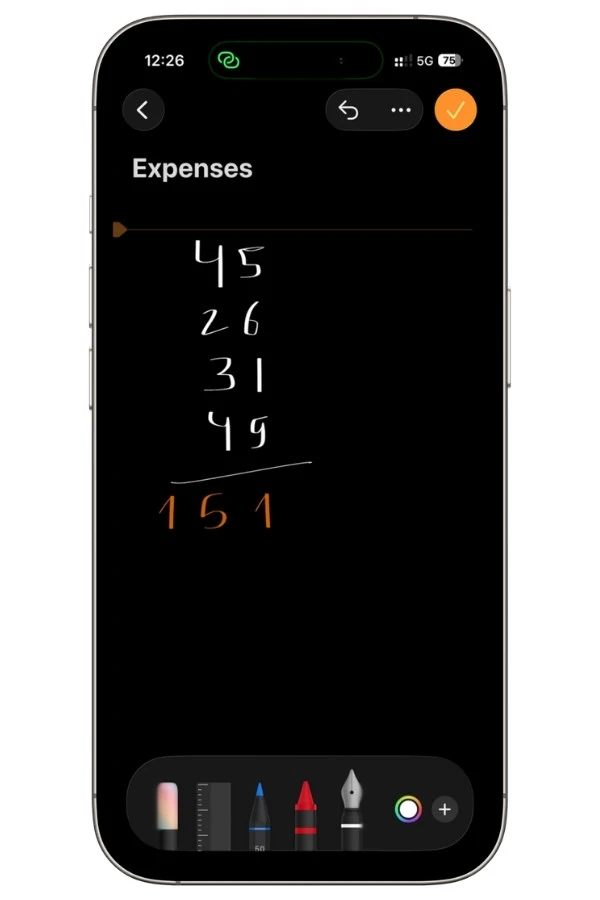
This is a handwriting feature, done with your finger or an Apple Pencil rather than typed.
You can change the operation too. Write a different symbol to the left of each number, and Math Notes uses that operation instead of adding.
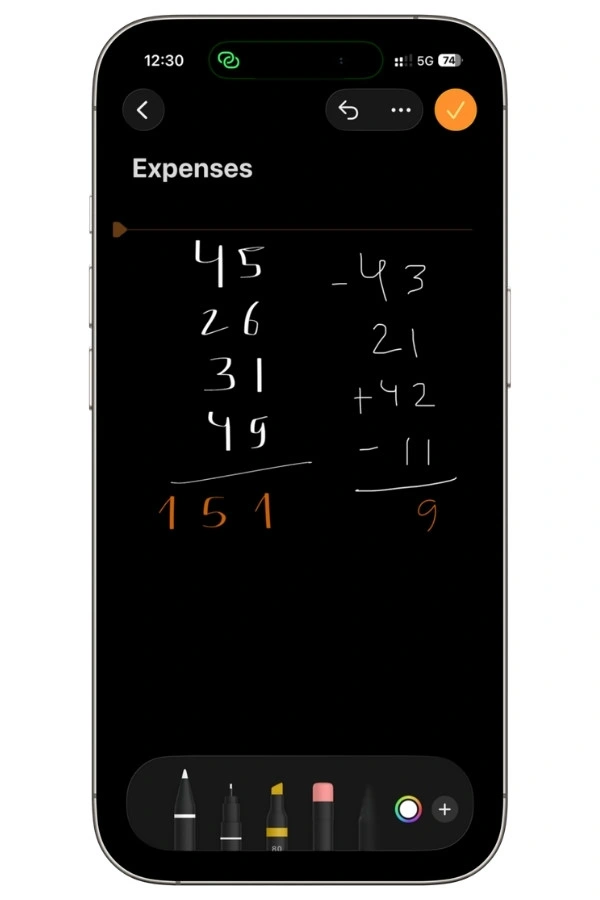
One thing to keep in mind: variables don’t work in vertical math, so stacked columns are for plain numbers only.
4.2 Where this comes in handy
Basic solving sounds almost too simple to matter, but it’s the part most people use daily:
- Quick everyday math without leaving whatever you were writing. Working out a tip, a measurement, or a total mid-note.
- Running tallies that you keep adding to. A simple count you update over time, like tracking how many pages are left in a book (727 – 516 =) or keeping a loose score.
- A lightweight stand-in for a spreadsheet when a full spreadsheet is overkill. A short list of numbers you want totaled and kept around.
The value isn’t that it does math a calculator can’t. It’s that the math sits inside your notes, stays there, and updates when you change it.
5. Variables and dynamic updates
This is where Math Notes goes from a calculator to something more useful.
You can name a value, use that name in your math, and change it later to see everything update at once.
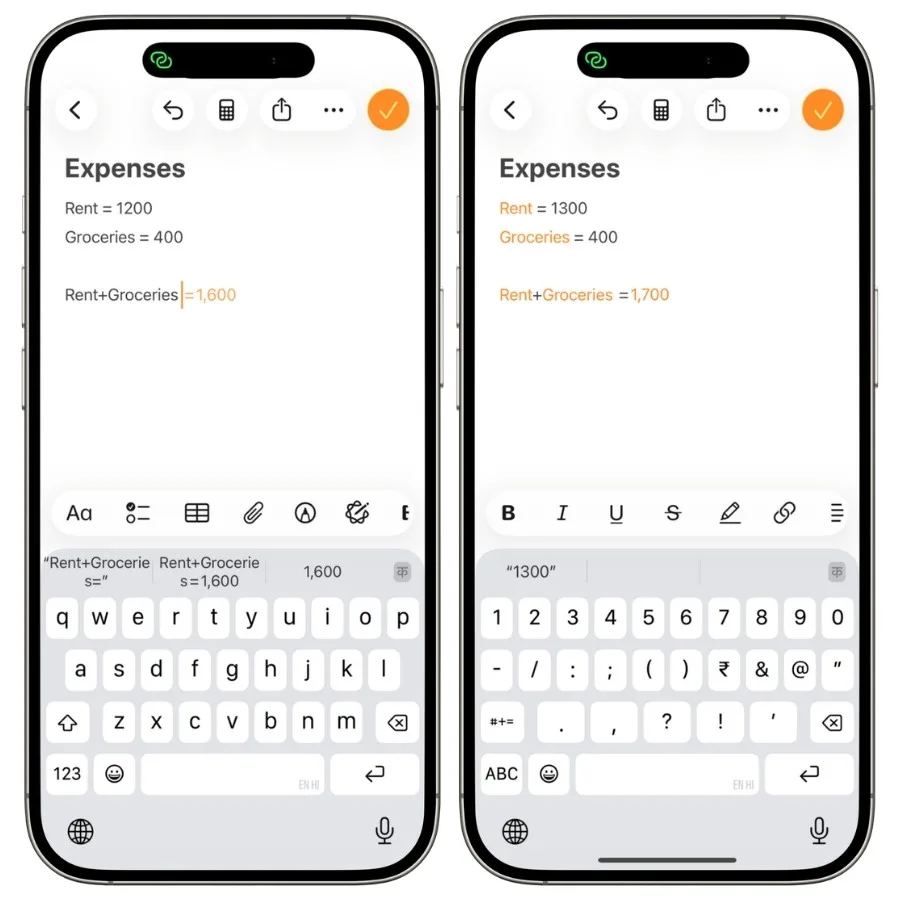
Define a variable by writing its name, an equals sign, and a value. Math Notes returns 1600. Change the rent to 1300, and the total updates on its own.
You don’t redo the math. Every result that depends on that variable recalculates the moment you change it.
5.1 The rules worth knowing
Variables follow a few specific rules. Knowing them upfront saves you from errors that look mysterious otherwise:
- Declare before you use. Math Notes reads top to bottom, left to right. A variable has to be defined above or before the expression that uses it. Use it first, and you’ll get an error.
- Latin letters only. Variable names have to use the Latin alphabet.
- No variables in vertical math. Stacked column math works with plain numbers only, not named values.
- Numbers only. A variable holds a numeric value, not text.
5.2 Where variables shine
Variables turn a note into a small working model. A few situations where this pays off:
- A monthly budget. Give each category its own variable, then total them. When one expense changes, the total and any related figures update automatically. You build it once and reuse it every month by changing the numbers.
- Splitting a bill or trip cost. Define each person’s share or each expense, then combine them. Adjust as the numbers firm up.
- Scaling a recipe. Set the number of servings as a variable and express each ingredient in terms of it. Change the servings, and every ingredient amount rescales at once.
Also Read: How to Use Apple Notes for Recipes
6. Unit conversion
Math Notes converts units right inside your math. You don’t switch to a separate converter or look anything up. Write what you want converted, and it handles it.
The basic form is straightforward:
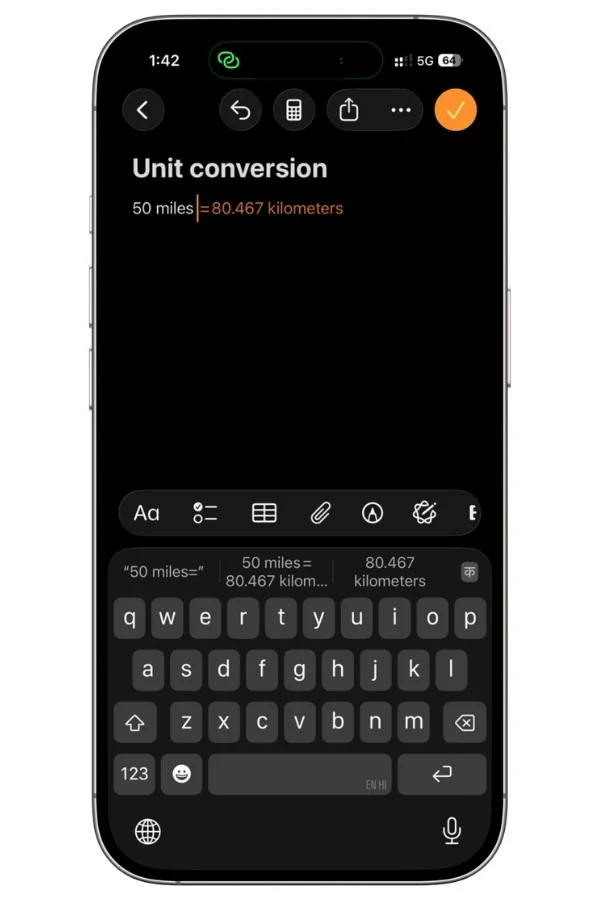
That returns the distance in kilometers.
The connecting word can be to, in, into, or as, so 32°F in °C works the same way.
It covers the common categories you’d expect: length, weight, temperature, volume, area, speed, and more, drawing on the same conversion engine as the Calculator’s Convert mode, which handles over 200 units.
You can also mix units in a single calculation and let Math Notes sort it out:
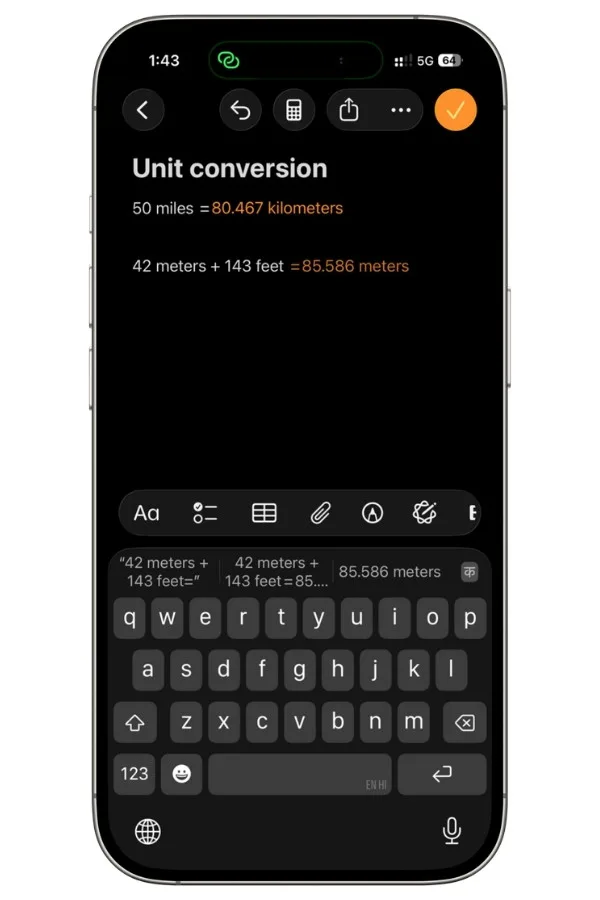
It converts as needed and gives you one result. That’s the part a plain calculator can’t do without you doing the conversion first.
6.1 Where it helps
Conversion sounds minor until you hit a moment that needs it:
- Cooking and baking from a recipe written in units you don’t use. Grams to ounces, milliliters to cups, Celsius to Fahrenheit.
- DIY and measuring when a product is listed in metric and you think in imperial, or the reverse.
- Travel, where distances, weights, and temperatures show up in unfamiliar units.
Also Read: Apple Notes for Travel Planning: The Complete System (+ Free Templates)
6.2 A limitation to know
The unit support is broad but not complete.
People have run into missing units, with deciliters and kiloliters being two reported gaps.
Unit math can also produce odd results in some cases, like dividing two values with units and getting an unexpected compound unit back instead of a clean number.
For everyday conversions, it works well. For anything unusual, it’s worth a quick sanity check.
7. Currency conversion
Currency works the same way as unit conversion, using the same approach and the same connecting words:
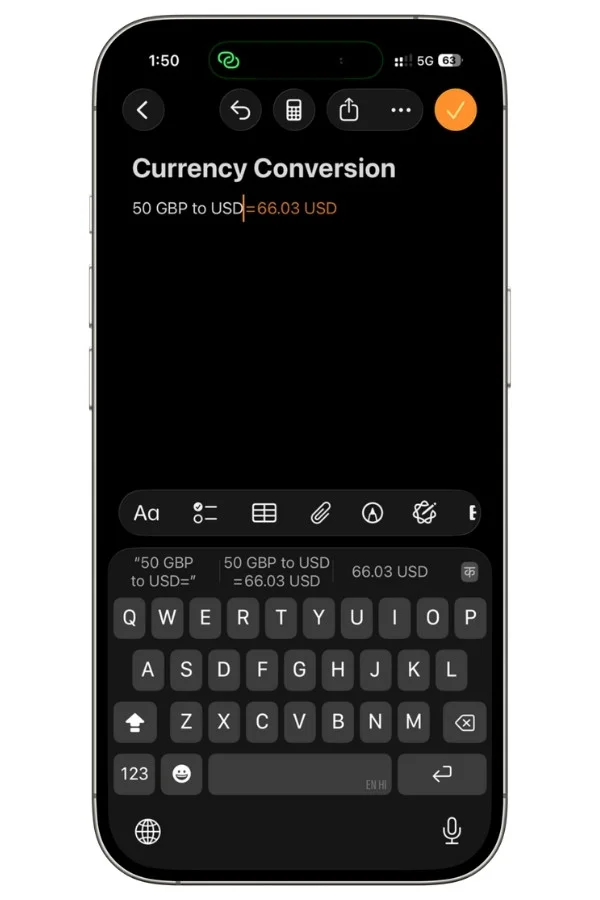
That returns the amount in US dollars. It supports a wide set of world currencies, so most conversions you’d reach for while traveling or shopping are covered.
There’s one important difference from unit conversion.
Currency rates change constantly, so Math Notes pulls live exchange rates rather than using fixed numbers. That means it needs an internet connection to get current rates.
Offline, it falls back on the most recent rates it downloaded. The conversion still works, but the numbers may be a little out of date until you’re back online and they refresh.
For a rough sense of a price, that’s usually fine. For anything where the exact figure matters, check that you’re connected first.
7.1 Where it helps
- Travel. Working out what a price actually costs in your home currency, on the spot, without a separate app.
- Online shopping from stores that list prices in another currency.
- Quick comparisons when you’re reading something priced abroad and want a feel for the real number.
Also Read: How to Use Apple Notes for Expense Tracking (Free Shortcut)
8. Graphing Equations
Math Notes can turn math into a graph and drop it straight into your note.
Write something with an equals sign, and the option to insert a graph appears. It handles flat 2D graphs and interactive 3D graphs.
What you get depends on what you wrote.
An equation with free variables plots the relationship. Assigned values plot as fixed points. The number of variables decides the type too: two gets you a 2D graph, three gets you a 3D one.
8.1 2D Graphs
A 2D graph plots two variables, one on the vertical axis and one on the horizontal.
You can get one of two ways. Write a full equation like y = 5x + 3, or just assign two values like X = 4, Y = 5. Both trigger the option to insert a graph.
What differs is the result. An equation draws the relationship as a line across the grid. Assigned values plot as a single fixed line, since 4 and 5 are points, not something that ranges.
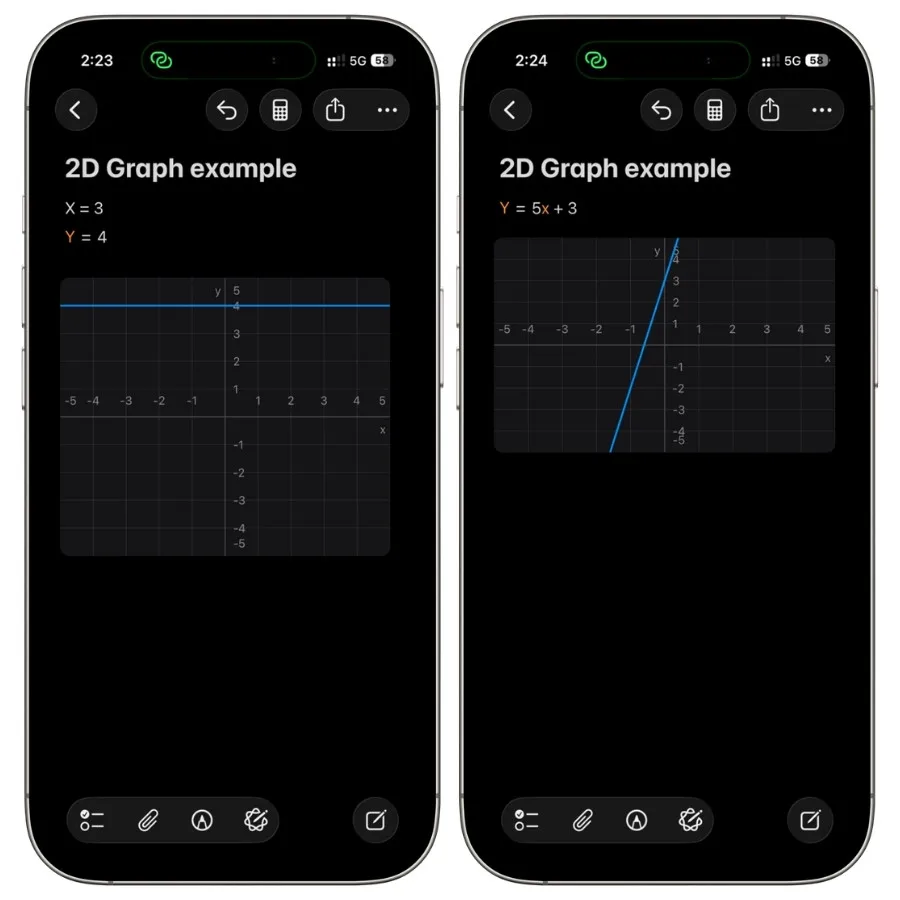
With y = 5x + 3, the variable on the left of the equals sign becomes the vertical axis and the other becomes the horizontal.
Once the graph is in your note, you can resize it, move it, pan around, and zoom in. Touch and hold any point on the line to read its exact coordinates.
You’re not limited to a single line.
Add more equations to the same graph to compare them, and recolor each one so they’re easy to tell apart. Apple covers the full set of options in its graphs support documentation.
8.2 3D Graphs
The 2025 software updates (iOS 26 and iPadOS 26) added 3D graphing. Instead of a flat line, you get a surface you can rotate and view from any angle.
A 3D graph uses an equation written in terms of x and y, producing a z value. It doesn’t have to be complicated:
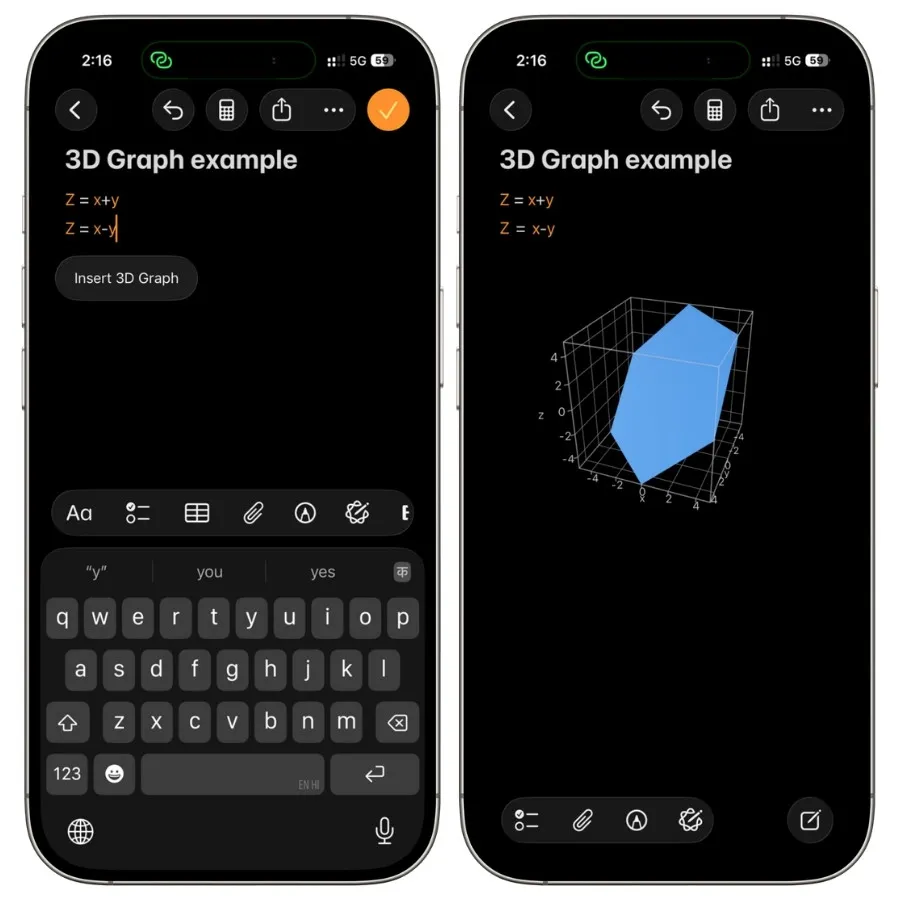
Write one of these and choose to insert a 3D graph. Both give you a flat, tilted plane, just angled in different directions.
The surface appears in your note, and you can rotate it on all three axes, resize it, move it, and overlay more than one surface to compare them.
Like 2D graphs, each can be recolored.
8.3 Adjusting The Axes
3D graphs give you control over the viewing area that’s easy to miss, since it sits in a menu.
You can set the range of each axis individually, choosing how far X, Y, and Z extend. Alongside the ranges are a few shortcuts:
- Center Origin puts the zero point back in the middle.
- Equalize Axes matches the scale across all three so the surface isn’t stretched.
- Recenter snaps the view back to a clean angle if you’ve rotated yourself into a corner.
These controls are what make a messy-looking surface readable, so they’re worth opening up rather than living with the default view.
A Note on iPad and Mac
3D graphs can be created on iPhone and iPad. The iPad gives you more room to rotate and inspect a surface, so it’s a more comfortable place to work with them, though everything functions on iPhone. On Mac, there’s a catch: a 3D graph made on your iPhone or iPad shows up as a static image rather than something you can rotate. The Mac displays it but doesn’t let you interact with it the same way.
8.4 The Assigned-Variable Trap
This is the one that catches people off guard.
If you’ve already assigned values to your variables earlier in the note, graphing an equation that uses them won’t draw the relationship you expect.
Say X = 3 and Y = 1 are set earlier in the note. If you then write X + Y = 4 and graph it, Math Notes uses those fixed values instead of letting X and Y range across the grid, so you get a flat line instead of the diagonal the equation describes.
To graph the actual relationship, leave the variables undefined. Free variables graph as the equation intends. Assigned ones collapse the result.
When I assigned three values (X = 3, Y = 1, Z = 5), the same logic carried into 3D: the graph rendered the three fixed values as a cube in space rather than a surface.
8.5 Where It Helps
- Students visualizing functions instead of just calculating them. A 2D line shows how a function behaves, and a 3D surface makes subjects like multivariable math far easier to picture.
- Anyone testing how a formula behaves. Change a number in the equation and watch the graph shift, which builds intuition quickly.
Also Read: Apple Notes for Students
9. Handwriting math
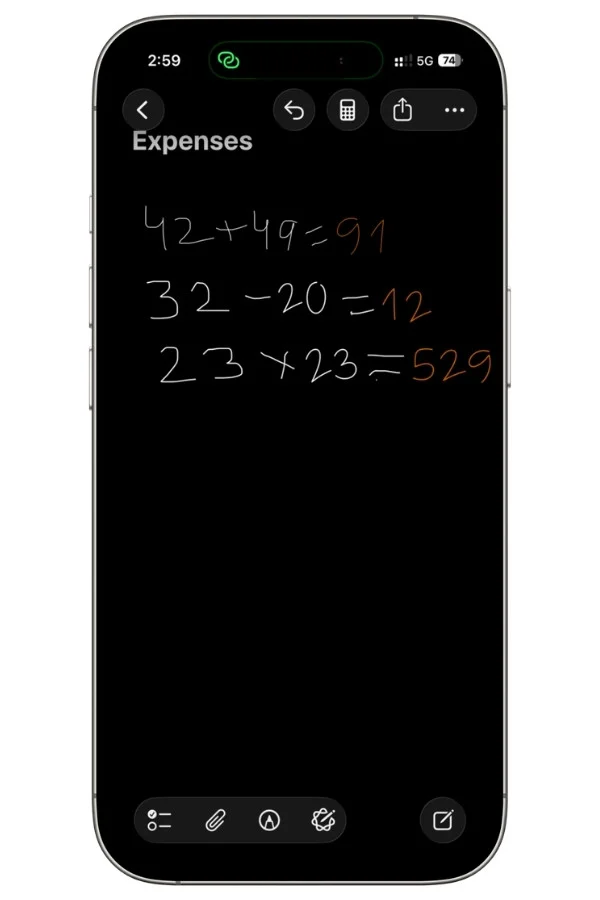
You don’t have to type. Math Notes reads handwritten math too, and this works on iPhone with your finger, not just on iPad with an Apple Pencil.
That’s a common misconception worth clearing up. You can write out an expression by hand, and it solves it the same way it solves typed math.
Write your expression, add an equals sign, and the result appears.
9.1 iPhone, iPad, and Apple Pencil
It works across devices, but the experience isn’t identical:
- iPhone uses your finger. It works, though writing math with a fingertip on a phone screen has obvious limits for anything long or complex.
- iPad with Apple Pencil is where handwriting feels best. You get finer control and Pencil-specific touches like circling an equation to graph it or hovering to scrub a value.
If you do a lot of handwritten math, an iPad and Pencil is the more comfortable setup. For a quick handwritten calculation here and there, your iPhone handles it fine.
9.2 Changing handwritten numbers by swiping
Here’s a genuinely handy one that’s easy to miss. After Math Notes solves a handwritten calculation, you can tap any number in it and adjust it without rewriting anything.
Write something like 32 – 20 = and let it solve to 12. Now tap one of the numbers, say the 20.
A small slider pops up above it. Swipe across that slider, and the number changes, right to left, to increase it, and the answer updates live as you swipe. Drag it around, and you’ll watch the result move in real time along with it.
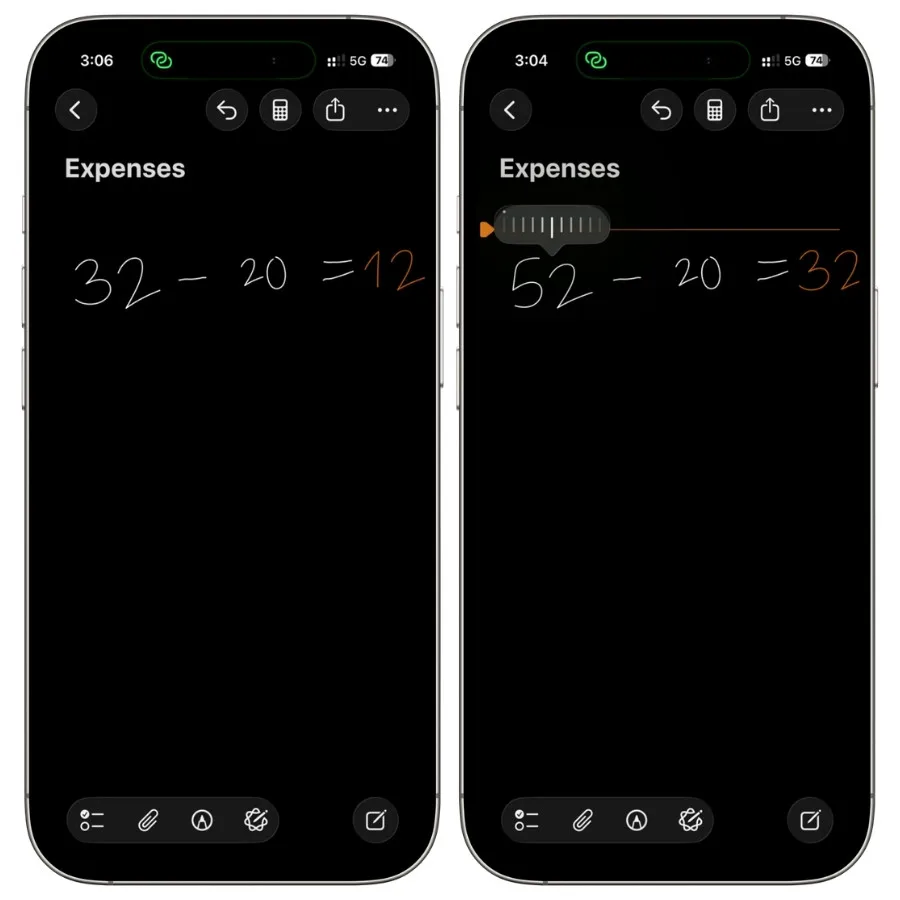
It’s the fastest way to play with a handwritten calculation.
Instead of erasing a number and writing a new one, you just tap and slide until you land on the value you want.
Useful when you’re working out a few different versions of the same sum, like adjusting an expense and seeing the new total instantly.
9.3 A limitation to know
Handwriting recognition is convenient but not flawless.
It can misread messy or rushed writing, and it sometimes settles on the wrong character until you correct it. Neater input gets better results. When it does misread something, the blue-line system covered in the next section lets you fix what it guessed.
For clean, deliberate handwriting, it’s reliable enough to lean on. For a fast scrawl, expect to make the occasional correction.
10. Turning results on, off, or to suggestions
Math Notes doesn’t have to solve everything automatically. You control how eager it is, which matters if the auto-solving gets in your way.
There are three modes:
- Insert Results. Answers appear automatically as you write. This is the default when you come in through the Calculator.
- Suggest Results. Math Notes offers the answer and waits for you to tap to insert it. This is the default in a regular note.
- Off. Math Notes leaves your math alone and doesn’t solve anything.
You’ll find these options in the note’s menu (the three-dot button), under Math Results.

On a Mac, it’s in the Format menu under Math Results.
10.1 When you’d want to change it
The reason to turn this down usually comes up when the math-solving fires at the wrong moment:
- Helping a kid with homework. You may want them to work out the answer themselves, not have the phone solve it the instant they write an equals sign.
- Pasting in text or code that happens to contain numbers and symbols. Math Notes can try to interpret it as math when you didn’t mean it to. Switching to Off stops that.
10.2 Limiting it more permanently
There’s no single switch to make Off the default everywhere, so you set the mode per note as you go.
If you want it gone for good, you can restrict it through Screen Time: go to Screen Time, then Content & Privacy Restrictions, then Apple Intelligence & Siri, and set Math Results to Don’t Allow.

This is the one to use if you’re setting up a device for a student and want the auto-solving kept off.
For most people, the per-note control is enough. The Screen Time restriction is there for the case where you never want it active.
11. When something goes wrong
Math Notes signals when it can’t read or solve something, and the fix is usually quick. It uses two different underlines to tell you what kind of problem it hit.
11.1 Red and blue lines
- A red dotted line means Math Notes couldn’t solve the expression. Something is off, like a syntax error or an impossible operation such as dividing by zero. Check the expression and fix what’s broken.
- A blue dotted line means Math Notes wasn’t sure about a character. It went with its best guess, but it’s flagging that the character was ambiguous. Tap the line to choose the character you actually meant. This is the one you’ll see most with handwriting.
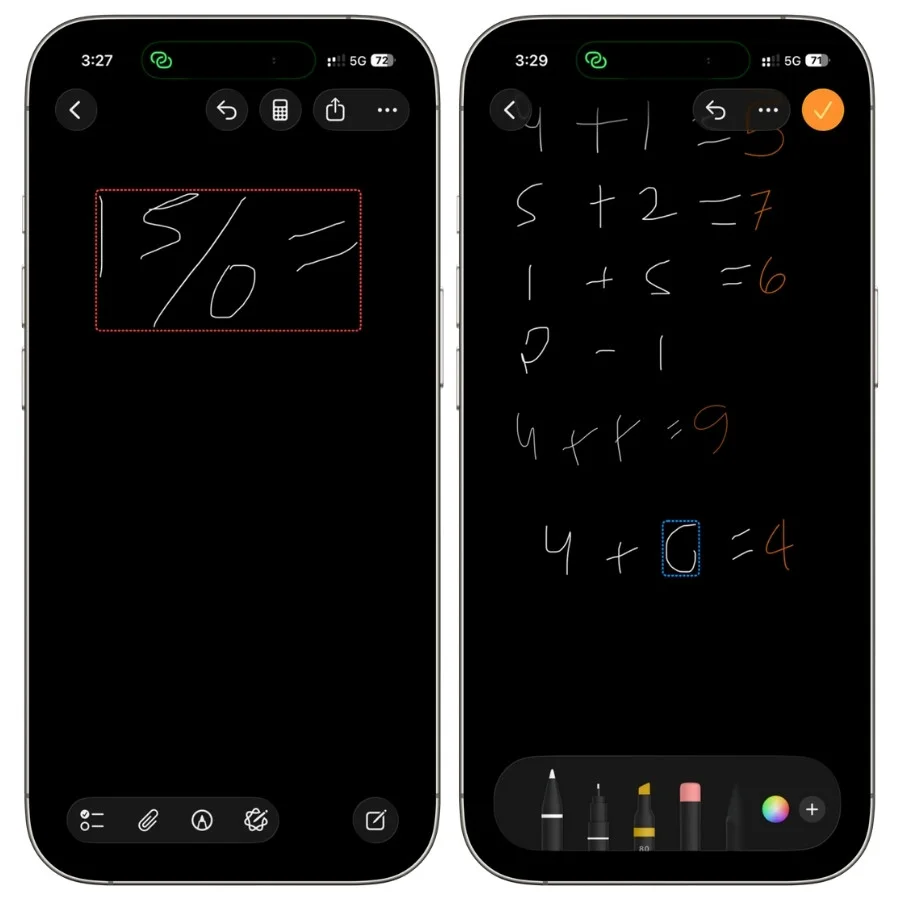
There’s also a way to check its work before it solves. Tap the equals sign, and Math Notes shows you how it interpreted the expression, so you can confirm it read things the way you intended.
Apple lists these error signals in its guide to handling errors in Math Notes.
12. What Math Notes can’t do
Math Notes is built for quick, everyday math, and it’s good at that.
It’s not a full math engine, and knowing where it stops saves you from expecting something it was never meant to do.
- It doesn’t solve equations. Math Notes computes expressions, but it won’t solve for an unknown. Write something like x² – 4 = 0, expecting it to find x, and it won’t. There’s no symbolic algebra here.
- No calculus. Derivatives and integrals aren’t supported. The integral sign won’t get you anywhere useful.
- No matrices. Matrix math is outside what it handles.
- No typed column totals. You can sum a column of numbers by hand, drawing a line under a handwritten stack, but you can’t do the same with typed text. People coming from apps like Soulver notice this gap quickly.
- Some units are missing. The unit coverage is broad but not total, and unit math can occasionally hand back a strange compound unit instead of a clean number.
- Handwriting recognition isn’t perfect. Messy writing gets misread, and you’ll correct it now and then.
- Older hardware can lag. On older devices, the live solving and graphing can feel a little slow.
None of this makes Math Notes less useful for what it’s actually for.
It means that for solving algebra, working through calculus, or doing exam-grade graphing, you’ll want a dedicated tool.
13. Math Notes vs. other math apps
| App | Best for | Solves equations & shows steps | Graphing |
|---|---|---|---|
| Math Notes | Quick inline math in your notes, conversions, self-updating calculations | No | 2D and 3D, casual |
| Soulver | Notepad-style math, typed column totals, date and currency math | No | No |
| Desmos | Serious graphing, free and in-browser | No (plots and finds roots visually, not step-by-step) | 2D, 3D, geometry |
| MyScript Math | Handwritten math with a pen, with live graphing and steps | Yes (paid app) | 2D, one curve at a time |
| Photomath / WolframAlpha | Solving equations and seeing step-by-step working | Yes | Yes |
Math Notes isn’t trying to replace dedicated math software. It’s trying to be the fastest option for the math you do all the time, in the place you’re already writing.
Here’s how it stacks up against the tools people often compare it to, and when each one makes more sense.
13.1 Soulver
Soulver is the closest relative.
It pioneered the notepad-style calculator where your math reads like plain text, and Math Notes covers most of the same everyday ground now.
For quick calculations and variable-driven notes, Math Notes likely replaces it.
Soulver still pulls ahead if you want to total a typed column of numbers, do date math, or work with live data like stock prices, none of which Math Notes does.
13.2 Desmos
Desmos remains the standard for serious graphing.
It’s free, works in a browser, and goes far deeper than Math Notes on graphing, with dedicated tools for 2D, 3D, geometry, and scientific work.
Math Notes wins on being built in and inline with your notes. For anything beyond casual graphing, Desmos is the stronger choice.
13.3 MyScript Calculator
MyScript Calculator specializes in handwriting and recognizes it more reliably than Math Notes does.
If handwritten math is your main use, it’s worth a look, though it’s a separate app rather than something already on your phone.
13.4 Photomath and WolframAlpha
Photomath and WolframAlpha do the one thing Math Notes deliberately doesn’t: they solve equations and show the steps.
If you need to see how a problem is worked out, or you need an answer to algebra or calculus, these are built for it.
The bottom line
Math Notes is one of those features that sounds minor and turns out to be something you use constantly.
It solves math where you’re already writing, remembers values you name, converts units and currencies, and graphs equations, all without leaving your notes.
The fact that it runs on older iPhones and works almost entirely on the device makes it easy to recommend to just about anyone on iOS 18 or later.
It has real limits. It won’t solve algebra, it won’t do calculus, and it’s not a graphing calculator for an exam.
For any of that, a dedicated tool is the answer.
But for the everyday math most people actually do (totals, budgets, splits, conversions, a quick graph to see what a formula looks like), it’s faster than the alternatives, and it’s already on your phone.
Open a note or the Calculator and try one calculation. That’s usually all it takes to start reaching for it.
FAQs
Does Apple Math Notes need Apple Intelligence?
No, it doesn’t need Apple Intelligence, and it works on phones that don’t support it. Math Notes runs on any iPhone or iPad that can install iOS 18 or iPadOS 18 and later, which includes the iPhone 13 and 14 lines. We tested every core feature on an iPhone 13, and all of it worked.
How to use Math Notes on iPhone?
Two ways. Open the Calculator app, tap the calculator icon, and choose Math Notes. Or open the Notes app, type a math expression, and add an equals sign. Both reach the same feature. Notes started from the Calculator land in a Math Notes folder in your Notes app.
Can Apple Math Notes solve equations?
No. Math Notes calculates expressions but doesn’t solve for unknowns like x. For that, an app like Photomath or WolframAlpha is the right tool.
Does Math Notes do calculus?
No. Derivatives, integrals, and other calculus aren’t supported.
Can you handwrite math on iPhone without an Apple Pencil?
Yes. Handwriting works on iPhone with your finger. An iPad with an Apple Pencil is more comfortable for it, but a Pencil isn’t required.
How to turn off Math Notes?
Open the note’s menu, find Math Results, and choose Off. To keep it off more broadly, you can disable it in Settings under Apple Intelligence & Siri, or restrict it through Screen Time.
Does Apple Math Notes currency conversion work offline?
It uses live rates and needs an internet connection to fetch current ones. Offline, it falls back on the most recent rates it downloaded, so the numbers may be slightly dated until you reconnect.
Can Math Notes add a column of numbers?
Not with typed text. You can sum a handwritten column by drawing a line beneath it, but Math Notes won’t total a typed list the way Soulver does.
What is the Math Notes folder on iPhone?
It’s a folder the Notes app creates automatically the first time you use Math Notes from the Calculator. Notes you start through the Calculator are saved there. It works like a normal folder otherwise, so you can move notes in and out of it freely.
Does Math Notes work on Mac?
Yes, with one limit on graphing. Solving, variables, and conversions work on Mac. A 3D graph created on an iPhone or iPad shows up on Mac as a static image you can’t rotate.