
ADHD Planner in Apple Notes: The Simple System I Built
I like simple planning systems.
Because the moment I need five lists, ten tags, and a whole routine just to keep my planner organized, I know I’m probably not going to keep using it.
So when I built this ADHD-friendly planning system, I kept it as small as I could.
The whole thing revolves around just three notes: Brain Dump, Today, and This Week. Then I use Apple Reminders for anything I actually need my iPhone to remind me about later.
That’s pretty much the whole idea.
Here’s what you’ll build in this guide:
- One note to quickly dump thoughts and tasks
- One simple Today note for what actually matters
- One weekly note to keep the bigger picture visible
- Separate project notes only when you really need them
- A simple rule for when to use Notes vs. Reminders
- A quick morning routine and weekly reset to keep everything clean
Table of Contents
- 1. What I Wanted This System to Fix
- 2. The Entire System Uses Just Three Main Notes
- 3. Create One Inbox for Everything
- 4. Build Your Today Note
- 5. Build Your This Week Note
- 6. Give Bigger Projects Their Own Notes
- 7. Use Apple Notes and Apple Reminders for Different Jobs
- 8. Make Capturing and Opening Your Planner Faster
- 9. My Two-Minute Morning Routine
- 10. The 10-Minute Weekly Reset
- 11. The Finished ADHD-Friendly Apple Notes Setup
- 12. Start With Just Brain Dump + Today
- FAQs
1. What I Wanted This System to Fix
Before building anything in Notes, I first thought about what this system actually needed to help with.
ADHD can make things like staying organized, planning, remembering daily tasks, managing time, and finishing larger projects harder.
So instead of starting with Apple Notes features, I started with those problems.
1.1 I need somewhere to put things quickly
An idea, a task, something I need to buy, something I suddenly remembered.
I don’t want to stop and decide which folder or list it belongs in. I just need one place where I can throw it before I forget it.
That’s what the Brain Dump note is for.
1.2 I don’t want to see everything at once
Having 30 tasks sitting in front of you doesn’t necessarily make it easier to know what to do next.
So I wanted a separate Today note that only shows what actually matters right now.
The rest can wait somewhere else.
1.3 Big tasks need somewhere to live
Something like “Plan vacation” or “Finish website” isn’t really one task.
There are usually a bunch of smaller things hiding inside it.
So bigger projects get their own notes, while the daily planner only shows the next thing I need to work on.
Also Read: Apple Notes Daily Planner: Template + Daily System
1.4 Some things need to come back to me
This is where I don’t want to rely on Notes.
If I need to remember something at 4 PM, next Tuesday, or when I get somewhere, I want my iPhone to actually remind me.
That’s the job of Apple Reminders.
1.5 Most importantly, I don’t want another system to manage
I could add folders, tags, dashboards, habit trackers, color coding, and a dozen different lists.
I’m deliberately not doing that.
The goal here is to have as few places to check and as few decisions to make as possible. And that’s why the whole setup starts with just three notes.
2. The Entire System Uses Just Three Main Notes
The whole setup is built around three notes:
- Brain Dump
- Today
- This Week
That’s it.
I like this because each note has one clear job.
Brain Dump is where everything goes first. Random thoughts, tasks, ideas, things I need to remember, stuff I don’t want floating around in my head.
Today is the note I actually work from. It only shows what matters right now, so I’m not staring at a giant list all day.
This Week is the bigger picture. It keeps my main priorities and active projects visible without cluttering the Today note.
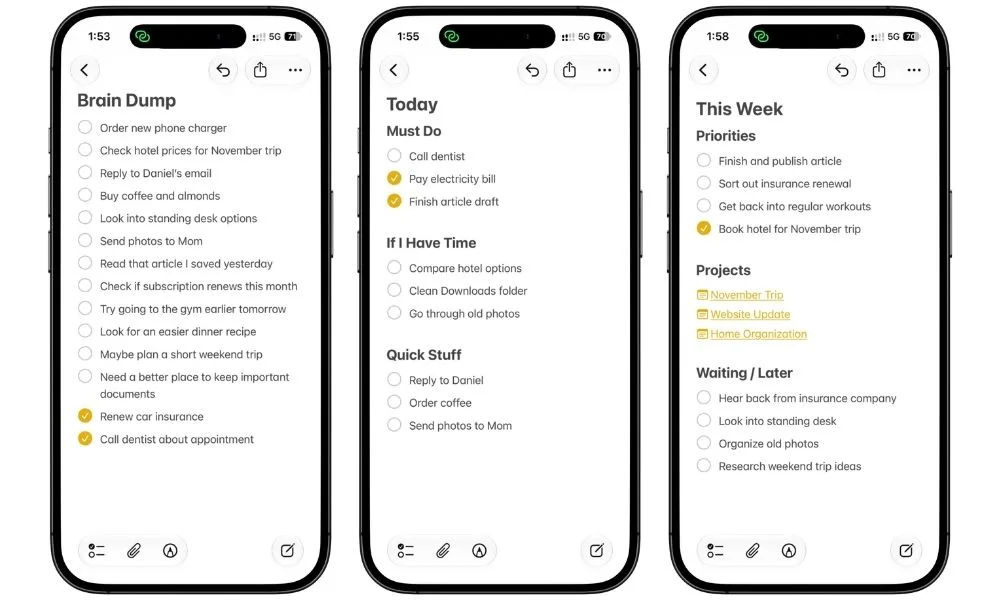
Then, if something is bigger than a simple task, I give it its own project note and link to it from This Week. And if something needs to remind me at a certain time or date, I move that into Apple Reminders.
So the flow looks like this: Brain Dump → Today → This Week → Project Notes
And anything time-sensitive goes to: Apple Reminders
That simple split is really the whole system. Everything else in this guide is just making those pieces easier to use.
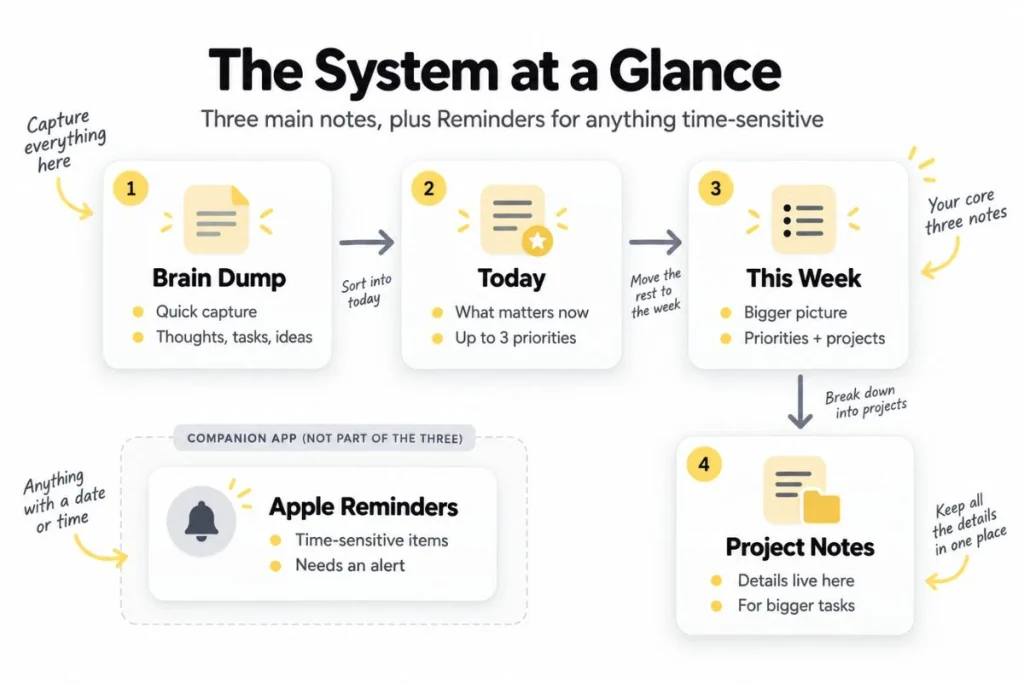
3. Create One Inbox for Everything
The first note I’d create is called Brain Dump.
This is where anything can go when it first pops into your head.
- A task
- An idea
- Something you need to buy
- A link you want to check later
- Something you suddenly remembered while doing something completely different
The important part is that you don’t organize it right away. You don’t need to decide if it belongs in Today, This Week, a project note, or Reminders.
Just get it out of your head first.
I’d keep this note pinned at the top of Apple Notes so it’s always easy to find.
Mine would look something like this:
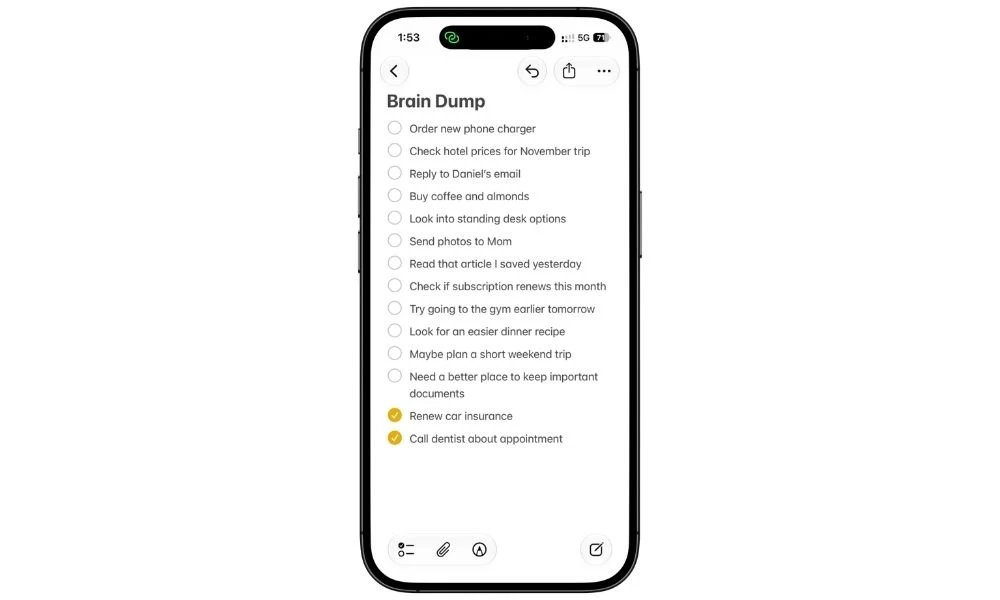
Messy is completely fine here. That’s kind of the point.
Later, during the weekly reset, I go through this note and decide what actually needs to happen with each item.
I already have a full guide on how I use Apple Notes as a Brain Dump, including a Shortcut that makes capturing things much faster, so I won’t rebuild that whole system here.
For this setup, just remember one rule: If you don’t know where something belongs yet, put it in Brain Dump.
4. Build Your Today Note
The Today note is where I’d keep the stuff I actually want to focus on right now.
Not everything. Just today.
I’d keep the structure really simple:
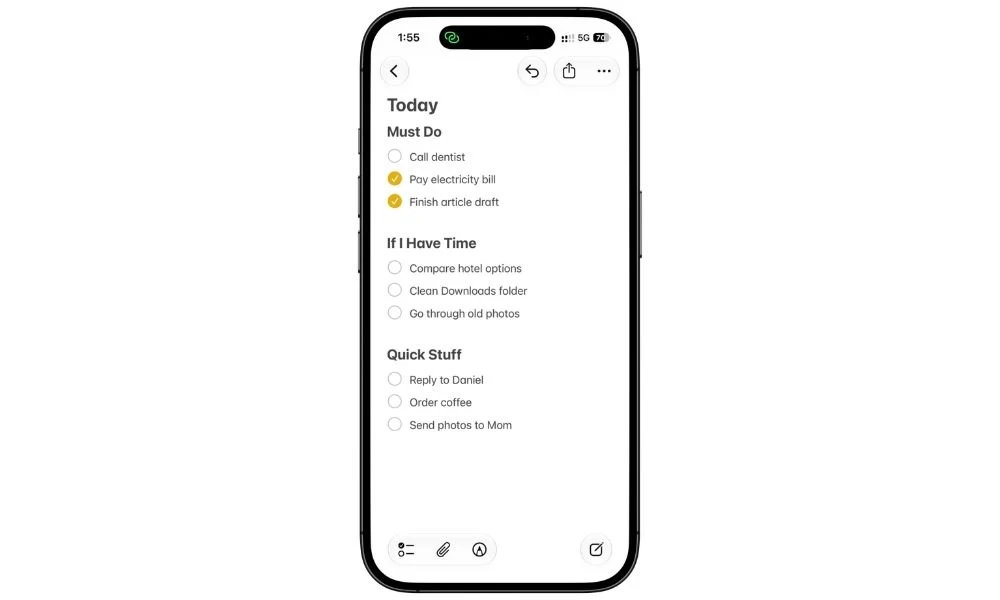
Must Do. Pick up to three things that actually matter today. If you already have three, you can’t add a fourth unless something else moves out. That little rule matters because it stops the note from slowly turning into another giant to-do list.
If I Have Time. This is where the less important stuff goes. Things I’d like to get done, but I’m not going to treat the day like a failure if they don’t happen.
Quick Stuff. Small things that only take a few minutes.
So a normal Today note might look like this:
That’s it.
I wouldn’t add goals, habits, notes, calendar events, or a full weekly plan here.
The Today note should only answer one question: What do I need to care about today?
5. Build Your This Week Note
The This Week note is where I’d keep the bigger picture.
It stops the Today note from getting overloaded, but still gives me one place to see what I’m trying to move forward this week.
I’d split it into three simple sections:
5.1 Priorities
Keep this to around three to five things.
These aren’t tiny tasks. They’re the bigger outcomes I want to make progress on this week.
For example:
- Finish the article
- Book the hotel
- Sort out the insurance renewal
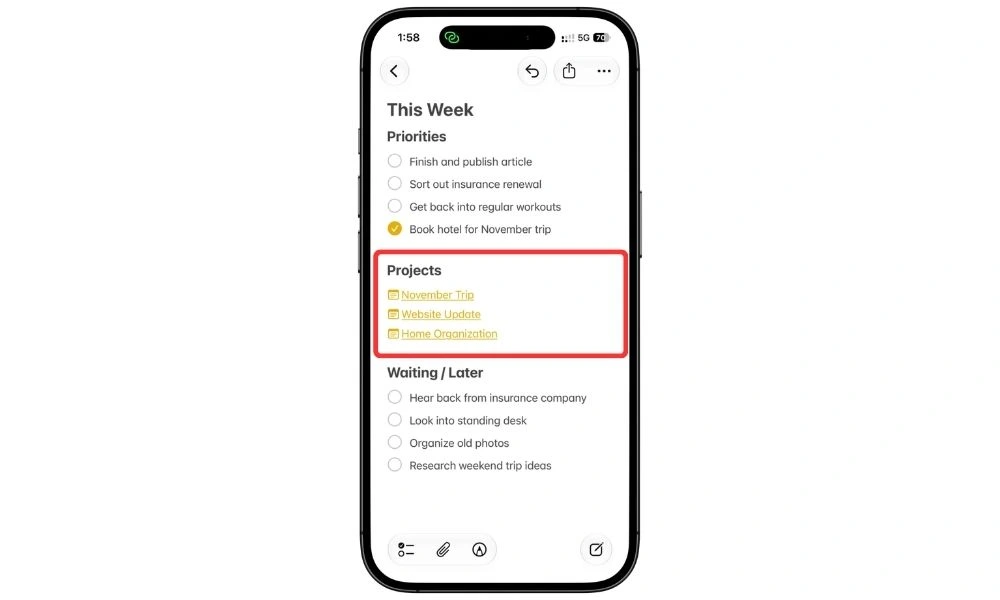
5.2 Projects
This is where I’d link to any bigger project notes.
So instead of stuffing all the details into This Week, I can just write the project name and link to the note that holds everything else.
For example:
- Website redesign
- Vacation planning
- Home repair
Also Read: How I Use Apple Notes for Project Management
5.3 Waiting / Later
This is for things that matter, but not enough to take over my Today note.
Stuff I’m waiting on, ideas I might come back to, or tasks that can probably wait until later in the week.
That gives me one place to check when I want to zoom out a little.
Today tells me what I’m doing now. This Week tells me what I’m trying to move forward.
6. Give Bigger Projects Their Own Notes
Some things are too big to live inside Today or This Week.
“Plan vacation” is a good example.
That one task can turn into flights, hotels, places to visit, packing, documents, bookings, and a bunch of smaller decisions.
Also Read: Apple Notes for Travel Planning: The Complete System (+ Free Templates)
So for anything bigger, I’d create a separate project note.
I’d keep the structure simple:
Next Actions: Only the next few things I can actually do.
Notes: Any extra details I need to remember.
Links / Files: Booking pages, documents, websites, screenshots, or anything else related to the project.
Later: Things that matter, but not yet.
Then I’d link that project note from This Week using >>.
That way, This Week stays clean, but I can still jump straight into the details when I need them.
The rule I’d use is simple: If one task keeps turning into more tasks, give it its own note.
7. Use Apple Notes and Apple Reminders for Different Jobs
This is one of the most important rules in the whole system:
Apple Notes is for planning. Apple Reminders is for remembering.
If something can sit there until I choose to work on it, I keep it in Notes.
For example:
- Research hotels
- Work on article
- Clean Downloads folder
- Plan next week
But if something needs to come back to me at a certain time or date, I move it to Reminders.
Things like:
- Call the dentist at 4 PM
- Pay rent on Friday
- Cancel a subscription before it renews
- Pick something up tomorrow morning
And you can actually do this without manually opening the Reminders app because Notes can recognize dates and times inside your text automatically.
For example, if I write: Call the dentist at 4 PM, Notes may underline 4 PM.
Tap the underlined text, and you’ll see a few options, including Add to Reminders.
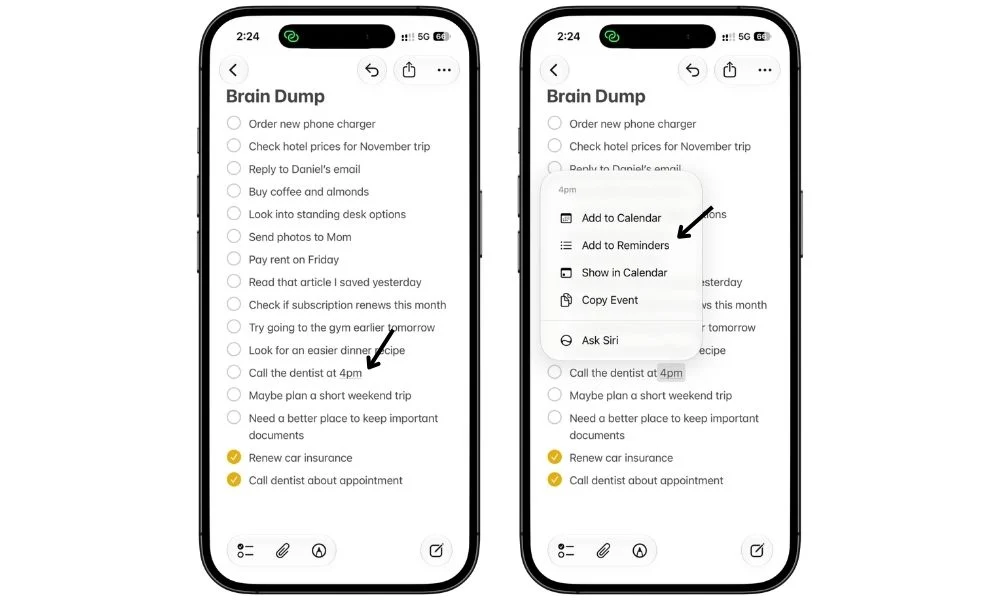
Tap that, and Notes will send it straight to Reminders without you having to type the task again.
If Notes doesn’t underline the date or time, you can still do it manually.
Tap and hold the task, select the text, then tap the right arrow in the pop-up menu until you see Share.
Tap Share, choose Reminders, pick the list you want to add it to, and create the reminder.
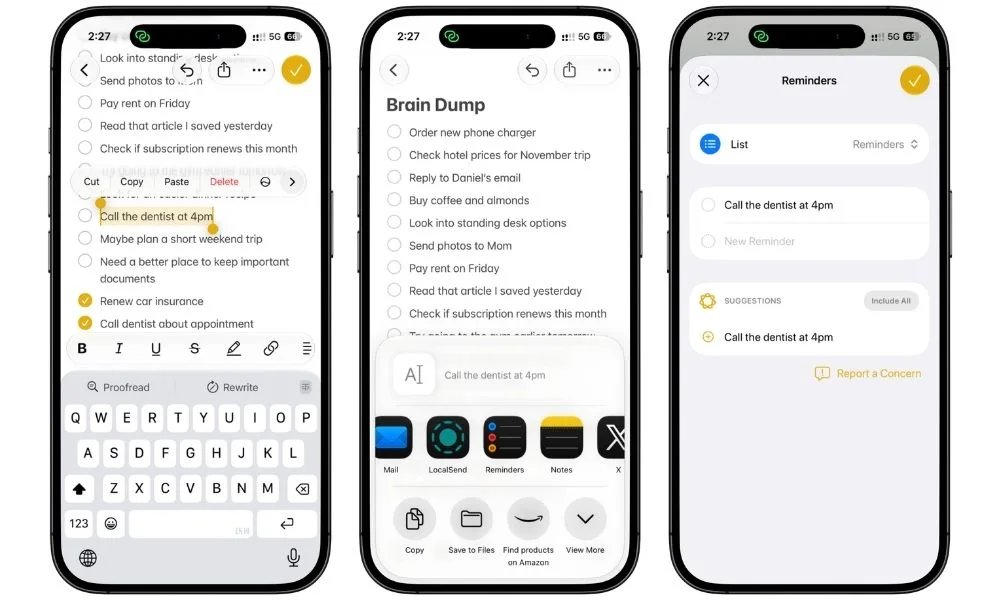
You can then open it in Reminders and add the exact date, time, or location if needed.
I like this because I can start everything in Notes and only move the things that actually need to interrupt me later.
8. Make Capturing and Opening Your Planner Faster
The system only works if it’s easy to get into.
If I have to open Notes, search for the right note, tap it, and then find where I was, there’s a good chance I’ll just tell myself I’ll do it later.
So I’d make the important notes easier to reach.
8.1 Create a Brain Dump Shortcut
I’d start by making a simple Shortcut that opens the Brain Dump note straight away.
Here’s how:
- Open the Shortcuts app
- Tap the + button to create a new shortcut
- Search for Open Note and add that action
- Tap the blue Note field
- Select your Brain Dump note
- Rename the shortcut something like Brain Dump
That’s it.
Now one tap can take me straight to the note instead of opening Notes and looking for it every time.
You can then put that shortcut somewhere easy to reach, like your Home Screen, Lock Screen, Control Center, or Action Button if your iPhone supports it.
I’d make a second shortcut for Today using the same steps. Just choose the Today note instead of Brain Dump.
8.2 Or Skip Shortcuts Completely
If you don’t want to get into Shortcuts, you really don’t have to.
The easiest option is to just pin Brain Dump, Today, and This Week inside Apple Notes. Pinned notes stay at the top of your notes list, so those three are always easy to reach.
You can make Brain Dump even easier to open by adding a Notes widget to your Home Screen.
Add the Notes widget, then edit the widget and point it to your Brain Dump note.
Then whenever something pops into your head, you can tap the widget and jump straight into Brain Dump.
9. My Two-Minute Morning Routine
I don’t want to rebuild the plan every morning. I just want to quickly look at the week and decide what deserves my attention today.
So I’d keep the morning routine this simple:
- Open This Week
- Look at the main priorities
- Pick up to three things for Must Do
- Move or copy them into Today
- Check Apple Reminders for anything time-sensitive
Then stop planning and start working.
The whole thing should take a couple of minutes.
If the morning routine starts turning into 20 minutes of reorganizing notes, changing priorities, and cleaning up lists, the system is getting too complicated.
The goal is just to answer: What actually matters today?
10. The 10-Minute Weekly Reset
This is the part that keeps the whole system from slowly turning into a mess.
Once a week, I’d go through the Brain Dump and decide what each item actually needs.
I’d use four options:
- Delete it if it doesn’t matter anymore
- Do it if it only takes a minute or two
- Move it into Today, This Week, or a project note
- Schedule it in Reminders if it needs to come back at a specific time
Then I’d quickly check my project notes and update This Week with the few things I actually want to move forward next.
Finally, I’d clear out anything finished or irrelevant from Today.
That’s the reset.
11. The Finished ADHD-Friendly Apple Notes Setup
At this point, the whole system should look something like this:
Apple Notes
- Brain Dump
- Today
- This Week
- Separate project notes when needed
Apple Reminders
- Anything tied to a time, date, or place
- Anything I really don’t want to rely on myself to remember
That’s the full setup.
- Brain Dump catches things before they disappear.
- Today keeps the day small.
- This Week keeps the bigger picture visible.
- Project notes hold the details.
- And Reminders handles anything that needs to come back to me later.
I like this split because I always know where to look.
I’m not trying to make Apple Notes do everything. I’m just using it for the parts it’s really good at, then letting Reminders handle the rest.
12. Start With Just Brain Dump + Today
I wouldn’t build the whole system in one sitting.
That sounds productive, but it also makes it much easier to overcomplicate things before you even know what you actually need.
Also Read: Apple Notes for Productivity: 11 Ways I Actually Use It
I’d start with just two notes:
- Brain Dump
- Today
Use those for a few days. See if you naturally start needing a weekly view. If you do, add This Week.
If one task keeps growing into lots of smaller steps, give it its own project note. And only add Shortcuts if opening the notes starts feeling annoying.
That way, the system grows because you need something, not because the feature exists.
I think that makes it much more likely you’ll actually keep using it.
FAQs
Is Apple Notes good for ADHD?
Apple Notes can work well if you want a simple place to capture thoughts, plan your day, and keep projects together. I like it because it’s already on the iPhone and doesn’t need much setup. But it isn’t an ADHD treatment, and it won’t be the right system for everyone.
How do I make an ADHD planner in Apple Notes?
I’d start with three notes: Brain Dump, Today, and This Week. Use Brain Dump for quick capture, Today for your current priorities, and This Week for the bigger picture. Add separate project notes only when you need them.
What should an ADHD planner include?
I’d keep it simple: one place to capture things, a short daily list, a weekly view, and somewhere for bigger projects. Anything that needs to remind you at a specific time can go into Apple Reminders.
Is Apple Notes better than an ADHD planner app?
It depends on what you need. Apple Notes is great if you want something simple and flexible. A dedicated planner app may be better if you want built-in timers, recurring tasks, stronger reminders, or more automation.
Should I use Apple Notes or Apple Reminders for ADHD?
I’d use both for different jobs. Use Apple Notes for planning, thinking, brain dumps, and project details. Use Apple Reminders for anything that needs to come back to you at a certain time, date, or place.