

Apple Notes Meal Planning: Template + Recipe Linking
Search for an Apple Notes meal plan template, and you’ll get a wall of tables.
I built one, used it on an iPhone for a week, and it’s the wrong tool.
Tables in Notes are cramped on a phone screen, you can’t put a checkbox inside a cell, and editing one with your thumb while standing in the kitchen is miserable.
Headings and checklists beat it in every way that matters.
But the grid was never the hard part anyway. You can type seven day names in about a minute.
What makes a plan actually get used is what happens on Wednesday evening, when you open the note, see “chicken curry,” and then have to go find the recipe.
Apple Notes can fix that.
You can put a real link to the recipe note on the same line as the checkbox, so Wednesday is one tap from the instructions and one tap from being ticked off.
That’s the whole system, and it’s the part nobody writes about.
Here’s what you’re getting:
- The weekly template, free, ready to import straight into Notes
- Why tables lose to headings and checklists on an iPhone
- How to link a recipe note into any day with two keystrokes
- How to link a single section inside a recipe, not just the whole note
- The Sunday rebuild that takes a couple of minutes
- Where Apple Notes falls short for meal planning
Table of Contents
1. Why Apple Notes for meal planning
You already have Notes on your iPhone; it opens instantly, and it syncs without you thinking about it. That covers most of the case.
But the real reason it works here is the linking.
Your recipes are already in Notes, or they can be (here’s how I set mine up), and a meal plan that points straight at them beats one that just lists dish names.
What you get that a dedicated meal planning app usually can’t give you:
- Real links to your own recipes, not a database of someone else’s
- Checklists that hold state. Tick a meal when it’s cooked, and it stays ticked
- Collapsible days, so a seven-day plan folds down to what’s still coming
- No setup tax. No account, no subscription, no onboarding before you can type “Monday”
1.1 Skip the table
Almost every Apple Notes meal plan template you’ll find online is a grid, so the first thing most people try in Notes is Insert Table.
I built one and used it for a full week. It’s the wrong choice on an iPhone.
| Table | Headings + checklists | |
|---|---|---|
| Fits a phone screen | Columns squeeze to about 3 visible | Full width, one day at a time |
| Checkboxes inside | Not supported | Yes |
| Recipe links inside | No | Sits on the line with the checkbox |
| Collapse finished days | No | Yes |
| Edit one-handed | Painful | Fine |
The rule: if a template asks you to build a table in Apple Notes, it was designed on a Mac and never tested on a phone.
Days as headings, meals as checklist items. That’s the entire structure, and everything else in this guide sits on top of it.
2. Your recipes need a home first
The plan you’re about to build is mostly links, so those links need somewhere to point.
If your recipes are currently screenshots in your camera roll and Safari tabs you meant to come back to, sort that out before you build the plan.
You don’t need much. Three things:
One folder called Recipes. Everything lives here instead of floating in your default notes. Add subfolders by meal type when you’ve got enough to justify them, not before.
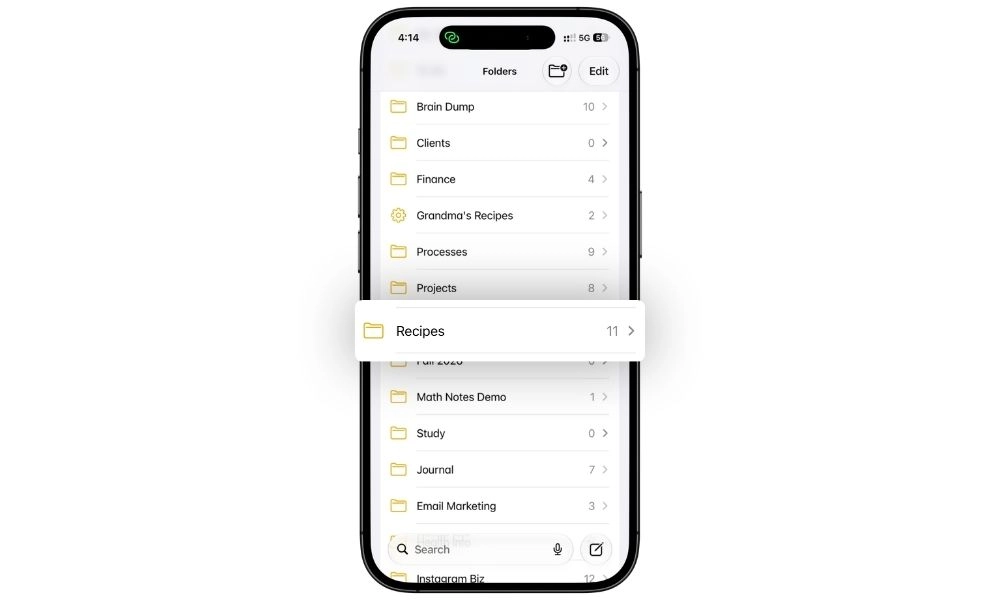
One note per recipe. Not a single long note holding twelve dishes. Linking works at the note level, so one note per dish is what makes a day in your plan point at exactly the right thing.
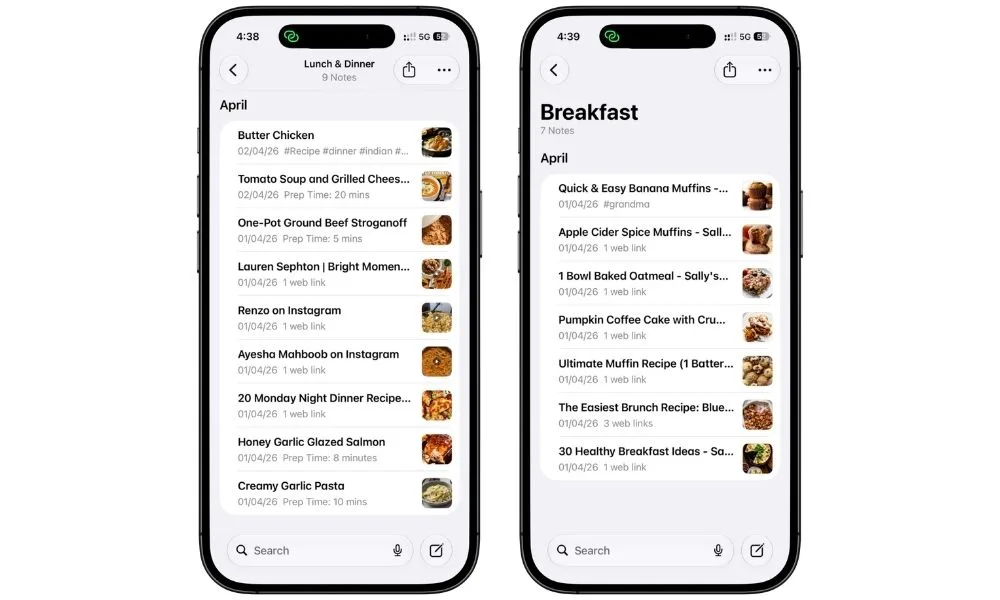
Short, human note names. This one matters more than it sounds.
Your recipe note’s title is what shows up as the link text in your meal plan.
Save a recipe from a food blog, and you’ll end up with a note called something like “30 Healthy Breakfast Ideas – Sally’s Baking Addiction,” which lands in your plan as a truncated mess that tells you nothing at a glance.
Rename it to what you’d call it out loud. “Tomato Soup Casserole” reads cleanly in your plan. The full blog headline doesn’t fit on a phone screen.
That’s the minimum. If you want the full version, folders, tags, Smart Folders, Gallery View, and the fastest ways to get recipes out of websites and TikTok, my Apple Notes recipes guide covers the lot.
Once you’ve got a handful of recipe notes with names you can read, come back here.
3. The weekly template
This is the note you’ll open every day.
It’s deliberately plain: seven day names, nothing else. Everything that makes it useful gets added in the next section.
3.1 The structure
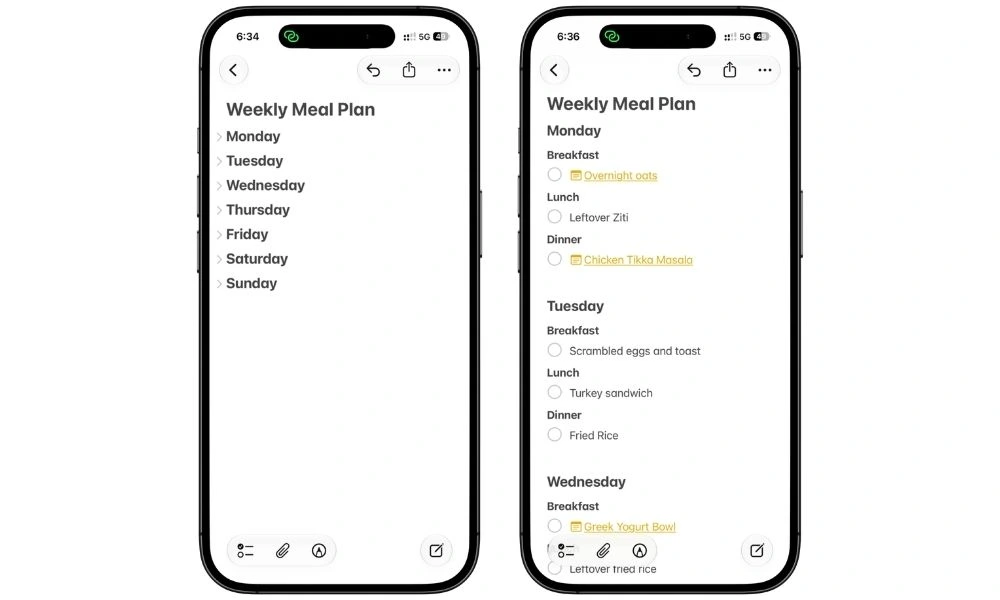
Three levels, and each one does a job:
- Day names are Headings. This is what gives you the collapse arrow later
- Breakfast, Lunch, and Dinner are Subheadings. Nested under the day, so they fold away with it
- The meal itself is a checklist item. That’s the line that holds the recipe link
To build it by hand:
- Type the day name, select it, tap Aa, choose Heading
- Return, type “Breakfast,” select it, tap Aa, choose Subheading
- Return, tap the checklist button, and leave the line empty for now
- Repeat for Lunch and Dinner, then start the next day
You don’t have to use all three meals. If you only plan dinner, keep the day headings and drop Breakfast and Lunch. If you’d rather not split the day at all, use the seven day headings on their own and put the meal straight underneath. The template comes with all three so you can cut what you don’t need instead of building what you do.
Seven days, about a minute. Or grab the ready-made version below and skip the formatting.
3.3 Name it, pin it, then duplicate it
Three small steps that save you real time later.
Name it “This Week.” Not the date. You’ll reuse this note continuously, and a dated title goes stale in seven days.
Pin it. Long-press the note in your list, tap Pin Note. It stays at the top of Notes instead of drifting under whatever you jotted down on Tuesday.
Duplicate it before you fill anything in. Long-press, tap Duplicate Note, and park the copy somewhere. That’s next week’s blank plan, saved while it’s still clean.
Do the duplicate now, not later. Once you’ve filled a week with recipe links, making a fresh blank copy means deleting all of them by hand. Thirty seconds now saves that.
Want it without building it? I’ve exported my template as a file you can import straight into Apple Notes. Save it to Files, open it, tap Share, pick Notes, and tap Import. It arrives with every heading and checkbox in place, and the word “Recipe” on each line is just a placeholder holding the formatting together, so swap it for your own meal or recipe link as you fill in the week.
4. Linking recipes into the plan
Your plan is seven empty days.
Filling it means putting two things on each line: a checkbox to tick when you’ve cooked it, and a link straight to the recipe.
Both live on the same line. That’s the bit most people don’t realize Notes can do.
4.1 Add a checklist item, then link it
Here’s how it works:
- Put your cursor on the line under a day heading
- Tap the checklist button in the toolbar. You get an empty circle
- Type >> (two greater-than symbols)
- A search box appears. Start typing your recipe name
- Tap the recipe note when it shows up
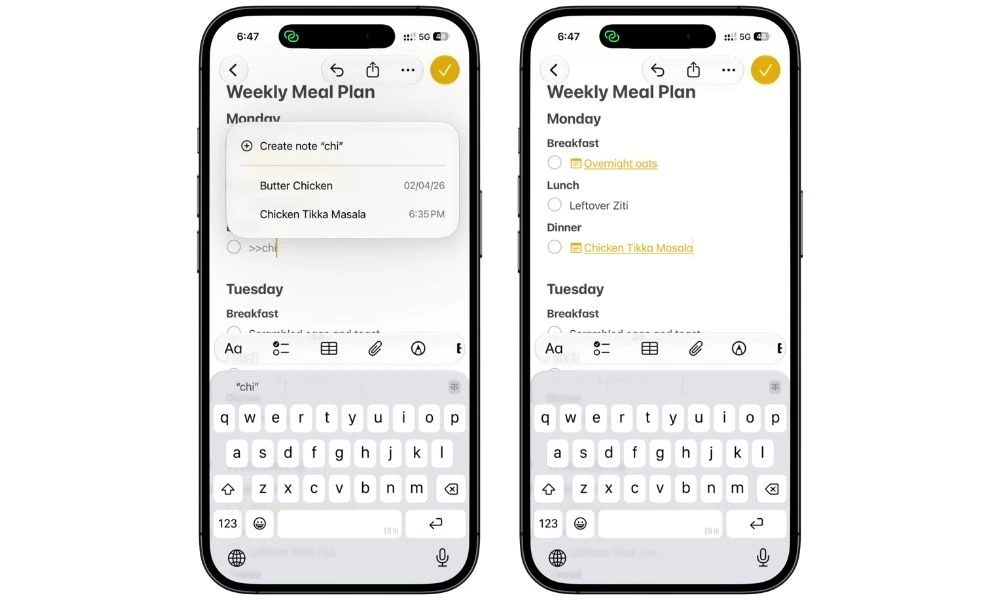
You end up with a checkbox and a tappable recipe link sitting together. Tap the recipe name to open it, tap the circle to mark it cooked.
Repeat for each day you’re planning. With recipe names you actually recognize, each one takes about five seconds.
If the link wraps to the line below the checkbox, the recipe note’s name is too long. Rename the note shorter and it snaps back onto one line.
4.2 Link to one section, not the whole note
This is the part almost nobody knows about, and it’s genuinely useful when your recipe notes are long.
Right after you tap the recipe note in the list, before the link is finalized, type / and Notes shows you every heading inside that recipe. Pick one, and the link jumps straight to that section instead of the top of the note.
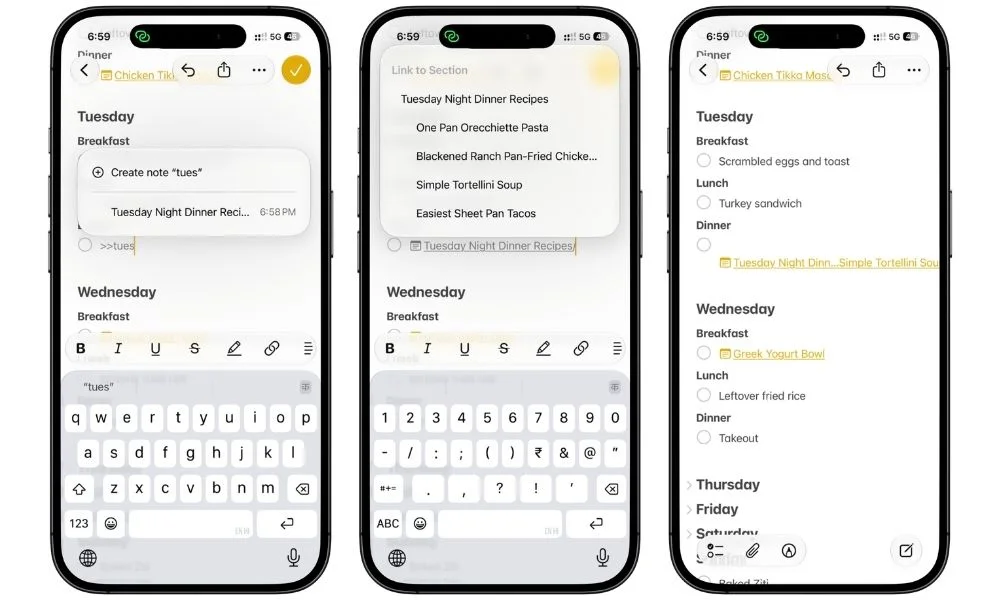
So if your recipe note has Ingredients, Instructions, and Notes as headings, you can point Dinner’s link directly at Instructions. Tap it while cooking, and you land exactly where you need to be, no scrolling past the ingredient list you already prepped.
Worth using on your longer recipes. Skip it on short ones, where the top of the note is fine.
4.3 The meals with no recipe
Half of what you cook doesn’t have a recipe and never will. Nobody looks up instructions for scrambled eggs, quesadillas, or the pasta you’ve made forty times.
Those go in as plain text on a checklist line. No link, no recipe note, just the name.
Same for the nights you’re not cooking at all. Write “Takeout” or “Leftovers” and tick it like anything else.
5. Cooking from it, and rebuilding it each week
Open the note. Look at today. Tap the link, cook, tick the circle. That’s the daily use, and there isn’t much more to it.
Two things make it smoother.
Collapse the days you’ve handled. Tap the arrow next to a day heading, and it folds away, meal slots and all. By Thursday you’re looking at three days instead of seven.
Swap days when the week goes sideways. Wednesday turned into a late night? Trade Wednesday and Friday. The food’s already bought, and both slots still get filled.
Deleting the plan because one day broke is how people end up back at a blank note.
5.1 The Sunday rebuild
How you reset depends on how much is changing.
If most of the week is different, open the blank duplicate you made back in 3.3. Fill it in, and duplicate it again before you start, so next Sunday has a clean copy waiting.
It’s a rolling habit, and it means you never rebuild the structure.
Forgot to duplicate? Rebuild it in a minute using the structure in section 3, or re-import the template file from the email if you grabbed it earlier.
If only two or three meals change, don’t reset anything. Leave the plan as it is, uncheck the boxes, delete the links you’re replacing, and add new ones with >>.
A couple of minutes at most.
That second version is what most weeks look like once you’ve been doing this a while. The rotation stabilizes, and you’re editing three lines, not twenty-one.
5.2 Then go shopping
The plan tells you what you need.
Do the grocery list in the same sitting, while the meals are still fresh in your head, rather than reconstructing your own decisions on Tuesday.
If you keep a master grocery note in Apple Notes, this is where the two systems meet: reset it, read down, and let the plan tell you what to leave standing.
6. Where Apple Notes falls short
Notes is a good place to plan meals. It isn’t a meal planning app, and there’s a handful of things it won’t do.
Better you hear them from me than find them in week three.
No recurrence. The plan won’t roll over on its own, won’t remind you it’s Sunday, and won’t refill Taco Tuesday. Every reset is manual, which is why the duplicate habit in 3.3 matters.
No pantry awareness. Notes doesn’t know you already own rice. Your grocery list is always built from memory or from a master list you maintain yourself.
Sharing gets messy past two people. You can invite someone into the note, and you’ll both edit the same live copy. Fine for a couple. With three or four people, there’s no history and no way to see who changed what.
No record of what you ate. Unless you’re keeping the old duplicates deliberately, nothing tells you you’ve made chili three weeks running.
No scaling, no nutrition. Cooking for two on Tuesday and six on Saturday means doing the maths yourself, and there’s no calorie or macro tracking anywhere in this. If either is why you’re planning meals, a dedicated app is the honest answer.
The pitch, plainly: Apple Notes wins on friction, not features. It’s already installed, it opens instantly, your recipes are already in it, and there’s nothing to maintain. For most people planning weeknight dinners, that beats a better app you stop opening after three weeks.
The Whole System, in Short
One note, seven headings, a link on each line.
That’s the whole thing, and it stays small on purpose because the elaborate setups are the ones people abandon by March.
The part worth getting right is the linking.
A plan that just lists dish names leaves you hunting for the recipe on a Wednesday evening, which is exactly the moment you decide to order in instead.
A plan where Wednesday is one tap from the instructions doesn’t.
Start with dinners only.
Seven days, four or five of them linked, the rest as plain text. Get through one week before you add breakfast and lunch slots or start pointing links at specific sections.
The structure is easy to grow and annoying to prune.
And duplicate the blank note before you fill it in. It’s the one step people skip and the one that makes next Sunday take two minutes instead of ten.
FAQs
Can you make a meal plan template in Apple Notes?
Yes, and it takes about a minute. Type the seven day names, format each one as a Heading, then add a checklist item under each day for the meal. Skip the table version you’ll see elsewhere, it’s unusable on a phone screen.
Is there a meal planner template built into Apple Notes?
No. Apple doesn’t ship templates of any kind in Notes, so every template you find is one somebody built by hand. That’s why the structure here is deliberately simple, since you’re the one maintaining it.
How do you link a recipe to your meal plan in Apple Notes?
Type two greater-than symbols (>>), then start typing the recipe’s name. Pick it from the list and it becomes a tappable link sitting on the same line as the checkbox.
Can you link to one part of a recipe instead of the whole note?
Yes. After you pick the note, type a forward slash (/) and Notes shows every heading inside it. Choose one and the link opens at that section, so you can point a day straight at the instructions.
Can Apple Notes do a monthly meal plan?
It can, but a month of dinners in one note means thirty headings and a lot of scrolling. One note per week in a Meal Plans folder covers the same ground and stays readable on a phone.