

Apple Notes in iOS 27: 7 New Features I Actually Tested
Apple Notes didn’t get one massive headline feature in iOS 27, but several smaller changes make it noticeably better for long notes, planning, and automation.
You can now link directly to sections inside a note, add proper divider lines, and build better Shortcuts.
Siri also gets deeper Notes integration on Apple Intelligence-supported iPhones.
I tested the new features on both my iPhone 13 and iPhone 17 Pro.
In this guide, I’ll show you what’s actually new, how the useful features work, and which ones require Apple Intelligence.
Table of Contents
- Quick Look: What’s New in Apple Notes in iOS 27?
- 1. Divider Lines Finally Make Long Notes Easier to Read
- 2. You Can Finally Link Directly to a Section Inside a Note
- 3. Apple Notes Shortcuts Got a Quiet but Powerful Upgrade
- 4. Siri AI Can Do More Inside Apple Notes
- 5. Messages Can Help Turn Conversations Into Notes
- 6. Image Wand Can Create Better Images Inside Notes
- 7. Apple Notes Looks a Little Different in iOS 27
- Which iOS 27 Apple Notes Features Work on Older iPhones?
- Features That Look New in iOS 27, but Aren’t
- My Favorite Apple Notes Upgrade in iOS 27
- Final Take
- FAQs
Quick Look: What’s New in Apple Notes in iOS 27?
| New feature | Apple Intelligence required? | My take |
|---|---|---|
| Divider lines | No | Useful for long notes |
| Section links | No | One of the best additions |
| Better Notes Shortcuts | No | Small change, big automation potential |
| Siri AI inside Notes | Yes | Powerful, but device-limited |
| Messages-to-Notes suggestions | Yes | Convenient |
| Improved image generation | Yes | Nice, but niche |
| New visual design | No | Mostly cosmetic |
Most of the best Notes changes in iOS 27 do not require Apple Intelligence, which is good news if you’re using an older iPhone that still supports the update.
1. Divider Lines Finally Make Long Notes Easier to Read
Apple Notes now has a proper divider line you can insert between sections of a note.
Before iOS 27, I usually relied on headings, blank spaces, or typed something like (---) when I wanted to break up a long note.
To add one, place the cursor where you want the break.
- Tap the right arrow (>) in the pop-up editing menu.
- Tap Insert Divider Line.
- Notes adds the divider right where your cursor is.
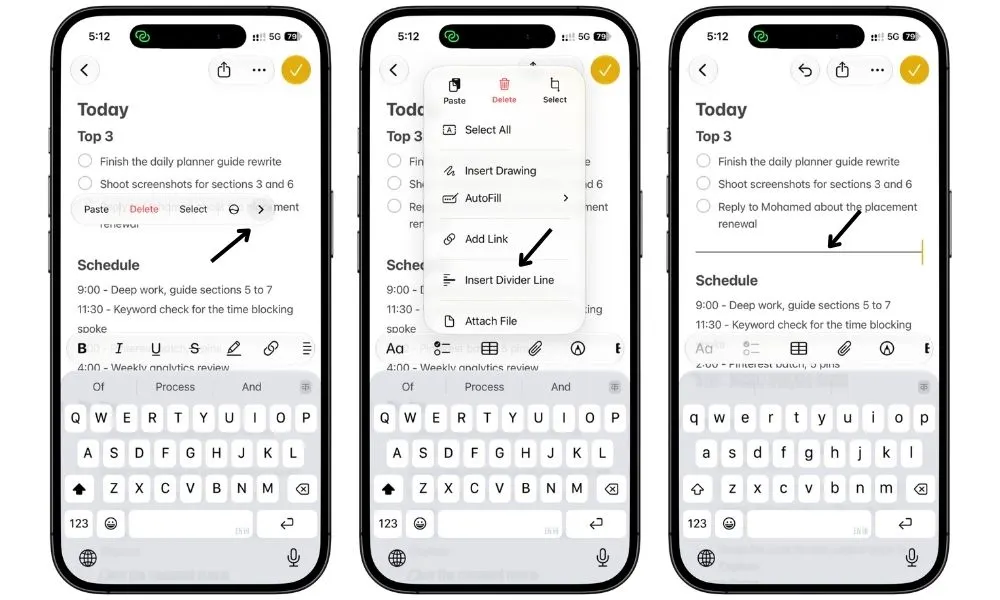
It’s a small change, but it makes structured notes much easier to scan.
I can see it being especially useful in things like:
- daily or weekly planners
- project dashboards
- meal plans
- travel notes
- long reference notes
Also Read: Apple Notes Daily Planner: Template + Daily System
It also works well when you want visual separation without turning every section into another heading.
One nice detail: If you open the note on a device running iOS 26, the divider appears as three dashes (
---), so the structure of the note is still easy to understand.
Not a huge feature, but definitely one I’ll keep using.
2. You Can Finally Link Directly to a Section Inside a Note
This is one of the most useful Apple Notes changes in iOS 27.
You could already link one note to another, but now you can link directly to a specific heading inside the same note or another note.
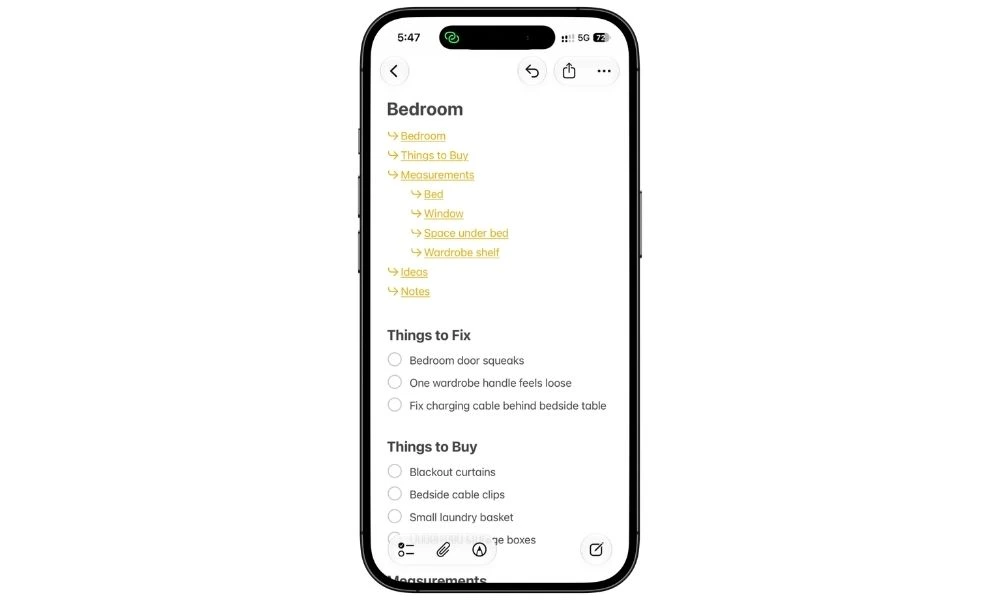
You can create these links from the normal link menu, or use the faster method while typing:
Type
>>to choose a note, then type/to pick a heading inside it.
It also makes it practical to build a simple table of contents at the top of a long note, which makes big Notes setups much easier to navigate.
One thing I noticed while testing this: the quick section picker only showed me the first four headings or subheadings in my note. At first, I thought Notes had a four-section limit. It doesn’t. If you use the Add Link button from the formatting toolbar instead, Notes shows all the available headings and subheadings in the note, so you can link to sections further down as well.
3. Apple Notes Shortcuts Got a Quiet but Powerful Upgrade
Apple also improved the Notes actions inside the Shortcuts app, and this is one of the iOS 27 changes I think power users will appreciate most.
The biggest improvement is that Append to Note can now target a specific section inside a note.
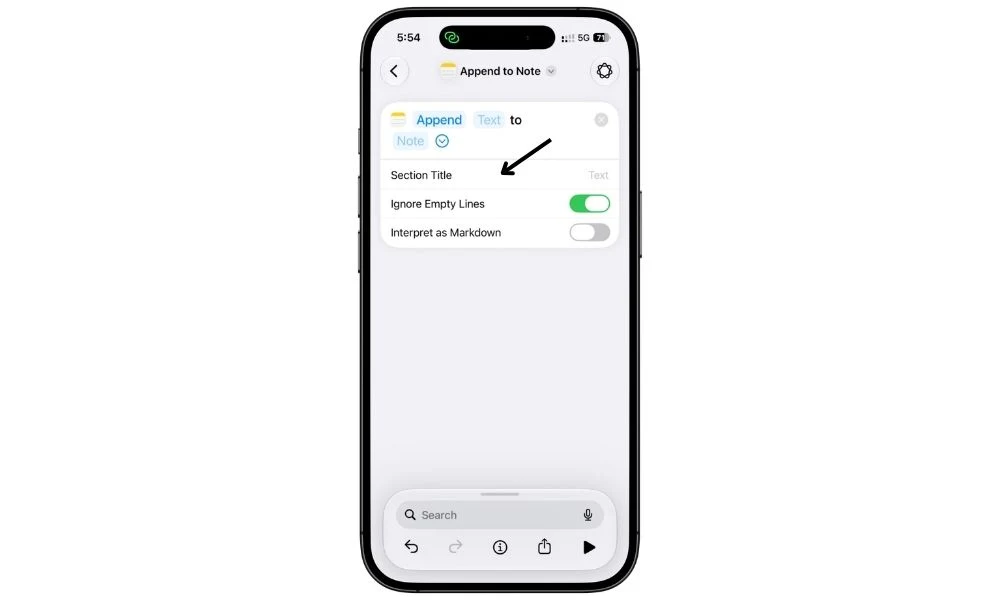
So instead of sending everything to the bottom of a note, you can do things like:
- send new ideas to an Ideas section
- add expenses under Expenses
- save research under Research
- add journal entries under Journal
I tested this with a simple Brain Dump note. My Shortcut asks for some text, then appends it directly under the Ideas section.
Apple also added better Markdown support to Notes actions in Shortcuts, so text can be formatted properly when a Shortcut creates or appends content.
For me, this is a much bigger improvement than it first sounds.
It makes Apple Notes automation feel far more organized, because Shortcuts can finally put information where it actually belongs.
4. Siri AI Can Do More Inside Apple Notes
On Apple Intelligence-supported iPhones, Siri can now do more with the actual content inside your notes.
I tested this on my iPhone 17 Pro, and the useful part isn’t just asking Siri to create a new note. It can also help work with notes you already have.
For example, you can ask Siri to:
- create a structured note from an idea
- add information to an existing note
- clean up messy text
- summarize a long note
- reorganize content into a clearer format
That can save a lot of small steps when you already know what you want changed.
The limitation is that this is not available on every iPhone running iOS 27.
You need an Apple Intelligence-compatible model, so older devices still get most of the other Notes improvements in this guide, but not the deeper Siri features.
Siri AI is still in beta in iOS 27 and is available in English to start.
5. Messages Can Help Turn Conversations Into Notes
iOS 27 can also recognize useful information inside a Messages conversation and suggest turning it into something you can save.
For example, if someone sends you trip details, an address, or information you’ll need later, iOS can surface an option to create a note or reminder from that conversation.
It’s not a major Apple Notes upgrade, but I can see it being useful when important details are buried inside a long message thread, and you don’t want to manually copy everything over.
This requires Apple Intelligence, so you won’t get these suggestions on older models like the iPhone 13.
I’d treat this more as a convenience feature than a reason to upgrade, but it does make getting information into Notes a little faster.
6. Image Wand Can Create Better Images Inside Notes
You can still use Image Wand inside Notes to create images from a sketch or the surrounding content in your note, while the upgraded Image Playground can generate higher-quality images in far more styles, including photorealistic ones.
I can see this being useful in notes like:
- travel plans
- mood boards
- room or decor ideas
- project concepts
- visual journals
That said, this is probably one of the more niche changes in the update.
It’s nice to have, but for the way I use Apple Notes, features like section links and the new Shortcuts options are far more useful day-to-day.
7. Apple Notes Looks a Little Different in iOS 27
Apple Notes also gets the broader iOS 27 visual refresh, with updated menus, icons, and Liquid Glass styling throughout the app.
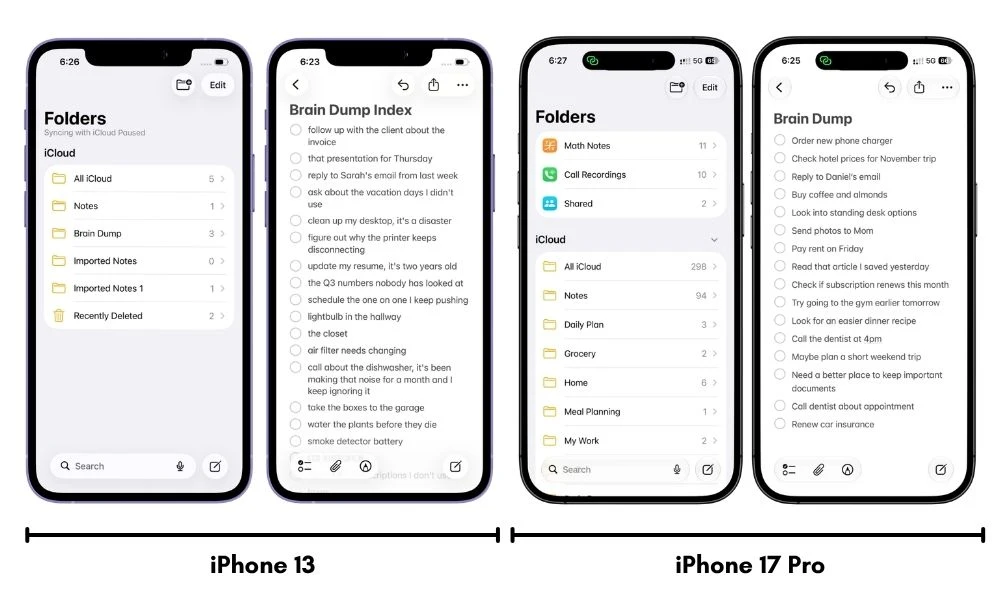
The changes aren’t dramatic, but the app does feel a little cleaner and more modern.
You’ll notice things like:
- updated buttons and menu styling
- refreshed icons
- clearer sharing indicators
- small visual changes across folders and notes
I wouldn’t call this a major Notes feature because it doesn’t really change how I use the app.
Still, it’s worth mentioning because if you update to iOS 27 and Notes suddenly looks slightly different, this is why.
Which iOS 27 Apple Notes Features Work on Older iPhones?
One thing worth clearing up is that iOS 27 features and Apple Intelligence features are not the same thing.
I tested the update on both my iPhone 13 and iPhone 17 Pro, and most of the useful Notes changes work without Apple Intelligence.
| Feature | iPhone 13 | iPhone 17 Pro |
|---|---|---|
| Divider lines | Yes | Yes |
| Section links | Yes | Yes |
| Improved Notes actions in Shortcuts | Yes | Yes |
| Siri AI features | No | Yes |
| Image Wand / Image Playground AI features | No | Yes |
| New Notes design | Yes | Yes |
So if you’re using an older iPhone that supports iOS 27, you’re not missing the core Notes upgrades.
The main things reserved for newer Apple Intelligence-supported devices are the AI features, not the basic improvements to how Notes itself works.
Features That Look New in iOS 27, but Aren’t
A few Apple Notes features are getting mentioned alongside iOS 27, even though they actually arrived earlier.
For example:
- Collapsible headings were already available before iOS 27.
- Audio transcription isn’t new to this update.
- Math features inside Notes also arrived earlier.
- Markdown import and export already existed before iOS 27.
That distinction matters because iOS 27 improves Apple Notes in several useful ways, but it doesn’t introduce every feature you may see mentioned in roundups.
The genuinely new changes include section links, divider lines, improved Notes actions in Shortcuts, deeper Siri integration, and several smaller AI and design changes.
What about Copy as Markdown?
Apple tested Markdown copy-and-paste in iOS 27 betas, and several publications covered it before release. However, I couldn’t get it to work on the public iOS 27 release on my iPhone 17 Pro, and Apple’s current iPhone documentation only lists Markdown import and export. So I haven’t counted it as a new iOS 27 feature.
My Favorite Apple Notes Upgrade in iOS 27
For me, the best addition is section links.
Divider lines are nice, and the Shortcuts improvements open up some clever automations, but section links change how I can structure bigger Notes systems.
Being able to jump directly to a heading inside the same note or another note makes dashboards, planners, project notes, and long reference notes much easier to use.
It also fixes one of the biggest problems with Apple Notes: once a note gets long, finding the right part of it becomes annoying.
Now I can keep detailed information where it belongs and still reach it in one tap.
Final Take
iOS 27 doesn’t completely reinvent Apple Notes, but it makes the app noticeably better in a few areas that matter if you use it seriously.
For me, section links and the improved Shortcuts actions are the biggest upgrades because they make larger Notes systems easier to navigate and automate.
Divider lines and the smaller design changes aren’t as exciting, but they still make Notes a little nicer to use.
The good news is that most of these improvements don’t require Apple Intelligence, so even older iPhones running iOS 27 still get the best core Notes upgrades.
If Apple keeps moving in this direction, Notes is becoming less of a simple note-taking app and more of a proper system you can build around.
FAQs
What’s new in Apple Notes in iOS 27?
The biggest changes include section links, proper divider lines, better Notes actions in Shortcuts, deeper Siri integration, Messages suggestions that can create notes, improved image-generation tools, and a refreshed design.
Can I link to a specific section in Apple Notes?
Yes. In iOS 27, you can link directly to a heading inside the same note or another note instead of only linking to the top of the note.
Can I create a table of contents in Apple Notes?
Yes. There isn’t an automatic table of contents button, but you can create one manually by linking text at the top of a note to different headings using section links.
Does Apple Notes support Markdown in iOS 27?
Yes. Apple Notes supports importing and exporting Markdown files, but that functionality arrived in iOS 26. Apple tested direct Markdown copy and paste during the iOS 27 beta, but I couldn’t get it to work on the public iOS 27 release on my iPhone 17 Pro, so I haven’t counted it as a new iOS 27 feature.
Can Shortcuts add text to a specific section in Apple Notes?
Yes. The updated Append to Note action can target a specific section, which makes it much easier to build organized Apple Notes automations.
Do I need Apple Intelligence for the new Apple Notes features?
No. Divider lines, section links, and the updated Notes actions in Shortcuts work without Apple Intelligence. Features such as Siri AI, Messages suggestions, and Image Wand require an Apple Intelligence-supported iPhone.
Do the new Apple Notes features work on iPhone 13?
Most of the core changes do. An iPhone 13 running iOS 27 can use divider lines, section links, the improved Notes actions in Shortcuts, and the new visual changes. It doesn’t support Apple Intelligence features such as Siri AI, Messages suggestions, or Image Wand.
Why don’t I see Link to Section in Apple Notes?
If it still doesn’t appear, try the feature in a note stored in iCloud or On My iPhone, since some Notes features aren’t available with third-party accounts such as Google or Exchange.
Is Apple Notes better in iOS 27?
The update doesn’t completely change the app, but it makes long notes, connected notes, and automations much easier to manage. Section links and the improved Shortcuts actions are the biggest improvements for more advanced users.