

How I Use Apple Notes to Organize My Home: My Digital Home Binder
I’ve been testing how well Apple Notes can work for home organization, and it can handle a lot more than I expected.
I spend a lot of time pushing Apple’s built-in apps into different real-life use cases, so for this setup, I created a dedicated Home folder with separate notes for rooms, maintenance, measurements, restocking, projects, and more.
Then I connected everything through one pinned Home HQ note so the whole system stays easy to navigate.
The idea is simple: keep all your home-related information in one place without turning Apple Notes into something overly complicated.
Here’s what you’ll build:
- A Home folder
- Room notes and measurements
- Reset and restock lists
- Maintenance, fixes, inventory, and projects
- A pinned Home HQ dashboard
You don’t need to build every part at once. I’ll show you the full setup, and you can keep only the parts that actually make sense for your home.
Table of Contents
- 1. Create a Dedicated Home Folder
- 2. Create a Note for Each Room
- 3. Create a Weekly Home Reset Note
- 4. Create a Household Restock List
- 5. Create a Things to Fix Note
- 6. Create a Home Maintenance Log
- 7. Create a Home Inventory & Documents Note
- 8. Create a Note for Active Home Projects
- 9. Build Your Home HQ Dashboard
- 10. Use Tags Only If They Solve a Real Problem
- 11. Use Apple Reminders for Anything With a Date or Time
- 12. Make Home HQ Easy to Open
- 13. Do a 10-Minute Weekly Home Admin Reset
- Start Small and Let the System Grow
- FAQs
1. Create a Dedicated Home Folder
The first thing I’d do is create a separate folder just for this system.
I call mine Home.
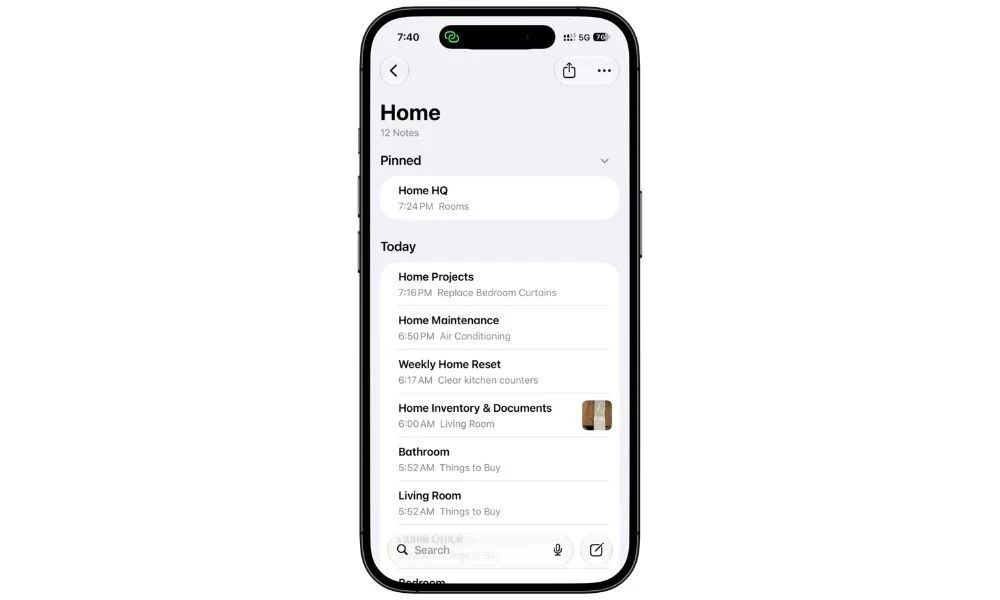
This might seem like a small step, but it keeps everything much cleaner once you start adding more notes.
If you already use Apple Notes for work, planning, recipes, travel, or anything else, you probably don’t want your home maintenance log sitting next to a random work note.
A dedicated folder gives all of your home-related stuff one place to live.
To create it:
- Open Apple Notes
- Go back to the Folders screen
- Tap the New Folder button
- Name it Home
- Tap Done
That’s it.
For now, leave the folder empty.
We’re going to create the individual notes first, then build the Home HQ dashboard at the end and pin it to the top.
2. Create a Note for Each Room
Now start adding the notes that will actually live inside your Home folder.
I’d begin with one note for each main room.
For example:
- Kitchen
- Living Room
- Bedroom
- Bathroom
- Home Office
- Laundry Room
- Garage
You obviously don’t need all of these. Just create notes for the rooms that make sense in your home.
2.1 What I Keep Inside Each Room Note
I don’t use these notes as cleaning checklists.
Their job is to hold the little bits of information I want to remember about that specific room.
I usually start with a few things:
- Things to Buy
- Measurements
- Ideas
- Notes
- Photos
So my Kitchen note might look something like this:
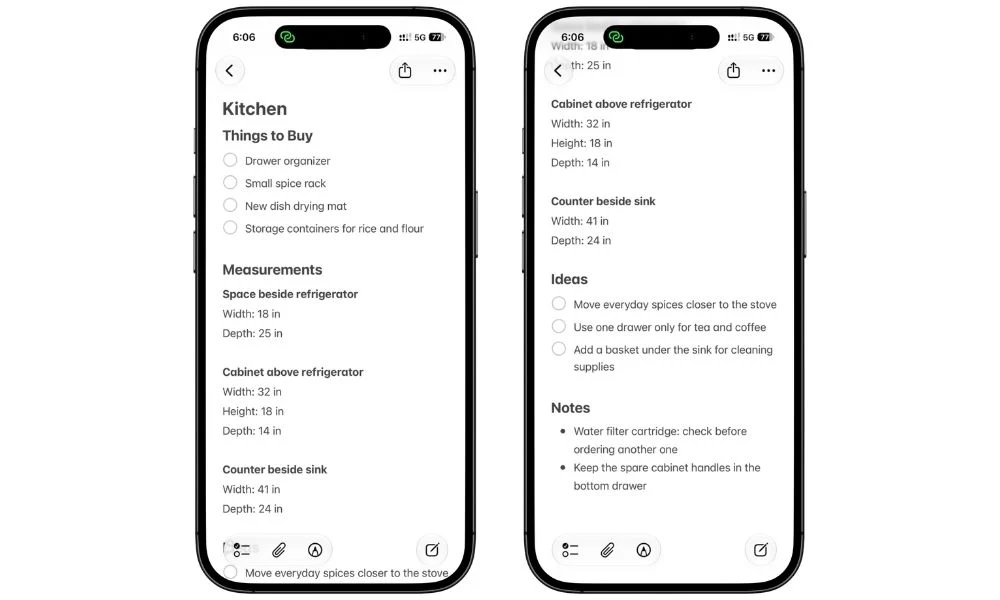
You can also drop photos directly into the note.
For example, if I see a corner I want to reorganize later, I can take a photo, add it to the room note, and write the idea underneath it.
The important thing is not to fill every section immediately. These notes should grow naturally as you actually need them.
For now, create the room notes, add the headings you think you’ll use, and leave the rest alone.
We’ll connect all of these notes to Home HQ later.
3. Create a Weekly Home Reset Note
Next, create a note called Weekly Home Reset inside the Home folder.
This is where I keep the small recurring tasks that make the house feel put back together.
I don’t use it as a giant cleaning schedule. I only keep the things I actually want to check once a week.
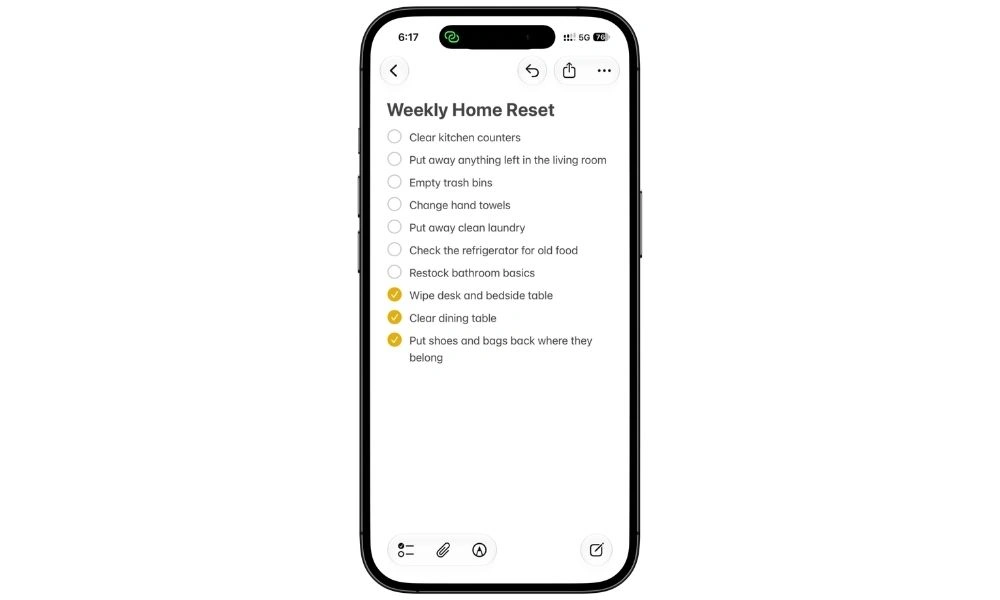
Use the checklist button in Apple Notes so you can tick each item off as you go.
Quick Tip: If your weekly reset stays mostly the same, you can reuse the checklist instead of creating a new one. Select a line in the checklist, tap Checklist → Uncheck All to reset everything for the next week.
4. Create a Household Restock List
Now create a note called Household Restock.
I keep this separate from my grocery list because the things I buy for the house are not always things I need every week.
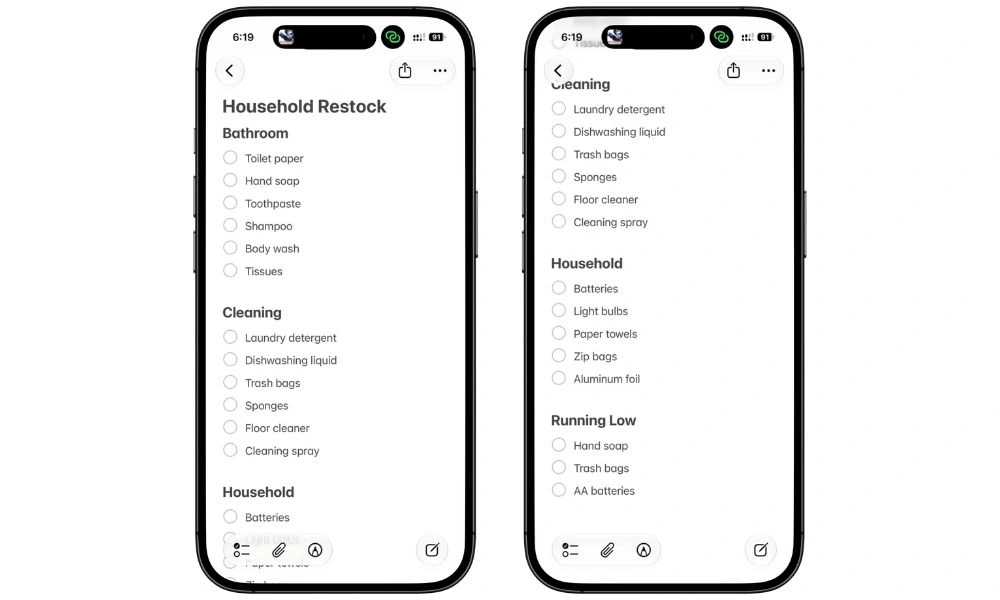
You can add whatever makes sense for your home.
I prefer using headings because once the list gets longer, it is much easier to scan than one huge checklist.
Then whenever I notice something is running low, I add it here instead of hoping I remember it the next time I go shopping.
5. Create a Things to Fix Note
Next, create a note called Things to Fix.
This is where I keep all the small problems around the house that are easy to notice and even easier to forget.
Things like:
- Loose cabinet handle
- Dripping bathroom tap
- Flickering light
- Bedroom door that keeps squeaking
- Drawer that doesn’t close properly
You could keep these inside each room note, but I prefer having one master list. That way, when I actually have time to fix things, I don’t need to open five different room notes to figure out what needs attention.
I keep mine simple with a few headings:
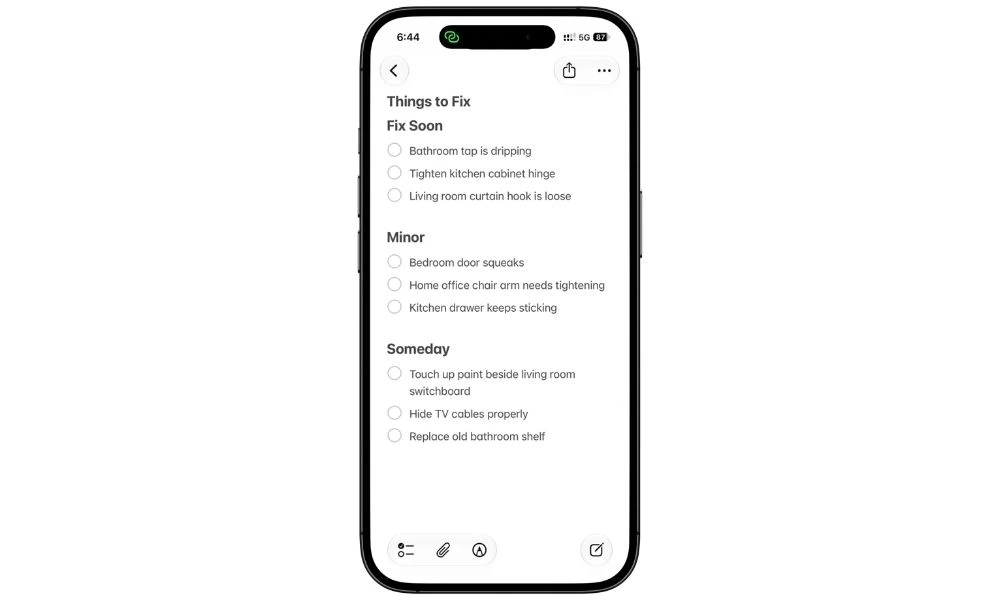
Use the checklist format so you can tick things off as they get done.
If a repair needs more planning, measurements, photos, or a budget, I’d turn it into its own Home Project later instead of stuffing all of that detail into this note.
For now, this note is just the place where problems go the moment you notice them.
That alone makes it much more useful than trying to remember everything in your head.
6. Create a Home Maintenance Log
Next, create a note called Home Maintenance.
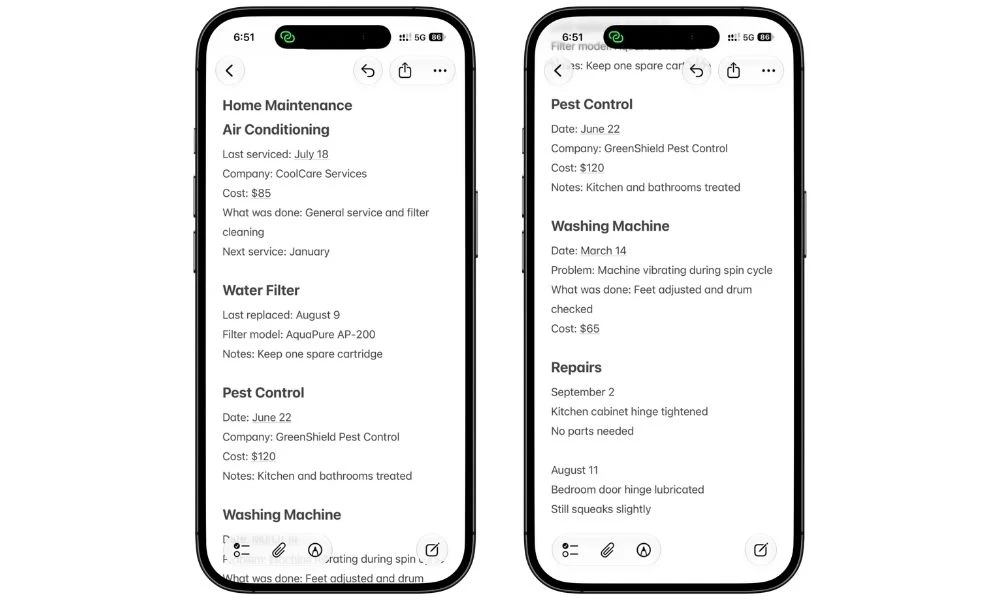
I use this to keep a simple record of maintenance work around the house, like when something was serviced, what was done, who did it, and how much it cost.
You don’t need to track every tiny thing.
I’d use this for the stuff I may actually want to look back at later.
For example, if the air conditioner starts acting up again, I can quickly see when it was last serviced, what was repaired, and who did the work.
You can also add photos, invoices, or scanned receipts directly to the note when they are useful.
One important thing here: I don’t rely on this note to remind me when maintenance is due.
Apple Notes is where I keep the record.
If something needs to happen again on a certain date, like replacing a filter in three months or booking another service, I put that in Apple Reminders.
We’ll come back to that later in the guide.
7. Create a Home Inventory & Documents Note
Next, create a note called Home Inventory & Documents.
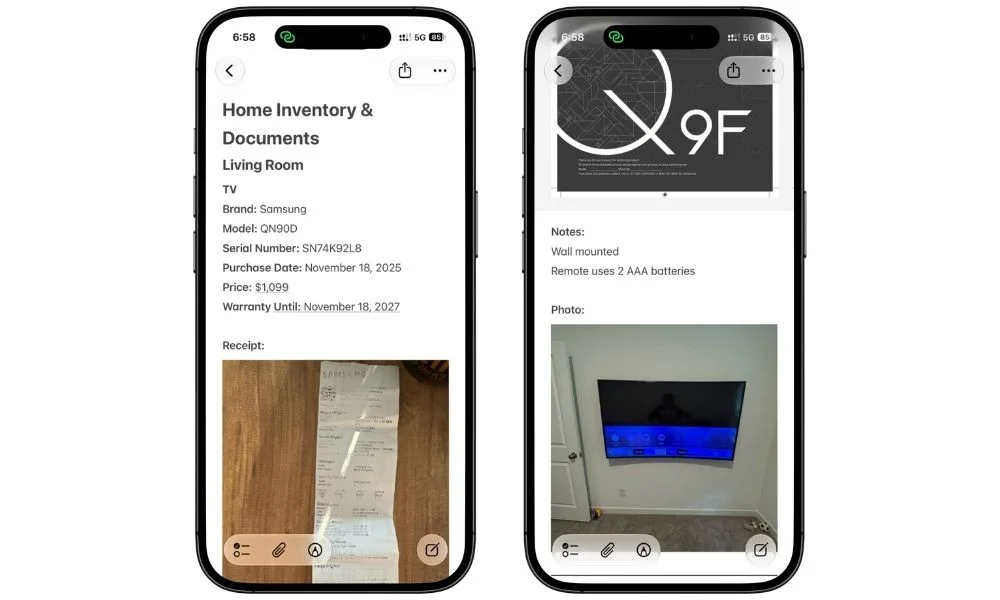
I use this for important items where I may need the details again later, like appliances, electronics, furniture, tools, or other valuable things around the house.
For each item, I keep useful information like the brand, model, serial number, purchase date, warranty details, receipt, manual link, repair notes, and a photo if it helps.
For example, my washing machine entry can have everything in one place:
- Model and serial number
- Purchase date
- Warranty details
- Scanned receipt
- Manual link
- Repair history
That way, I don’t need one note for the inventory and another note for the paperwork.
If the list gets long, organize it with simple room headings like Kitchen, Living Room, Bedroom, and Home Office.
I also wouldn’t try to catalog everything you own. Just add the items where having this information could actually save you time later.
8. Create a Note for Active Home Projects
Next, create a note called Home Projects.
I use this for anything around the house that needs more than one quick task.
For example:
- Organize the pantry
- Paint the bedroom
- Replace the curtains
- Redo the closet
- Set up a home office
- Add shelves to the living room
Small fixes can stay inside Things to Fix. But once something needs planning, measurements, shopping, or a budget, I’d move it here.
You can give each project its own heading and keep everything underneath it.
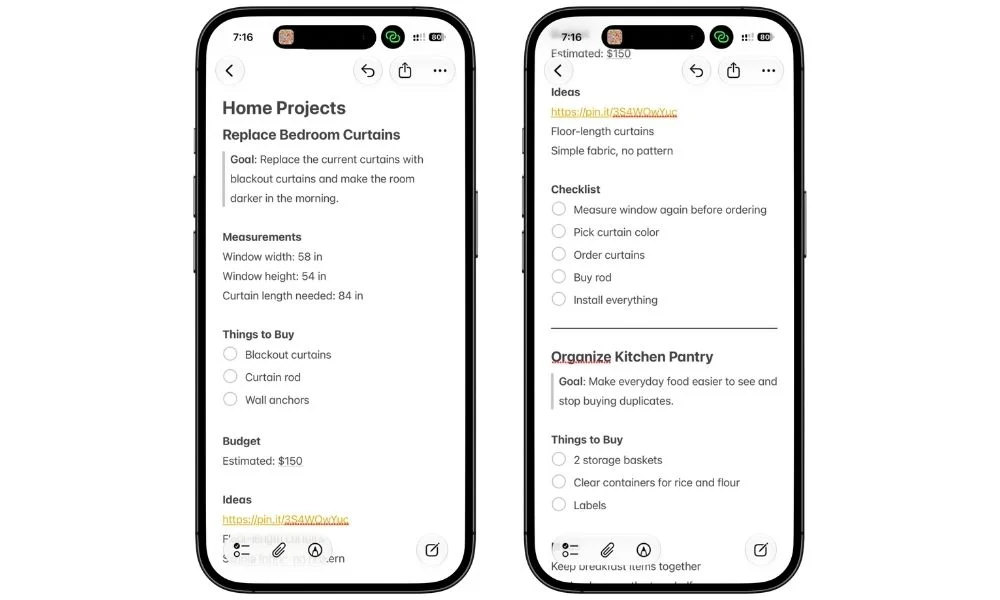
You can also add screenshots, product links, photos, or anything else you need while planning.
For bigger projects, I’d actually create a separate note for that project instead of cramming everything into the main Home Projects note.
Then later, when we build Home HQ, we can link directly to those active project notes too.
9. Build Your Home HQ Dashboard
Now that all of the main notes are ready, create one more note called Home HQ.
This is the note that ties the whole system together.
Instead of scrolling through the Home folder every time you need something, Home HQ gives you one simple dashboard with links to the notes you use.
I’d organize it into a few sections like this:
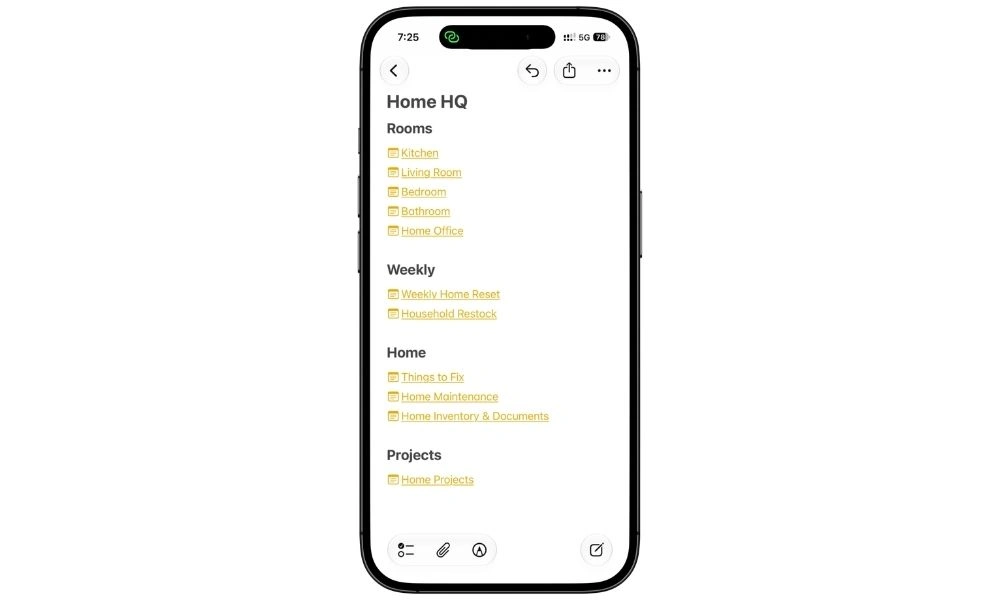
Turn each one into a link to the note you already created. Type
>>, start typing the name of the note, and tap it when it appears.
Once everything is linked, Home HQ becomes the one place I open first whenever I want to find something related to the house.
I also wouldn’t put much actual information inside Home HQ.
Its job is navigation.
- The room details stay inside the room notes
- Maintenance records stay inside Home Maintenance
- Measurements stay inside Home Measurements
Home HQ just gets me there quickly. And if you create a new home-related note later, you can simply add another link to the right section.
Once this dashboard is ready, pin it to the top of the Home folder so it is always the first note you see.
10. Use Tags Only If They Solve a Real Problem
At this point, the system already works without tags.
You have one Home folder, a pinned Home HQ, and links connecting everything together. So I wouldn’t start adding tags just because Apple Notes supports them.
I’d only use them when I want to pull the same type of information from different notes.
For example, inside my Kitchen note I might write:
- Replace cabinet handle #fix
And inside the Bedroom note:
- Fix loose closet shelf #fix
Now I can tap #fix and quickly see things that need attention across different rooms.
You could do the same with something like:
- #buy for things you want to purchase
- #fix for repairs
- #project for bigger home projects
But I’d keep the list very small.
If you end up creating ten different tags and constantly deciding which one belongs on every line, the system becomes harder to use instead of easier.
For me, the Home folder and Home HQ do most of the organizing.
Tags are just there when I want another way to pull related things together.
Also Read: How I Use Tags and Smart Folders to Keep My Apple Notes Ridiculously Organized
11. Use Apple Reminders for Anything With a Date or Time
One rule makes this whole system much easier to manage:
Apple Notes is for organizing. Apple Reminders is for remembering.
If something is just information I want to keep, it stays in Notes.
For example:
- AC filter model
- Last service date
- Paint color used in the bedroom
- Washing machine serial number
- Living room measurements
But if something needs to happen on a specific day or time, I move that part to Reminders.
Things like:
- Replace the AC filter in three months
- Call the plumber tomorrow
- Take the trash out Tuesday night
- Renew home insurance next month
- Book the next pest control service
So my Home Maintenance note might say:
AC serviced: September 12
Filter replaced: September 12
Then I create a reminder for the next time I need to do it.
That way, Notes keeps the history and details, while Reminders makes sure I don’t forget the next action.
I wouldn’t try to force everything into one app. Using each app for the job it is actually good at keeps the system much simpler.
Also Read: Apple Notes Daily Planner: Template + Daily System
12. Make Home HQ Easy to Open
The system is much more useful when you can get to it quickly.
The easiest option is simply keeping Home HQ pinned at the top of your Home folder.
But if you use Home HQ often, add it to your Home Screen with the Apple Notes widget.
- Add the Notes widget to your Home Screen.
- Long-press the widget and tap Edit Widget.
- Tap Note.
- Choose Home HQ.
That’s it.
Now you can open your entire home organization system with one tap instead of opening Notes and finding the folder first.
I wouldn’t build a complicated Shortcut around this unless you actually need one.
The goal here is just to remove a little friction.
If Home HQ is always easy to reach, you’re much more likely to keep using the system after the first week.
13. Do a 10-Minute Weekly Home Admin Reset
Once the system is set up, I’d give it a quick check once a week.
Not a full house review. Just ten minutes to keep the notes useful.
I usually go through:
- Things to Fix and remove anything that’s already done
- Household Restock and clear items I’ve bought
- Home Projects and update anything that changed
- Home Maintenance if something was serviced or replaced
- Weekly Home Reset and uncheck the list for next week
- Home HQ to make sure any new notes are linked where they belong
This is also a good time to move anything that has grown too big into its own note.
For example, if “Replace bedroom curtains” started as one line in Things to Fix but now has measurements, product links, a budget, and a checklist, I’d turn it into a proper project note.
The goal is not to constantly reorganize Apple Notes. It’s just to stop small bits of home information from piling up until the system becomes messy again.
Ten minutes once a week is usually enough.
Start Small and Let the System Grow
You do not need every note in this guide before the system becomes useful.
If I were starting from scratch, I’d begin with just:
- Room notes
- Weekly Home Reset
- Things to Fix
- Home HQ
That already gives you a useful system.
Then add the other notes when you actually need them.
- Create Household Restock if you want a separate place for home supplies.
- Add Home Maintenance once you have service history worth tracking.
- Use Home Inventory & Documents for important appliances, receipts, warranties, manuals, and other records.
- And create Home Projects when something becomes too big for a simple task.
The goal is not to build the most complete system possible. It’s to create one simple place for your home information, then let it grow naturally as you use it.
FAQs
Can I use Apple Notes to organize my home?
Yes. Apple Notes works well for keeping home-related information such as room notes, measurements, maintenance records, household restock lists, projects, receipts, warranties, and things that need fixing. I like keeping everything inside one dedicated Home folder and using a pinned Home HQ note to connect it all together.
How should I organize home notes in Apple Notes?
I’d start with a separate Home folder, then create individual notes for things like rooms, weekly home reset, maintenance, projects, and household supplies. Once those notes are ready, create a Home HQ note and link everything from there so you have one place to navigate the whole system.
What should I put in a home organization note?
Useful things to keep include things to fix, things to buy, home maintenance records, appliance information, household supplies, active projects, receipts, warranties, and photos. You do not need to track everything. Only add information you are likely to need again.
Should I create a separate Apple Note for every room?
You do not have to, but I find it useful for the main rooms in the house. A room note gives you one place for measurements, repair notes, things you want to buy, photos, and ideas related to that room.
Can I use Apple Notes for home maintenance?
Yes. I use a Home Maintenance note to record things like service dates, repairs, costs, filter changes, contractor details, and other maintenance history. If something needs to happen again on a certain date, I put that part in Apple Reminders instead.
Can Apple Notes replace a home binder?
For a lot of everyday home information, yes. You can keep measurements, maintenance records, inventories, scanned receipts, warranty information, project notes, and other household details in one folder. I still would not treat Apple Notes as a replacement for any official documents you are required to keep elsewhere.
Do I need tags to organize my home in Apple Notes?
No. The system works fine with one Home folder and a pinned Home HQ note. Tags are optional. I only use them when I want to pull similar items together across different notes, such as #fix or #buy.
How many home organization notes should I create?
I would not create every possible note on the first day. Start with your room notes, Weekly Home Reset, Things to Fix, Home Maintenance, and Home HQ. Add inventory, projects, manuals, and other notes only when you actually need them.