
How I Get Everything Done on Apple Notes Without Apple Intelligence
I run two content businesses out of Apple Notes. Four to six hours a day, every day, for the last three years.
All of it on an iPhone 13. No Apple Intelligence access, no upgrade in sight, no plans to change that anytime soon.
And the thing is, I’m not some edge case.
There are around 150.7 million iPhone users in the US alone, and over 2.5 billion active Apple devices worldwide.
Apple Intelligence officially supports the iPhone 15 Pro, 15 Pro Max, the entire iPhone 16 lineup, and the entire iPhone 17 lineup. Everything else, iPhone 15 and 15 Plus, the entire iPhone 14 series, iPhone 13 series, iPhone 12 series, iPhone 11, every SE, is locked out.
That’s not a small group. The iPhone 13 is still the most popular iPhone model in active use today, and the average US iPhone upgrade cycle has stretched to 3.3 years. Most iPhone owners are not on Apple Intelligence hardware. Most of them won’t be for a while.
So when I read articles framing Apple Notes around the AI layer, something feels off.
The framing assumes the AI version is the real version and everything else is a fallback. That’s backwards.
Apple Notes has been a serious productivity tool for years. The AI layer sits on top of a foundation most people have never fully explored.
And here’s something most articles get wrong. Two of the most useful “smart” features in Apple Notes, live audio transcription and Math Notes, actually work on my iPhone 13.
I tested both before writing this. They work. The hardware gap is smaller than people think.
This piece is what I’ve learned from three years of running my work inside Apple Notes on a phone Apple has effectively written off for its AI strategy. What actually works without Apple Intelligence. What I’m genuinely missing.
And the bigger question hiding underneath all of it: is the AI layer worth upgrading for, or is the real gap somewhere else entirely?
Table of Contents
1. What’s Actually Locked, What Isn’t, and Why Most Articles Get This Wrong
Before I get into what I actually do inside Apple Notes every day, I need to clear up something almost every article about Apple Intelligence and Notes gets wrong.
The line between “AI feature” and “regular feature” is not where people think it is. And the gap between an iPhone 13 and an iPhone 16 Pro, for the purposes of using Apple Notes, is genuinely smaller than the marketing suggests.
Let me break this down into three parts.
1.1 What Apple Intelligence actually requires
According to Apple’s official support page, Apple Intelligence runs on a short, specific list of devices:
- iPhone 15 Pro and iPhone 15 Pro Max
- All iPhone 16 models (16, 16 Plus, 16 Pro, 16 Pro Max, 16e)
- All iPhone 17 models
- iPad mini with A17 Pro chip
- iPad Air and iPad Pro with M1 chip or later
- Mac with M1 chip or later
That’s the whole list. Everything else is locked out.
Standard iPhone 15 and 15 Plus, every iPhone 14, every iPhone 13, every iPhone 12, iPhone 11, every SE, every Intel-based Mac, every pre-M1 iPad.
The cutoff is hardware-based, tied to Neural Engine generation and RAM, which is why a software update will never bring Apple Intelligence to my iPhone 13.
It’s not coming. That’s settled.
1.2 What Apple Intelligence features in Notes you genuinely can’t access on iPhone 13
If you’re on an unsupported device, here’s what you lose inside Apple Notes specifically:
- Writing Tools — rewrite, proofread, summarize, change tone, convert to list or table
- Auto-summarize for long notes
- Image Playground and Genmoji integration inside notes
- Smart Script handwriting refinement (iPad-only feature anyway, but worth naming)
- Image Wand sketch-to-image refinement (also iPad-only)
- Natural language semantic search across Notes
This is the real gap. If any of these would meaningfully change how you work, it’s worth knowing.
1.3 What “smart” features in Notes actually DO work on iPhone 13
Here’s where most articles get it wrong, and where the misconception lives.
Several features inside Apple Notes feel like Apple Intelligence, get talked about alongside Apple Intelligence in coverage, but are not actually gated by Apple Intelligence at all.
They run on on-device machine learning that’s been part of iOS for years, on hardware that doesn’t need an M-series or A17 Pro chip.
The big ones:
- Audio recording with live transcription — works on iPhone 13. I tested it before writing this guide. Record audio inside a note, tap the transcript icon, watch the text appear in real time. No Apple Intelligence required.
- Math Notes core features — basic equation solving, variables, inline calculations. Works on iPhone 13.
- Document scanning with OCR — scans become fully searchable text automatically. This has been quietly available on iPhone for years. Not Apple Intelligence. Not new. Most people just don’t know it exists.
- Handwriting-to-text in scanned documents — same OCR engine, applied to handwritten content. Also, not Apple Intelligence.
The reason this matters is straightforward.
Apple Intelligence is a marketing umbrella. Underneath that umbrella sit a few genuinely new generative AI features (Writing Tools, Image Playground, semantic search) and a halo of older on-device ML features that get talked about as if they’re part of the same package.
They’re not. They run on different hardware, ship on different timelines, and have completely different availability.
Once you understand this distinction, the whole “should I upgrade for Apple Notes AI” question gets a lot easier to answer.
Half the things people assume are AI-locked are already on your phone. The other half have workarounds that take ten seconds. I’ll cover both in the next sections.
2. What Apple Notes Actually Does on iPhone 13
This is the part most articles skip past in a hurry. They name three features, drop a screenshot from an iPhone 16 Pro, and move on. I’m going to spend the most time here, because this is where the real answer lives.
I’ve organized this into two groups. First, the “smart” features that don’t require Apple Intelligence (the surprises). Then the foundational features that most people genuinely never explore (the system).
2.1 Audio Recording with Live Transcription
This is the feature that surprised me most, and the one I’d lead with if someone asked me what’s actually changed about Apple Notes in the last year.
Open a note. Tap the attachment button. Choose Record Audio. You get a standard audio recorder, but with one new addition: a transcript icon that pulls up a live transcription of whatever’s being recorded.
The text appears in real time as you speak. When you’re done, the audio file and the transcript both live inside the note, fully searchable from then on.
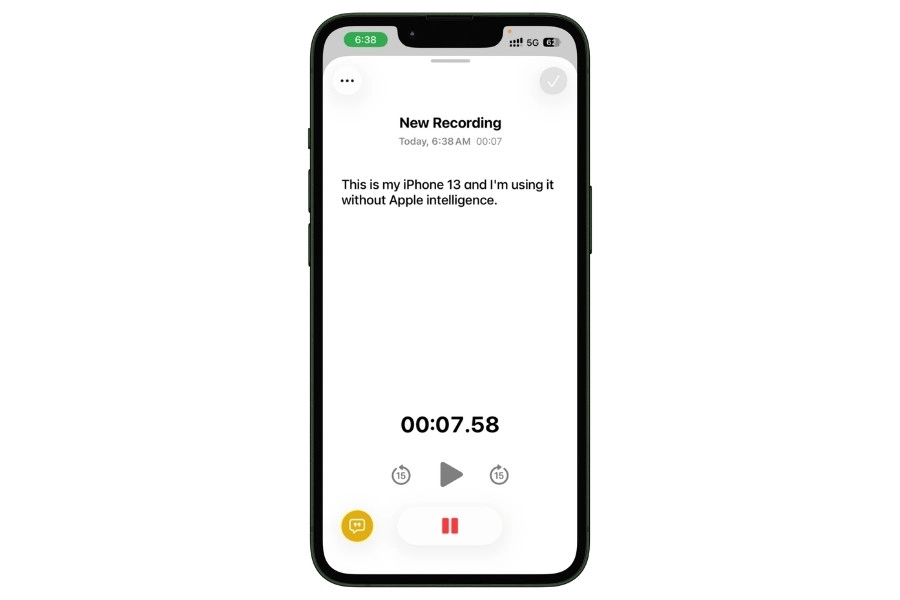
And yes, this works on iPhone 13. I tested it before writing this section. No upgrade required, no Apple Intelligence required.
Here’s how I actually use it. When I’m working on a new guide for my business, I often think out loud before I write anything down. I’ll open a note, hit record, and just talk through the angle, the structure, the points I want to make.
By the time I’m done, I have an audio file I can replay and a transcript I can pull individual sentences from. It cuts the gap between “I have a thought” and “the thought is in writing” down to nothing.
The same workflow works for capturing meeting notes, drafting social posts on the fly, or recording quick research observations when I don’t want to stop and type.
The transcripts aren’t perfect. They handle clear speech well and stumble on heavy technical jargon. But for capture-first, edit-later workflows, they’re more than good enough.
Two things worth knowing.
First, the transcription runs on-device. Nothing gets uploaded to a server. That’s a real privacy advantage over Otter.ai, Whisper, or most dedicated transcription tools.
Second, the audio quality of the recording itself is just iPhone-microphone quality. If you need broadcast-grade audio, you still need a real recording setup. But for daily capture work, this is enough.
The honest verdict: not as accurate as Whisper, not as feature-rich as Otter, but it’s free, on-device, and sitting inside the app where my notes already live. For 80% of what I need, that’s the right trade.
2.2 Math Notes Works on iPhone 13
Math Notes launched with a lot of WWDC fanfare and got immediately bucketed in people’s minds as an Apple Intelligence feature.
It isn’t. The Math Notes work on iPhone 13.
The way it works inside Notes is simple. Type an equation, drop an equals sign, and the answer fills in automatically. Type “Revenue = 12500”, then on the next line “Expenses = 4200”, then “Revenue – Expenses =” and Math Notes returns 8300.
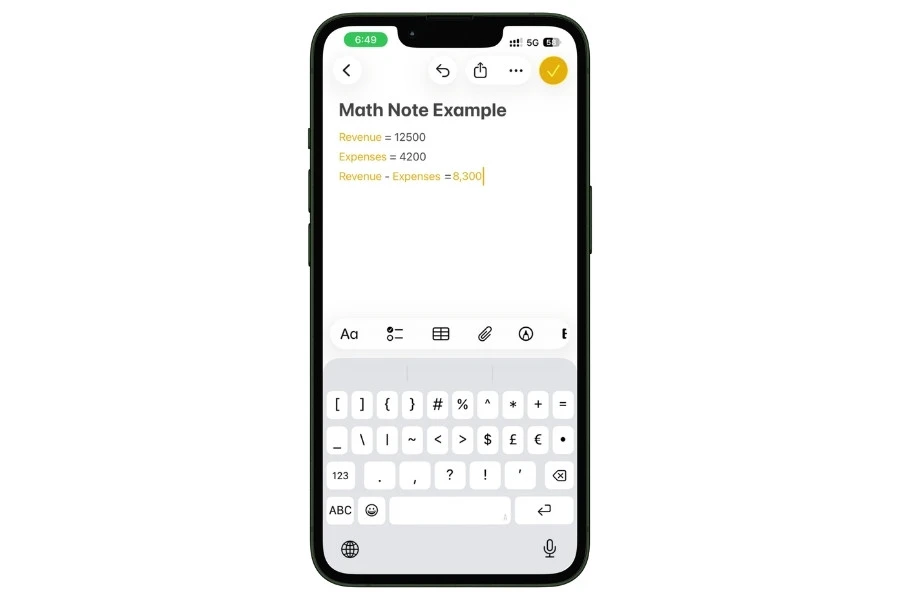
Variables persist within the note. You can build up small running calculations, edit any input, and watch everything update.
It’s not a replacement for a spreadsheet. It’s not trying to be. What it is is a calculator that lives inside my planning notes, so I don’t have to break flow and switch to a different app for basic math.
I went deep on everything Math Notes can do in my Apple Math Notes guide, including both ways to access it and the full set of features.
That guide is the place to go if you want the complete picture.
For the purposes of this article, the relevant point is just this: it works on iPhone 13, and the people telling you it doesn’t are wrong.
Also Read: How I Use Apple Notes for Expense Tracking (Free Shortcut)
2.3 Document Scanning with OCR
This is the most underrated feature in the entire Apple Notes app, and I’d argue it’s more useful than half of what Apple Intelligence does.
Open a note. Tap the attachment button. Choose Scan Documents. Point the camera at a receipt, business card, page from a notebook, recipe card, anything with text.
The app auto-detects edges, corrects perspective, and saves the scan into the note. The OCR engine then makes every word in that scan fully searchable. Forever. Across your entire Notes library.
The use case that sold me on this: I scan every business expense receipt the moment I get it. I’ve been doing this for years. Rough estimate, I’ve probably scanned somewhere north of 300 receipts at this point.
The first few times you search “Marriott hotel” six months after a trip and pull up the exact bill in two seconds, you understand why this beats every dedicated expense app for personal use.
It also works on handwritten notes, business cards (great for following up on conferences later), recipe cards I want to keep digitally without typing them out, and tax documents.
The honest limits: it struggles with low-contrast text, very stylized fonts, and handwritten content where the writer was in a hurry. Roughly 9 out of 10 of my scans capture the relevant text correctly the first time. The 10th usually needs a re-scan with better lighting.
This has been on iPhone for years. It is not Apple Intelligence. Most people I know have never opened the Scan Documents option even once. That’s the gap.
2.4 Tags and Smart Folders
This is where the real organization layer of Apple Notes lives, and where most people stop short.
Folders alone aren’t enough. A note about a sponsorship contact might belong in a “Business” folder, but it also relates to a specific guide I wrote, a particular product category, and a time period when I was working on outreach.
Folders can only hold it in one place. Tags can pin it across all those views simultaneously.
I use a small, deliberate tag taxonomy. Each tag earns its place. Some examples: project-specific tags for active work, status tags like #review or #followup, topic tags for recurring themes, and time-bound tags for monthly or quarterly cycles.
Then Smart Folders pull these tags into dynamic views that update automatically as I tag new notes.
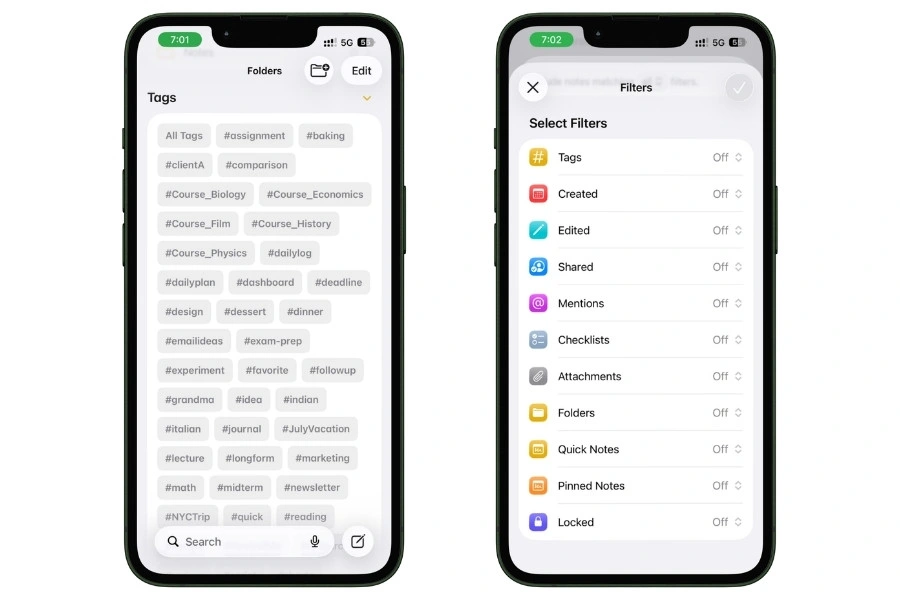
I’ve written a full guide on this elsewhere. If you want the deep dive into tag systems and Smart Folder setup, start there.
For the purposes of this piece, the takeaway is that tags and Smart Folders together do more for daily Notes usefulness than any AI feature I’d unlock by upgrading.
2.5 Quick Note
Quick Note is Apple’s answer to “I need to capture something right now without opening anything.”
On iPhone, you add Quick Note to Control Center, swipe down from the top-right corner, and tap it. A blank note opens immediately, floating over whatever you were doing. Write the thing. Swipe it away. Done. The note saves to a dedicated Quick Notes folder you can revisit later.
I use this maybe 8 to 12 times a week.
- Article ideas mid-scroll
- A book recommendation someone drops in conversation
- A reminder, I’ll re-file properly later
The whole point is friction-free capture, not organization. Organization happens later, in batches.
People who use Drafts or iA Writer for capture sometimes find Quick Note redundant. Fair enough. But if you’re already in the Apple Notes ecosystem, this is one fewer app to maintain.
2.6 Lock Notes
The privacy layer. Any note can be individually locked with Face ID or a password, and the contents stay encrypted until you authenticate.
What I actually lock: anything with financial details, contract terms with sponsors, sensitive personal info, and the occasional note I want to keep for myself but don’t want to risk showing up in a screen-share.
The Face ID flow is fast enough that locked notes don’t feel like a friction tax on daily use.
The one thing to know: if you forget your Notes password and your Face ID fails, recovery is genuinely hard. Apple cannot reset this for you. Don’t lock anything you can’t afford to lose access to.
I’ve covered the full Lock Notes workflow, including password recovery and best practices, in a separate guide on protecting sensitive information in Apple Notes.
2.7 Pinned Notes and Folders
Pinning is the most underused organization feature in Apple Notes.
Any note or folder can be pinned to the top of its containing view. Pinned items show up in a dedicated section above everything else, regardless of date or alphabetical order. They become permanent anchors.
My pinned setup has barely changed in over a year. The same six notes sit at the top of my main Notes view.
- A daily planner template
- An active project’s dashboard
- A reading queue
- A pending sponsor contacts list
- A monthly review checklist
- A scratchpad I clear out every Sunday
The reason pinning works is that it forces you to be honest about what you actually use every day.
If a note isn’t worth pinning, it probably isn’t worth checking daily. If it is worth pinning, you save the three seconds of searching for it every time you need it.
Most people I’ve watched use Apple Notes don’t pin anything. They scroll. Pin five things you actually use daily and watch how much faster your Notes app gets.
2.8 Checklists for Repeatable Workflows
Apple Notes checklists are simple. Tap the checklist button, type items, tap circles to check them off. That’s the whole feature. But the way you use them is where the value lives.
The trick: build a template checklist for any workflow you repeat, then duplicate the note each time you run that workflow.
My recurring checklists include a pre-trip packing list (built once, duplicated for every trip), a content publishing checklist (every guide goes through the same 11 steps from draft to live), a monthly business review checklist, and a quarterly cleanup checklist for my Notes app itself.
This sounds basic. It is. But it replaces an entire category of dedicated checklist apps, recurring-task apps, and template tools that people pay monthly for.
For personal repeating workflows, this is enough.
I cover the daily-use side of this approach in my Apple Notes daily planner guide, which goes deeper into how to structure the templates themselves.
2.9 Links Between Notes
You can link any note to any other note. Type >> and a search field appears, letting you find and insert a link to another note inline. The linked note title becomes a tappable element that jumps you straight there.
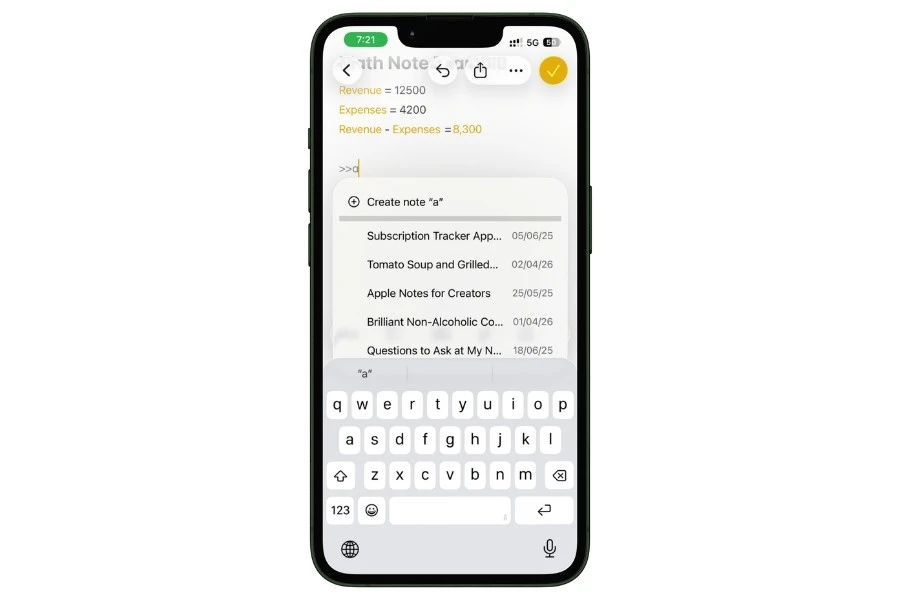
I use this to build a light personal knowledge web inside Apple Notes.
- Sponsor contact notes link to the relevant guides where they appeared
- Project planning notes link to research notes that fed into them
- Monthly review notes link back to the daily logs they summarize
Is this Obsidian? No. There’s no graph view, no backlinks panel, no automatic linking.
If you want a true personal knowledge management system, Apple Notes is the wrong tool, and you should be looking at Obsidian or Logseq.
But if you want 80% of the connection-between-notes benefit without leaving the app you’re already in, internal linking gets you there.
The learning curve is zero. The value compounds quietly over months.
3. What You’re Genuinely Missing Without Apple Intelligence
Here’s the part where I have to be honest, because if I tell you everything is fine and nothing is missing, you’ll stop trusting me by the next paragraph.
There are real Apple Intelligence features in Notes that I would use if I had access.
Not all of them. Most of the AI features in Notes are marketing dressing on top of capability I already have. But a few would genuinely change parts of my workflow.
3.1 The features I’d actually use
Writing Tools, specifically rewrite and proofread
When I draft a guide outline inside Notes, I often end up with messy half-sentences and reorderings that I clean up later.
Being able to highlight a paragraph and have it tightened in place would save me real time. Not transformative, but real.
Auto-summarize for long imported notes
I sometimes paste long articles or research into Notes for later reference. A one-tap summary at the top would be useful for triage when I’m scanning what I saved a month ago.
AI-generated summaries for audio recordings
The audio transcription itself works on iPhone 13, which I covered earlier.
But on Apple Intelligence devices, you get an extra step: after recording, Apple Intelligence generates a key-points summary of the transcript.
For long voice memos where I just want the headline takeaways, that would save me re-listening or re-reading the full text.
That’s the honest list. Three features. Not ten.
3.2 The workaround for each one
Every one of these has a 30-second workaround.
- For Writing Tools, I paste the messy paragraph into ChatGPT, Claude, or Gemini, ask for a cleaner version, paste it back. The friction is real, but it’s seconds, not minutes.
- For summarization, same flow. Paste the long text into any chat AI, ask for a summary, paste it back into the note. Or just write the summary myself, which is often faster for important notes anyway.
- For audio summaries, the transcription is already there on the iPhone 13. I can paste the full transcript into ChatGPT or Claude and ask for a key-points summary. Same end result. Ten extra seconds.
3.3 Where Apple Intelligence might actually matter
I want to be fair here. There is one place where Apple Intelligence in Notes is meaningfully better than the workarounds, and it’s not about the features themselves. It’s about friction.
When the AI lives inside the app, you don’t switch contexts. You don’t open ChatGPT, paste, copy, paste back.
You highlight text, and the option is right there.
For someone who writes a lot of long-form text directly inside Notes, that friction reduction adds up over hundreds of small interactions.
But for someone using Notes the way I do — for capture, organization, planning, reference, light writing — that friction reduction barely registers.
I’m rarely doing the kind of intensive in-Notes writing where it would matter. My drafts happen in WordPress, in Google Docs, in writing apps.
Notes is the staging area, not the polish layer.
If you’re an in-Notes writer, Apple Intelligence is a real upgrade. If you’re an in-Notes everything-else-er, it’s a convenience layer that doesn’t change much.
Should you upgrade your iPhone for Apple Intelligence in Notes?
Answer 3 quick questions. Get an honest, personalized verdict in under 30 seconds.
Which iPhone do you currently have?
How do you primarily use Apple Notes?
Which Apple Intelligence feature would you actually use most?
Calculating…
4. The Tool Gap Is Small. The System Gap Is Enormous.
Here’s what three years of running my work inside Apple Notes on an iPhone 13 has actually taught me.
The gap between an iPhone 13 and an iPhone 17 Pro, for the purposes of Apple Notes, is small. A few writing tools. A summary button. Better search. Useful, but small.
The gap between a thoughtful Apple Notes user and a casual one is enormous.
I’ve watched people with brand-new iPhones use Apple Notes worse than someone on a four-year-old phone running a real system.
- They dump everything in the default folder
- They never use tags
- They’ve never scanned a document
- They don’t know Quick Note exists
- They’ve never built a single template
- Their Notes app is a graveyard of half-finished thoughts they can’t find when they need them
Then I’ve watched people on iPhone 12s and 13s who’ve spent a weekend building a tag taxonomy, pinning the five notes they actually use daily, setting up scan workflows for receipts, and building checklists they duplicate every week.
Their Notes app is doing real work. It’s replaced three other apps. It’s where their life actually runs.
The iPhone 17 Pro user in the first group has worse Apple Notes capability than the iPhone 12 user in the second. By a mile.
This is the part Apple’s marketing will never tell you, because it doesn’t sell phones.
Apple Intelligence is a thin convenience layer on top of an already-deep tool. The layer is fine. The marketing wants you to believe the layer is the product. It isn’t.
Your system is the product. The folders you’ve built. The tags you actually use. The templates you’ve refined. The capture habits you’ve turned into reflexes.
That’s what makes Apple Notes work, on any iPhone, with or without AI.
If this piece resonated and you want to keep going, here’s where I’d point you next:
- How I plan my entire day inside Apple Notes — the template system that anchors everything else
- The tags and Smart Folders setup I actually use — where the organization layer lives
- Tracking expenses inside Apple Notes — the Math Notes use case in full
- Apple Notes for travel planning — one complete workflow, start to finish
Build the system. The tool will catch up to you eventually, or it won’t. Either way, you’ll be fine.
FAQs
Does audio transcription in Apple Notes require Apple Intelligence?
No. Live audio transcription inside Apple Notes works on iPhone 13 and many older devices. It runs on on-device machine learning that’s been part of iOS for years, not on Apple Intelligence. Open a note, tap the attachment button, choose Record Audio, tap the transcript icon. The text appears in real time as you speak.
Does Math Notes require Apple Intelligence?
No. The keyboard-based version of Math Notes works on iPhone 13. You can type equations, set variables, run inline calculations, and watch results auto-fill as you go.
Is it worth upgrading my iPhone just for Apple Intelligence in Notes?
Honestly, no. If Apple Intelligence is your only reason to upgrade, the math doesn’t work. The features you’d gain in Notes are Writing Tools, auto-summarize, and AI-generated summaries for audio recordings. All three have 30-second workarounds using ChatGPT, Claude, or Gemini.
Which iPhones support Apple Intelligence?
Apple Intelligence runs on iPhone 15 Pro, iPhone 15 Pro Max, the entire iPhone 16 lineup (16, 16 Plus, 16 Pro, 16 Pro Max, 16e), and the entire iPhone 17 lineup. Standard iPhone 15 and 15 Plus, every iPhone 14, every iPhone 13, every iPhone 12, iPhone 11, and every iPhone SE are not supported.
What’s the best alternative if I want full AI features on my older iPhone?
The free apps for ChatGPT, Claude, and Gemini all run on older iPhones without restriction. For writing tools and summarization, they’re more capable than Apple Intelligence anyway. The trade-off is friction: you have to copy text out of Notes, paste it into the AI app, copy the result, and paste it back. Apple Intelligence wins on integration. The third-party apps win on raw capability. For most workflows, the third-party apps are the better answer.
Will Apple add Apple Intelligence to older iPhones eventually?
No. Apple Intelligence requires specific Neural Engine generations and 8GB of RAM minimum. This isn’t a software gate Apple can lift with an update. It’s a hardware floor. If you want Apple Intelligence, the only path is upgrading to a supported device. Apple has been explicit about this.