
Brain Dump
Brain dump kit
Build both pieces in about five minutes
One shortcut that opens your current dump note, and one automation that creates next week’s note before you wake up. Everything below is screenshotted from my own iPhone.
- 2 to 5 minutes
- No third-party apps
- Free, nothing to install
- iPhone only
Before you start: you need a folder in Apple Notes called Brain Dump with at least one note inside it. The shortcut looks inside that folder, so it needs somewhere to look. If you have not made it yet, do that first, then come back.
Part one
The shortcut that opens your dump note
Six taps. The important thing is that it never points at one specific note, so it keeps working every week without you touching it.
Make a new shortcut
Open the Shortcuts app, tap the + in the top right, then tap the name at the top and call it Brain Dump. The name matters: Siri runs a shortcut by its name, so this is what you will say out loud.
Add the Find Notes action
Tap Search Actions at the bottom, type Find Notes, and tap it. It will appear as Find Note where.
Filter to your folder
Tap Add Filter, choose Folder, then set it to Brain Dump. This is what keeps the shortcut pointed at your dump notes and nothing else.
Set the sort and the limit
These four settings are the whole trick. Set them exactly like this:
Sort by Creation Date Order Descending Limit On Get 1 Item Together they mean “the newest note in this folder.” Not a note you picked once. Whichever one is newest right now.
Add the Open Note action
Search for Open Note and add it. It should fill itself in with the note from the step above. If it does not, tap the empty field and pick Note from the variables.

This is the whole shortcut. Two actions. Give it a way in
Tap Done. Now attach it to whichever route suits you: Settings → Action Button, or a Lock Screen control, or Control Center, or Back Tap under Accessibility. Siri needs nothing at all. Just say “Brain Dump.”
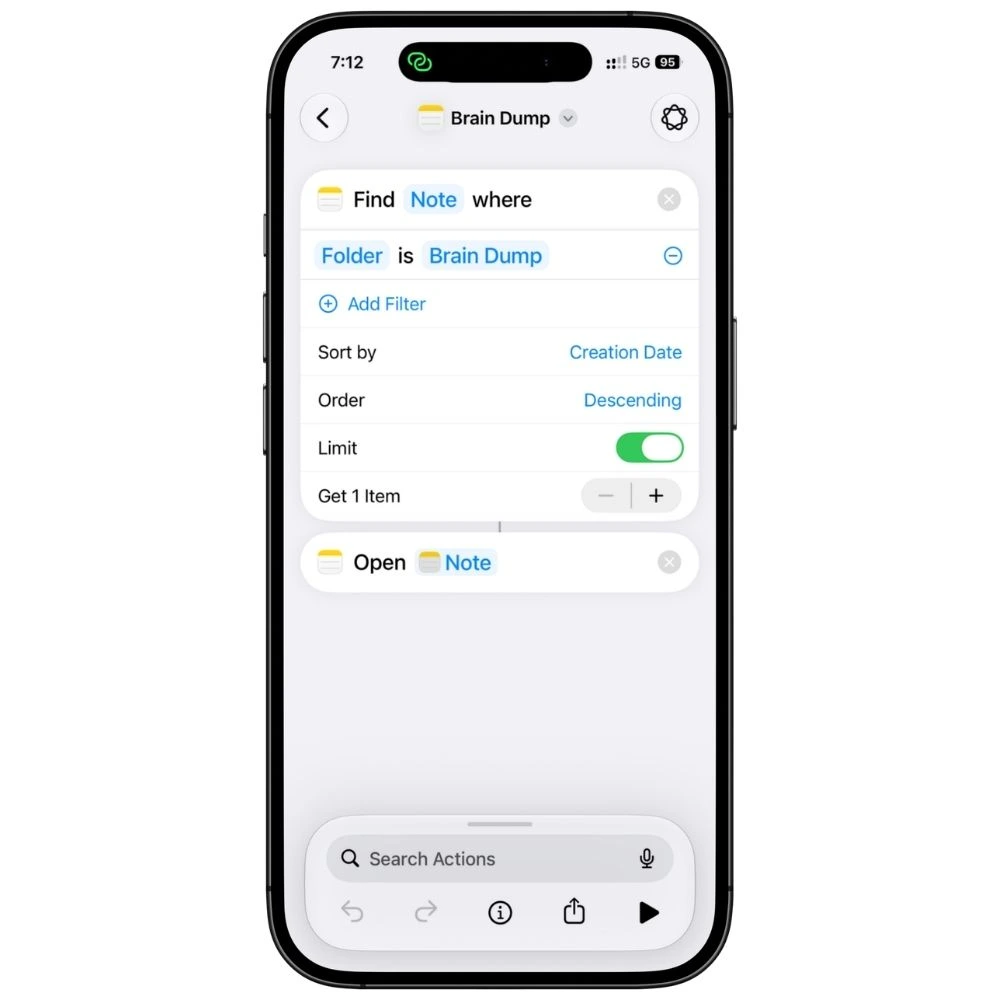
If it opens the wrong note: check Order is set to Descending and not Ascending. That one setting is the difference between opening your newest note and opening your very first one.
Part two
The automation that makes your next note
The shortcut only opens notes. Something still has to create them, and this is that something. It runs on its own while you are asleep.
Open the Automation tab
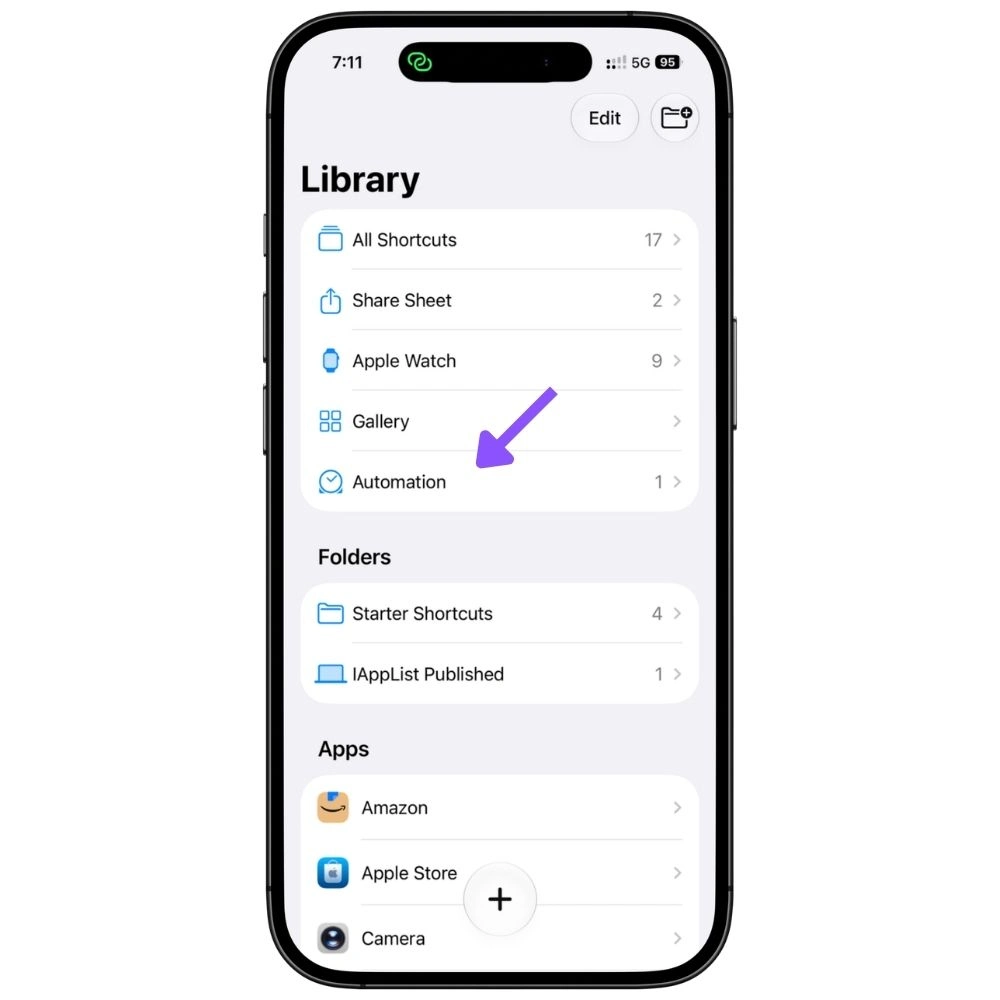
In the Shortcuts app, tap Automation, then the +. This is a different section from your shortcuts library. Anything built here runs on a trigger instead of a tap.
Automation lives in the Shortcuts app, not in Settings. Pick Time of Day
Choose Time of Day from the trigger list. Set the time to 6:00 AM, then choose how often it repeats.
Pick Weekly and your day if you keep one note a week. Pick Daily if you start a fresh note every morning. Either works, and you can change it later. Tap Next.
Tap New Blank Automation
This is where most people get stuck. iOS shows a screen of suggested automations and none of them are useful here. Scroll past all of them and tap New Blank Automation at the top. That gives you a normal editor.
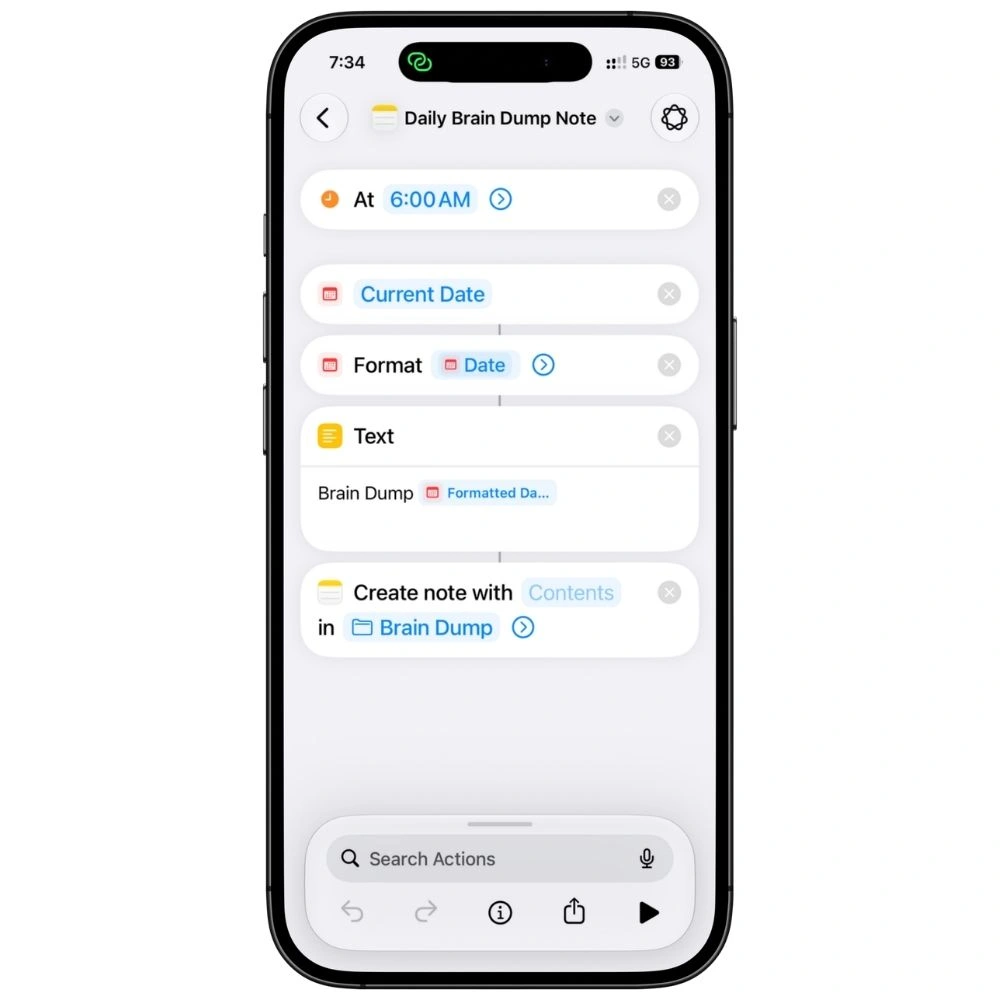
Add these four actions in order
Search for each one at the bottom and tap it. Order matters.
- Current Date — grabs today
- Format Date — tap it, set the format to Medium so it reads Aug 9, 2026
- Text — type “Brain Dump” and a space, then insert the Formatted Date variable
- Create Note — set the folder to Brain Dump
The Text action is what names the note. Keep the words Brain Dump in there, because that is what makes the note recognisable at a glance in your folder.
All four actions, and the 6:00 AM trigger at the top. Tap Done
That is it. New automations switch themselves on, so there is nothing else to enable. It will run at 6am on the next day you chose.
One optional tidy-up: open it again and switch off Notify When Run, unless you want a notification every morning telling you a note was made.
Want a different day or time? Open the Shortcuts app, go to the Automation tab, tap the automation and change it. Monday at 6am is just when my week starts. Change the day and the time as much as you like, but leave the words Brain Dump in the Text action.
If something is not working
Four things that go wrong
- The shortcut opens an old note
- Order is set to Ascending. Change it to Descending. Ascending means oldest first, so it opens the very first note you ever made.
- The shortcut does nothing at all
- Your Brain Dump folder is empty, so there is no newest note to open. Make one note by hand and it will work from then on.
- No note appeared in the morning
- Check the toggle in the Automation list is on. If it is on and still nothing happened, open the automation and make sure it is set to run without asking first.
- Two notes for the same day
- You ran the automation manually as well as letting it fire. Delete one. The shortcut will point at whichever is newest, so no harm done.
Now the part that actually matters
Capturing was never the hard bit. The weekly pass that empties the note is where this becomes a system instead of a pile.
Read the full brain dump guideBuilt and tested on an iPhone 17 Pro running iOS 27, and on an iPhone 13 running iOS 26. If a step looks different on your iPhone, reply to the email and tell me which iOS version you are on. I will check it and update this page.